The Prequalified Buyer Campaign is an automated drip campaign that lets you choose which reports and assets to send, powered by MBS Highway’s most insightful tools to educate and engage your prequalified buyers. This article covers choosing a client and assets, entering property and loan details, setting the schedule, and managing campaigns from Client Manager.
💡 Helpful Tip: Before creating a campaign, you will need to set up your branding. Click here to learn how.
|
Navigating to the Prequalified Buyer Campaign
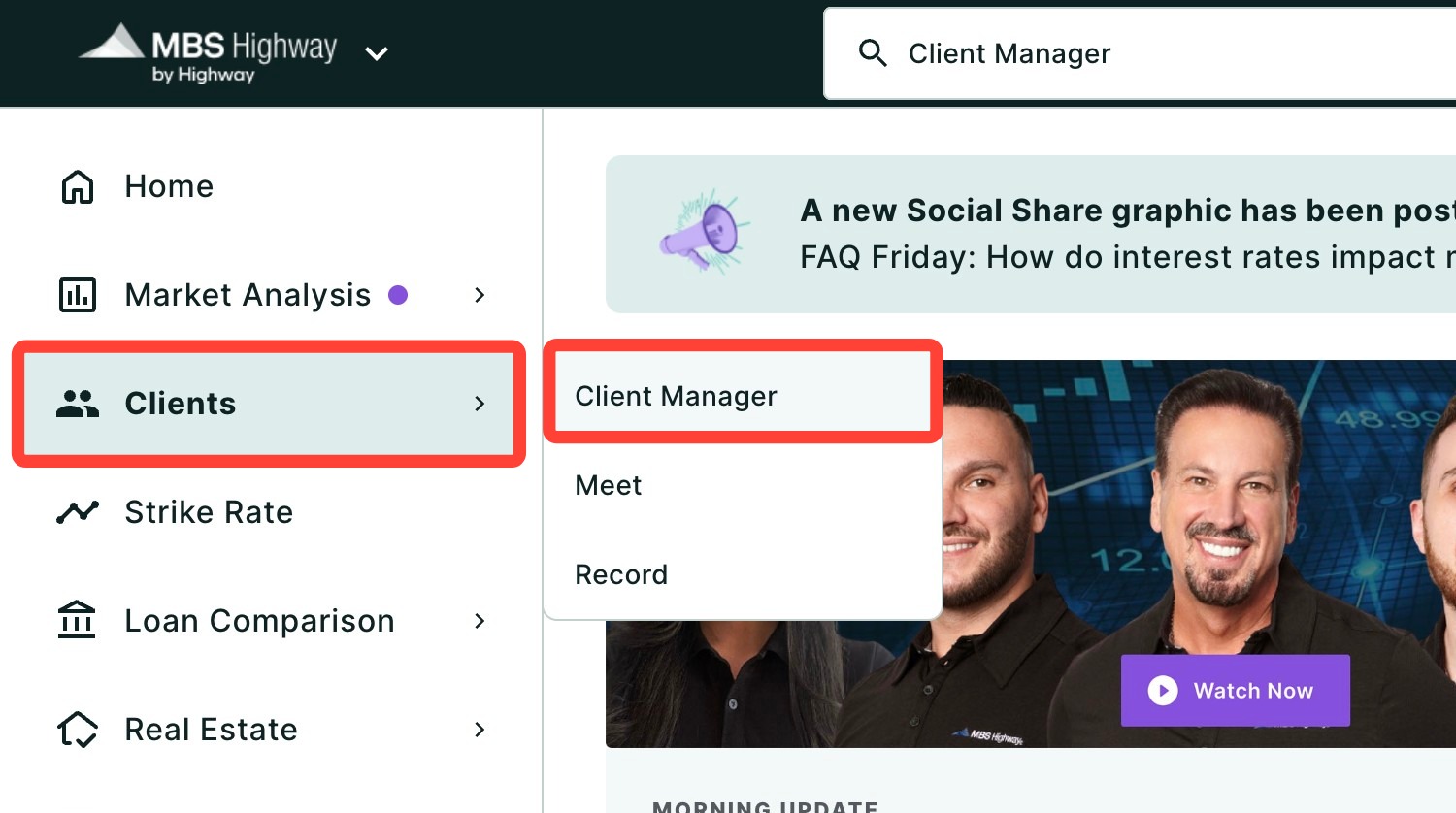
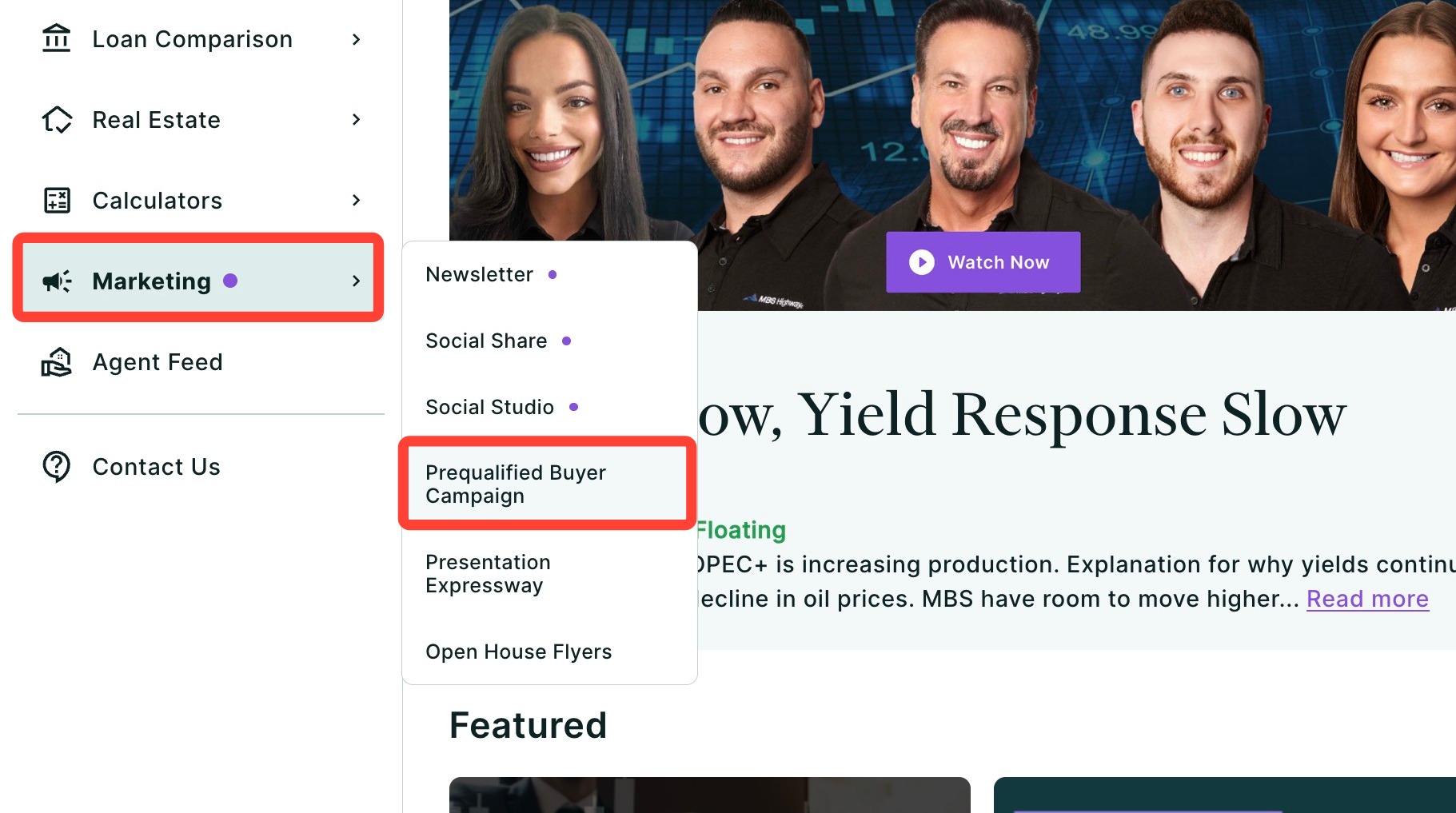
You can find your Prequalified Buyer Campaign within Client Manager as well as within the Marketing tab of the left-hand navigation menu.
Navigating through the Client Manager
Client Manager allows you to create reports for your clients using previously saved loan and property details, saving you time when building new scenarios. To learn more, click here.
Navigating through the left-hand sidebar menu
To access the Prequalified Buyer Campaign using the left-hand sidebar menu, click Marketing, then click Prequalified Buyer Campaign.
💡 Helpful Tip: You can also search and favorite reports, tools, and calculators. Click here to learn how.
|
Choosing a Client and Assets
- Add or select your client. An email address is required.

- Use the checkbox to remove any reports you would not like to include in your drip campaign (you can always change this later). The available reports include:
- Cost of Waiting
- Buy vs Rent
- Real Estate Report Card
- Appreciation
- Housing Supply and Demand
- Amortization
- Equity Gained
- National House Price Index
- Home Values Remain Resilient through Recession
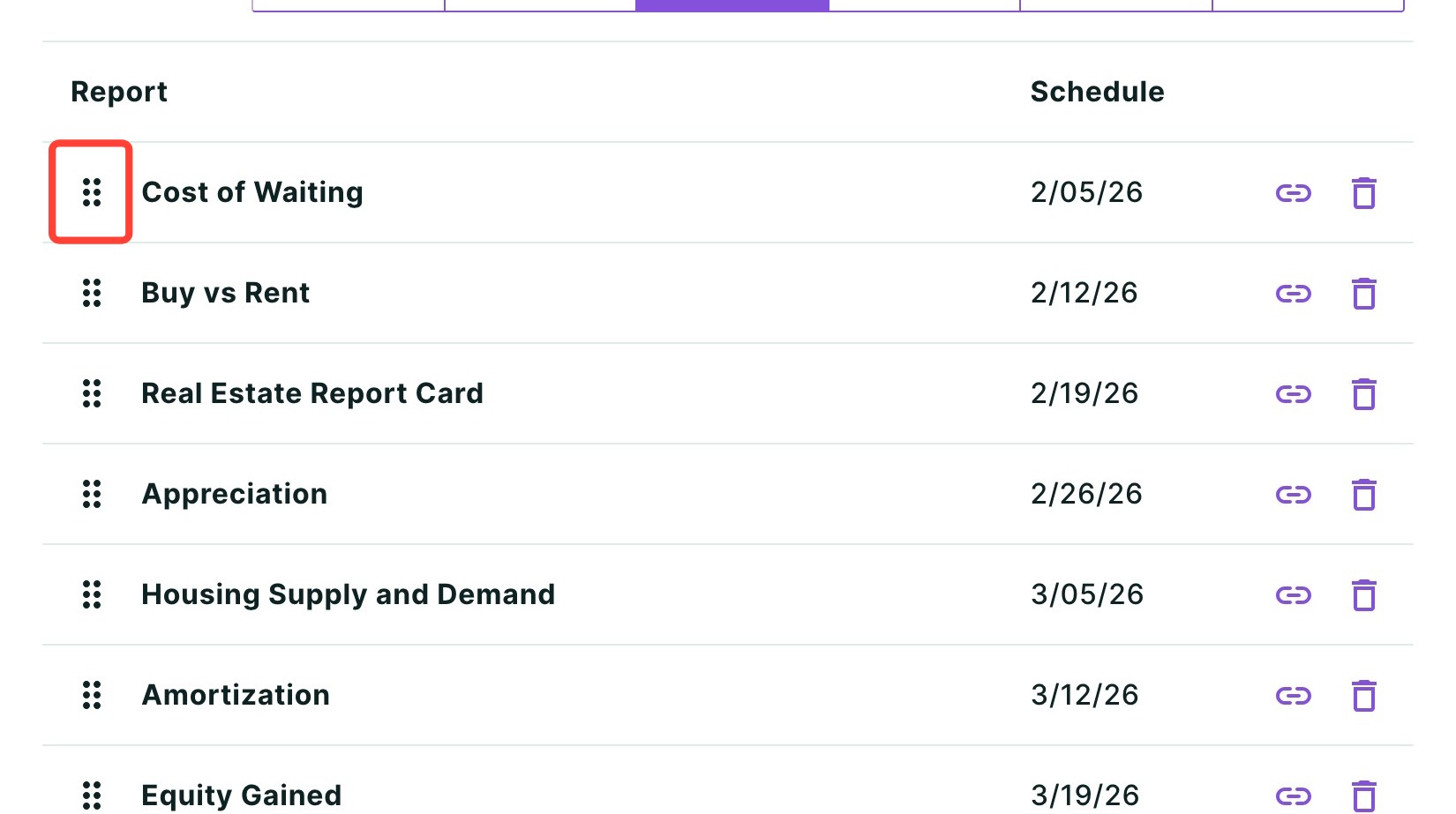
- Change the order in which the assets are sent by clicking the 6-dot drag-and-drop icon highlighted below and dragging the tile to the desired location.

- Click Next.
Adding Property and Loan Details
- Enter the property’s details including:
- Location (address, city, county, or ZIP code)
- Price
- Annual Property Tax and Monthly Home Insurance — these calculate automatically but are editable
- Monthly Association Fee
- Choose an Appreciation Calculation.

- Enter the loan information including:
- Loan Amount (you can also choose from the down payment drop-down)
- Term
- Loan Program
- Loan Type
- Rate
- APR (calculates automatically)
- Points
- Monthly Mortgage Insurance (calculates automatically, but can be edited by entering a dollar amount or using a worksheet)
- Closing Costs (enter a dollar amount or use a worksheet)
- Credits (enter a dollar amount or use a worksheet)
- Prepaid & Escrows (enter a dollar amount or use a worksheet)
- If generating a Buy vs Rent report, the section seen below will appear. Monthly Rent, Monthly Repairs, Annual Property Tax Increase and Cost to Sell generate automatically, and all four fields are editable.

- Click Next.
Setting up Your Campaign Schedule
Next, set the start date, cadence, and file format of the assets in your campaign.
- Click the calendar button to change the start date.

- Change the interval of days between each asset being sent. The default is every 7 days.

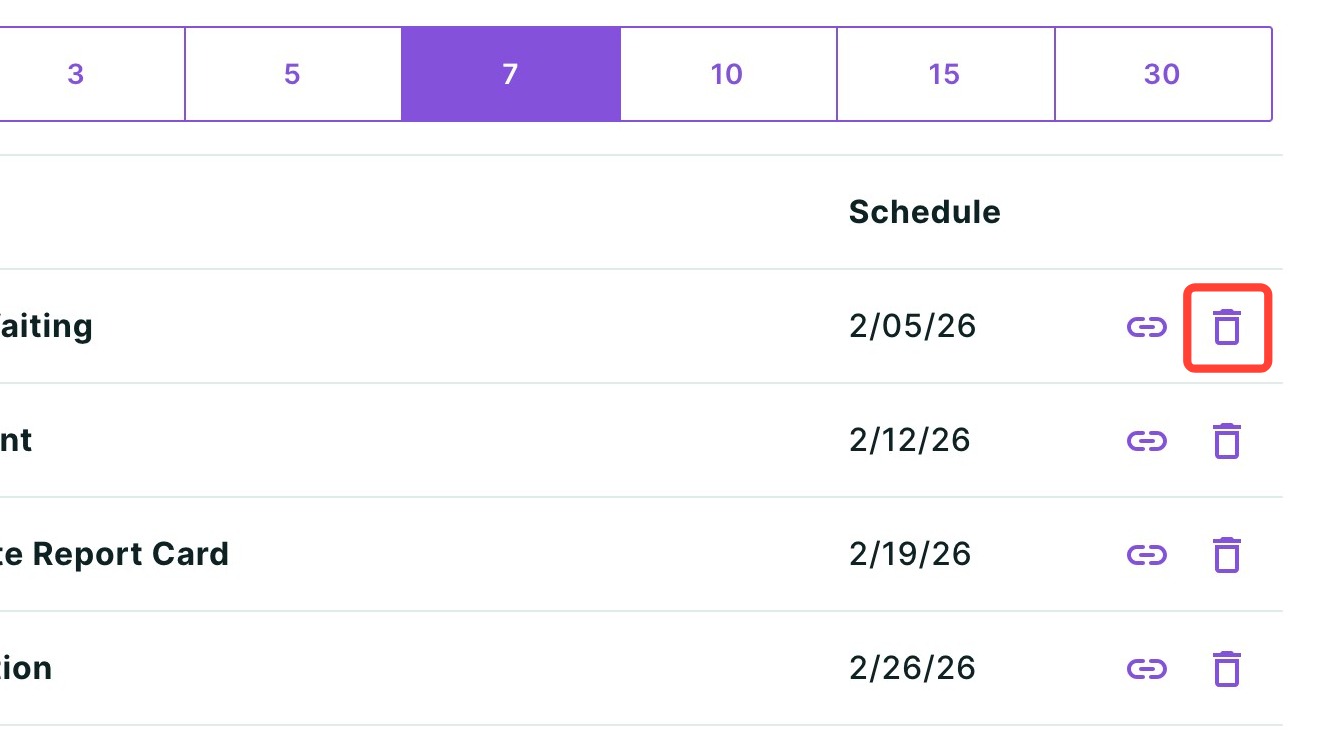
- To rearrange, preview, or remove assets from your campaign, click View campaign schedule.

- Use the grab-and-drop icon highlighted below to rearrange the order in which assets are sent.
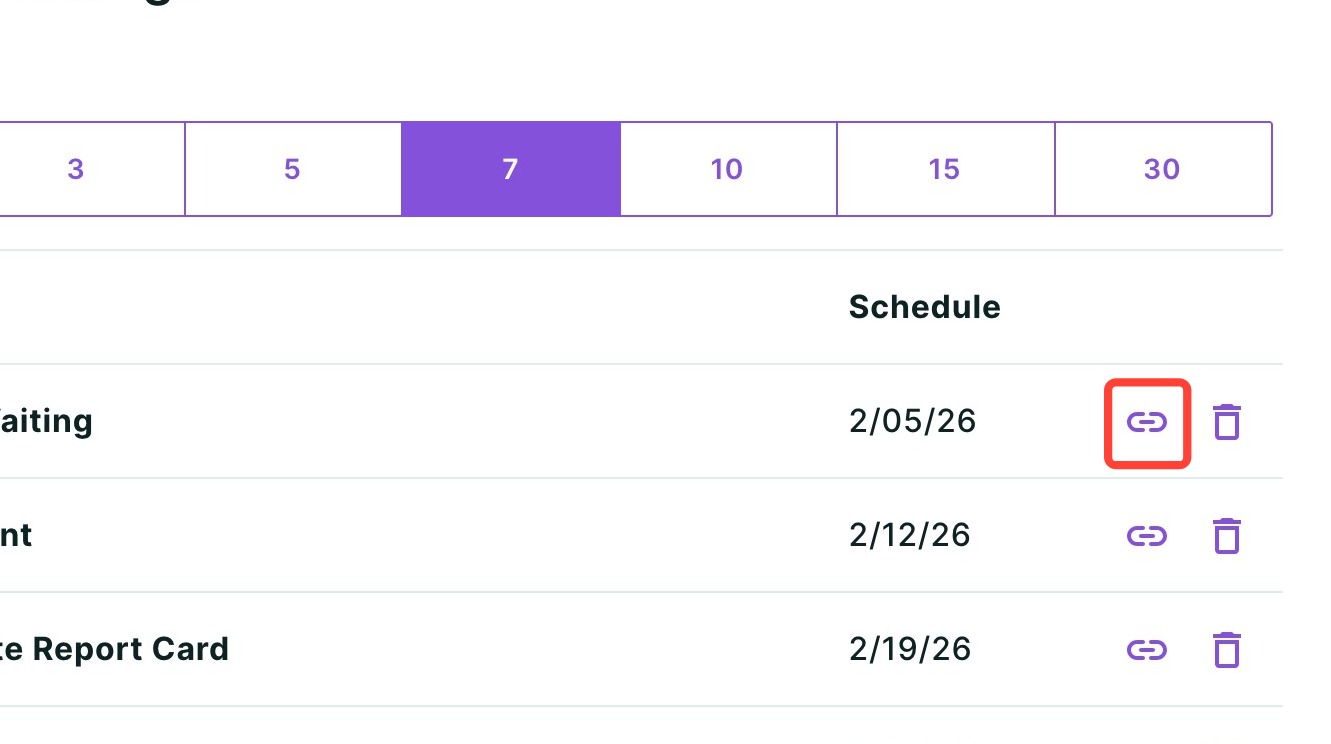
- Use the link icon to preview an asset.
- Click the trash icon to delete an asset from your campaign.
- Click Save.
- Change the format of the asset to either an interactive webpage or a static PDF.
- If you select the PDF format, the option to Co-brand with an agent partner will appear. To co-brand, leave the checkbox selected, then choose an existing agent or add a new one from the dropdown below. To learn more about co-branding, click here.
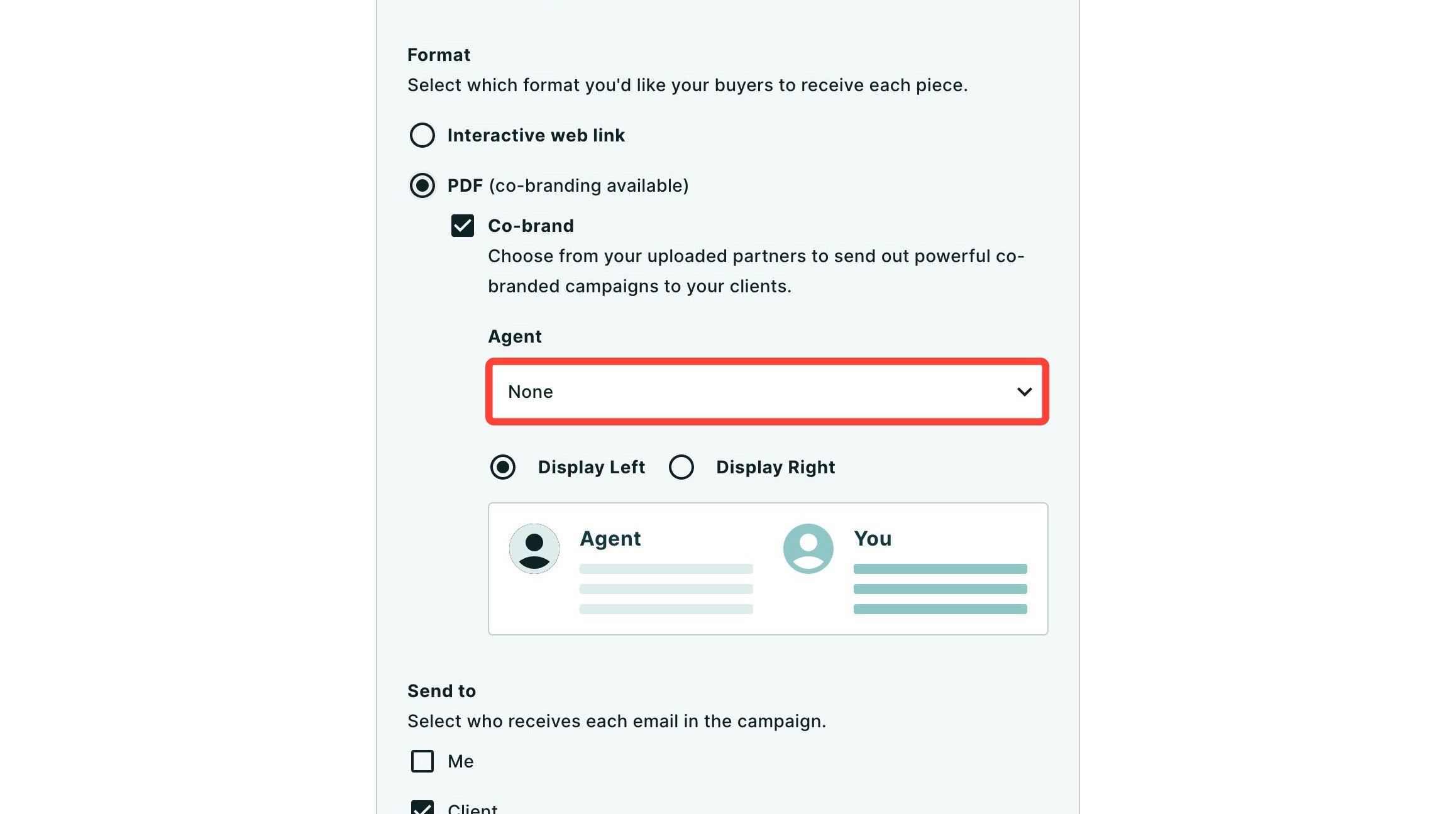
- To continue creating your campaign without co-branding with an agent, uncheck the box.
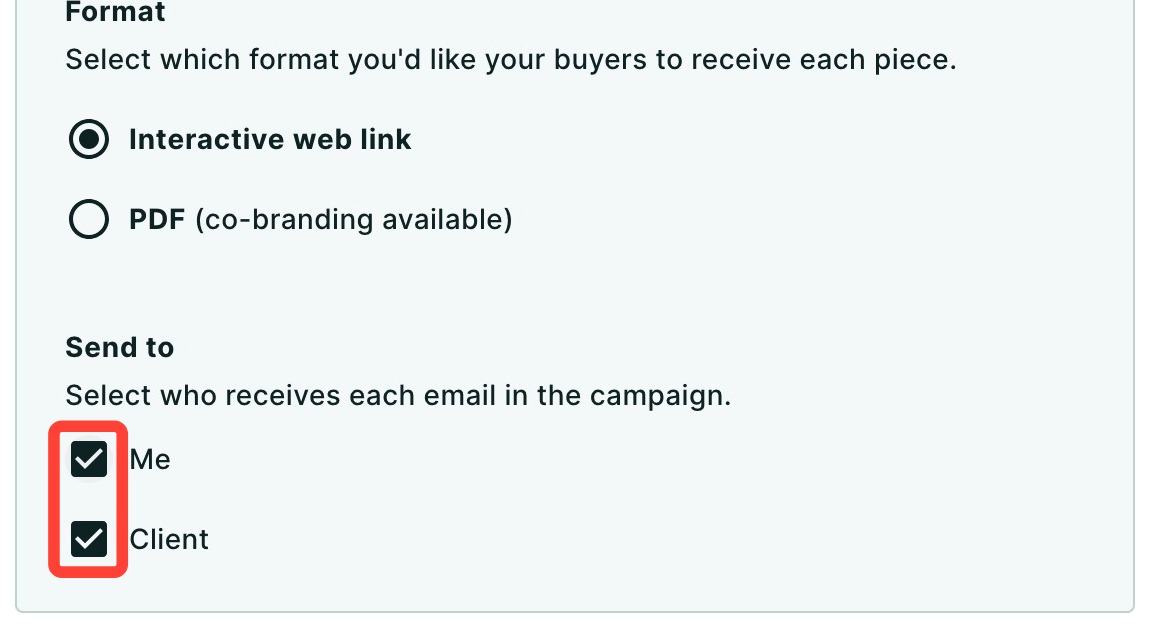
- Use the checkboxes to select whether the campaign is sent to you, your client, or both. Both boxes are checked by default.
- Once you have made all of your desired adjustments, click Schedule campaign.
Managing Your Campaigns within Client Manager
Once created, you can access your clients’ campaigns within Client Manager. From there you can review information and make edits to your campaign.
Accessing Prequalified Buyer Campaigns
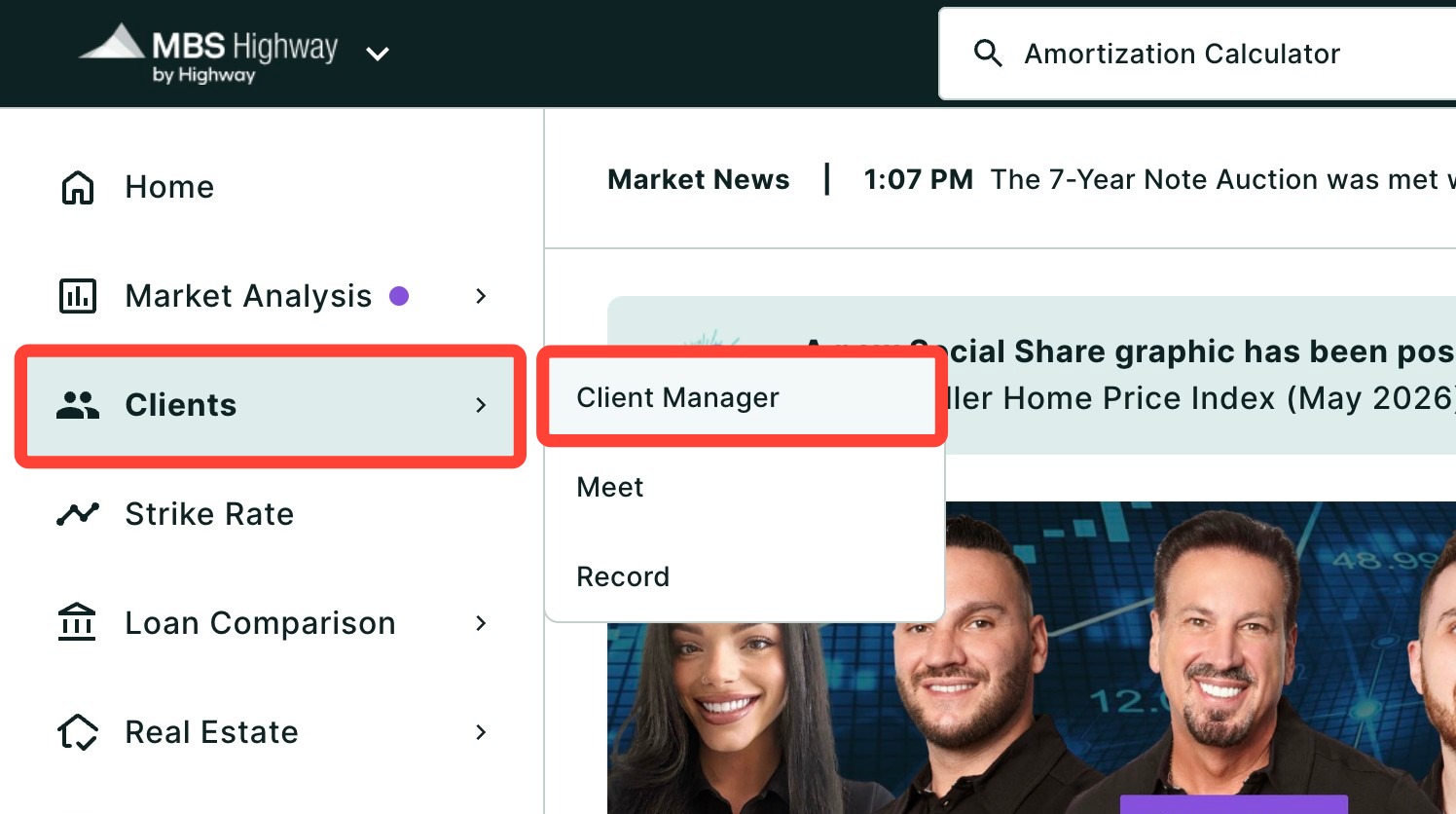
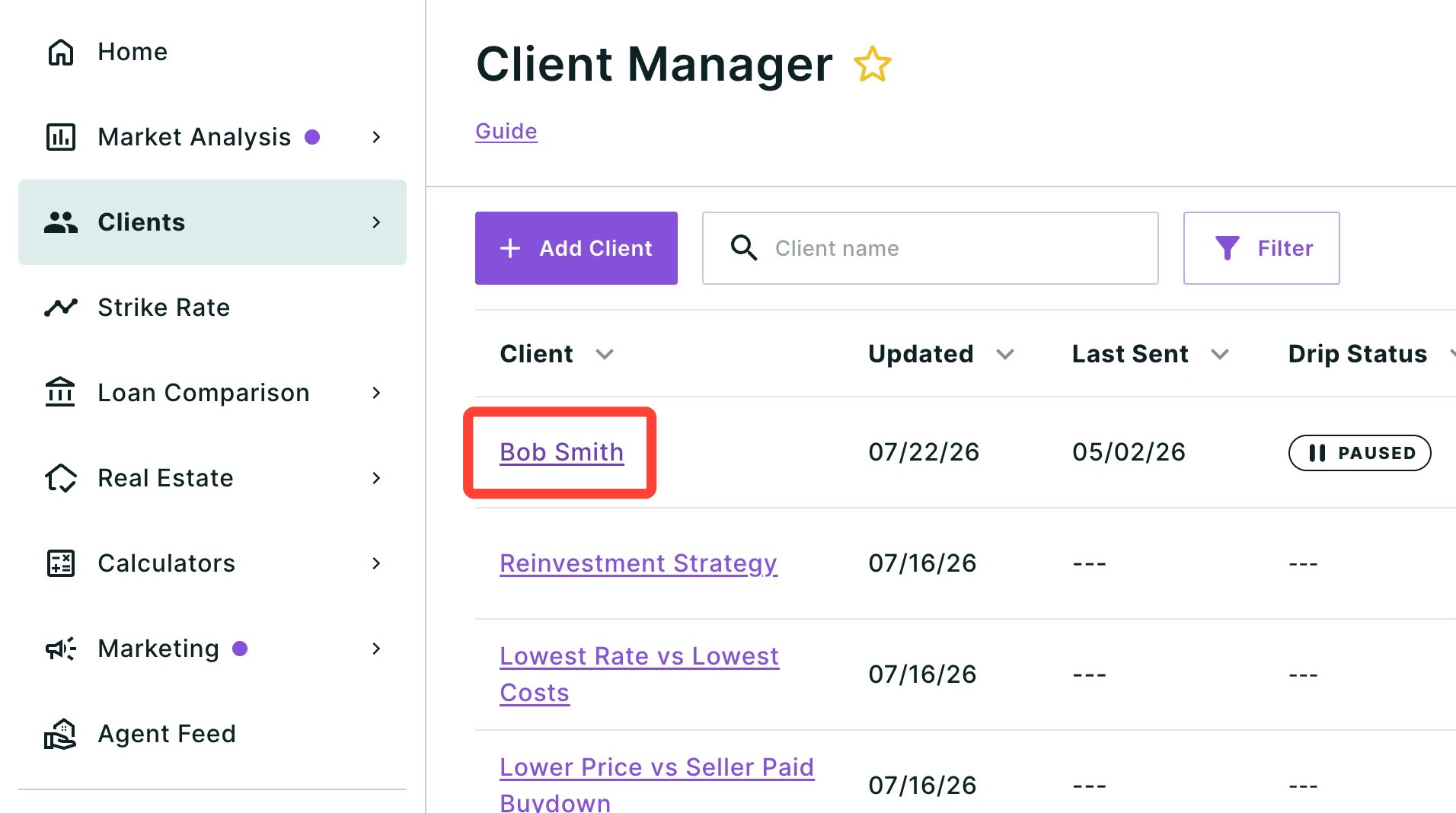
- To access your campaigns, click Clients in the left-hand navigation menu and then click Client Manager.
- Click your client’s name.
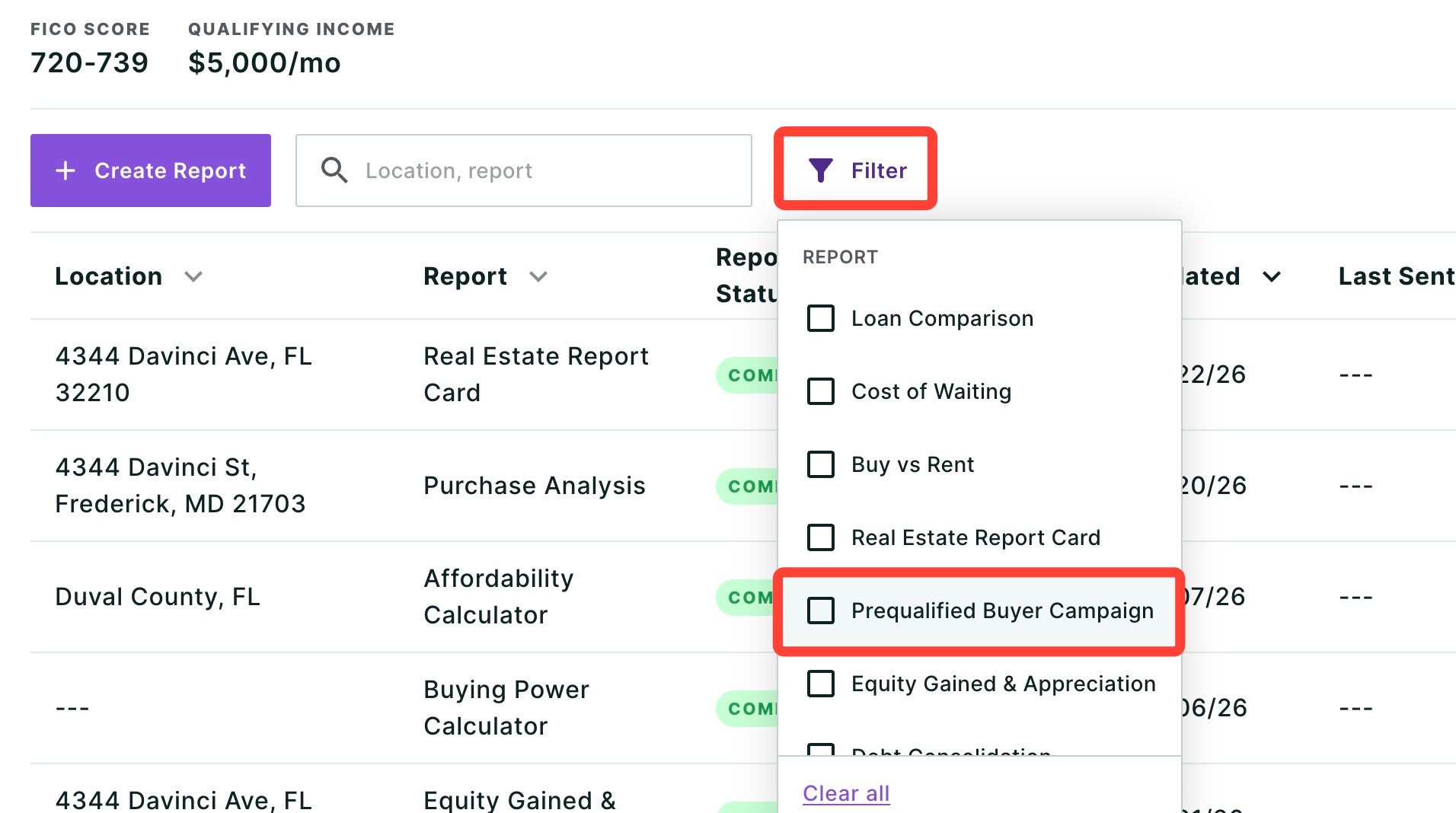
- To quickly find your marketing campaigns, use the Filter button and check the Prequalified Buyer Campaign checkbox.
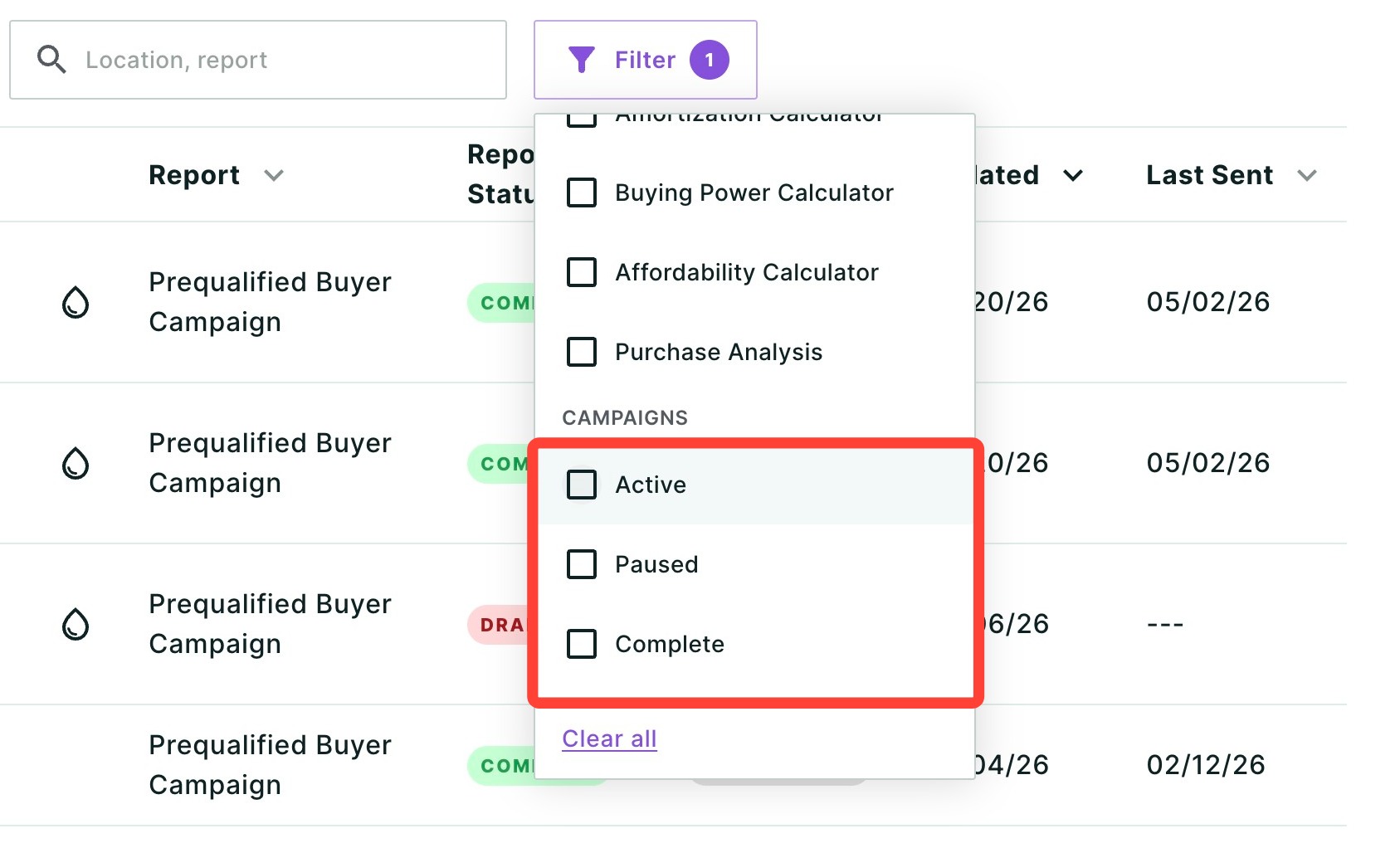
- Drill down further by filtering on status and checking Active, Paused and/or Complete.
Key information you can see for each campaign includes:
- Last Sent: the asset that was last sent and the date it was sent.
- Next Scheduled: the asset that will be sent next and the date it will be sent.
- Last Client Activity: the last date your client interacted with a weblink asset. PDF activity is not tracked.
-
Report Status: whether a campaign is in Draft or Complete status.
- Draft means the campaign has not yet been finalized and initiated.
- Complete means the campaign has been finalized and initiated. It does not mean the drip campaign has finished sending.
Making Changes to Your Campaign
Editing Your Campaign
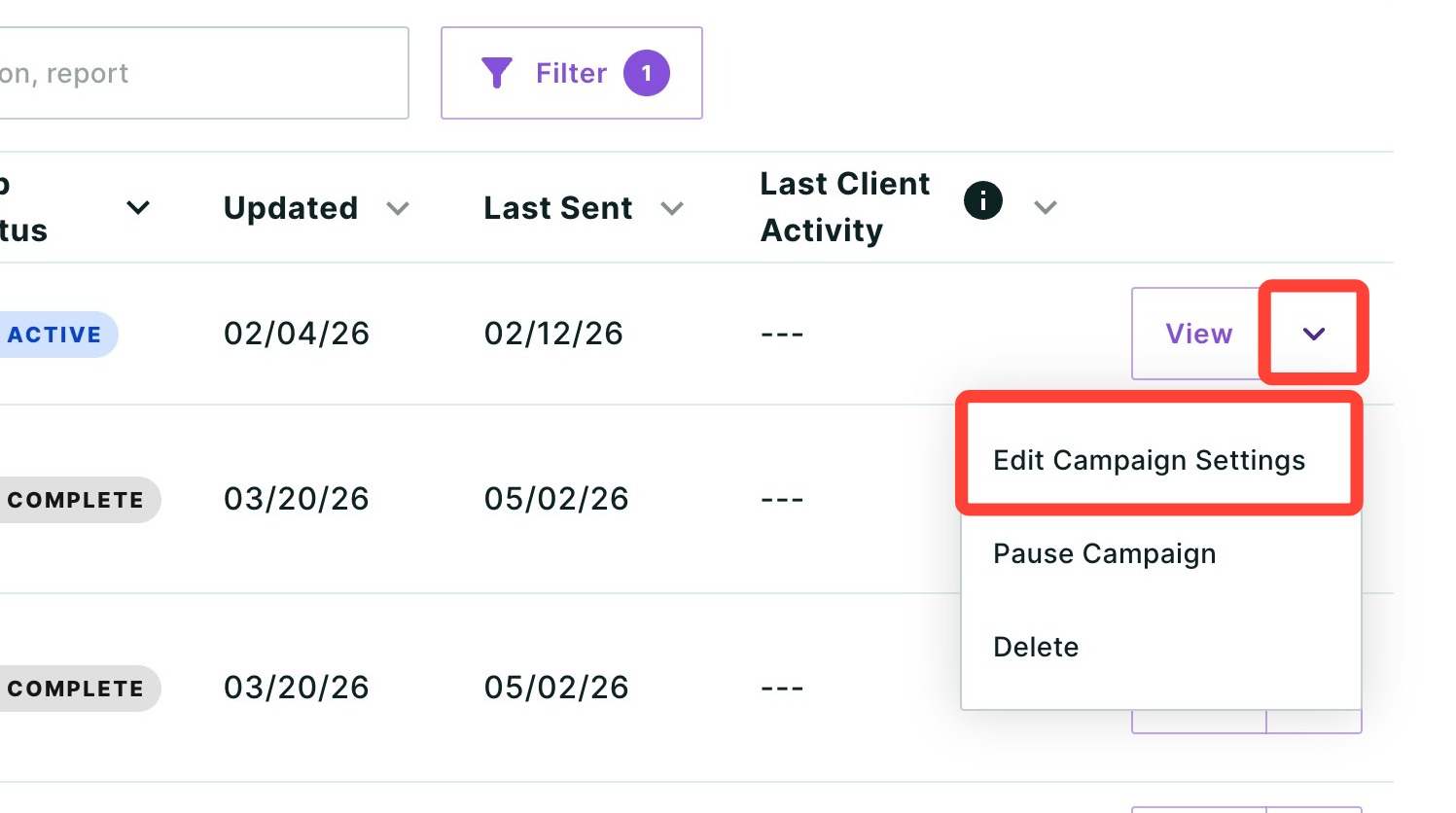
To make quick edits such as the interval, pausing the campaign, or the order and selection of marketing assets, click the down arrow and then click Edit Campaign Settings. Once you have made your updates, click Save.
Pausing Your Campaign
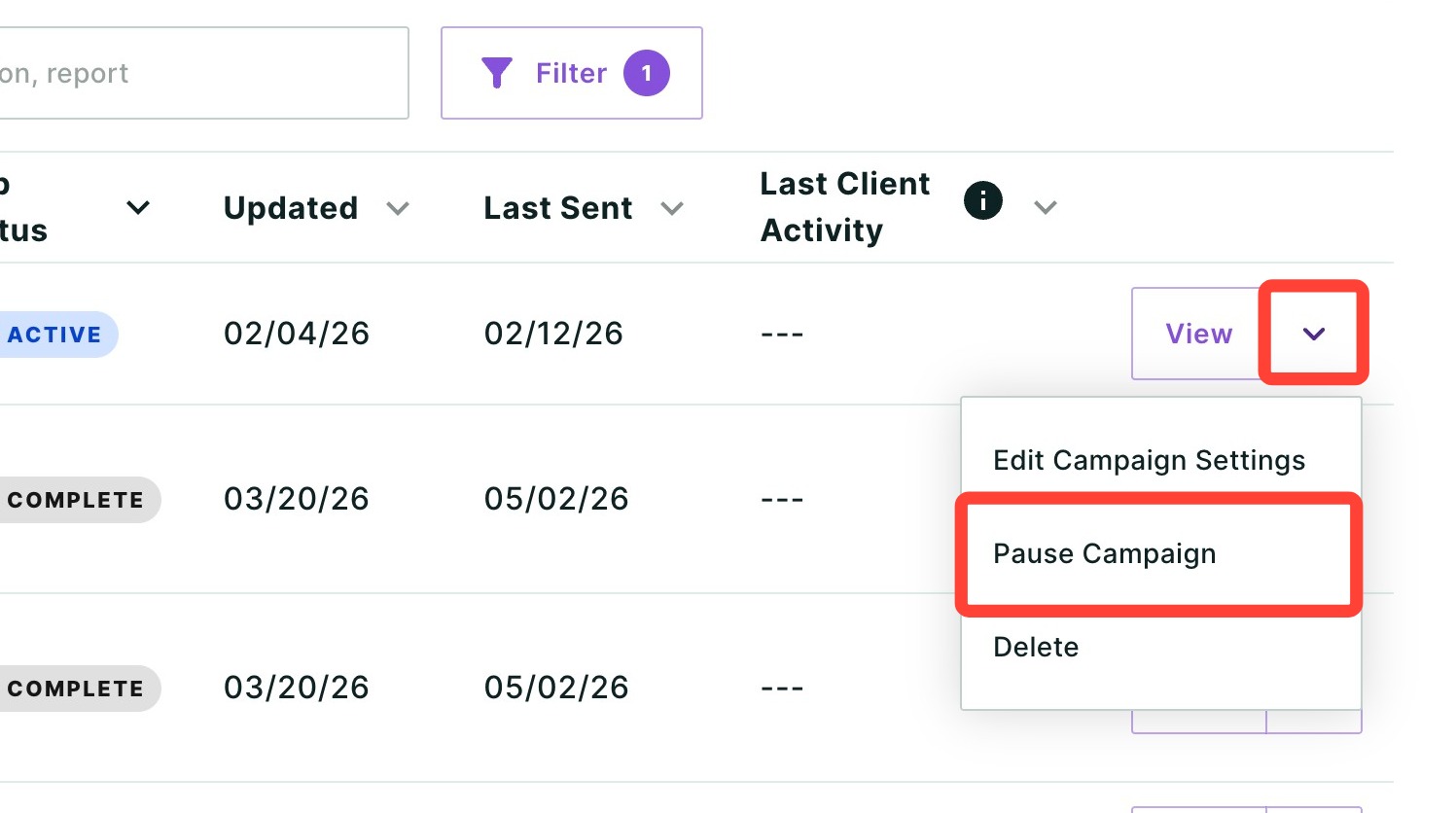
To quickly pause your campaign, click the down arrow next to View and click Pause Campaign. You will be asked to confirm your selection. Click Resume Campaign to restart it.
Deleting Your Campaign
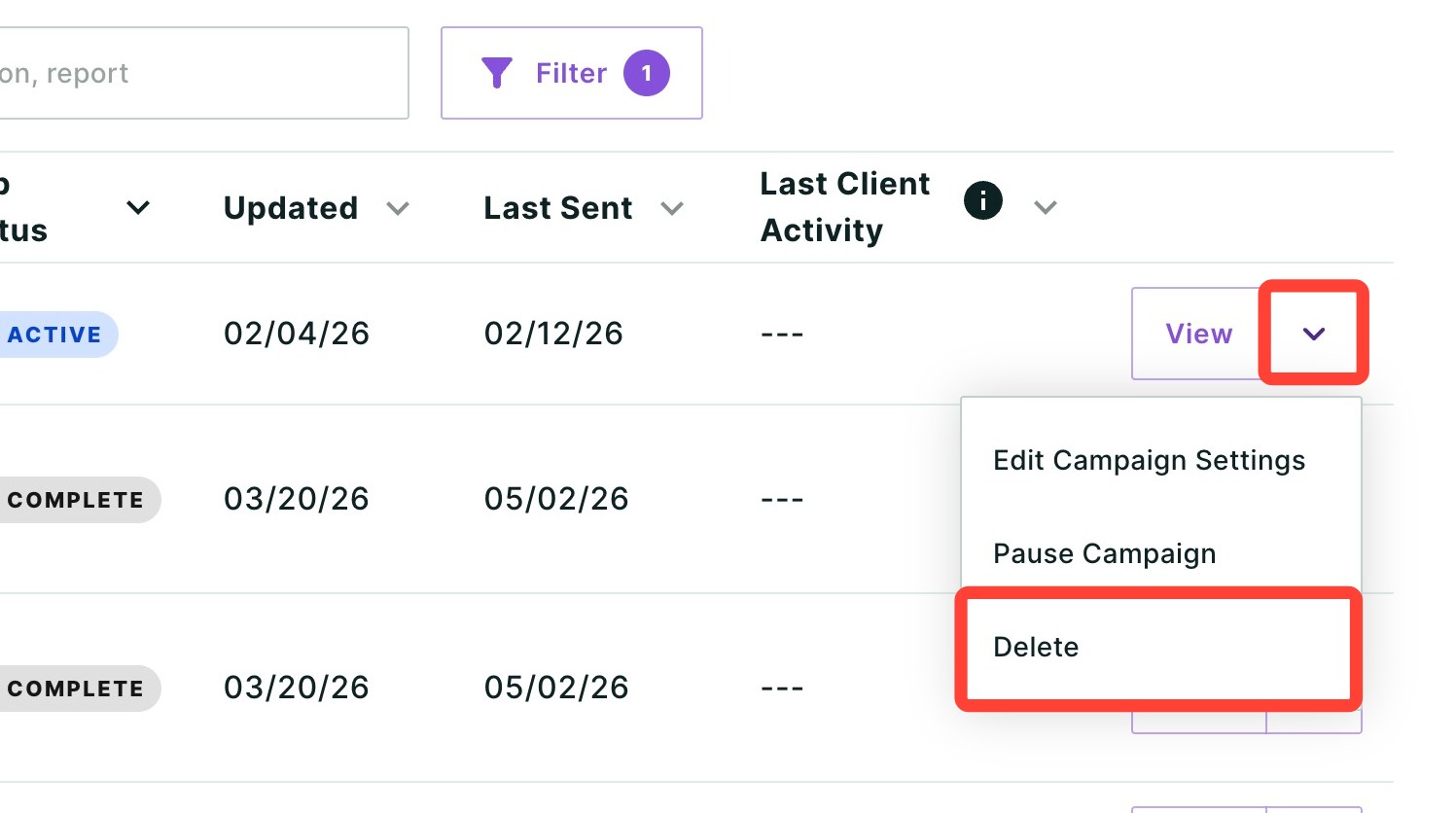
To delete your campaign, click the down arrow next to View and click Delete. You will be asked to confirm.
Need Help?
Have questions or want to learn more? Submit a ticket or call us today!
Related to