Show clients the financial opportunity in homeownership by using Buy vs Rent to compare their estimated monthly payments for renting or buying, and provide an estimate of future appreciation, as well as the potential tax savings that come with homeownership.
Navigating to the Buy vs Rent Report
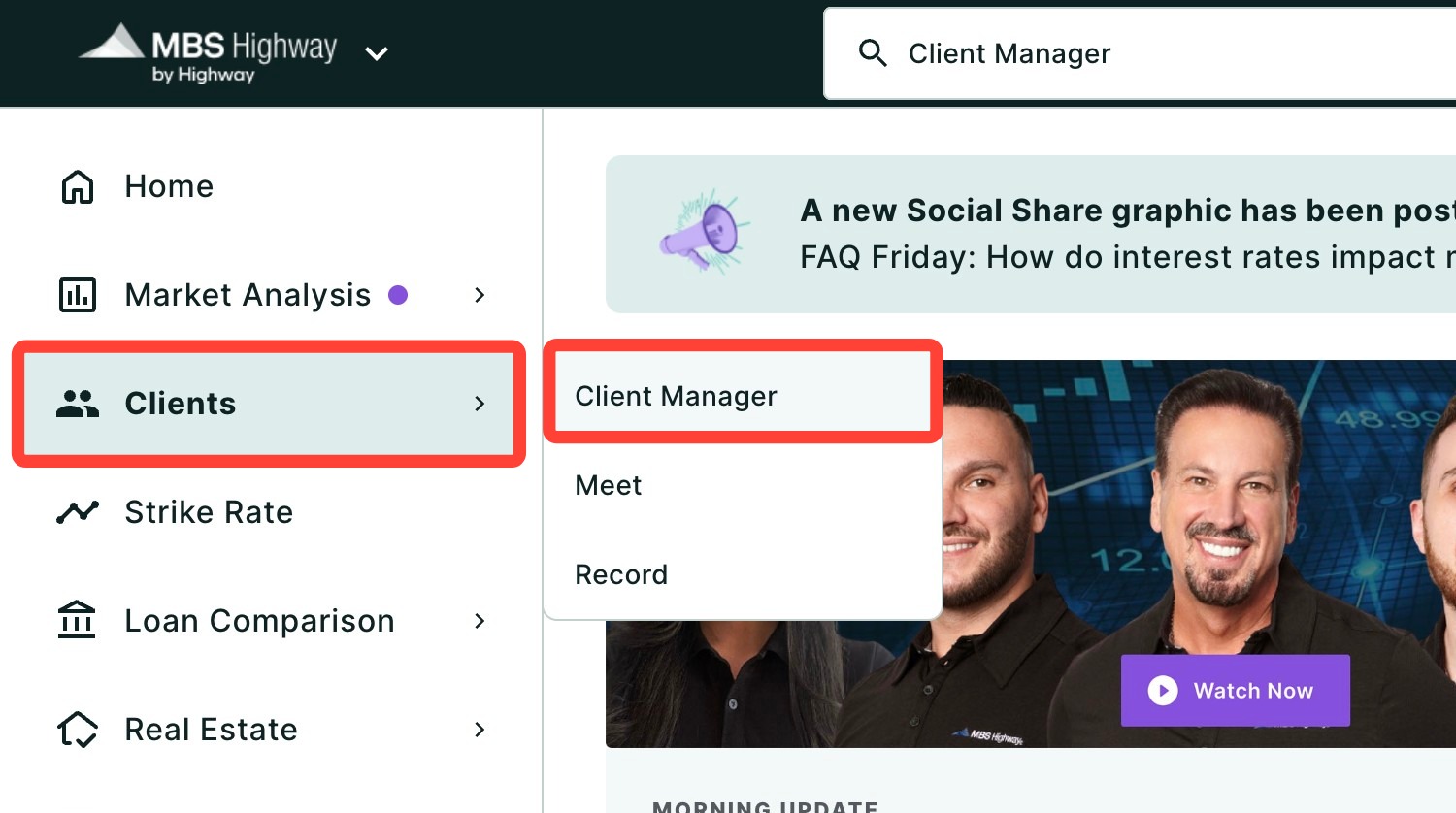
You can find your Buy vs Rent Report within Client Manager as well as within the Real Estate sidebar menu.
Navigating through the Client Manager
Client Manager allows you to create reports for your clients using previously saved loan and property details, saving you time when building new scenarios. To learn more, click here.
Navigating through the left-hand sidebar menu
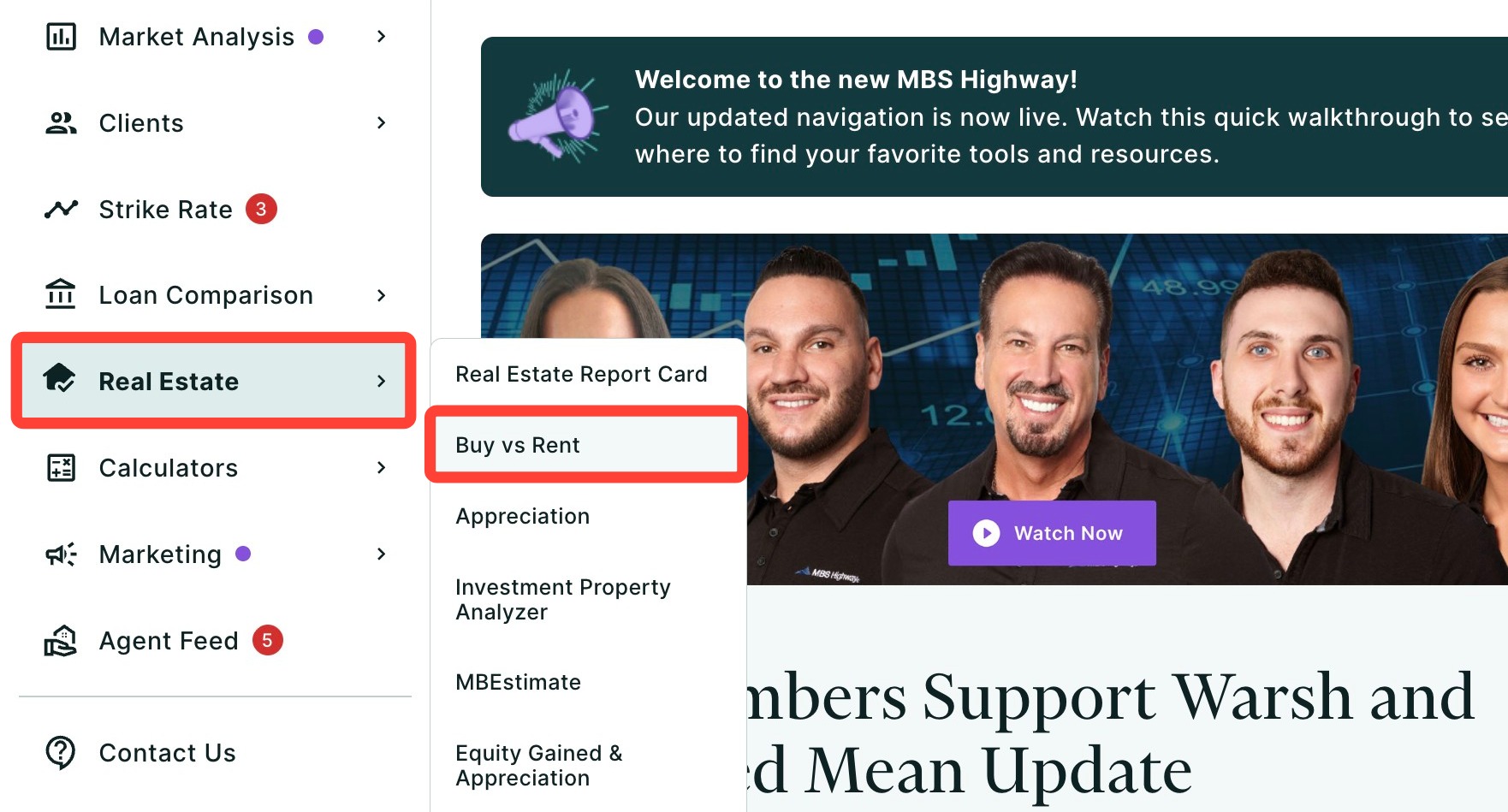
To access the Buy vs Rent report using the left-hand sidebar menu, click Real Estate, then click Buy vs Rent.
💡 Helpful Tip: You can also search and favorite reports, tools, and calculators. Click here to learn how.
|
Creating your Buy vs Rent Report
To get started using the Buy vs. Rent comparison tool, follow the steps below:
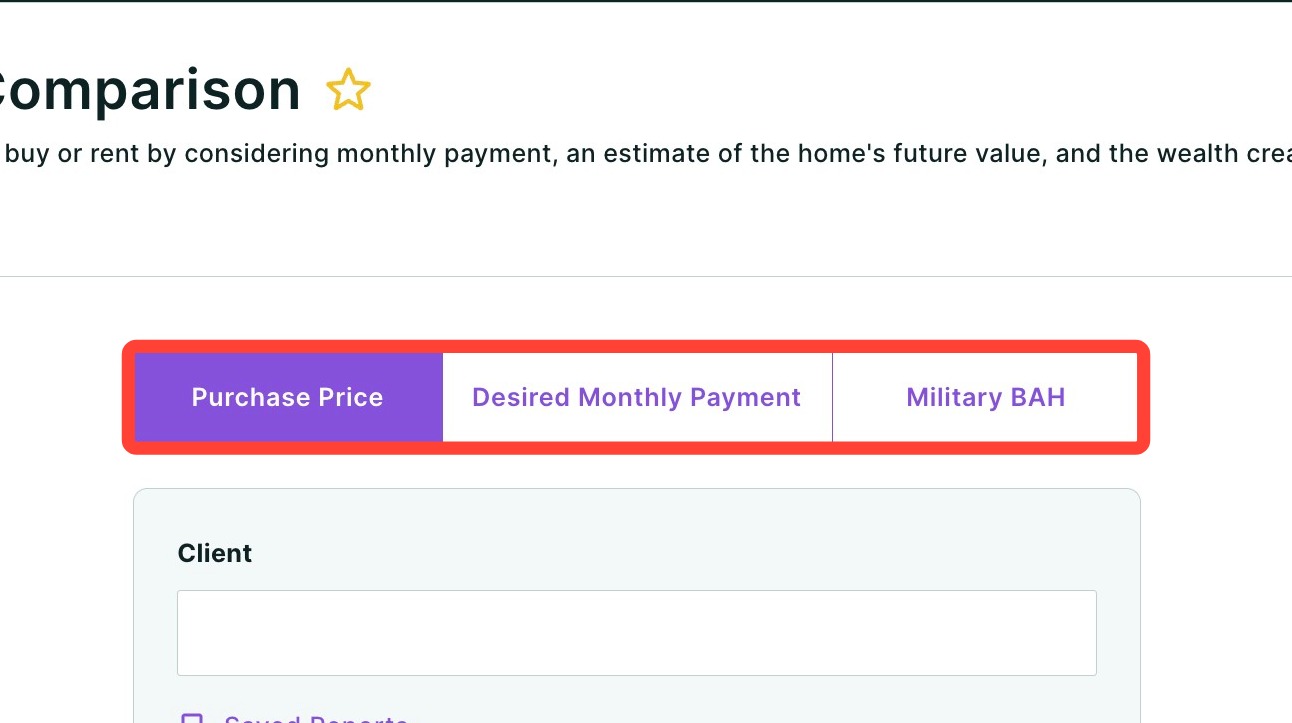
- Choose which method you would like to use to compare Purchase Price, Desired Monthly Payment or Military BAH (Basic Allowance for Housing).
- Select a client by typing their name in the field below and select them from the drop-down.
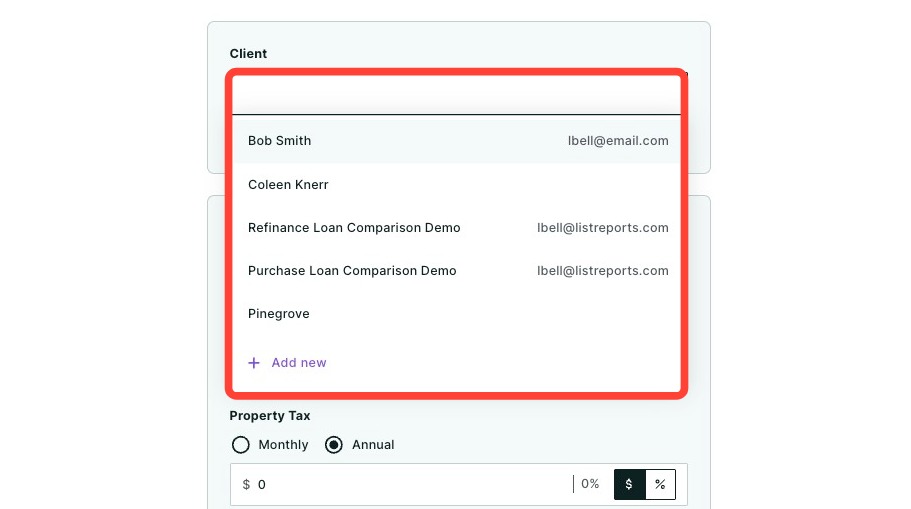
- You can add a new client, by selecting + Add new from the drop-down.
- Next, fill in your client's information. Name and FICO score are required fields.
- Choose a previously saved property in the dropdown or select + New Property to enter and select a location using an address, city, county, or ZIP code in the search bar.
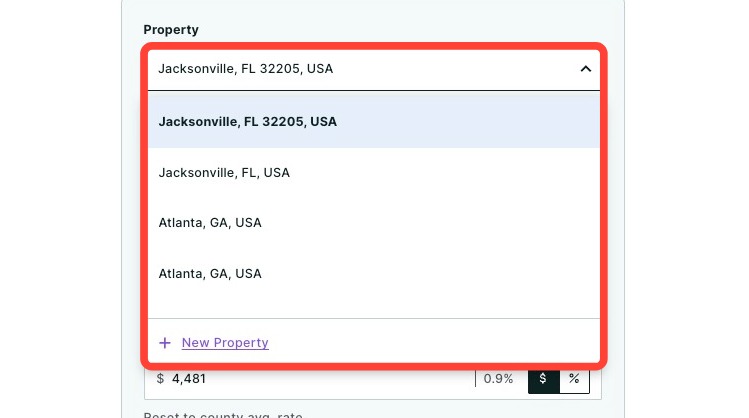
💡 Helpful Tip: Property and loan information is saved to your client, so any updates or changes made will automatically apply across all of their reports where those properties and loans are used.
|
- Depending on your selection for comparison, enter the following information:
-
Purchase Price
- Purchase value of the home
-
Desired Monthly Payment
- Desired monthly payment
- LTV ratio
- Rate
- Term of Loans in years
-
Military BAH
- Monthly allowance
- Rate
- Term of Loans in years
- Click Next.
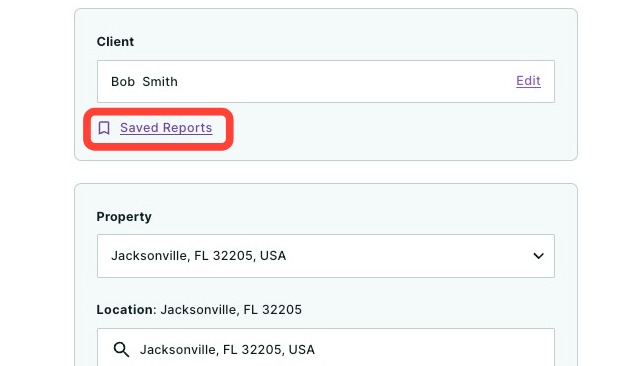
💡 Helpful Tip: You can load a previously built report by clicking Saved Reports. Then choose your report and click Load.
|
Making Edits to Your Report
A preview of the report will be displayed. You can make adjustments to the report by clicking Edit under each of the different sections on the left-hand side of the page.
- Client: Edit your client's name, email, FICO Score, monthly qualifying income, and debt-to-income ratio.
- Property: Edit the property's location, price, annual property tax, monthly home insurance, monthly association fee, estimated annual property tax percentage increase, estimated monthly repair costs, cost to sell, and appreciation rate.
- Renting: View and edit the monthly rent (automatically calculated based on average rent per square foot in the selected area), renter's insurance, and the annual rent increase used in the comparison.
- Loan: View and edit loan details, including the loan amount, term, loan program and type, rate, points, mortgage insurance, closing costs, credits, prepaid items, escrows, and APR.
- Tax: View and edit estimated tax information based on filing status and standard deduction to illustrate potential tax impact of purchasing the property.
- Co-branding: Click + Add to select a referral partner and choose how the co-branding will appear on the report. Click here to learn more about co-branding.
Once you have made all of your desired edits, click Review Report in the top right-hand corner of the page to see the final report.
Sharing the Report
Once you have completed all your desired edits, click Review Report to see the final product and share the report with others. You may click the Edit button to make further adjustments. To share the completed report, click Share. A dropdown menu will appear.
- Click Download to download the report as a PDF.
- Click Send a link via email with an optional video recording (not available for some users depending on their company permission settings).
- Click Host a meeting to virtually meet to discuss the report with your client.
- Click Record a Video to provide your client with a clear walkthrough of the report along with your own insights and context.
To learn more about sharing your report, click here.
Need Help?
Have questions or want to learn more? Submit a ticket or call us today!