Client Manager allows you to create, view, and manage client-ready reports all in one place. From here, you can generate new reports, review previously created analyses, and send updated versions as your client’s situation evolves. These reports help you clearly illustrate loan options, payment impact, and long-term equity potential, making it easier to guide your client through their decisions with accurate, personalized information.
Navigating to Client Manager
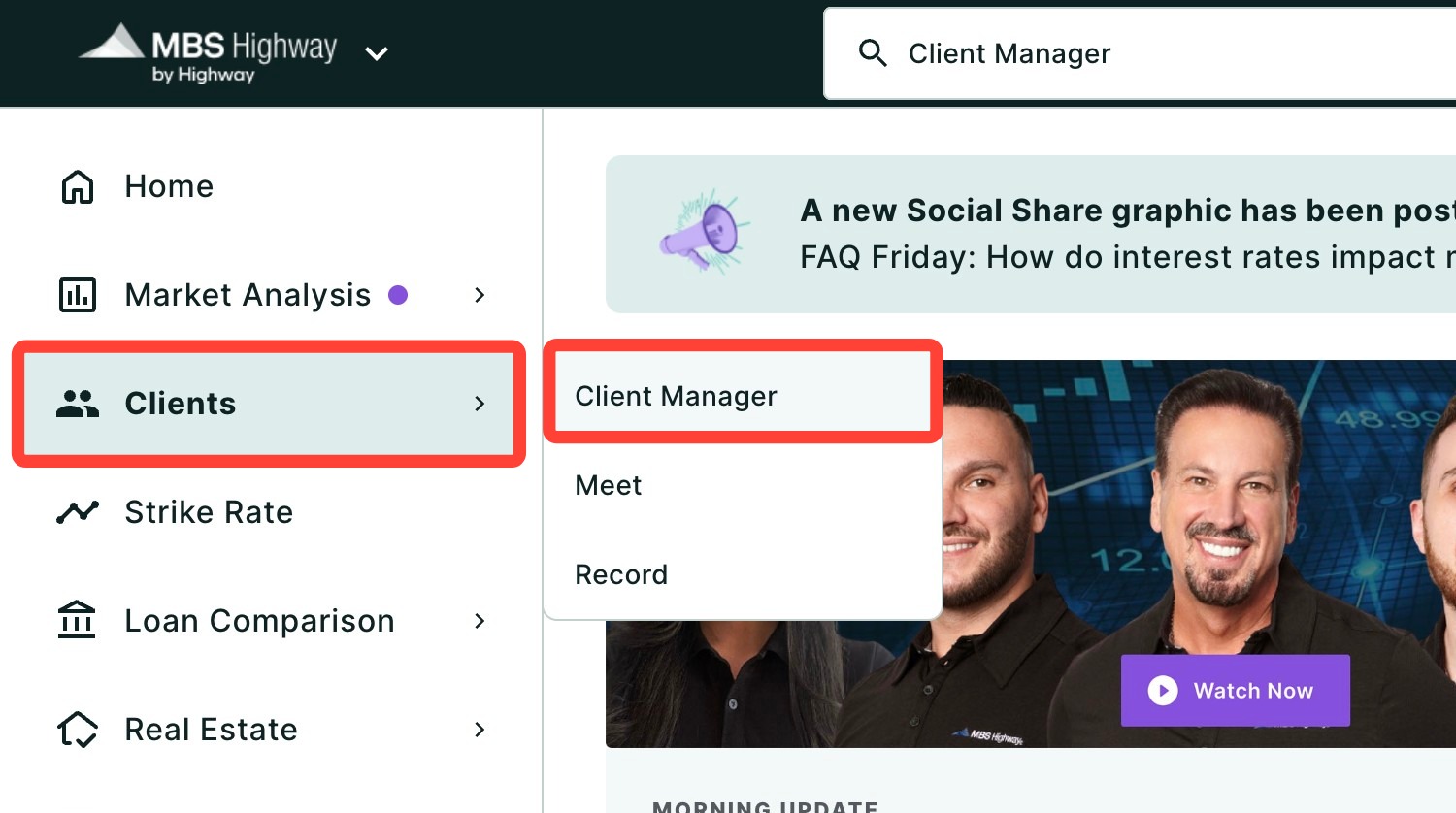
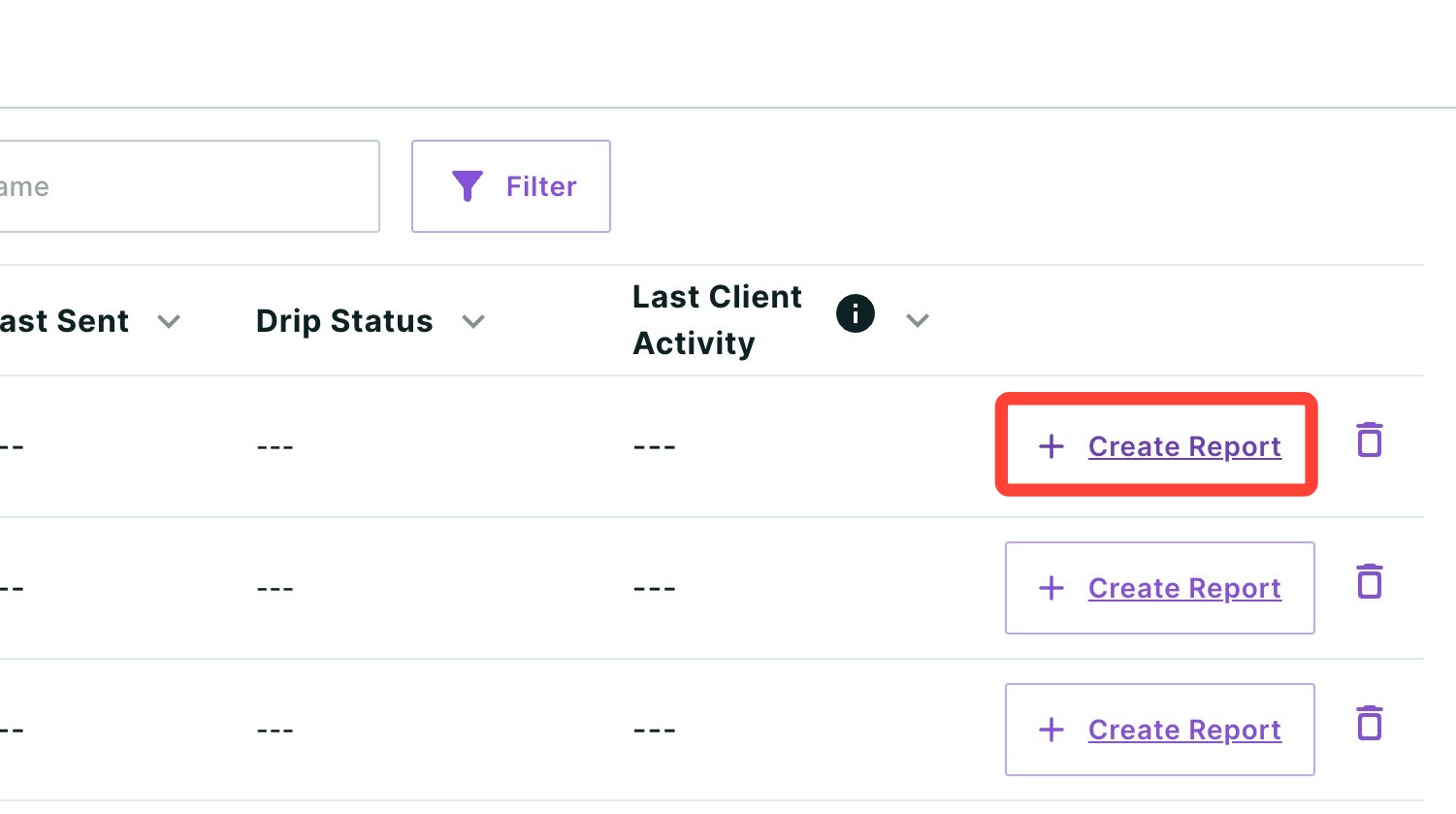
Click Clients in the left-hand navigation as seen below, then click Client Manager. Once there, you can add, edit, delete, and create reports for your clients.
💡 Helpful Tip: You can also search and favorite reports, tools, and calculators. Click here to learn how.
|
Viewing, Editing, Sending and Deleting Reports
Within Client Manager, you can easily access and manage all reports created for your client. This allows you to open existing reports to review details, make updates as needed, send revised versions, or remove reports that are no longer relevant.
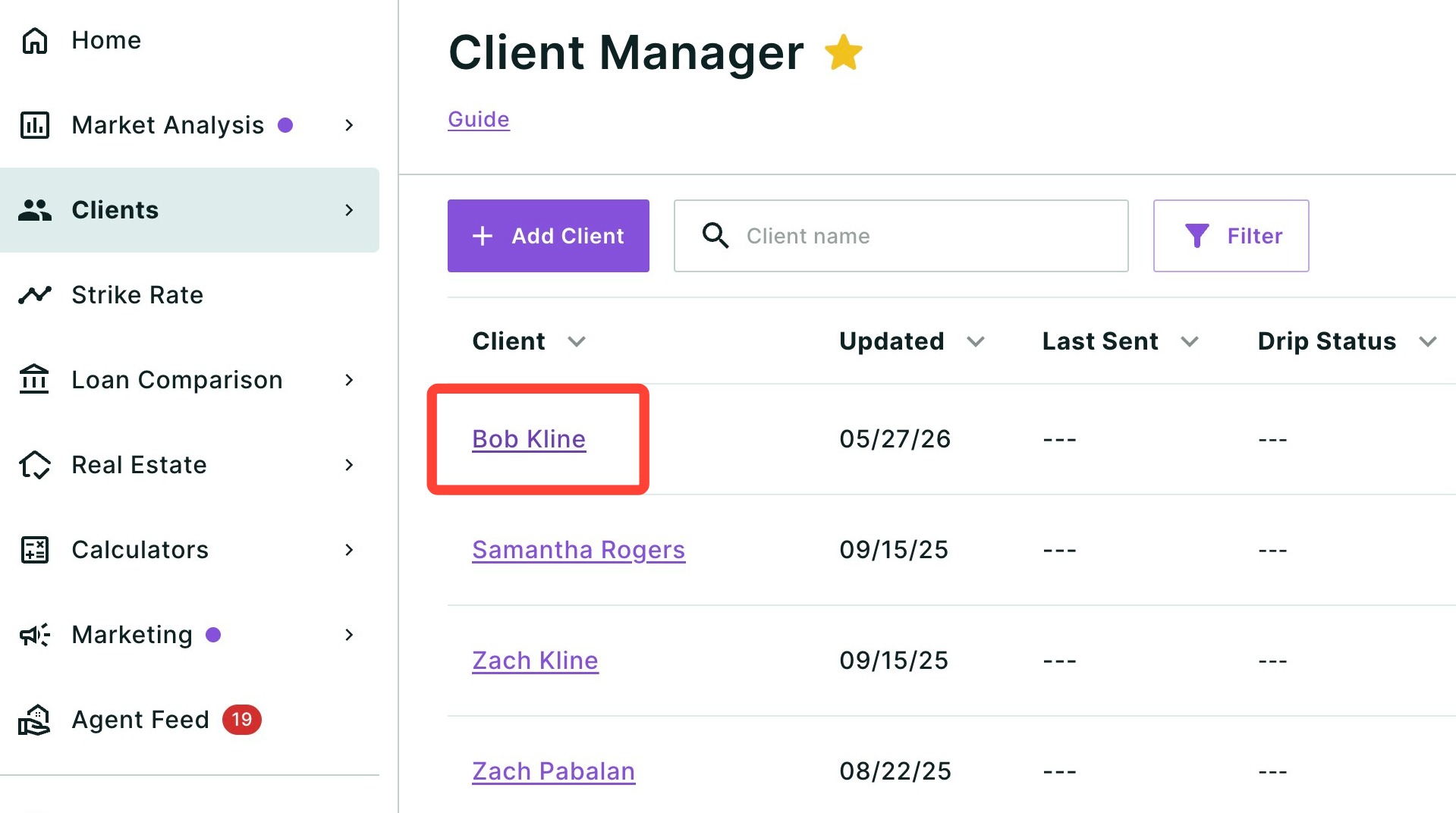
- Click your client's name.
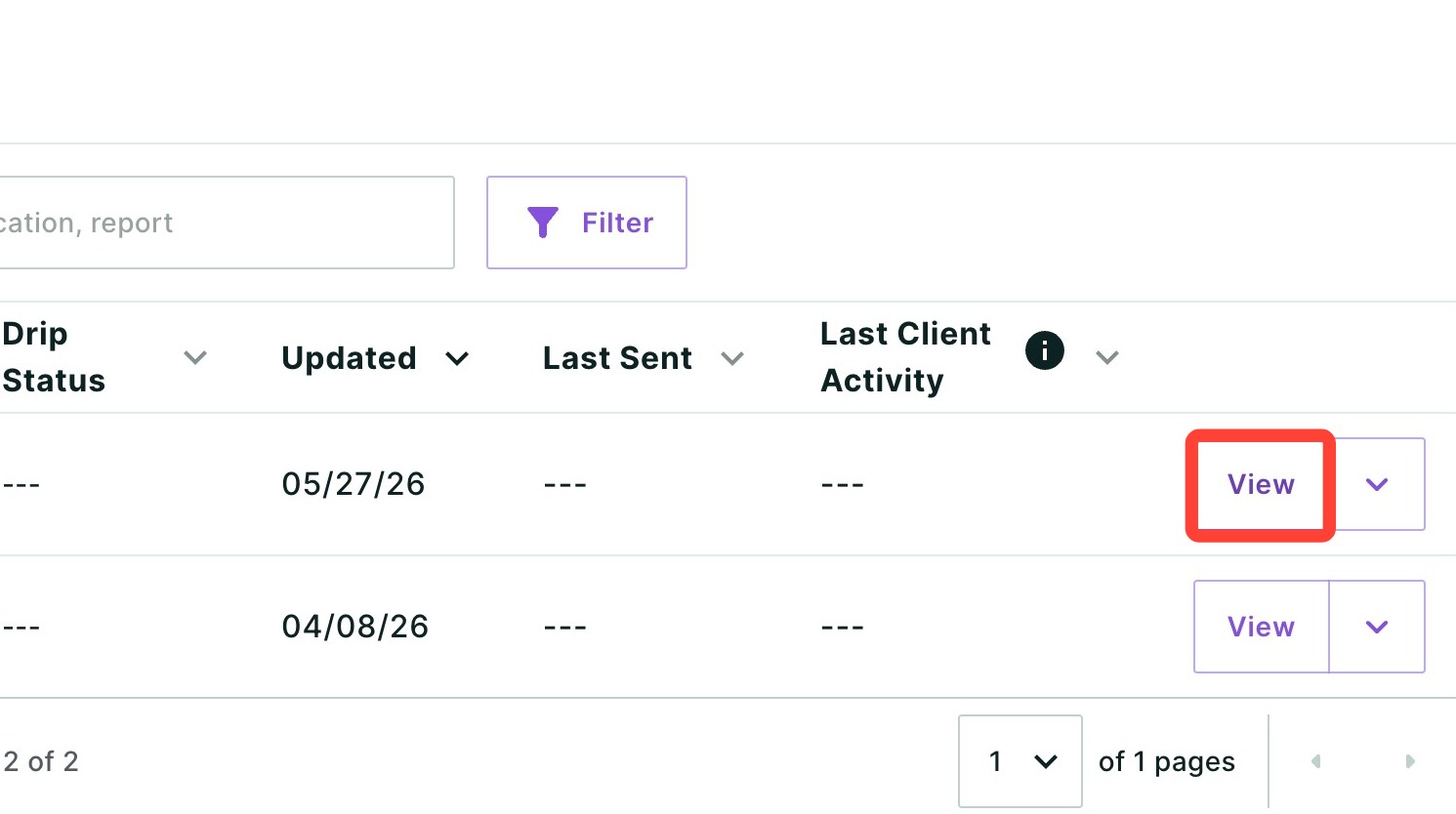
- To view a previous report, click the View button in its corresponding row.
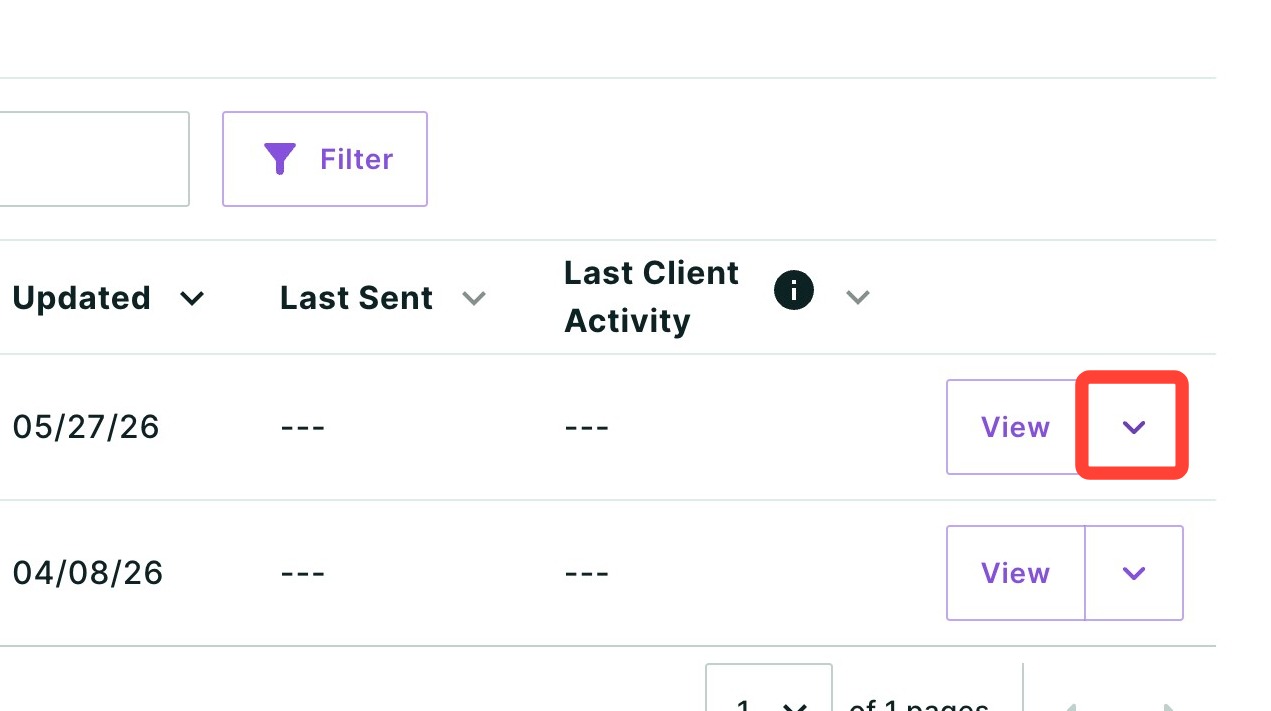
- To edit, send, or delete a report, click the down arrow icon in its corresponding row and select your desired option.
Creating a Report
You can create new reports directly within Client Manager. Quickly generate individual scenarios or a comprehensive Purchase Analysis to help your client understand their options, compare strategies, and see the long-term financial impact of their decisions.
- Click + Create Report.
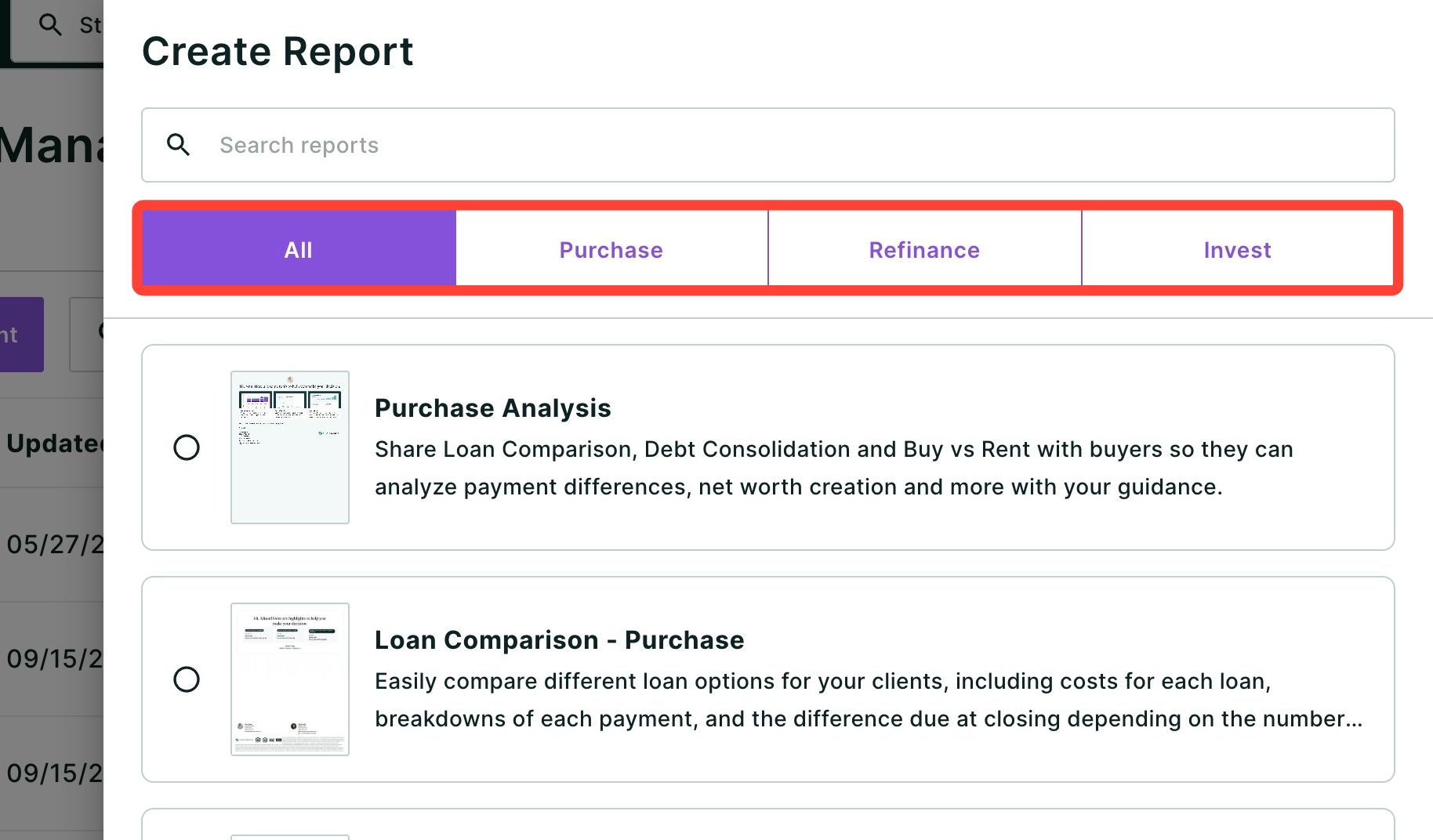
- You can search for a specific report using the search bar or browse all reports or by use-case using the All, Purchase, Refinance, and Invest tabs seen below.
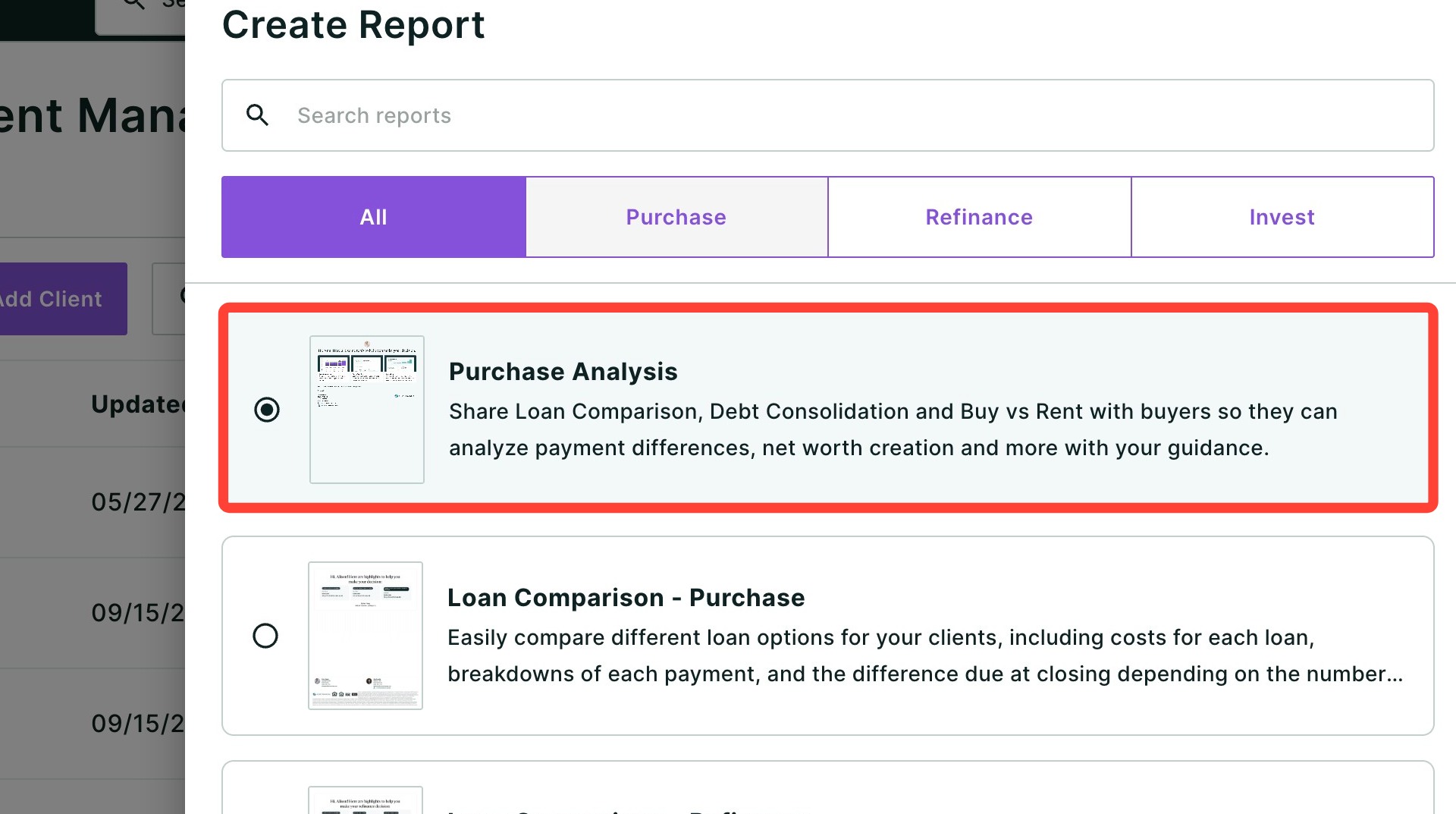
- Select the report you would like to create.
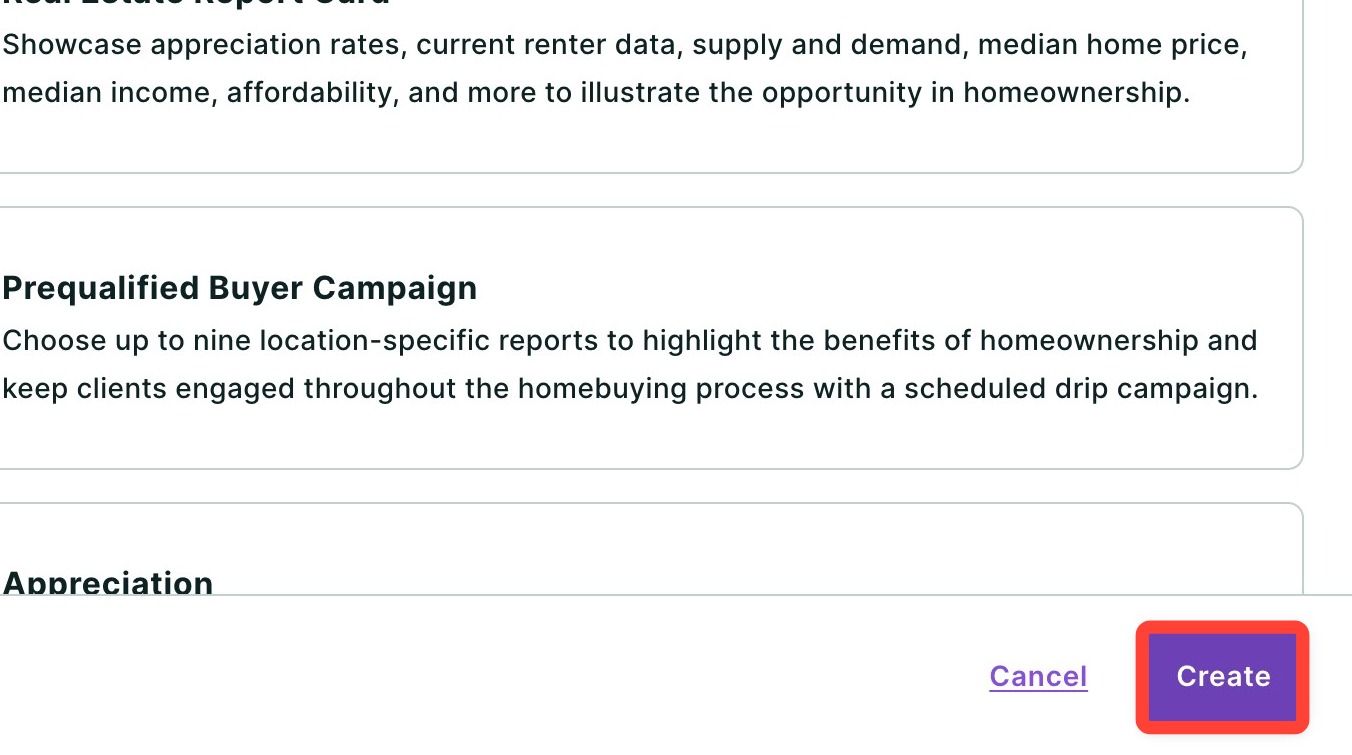
- Click Create.
Understanding Shared Property and Loan Data
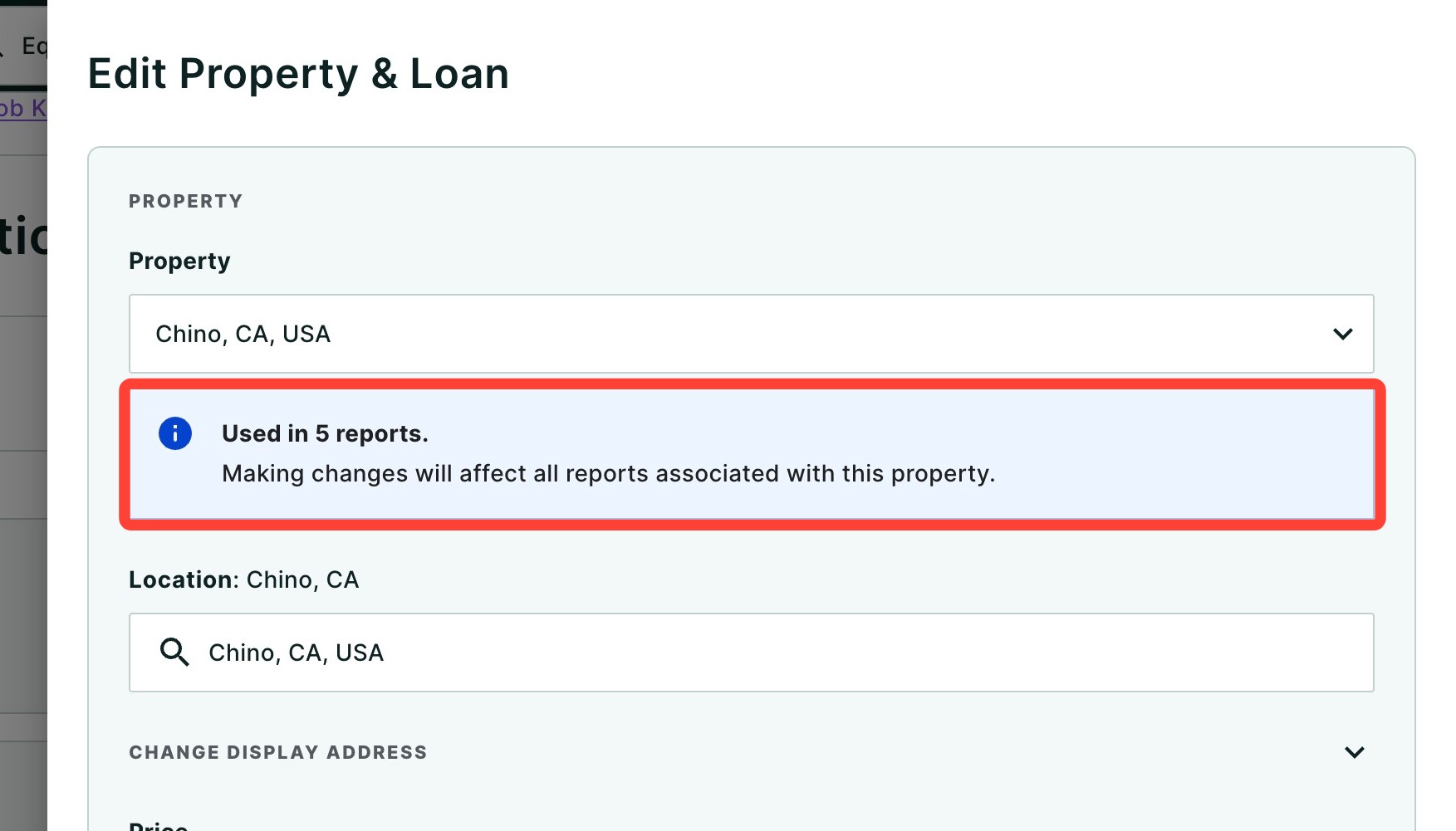
Property and loan information is saved at the client level, meaning any updates or changes made will automatically apply across all of their reports where those properties and loans are used.
When editing a property or loan, you will see a notice indicating how many reports it is currently used in. This is a reminder that any changes you make will affect all associated reports, not just the one you are currently viewing.
Need Help?
Have questions or want to learn more? Submit a ticket or call us today!