MBS Highway is built to feel personalized, streamlined, and efficient, so you can spend less time navigating and more time helping your clients. Navigation is built around a left-side navigation rail, a powerful search bar, and a centralized Client Manager. This article walks through how each of these work so you can get to your tools quickly and keep your client work organized.
|
★ Favorites Bookmark the tools you use most for one-click access from the search bar. |
|
⌕ Search Type any tool or report name into the search bar to navigate there instantly. |
|
↻ Smart Suggestions The search bar surfaces tool suggestions based on your activity to help you discover features that fit your workflow. |
|
✦ Client Manager Loan and property data is saved at the client level and shared across all reports — enter it once, and it's available everywhere. |
|
☰ Left-Hand Navigation Streamlined navigation so you can find the report or tool you are looking for, faster. |
Search & Favorites
The search bar at the top of the screen is your fastest way to reach any tool or report in MBS Highway.
Finding a Tool or Report
- Click the search bar at the top of the screen.
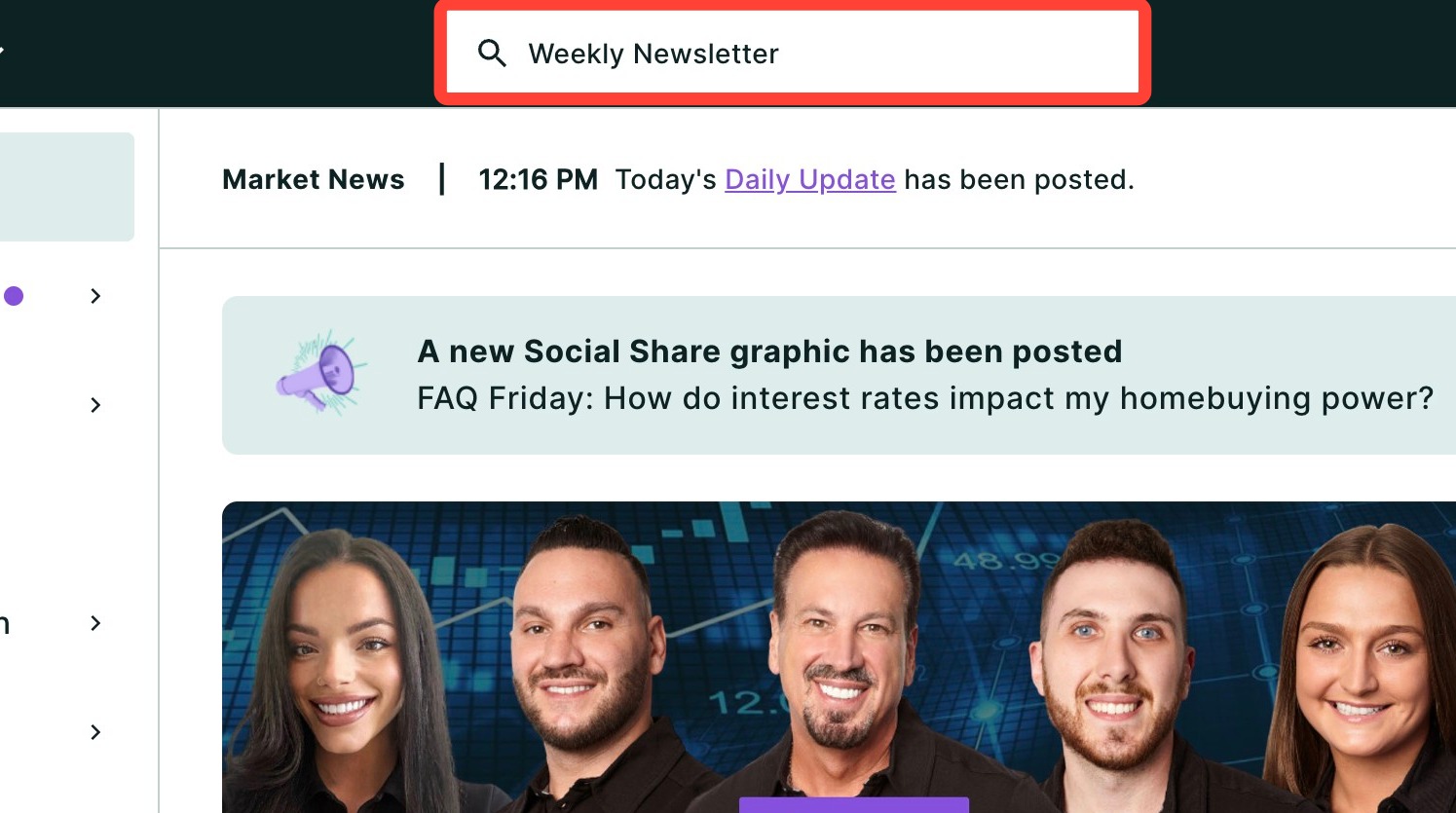
- Type the name of a tool or report (e.g. "Loan Comparison" or "Cost of Waiting").
- Click the result to navigate directly to that tool.
Using Favorites
Favoriting a tool pins it to the top of your search dropdown so you can get there without typing.
To favorite a tool:
- Open any report or tool.
- Click the star icon next to the report name.
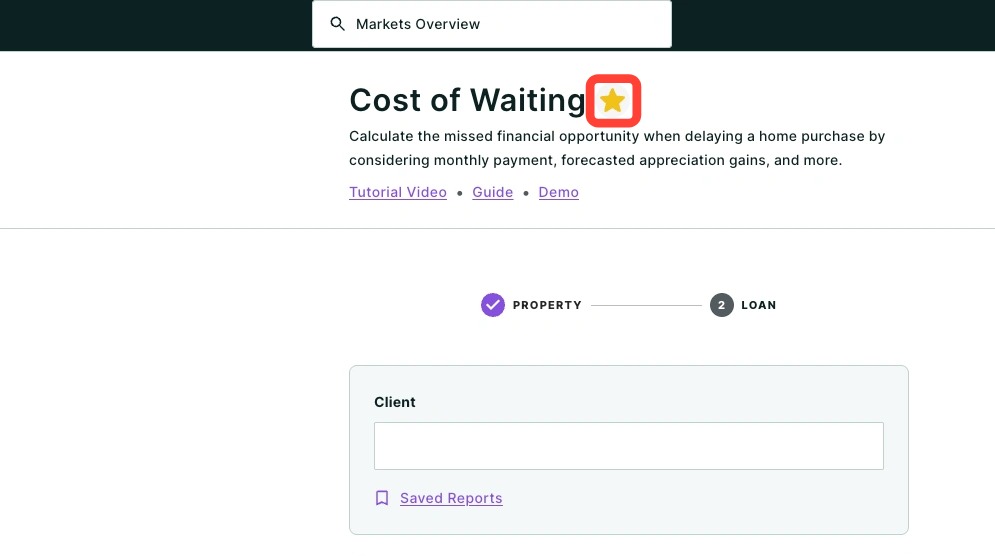
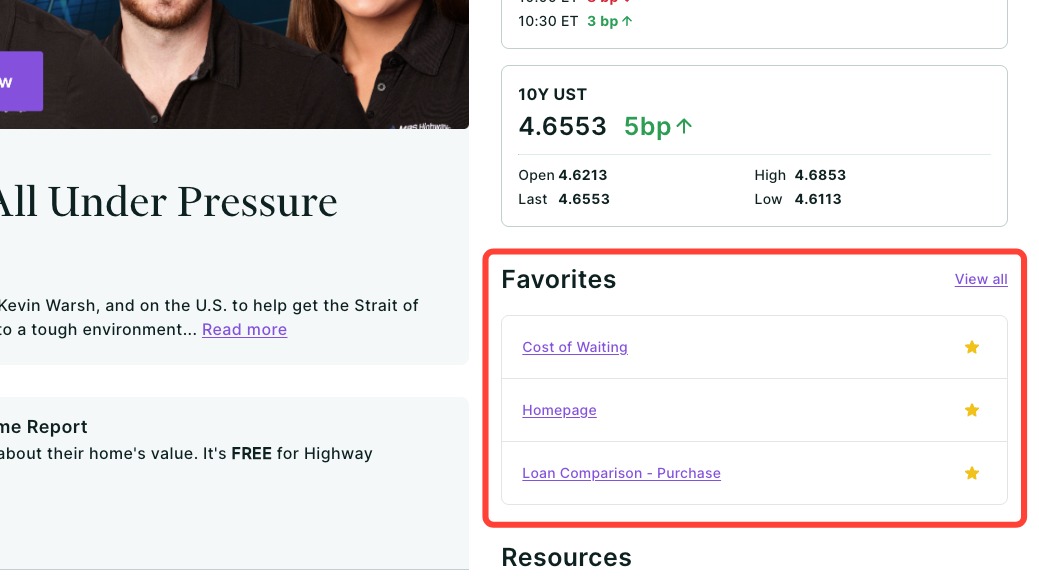
- The tool appears in the Favorites section of your search dropdown, or within the Favorites panel on the right-hand side of the homepage.
To access your favorites:
- Click the search bar.
- Your favorited tools appear at the top of the dropdown.
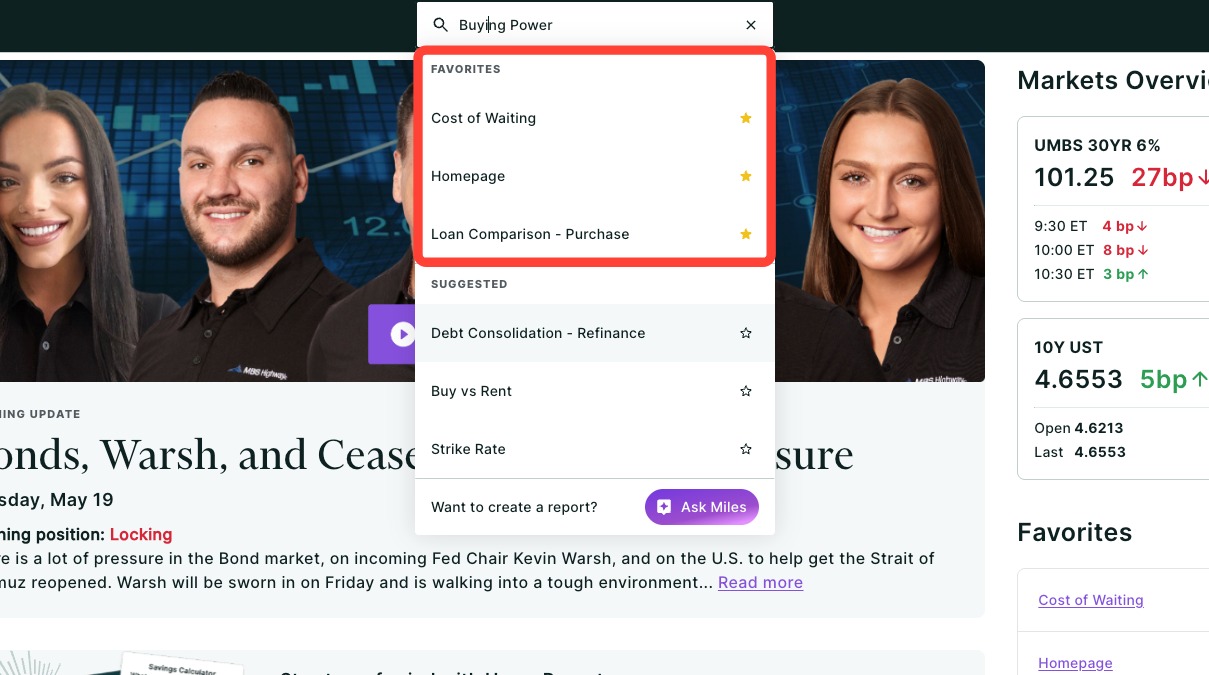
- If you have more favorites than fit in the dropdown, click View all to see the full list.
You can also access your favorites from the homepage. The Favorites panel on the right side of the dashboard displays up to four of your starred tools. Click View all to see the complete list.
Smart Tool Suggestions
The search bar also surfaces tool suggestions based on your activity. These rotating recommendations are a good way to discover features you may not have explored yet.
Have Miles?
If your subscription includes Miles, you can access MBS Highway's AI assistant directly from the search bar. Click Ask Miles in the search bar dropdown, or click the Miles icon in the bottom right-hand corner of the page, describe the report you want to create, and Miles will build it for you.
Client Manager
Client Manager is your hub for organizing client work across all of MBS Highway's report tools. Loan and property data entered for a client is saved at the client level, which means you only need to enter their information once to use it in every report.
How Shared Client Data Works
- When you enter loan or property details for a client in any report, that data is saved to their client record.
- Opening any other report for the same client automatically pulls in that saved data.
- Updating a detail in one report updates it across all reports for that client.
|
Example: Enter a client's loan amount and property address in Loan Comparison. When you open Cost of Waiting for the same client, that information is already there — ready to go. Property Selection Dropdown 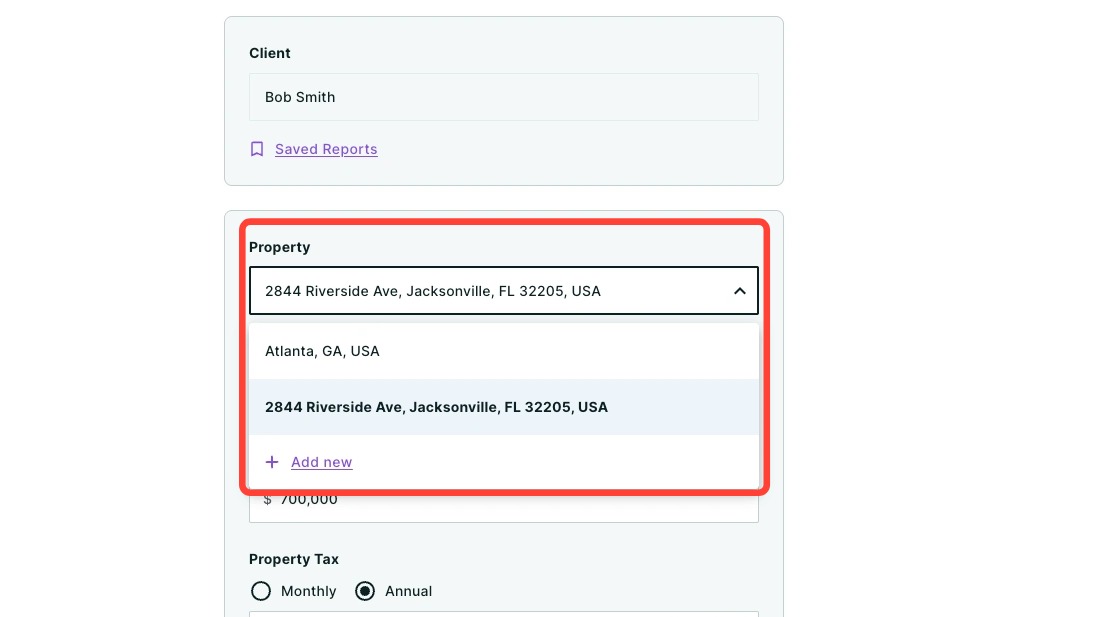 Loan Selection Dropdown |
Adding a Client
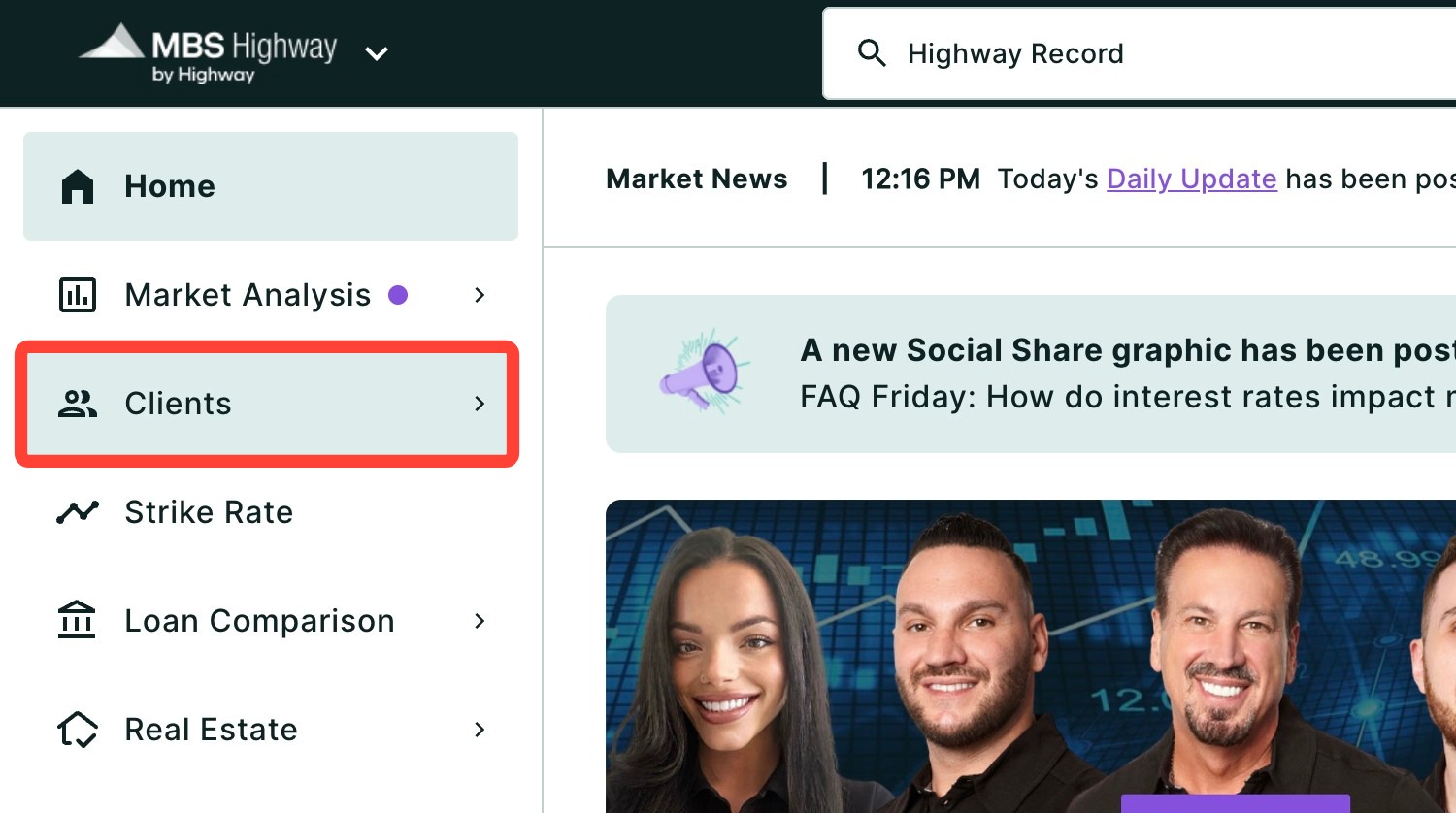
- Click Clients in the left-hand navigation as seen below, then click Client Manager.
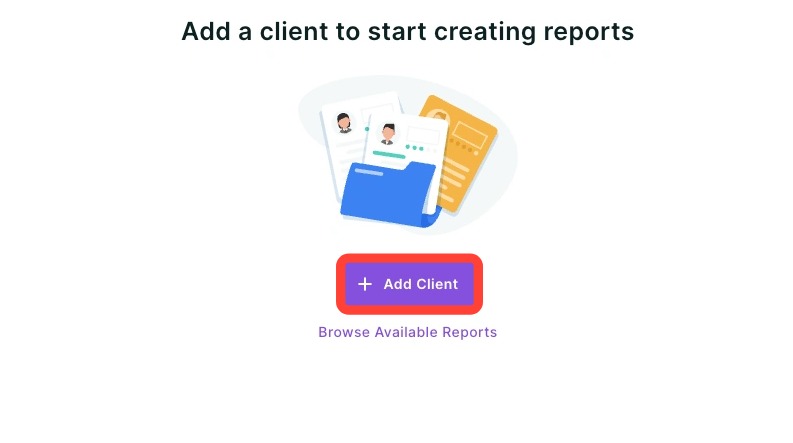
- Click + Add Client.
- Enter your client's details.
- Name is the only required field.
- Optional fields include email, secondary email address, monthly qualifying income and debt-to-income ratio.
- Select your client's FICO score from the drop-down.
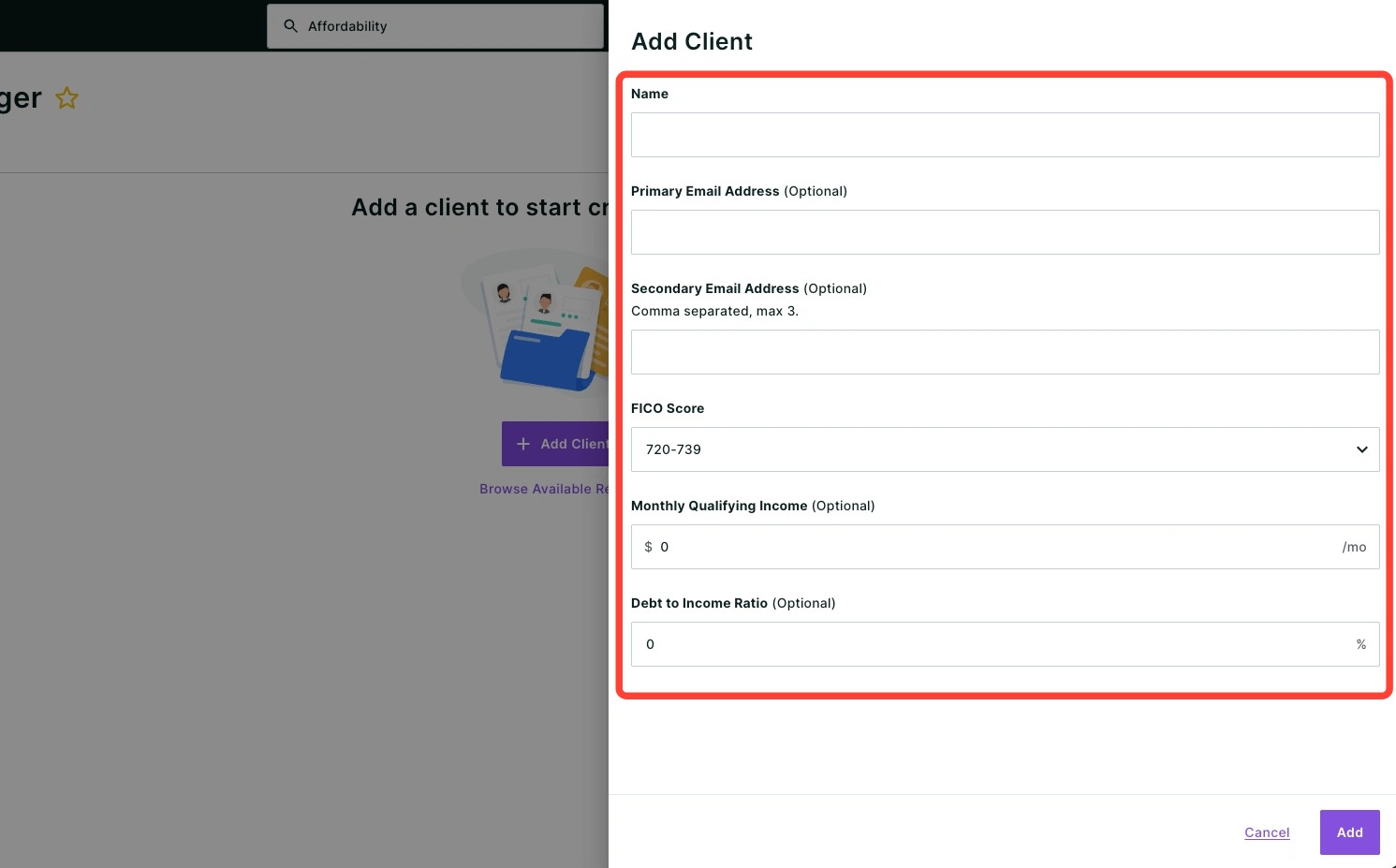
- Click Add. Your client's profile is now ready to use.
- From the client's profile, click + Create on any report to get started.
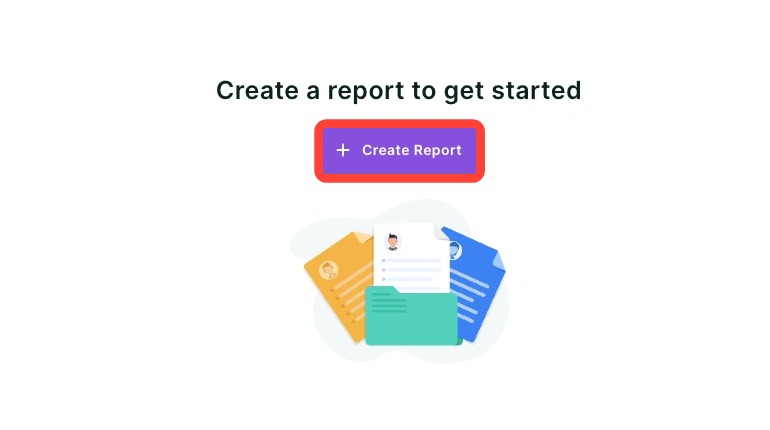
💡 Helpful Tip: Prefer to start from a report instead? Open any report directly and select your client from the dropdown at the top. |
Using the Left-Hand Navigation
The left-hand navigation has been streamlined to help you find the report or tool you are looking for, faster. Check out the setup below:
Home
The Home button takes you to the MBS Highway homepage, which includes the Morning Update, Markets Overview, and Resources such as webinars and the Help Center.
Market Analysis
Market Analysis contains tools for monitoring rates, economic trends, and market commentary. Click Market Analysis in the left rail to expand the submenu, which includes:
- Markets Overview
- Economic Calendar
- Morning Update
- Market Wrap
- Kiplinger Letters
- Mauldin: TFTF
- Barry's Insights
Please note: If a tool you expect to see isn't visible in the navigation, it may have been turned off at the company level. Contact your administrator to confirm your tool access.
|
Clients
The Clients menu includes Client Manager and Highway Meet & Record.
Use Client Manager to create and manage client profiles, run reports, and access your saved work — all in one place.
Use Highway Meet & Record to present reports and calculators to clients in real time, or to create shareable video walkthroughs.
- Meeting — Start a live session with a client and walk them through any report or calculator directly within MBS Highway.
- Record — Record a video walkthrough of a report to send to a client via email, download, or share at any time.
Strike Rate
Strike Rate monitors market rates against your clients' existing loans and notifies you when a refinance opportunity is met. Set target rate thresholds by loan amount, and Strike Rate will alert you by email when a client is eligible — so you can act quickly and reach out at the right time.
For users with a Home Report subscription, Strike Rate also tracks MI Savings opportunities, flagging clients who may be able to eliminate or reduce their mortgage insurance even if a full rate-based refinance threshold hasn't been reached.
Want to learn more about Home Report? Ask to talk to an expert by submitting a ticket.
Loan Comparison
Use the Loan Comparison section to create comparative reports between different properties, loans, and scenarios. Click Loan Comparison in the left rail to expand the submenu, which includes:
- Purchase Analysis
- Loan Comparison
- Cost of Waiting
- Debt Consolidation
- Seller Contribution
Real Estate
The Real Estate tab includes reports designed to help you show clients how homeownership builds long-term wealth. Click Real Estate in the left-hand navigation to expand the submenu, which includes:
- Real Estate Report Card
- Buy vs Rent
- Appreciation
- Investment Property Analyzer
- MBEstimate
- Equity Gained & Appreciation
- Bid Over Ask
- House Price Index
Calculators
Use the Calculators section to run quick, scenario-based calculations that help clients understand their options. Click Calculators in the left rail to expand the submenu, which includes:
- Payment
- Amortization
- ARM vs Fixed
- Blended Rate
- Refi Risk of Waiting
- Reinvestment
- Affordability
- Buying Power
Marketing
The Marketing section gives loan officers access to social media assets, email campaigns, newsletters, client-facing presentations, and market reports for sharing with prospects and referral partners. Click Marketing in the left rail to expand the submenu, which includes:
- Newsletter
- Social Share
- Social Studio
- Prequalified Buyer Campaign
- Presentation Expressway
- Open House Flyers
Agent Feed
Agent Feed, powered by Agent Intel, surfaces timely insights about the agents in your network so you can stay connected, protect your relationships, and identify new referral opportunities. Alerts and insights include:
- Market Updates — Stay on top of trends in your local market.
- Social Alerts — Engage with agents in your network by liking, sharing, and commenting on their social media activity from one centralized place.
- Competitor Alerts — Get notified when agents you've worked with close a transaction with a competing loan officer so you can re-engage quickly.
- Open House Alerts — Receive alerts when an agent schedules an open house so you can send relevant listing promotion materials at the right moment.
- Buyside & Listside Alerts — Monitor agent transaction activity to identify high-performing partners and new referral opportunities.
- Prospect Alerts — Discover recommended agents whose production profiles align with your existing network.
Agent Feed is included in your MBS Highway subscription. For full access to Agent Intel features — including Agent Search, Agent Network, and marketing materials — contact our support team.
Contact Us
Click Contact Us to access our Help Center, where you can find our phone number or submit a support ticket to our team so you can get help quickly.
Account Settings & Appearance
To access your account settings:
- Click your profile photo in the top right corner of the screen.
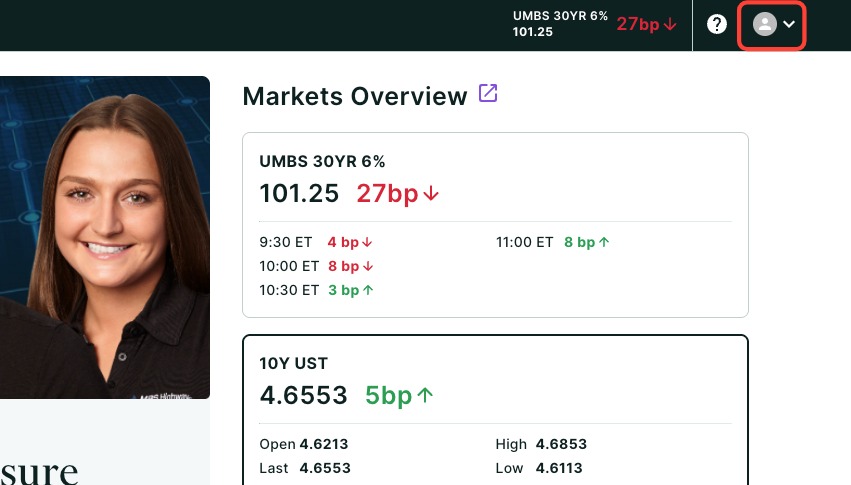
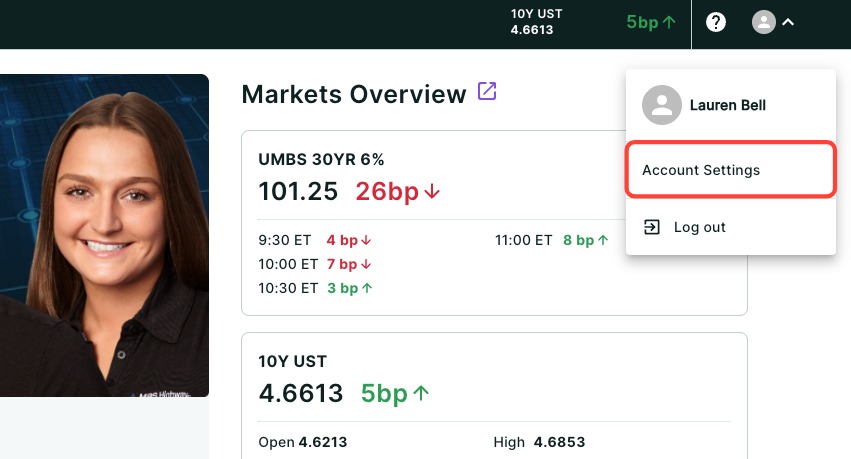
- Click Account Settings. From here you can manage:
- Header, Branding & Disclaimer
- Agent Co-Branding
- Notification Settings
- Appearance & Preferences
- Subscriptions & Order History
- Privacy & Security
Switching Platforms
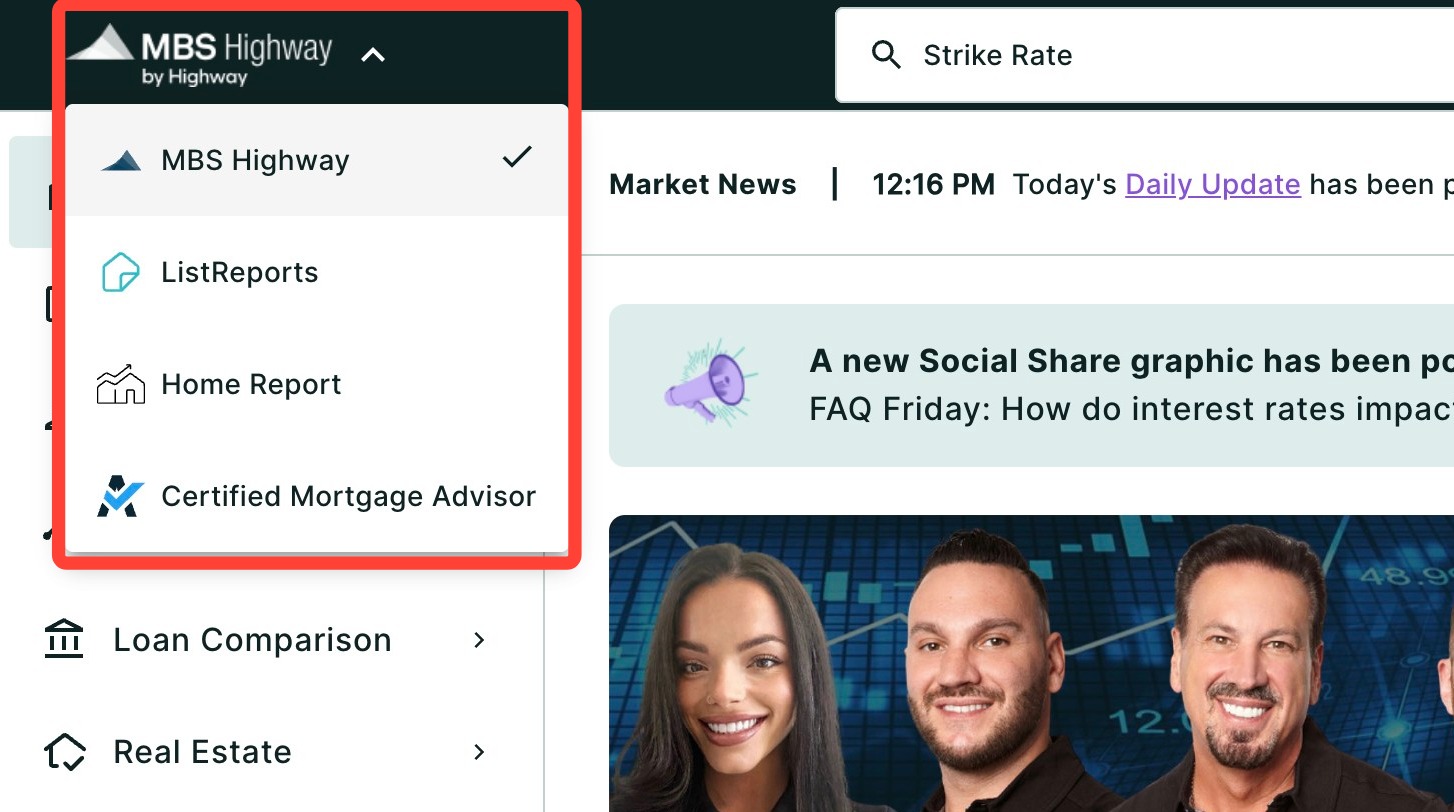
To switch between platforms, click the MBS Highway logo in the top left corner of the screen. From the dropdown, select:
- ListReports — Goes to the ListReports home page.
- Home Report — Jump directly to the Home Report tab.
- CMA — Access Certified Mortgage Advisor.
Frequently Asked Questions
I can't find a report I'm looking for. Where is it?
You can find a full list of reports within the Client Manager tab. To browse these reports, add or find the client you would like to build the report for, then click + Create Report. You will then be able to search or browse all of our available reports. You can use the sub-tabs Purchase, Refinance, and Invest to locate reports based on use case.
If you know the name of your tool, you can quickly access a report by typing the report name into the search bar at the top of the page. If the report doesn't appear in search results at all, it may have been disabled at the company level. Check with your administrator.
How do I set up Favorites?
Open any report or tool and click the star icon next to its name. The tool will be saved to your Favorites and appear at the top of the search dropdown.
Do I have to re-enter client data for every report?
No. Once you enter loan and property details for a client in any report, that data is automatically available in all other reports for that client through Client Manager.
Need Help?
Have questions or want to learn more? Submit a ticket or call us today!
Related to