Client Manager allows you to store and manage your clients' information in one central location, making it easy to create reports, run analyses, and revisit scenarios over time. Once a client is added, you can quickly select them when using tools or send reports directly from Client Manager, helping you keep your client conversations organized and efficient. To start adding clients to Client Manager, follow the instructions below.
Navigating to Client Manager
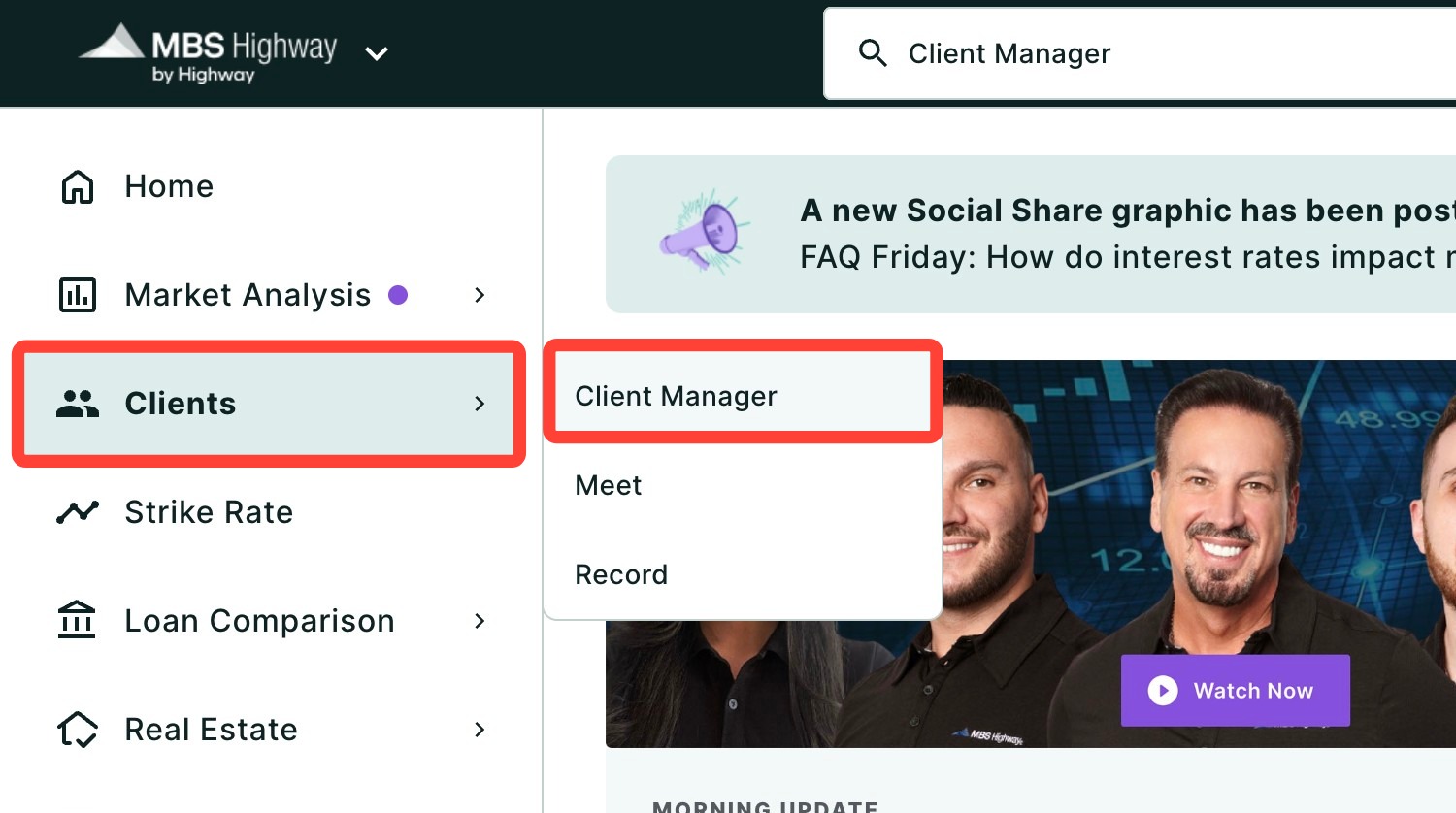
Click Clients in the left-hand navigation as seen below, then click Client Manager. Once there, you can add, edit, delete, and create reports for your clients.
💡 Helpful Tip: You can also search and favorite reports, tools, and calculators. Click here to learn how.
|
Adding a Client
Adding a client allows you to store their information so you can easily create personalized reports and analyses. This ensures their details are available whenever you use MBS Highway tools, helping you generate accurate scenarios and quickly send reports tailored to their financial situation.
- Click + Add Client.
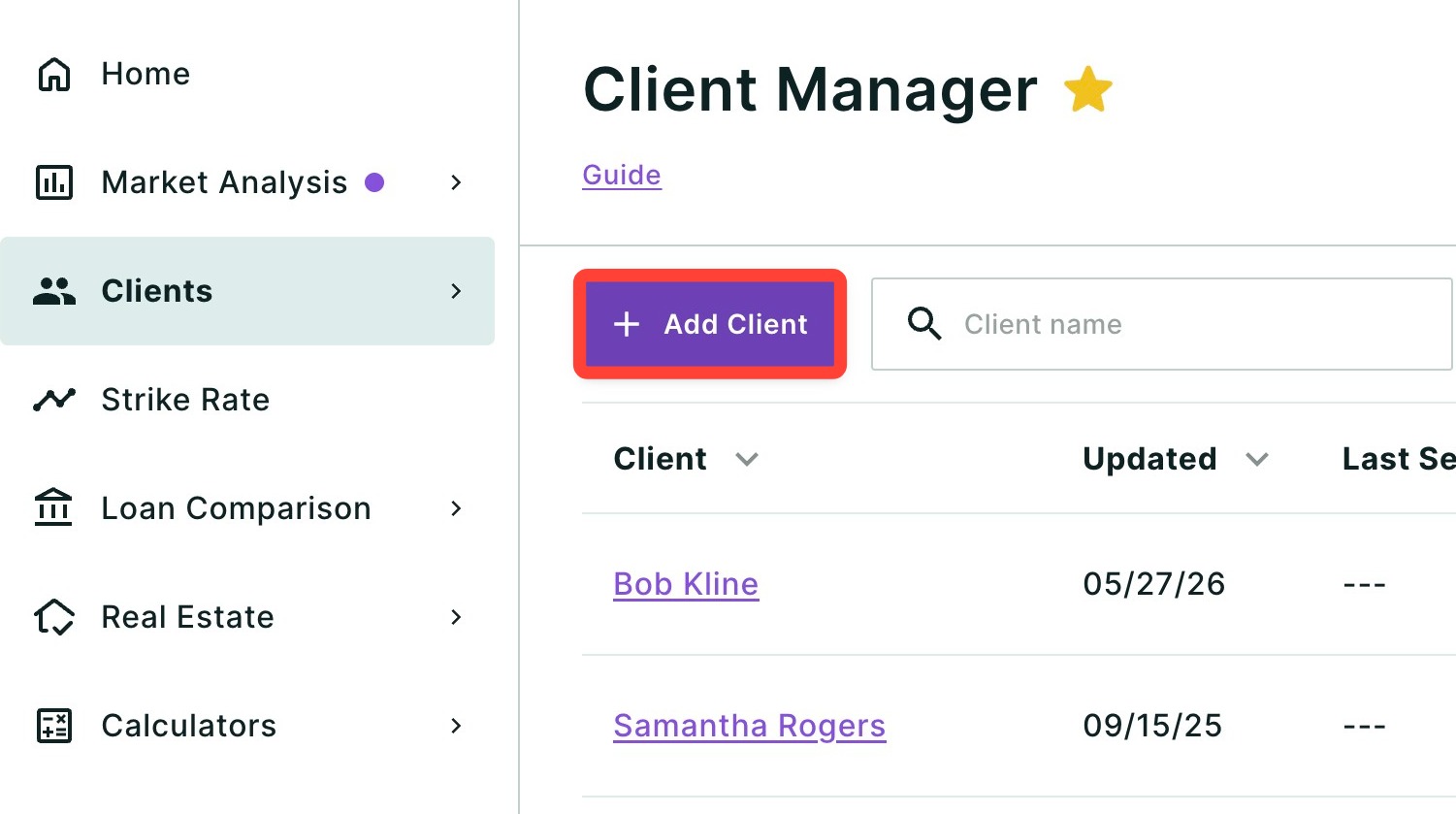
- Type the client's name.
- Type a primary email address and up to three secondary email addresses (optional). You will need this to share reports via email.
- Choose the FICO score range that your client falls into.
- Add your client's Monthly Qualifying Income and Debt to Income Ratio (optional).
- Click Add.
Editing a Client's Information
If your client's information changes or needs to be updated, you can edit their details directly within Client Manager. Keeping this information current helps ensure your reports remain accurate and reflect your client's latest financial profile. To edit your client's information, follow the steps below:
- Click on the client's name you would like to edit.
- Click Edit.
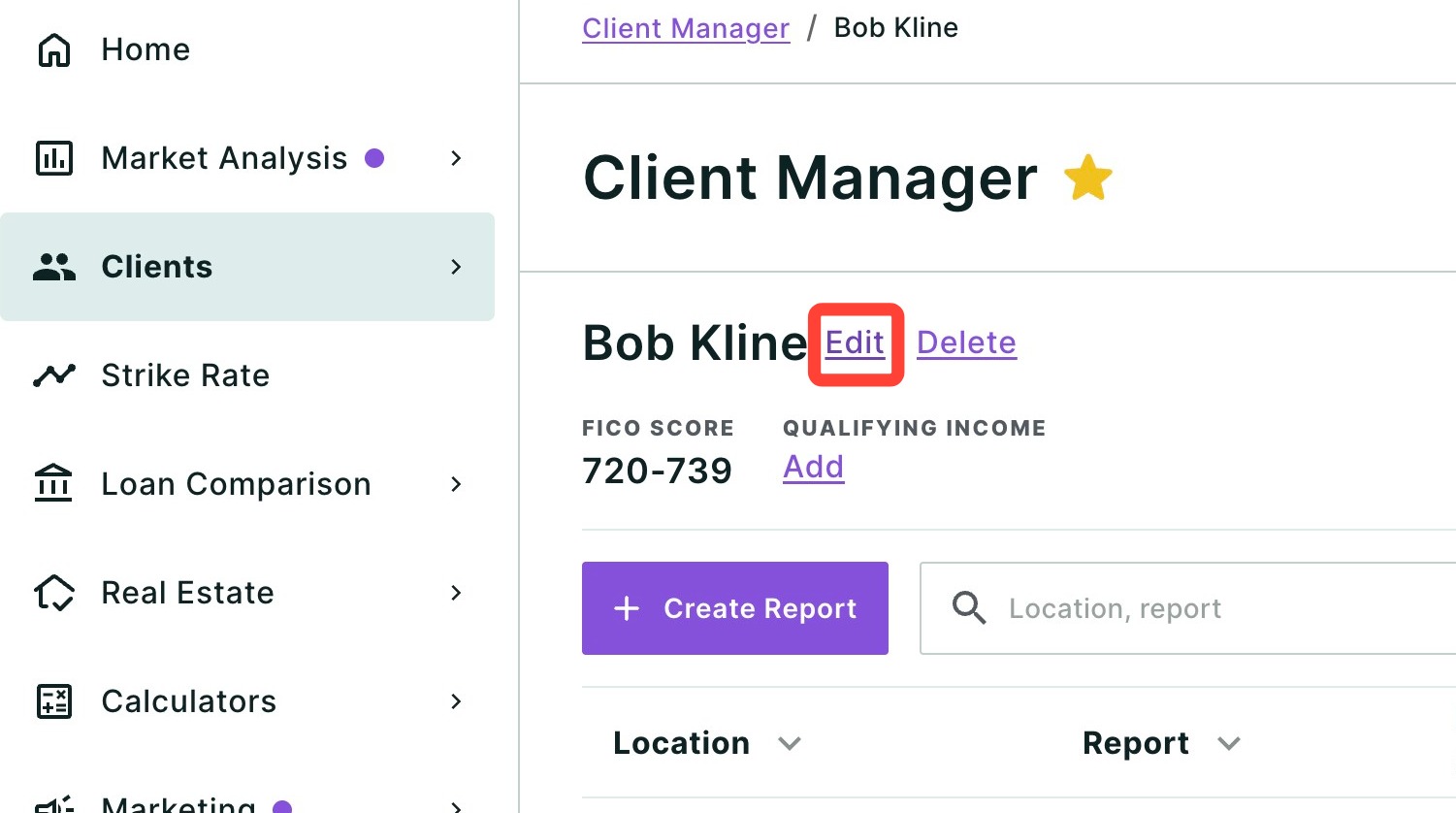
- Make your desired edits.
- Click Update.
Deleting a Client
If a client is no longer active or you no longer need their information, you can remove them from Client Manager. This helps keep your client list organized and ensures you are only working with relevant and active client records.
- Click the corresponding trash can icon for the client you would like to delete.
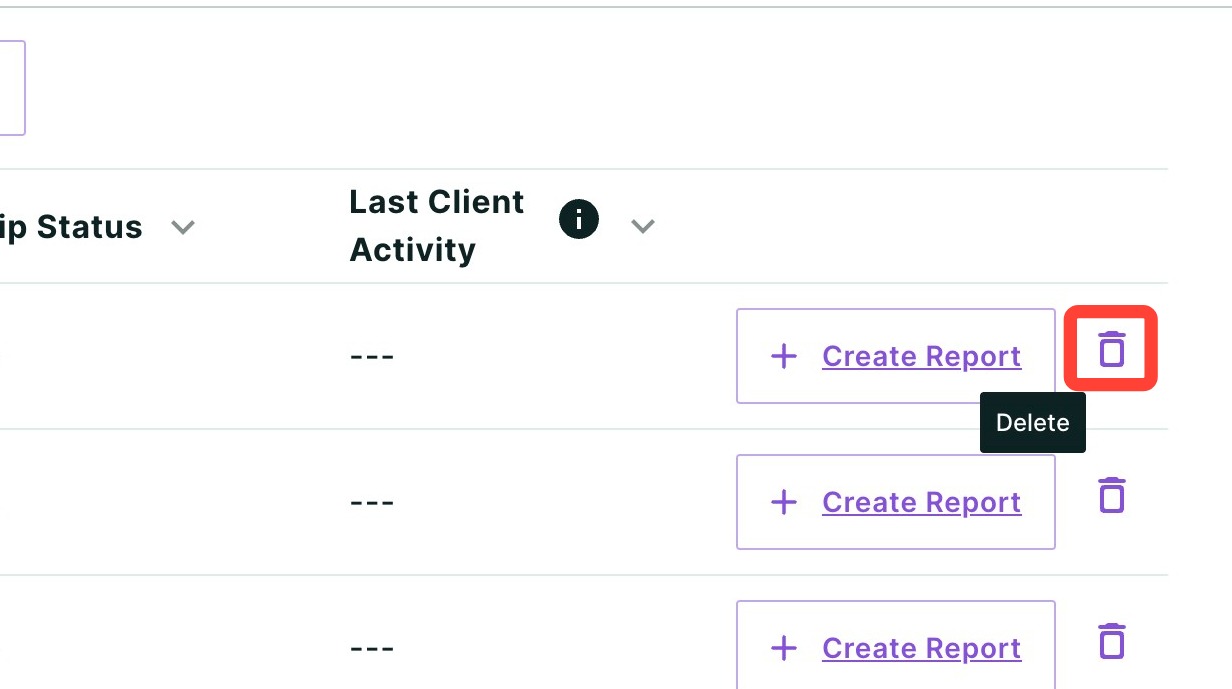
- Click Delete to confirm.
Need Help?
Have questions or want to learn more? Submit a ticket or call us today!
Related to