Strike Rate continuously monitors market rates and alerts you when a target refinance rate is met for your clients, so you never miss a savings opportunity. This guide covers setting up your Strike Rate targets and email notifications, and adding, editing, or removing transactions manually or automatically. For loan officers with a Home Report subscription, it also explains the enhanced MI Savings tracking that flags clients who could benefit from eliminating mortgage insurance.
Navigating to Strike Rate
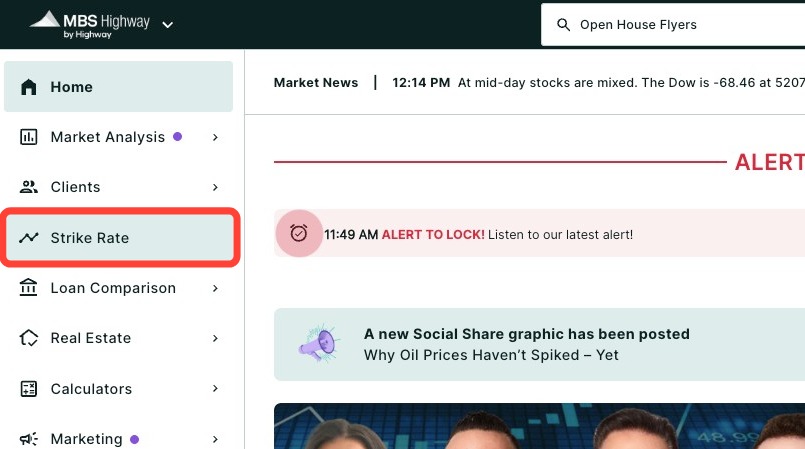
You can find Strike Rate within the Strike Rate tab of the left-hand navigation menu.
Navigating through the left-hand sidebar menu
To access Strike Rate using the left-hand sidebar menu, click Strike Rate.
💡 Helpful Tip: You can favorite the Strike Rate by clicking the star next to its name, so it's easier to find next time.
|
Before Setting Up Strike Rate Targets
NMLS ID
First, we recommend adding your NMLS ID to your profile if you haven’t already. To learn how to update your profile, click here.
By providing us your NMLS ID, we are able to load Strike Rate with your past transaction data and update with new transactions. Once your NMLS ID is added, please allow up to 24 hours for transaction data to load into your transaction table.
Email Notifications
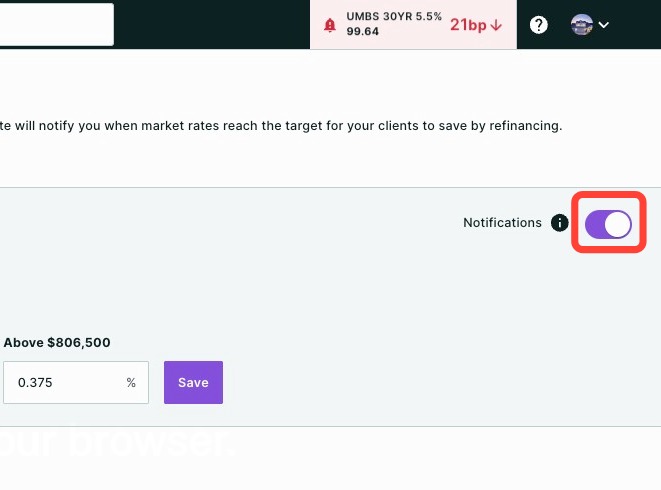
To ensure you receive Strike Rate emails, make sure the email Notifications toggle in the top right-hand corner is turned on. You’ll receive a Strike Rate email when your target rate is met, but no more than one notification per day. If rates decrease by another 0.125% after 24 hours, you will receive a new alert.
To ensure you receive Strike Rate Target emails, please safelist support@mbshwy.com within your email settings.
Setting Up Strike Rate Targets
At the top of the tool, you'll see Today’s Estimated Fixed Market Rates for various loan types. These rates provide a snapshot of current market conditions and help you gauge the timing for a refinancing opportunity.
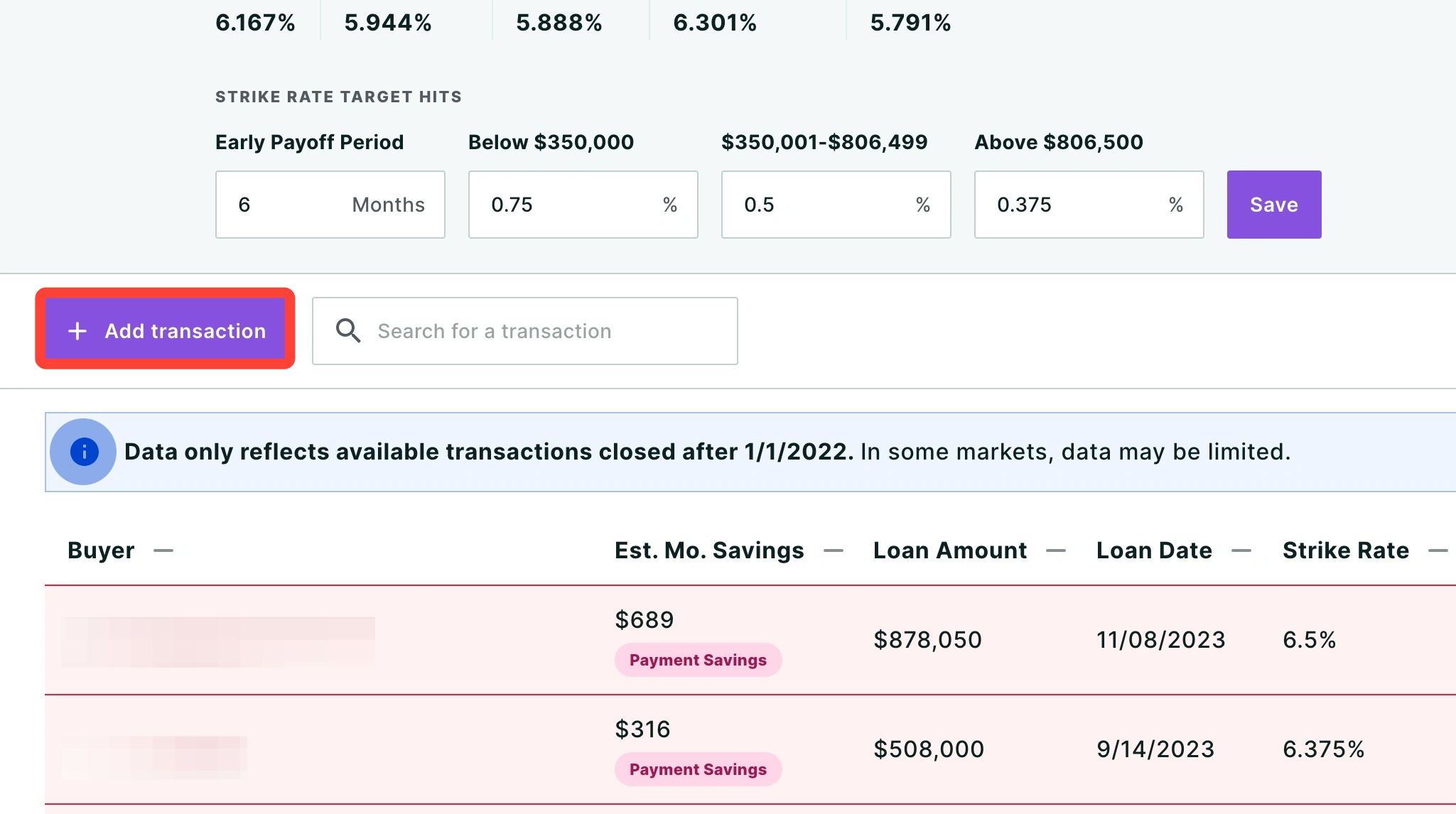
Next, you will find the Strike Rate Target hits. This is where you can set the rate differential needed at three different loan amount thresholds. For example, loans of a smaller size will likely need to see a greater drop in rate for your clients to benefit from a refinance.
Early Payoff Period: Set the minimum number of months your clients should keep their current mortgage before refinancing to avoid prepayment penalties. The default is set to 6 months, but you can adjust this according to your needs. You will not receive Strike Rate notifications for clients who are still within their Early Payoff Period.
Below $350,000: Input the target interest rate for properties under $350,000. In the example below, this is set to 0.75%, meaning your strike rates for new transactions below $350,000 will automatically be set to 0.75 lower than their current rate. Individual strike rates may still be edited at any time.
$350,001 – $766,550: Set a target interest rate for loans of 350,001 up to the current conforming loan amount limit of $766,550. The example shows 0.5%, which may be higher or lower due to certain market conditions.
Above $766,551: Enter a target rate for properties above the conforming loan amount limit (Jumbo Loans). The target rate in the example is set to 0.375%.
When adjusting your strike rate targets, make sure to always click the Save button. If any of your clients satisfy your strike rate targets, you will be notified via email (example below).
In your transaction table, clients who have met your strike rate targets will be highlighted in red, making it easy to identify those who need immediate attention.
Adding Transactions to the Strike Rate Tool
Automatically Added Transactions
When we receive data about a new transaction you've completed, it will automatically be added to your transaction table. From there, you can easily edit the details including loan amount or interest rate, as well as assign a specific Strike Rate to the transaction. To learn how to edit these transactions, click here.
Manually Adding Transactions
To start tracking refinance opportunities for your clients, you’ll need to add their loan information to the Strike Rate tool. To manually add a client, follow the steps below:
1. Click + Add Transaction.
2. Add your Client’s First Name and Last Name.
3. Fill in Loan Information including amount, date, program, type, and current interest rate.
4. Set the target interest rate that will trigger a refinance notification.
5. Click Save.
The tool will now monitor the market and notify you when the Strike Rate is met for your client.
Adding Clients in Bulk - Home Report Enhancement
If you have both an MBS Highway Loan Advisor subscription and a ListReports Home Report subscription, clients added to Home Report in bulk are automatically added to Strike Rate. This allows Strike Rate to immediately begin monitoring those clients for refinance and MI Savings opportunities. To learn how to add clients in bulk, click here.
Editing and Removing Transactions
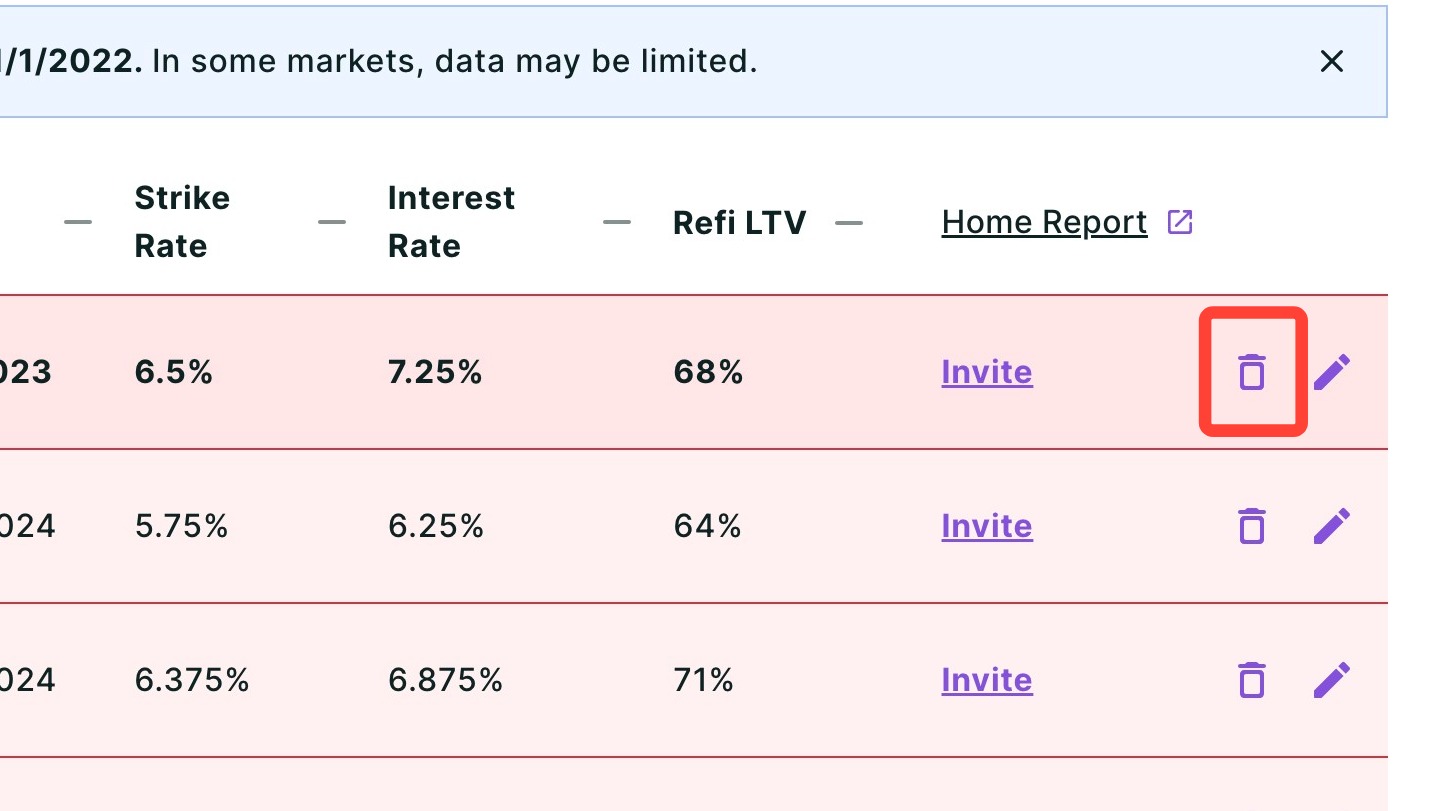
To edit a transaction, click the pencil icon on the transaction row to open the Transaction Profile drawer. From there you can update the Loan Amount, Loan Date, Loan Type, Interest Rate, Strike Rate, and — for Home Report subscribers — Mortgage Insurance, Current Estimated Value, and Current Loan Balance. Click Save when done. To remove a transaction, click the trash icon on the transaction row.
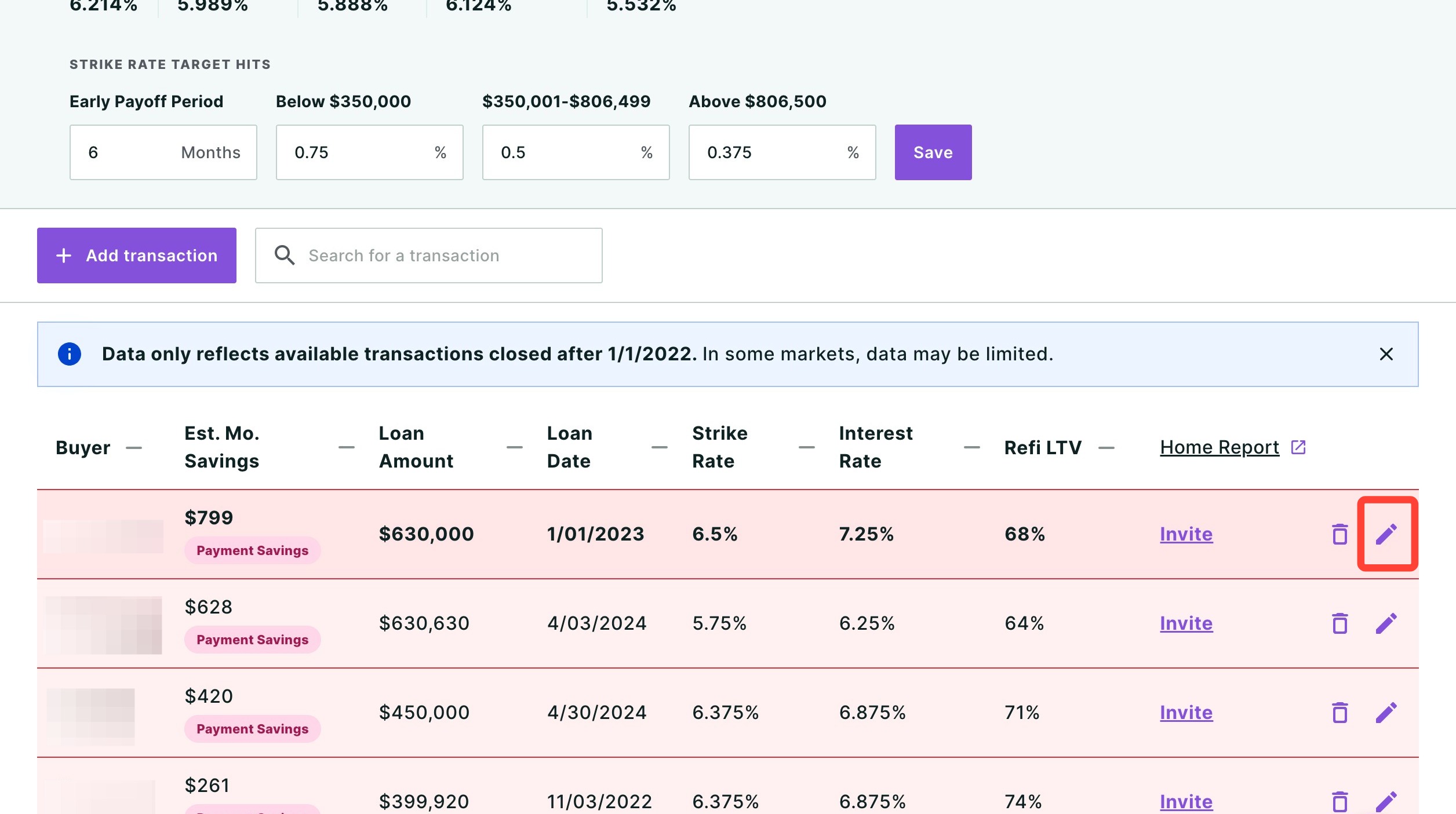
To remove a transaction, click the trash can icon on the transaction’s row.
Enhanced Strike Rate for Home Report Users
MBS Highway users with Home Report gain access to MI Savings, a second Strike Rate opportunity that identifies clients who can reduce their monthly payment by eliminating or reducing mortgage insurance, even if they have not yet reached their Strike Rate.
Additional Fields for MI Savings Tracking
To ensure Strike Rate can track MI Savings for a transaction, you must complete the following fields in your client’s profile. You can access these fields by clicking the pencil icon in the client’s row. Monthly Mortgage Insurance and Current Estimated Value fields are automatically calculated using the transaction data provided, but we recommend reviewing them for accuracy and updating them if needed to ensure MI Savings opportunities are identified correctly.
Monthly Mortgage Insurance (MI)
This is the client's current monthly MI amount. This can be entered as a dollar amount or percentage. You can also select Use worksheet to calculate the MI based on the client’s FICO score and loan details.
Current Estimated Value
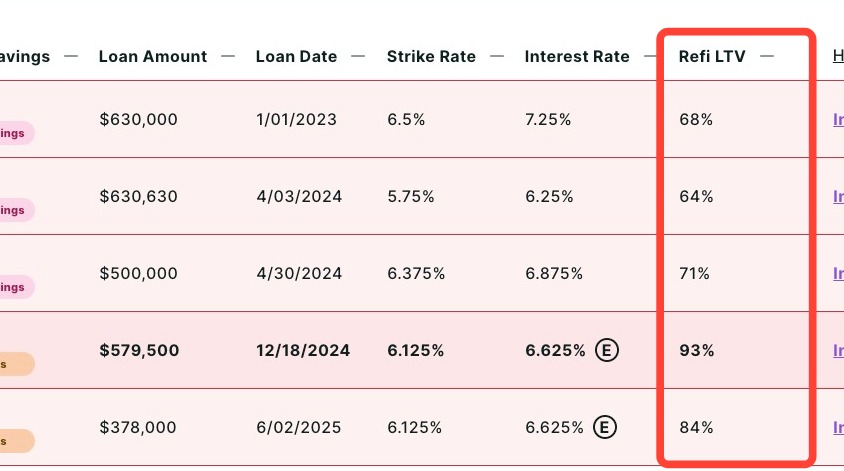
The property’s current estimated market value. This is used to calculate the Refinance Loan-to-Value (Refi LTV).
Current Balance
The client’s estimated remaining loan balance. This is used alongside the Current Estimated Value to calculate the Refi LTV.
Once these fields are filled out, you will see a marker appear in the following two scenarios:
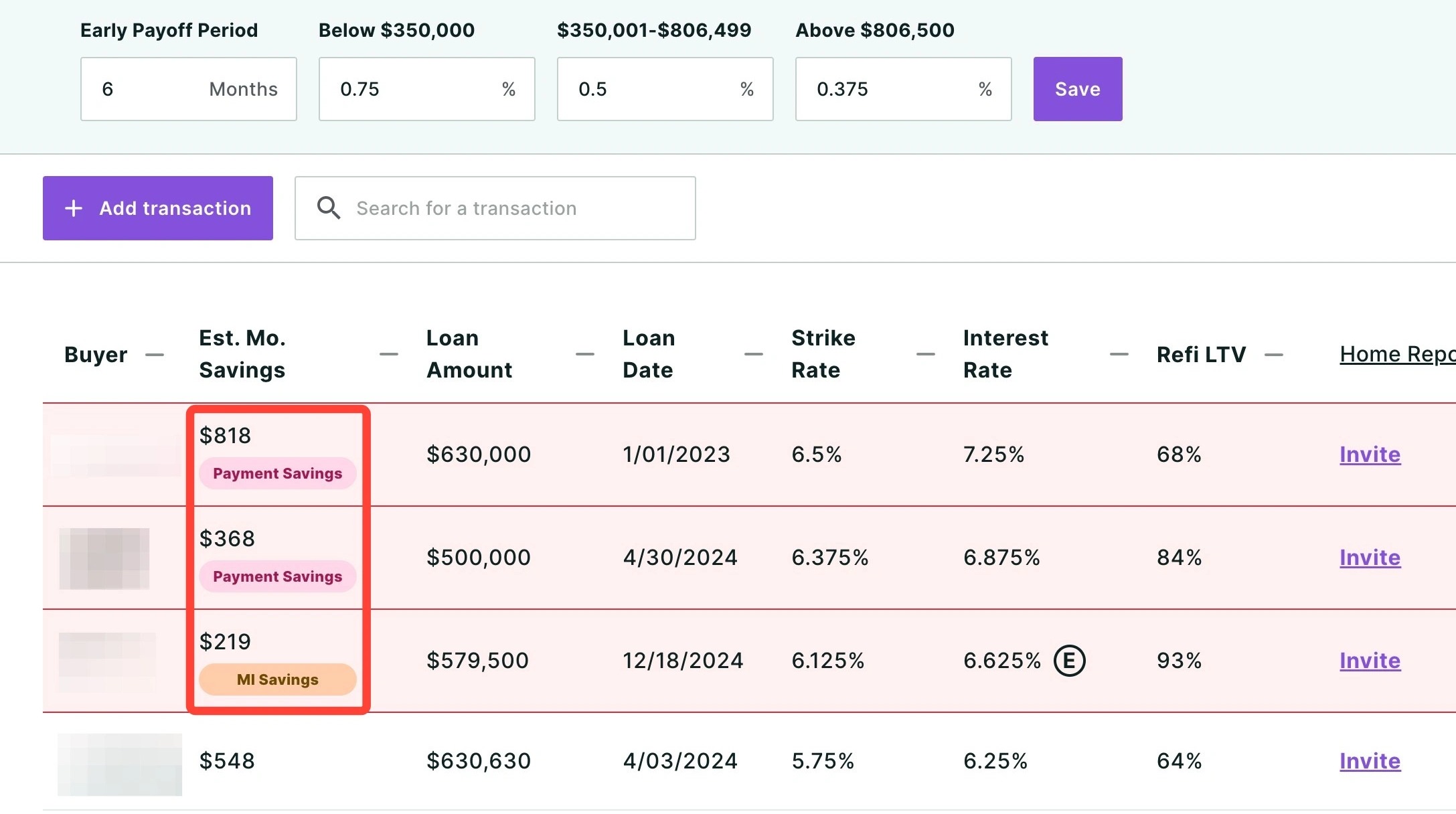
- Payment Savings: This marker will display when your client could save money on their principal and interest.
- MI Savings: This marker is displayed if your client could save money on their monthly payment by eliminating their Mortgage Insurance.
Understanding MI Savings
When a client qualifies for an MI Savings opportunity, an MI Savings badge will appear in their row in the transaction table. This badge indicates that refinancing could eliminate or reduce the client's monthly mortgage insurance, resulting in net monthly savings even if the new interest rate isn't lower enough to trigger a Payment Savings alert on its own.
Please note: If a client qualifies for both MI Savings and Payment Savings at the same time, only the Payment Savings badge will be shown.
|
How Est. Mo. Savings and Refi LTV Are Calculated
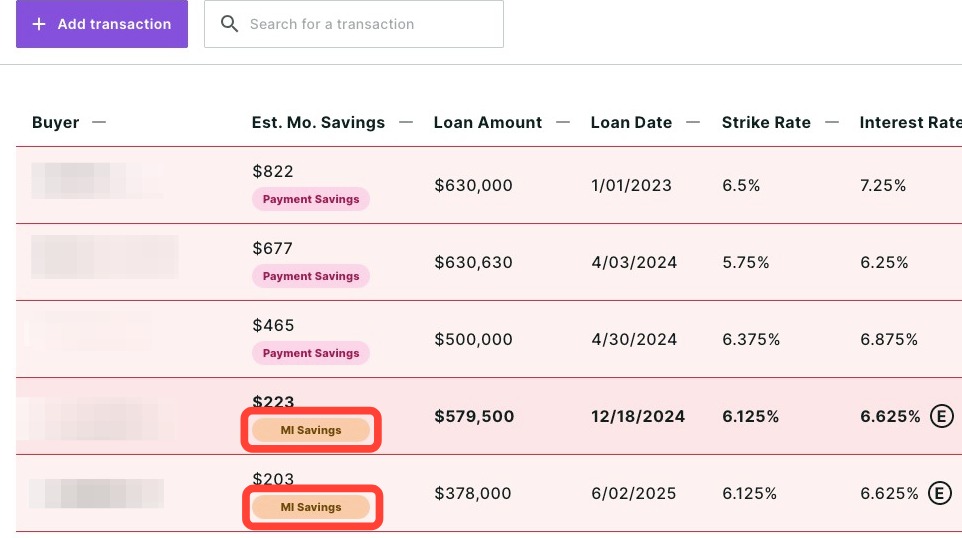
Est. Mo. Savings shows the estimated monthly savings if the client refinances. It compares their current monthly payment (principal, interest, and MI) to a new estimated payment at today’s rate using their remaining balance.
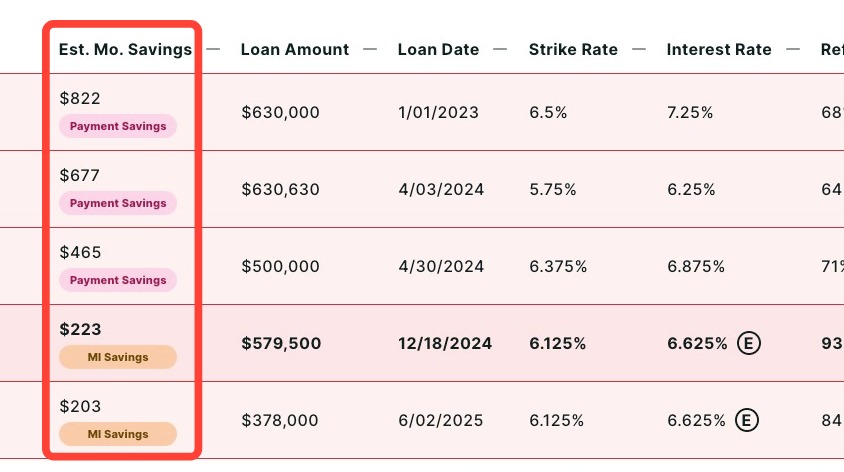
Refi LTV is calculated using the client’s estimated remaining balance and the property’s current estimated value.
Creating Refinance Loan Comparison Reports in Strike Rate
In addition to these markers, you can easily create a Refi Loan Comparison report directly in the editing drawer of your client. To access this report:
1. Click the pencil icon.
2. Enter or confirm your client's transaction details.
3. Click Save & Create Refi Comparison.

4. A Refi Loan Comparison report will open pre-populated with the client’s data from Strike Rate.
5. Make any desired edits and loan scenarios to complete the report and share it with your client.
💡 Helpful Tip: If the client already exists in your Client Manager, the report will be linked to their existing record rather than creating a duplicate record.
|
Need Help?
Have questions or want to learn more? Submit a ticket or call us today!