Use our Refinance Loan Comparison tool to evaluate different loan scenarios, ensuring your clients make the best decision for their unique needs. This tool provides a comprehensive comparison, including the costs of each loan, detailed payment breakdowns, and the variations in closing costs based on the duration your clients plan to stay in their home.
Navigating to the Refinance Loan Comparison Report
You can find your Refinance Loan Comparison Report within Client Manager as well as within the Loan Comparison sidebar menu.
Navigating through the Client Manager
Client Manager allows you to create reports for your clients using previously saved loan and property details, saving you time when building new scenarios. To learn more, click here.
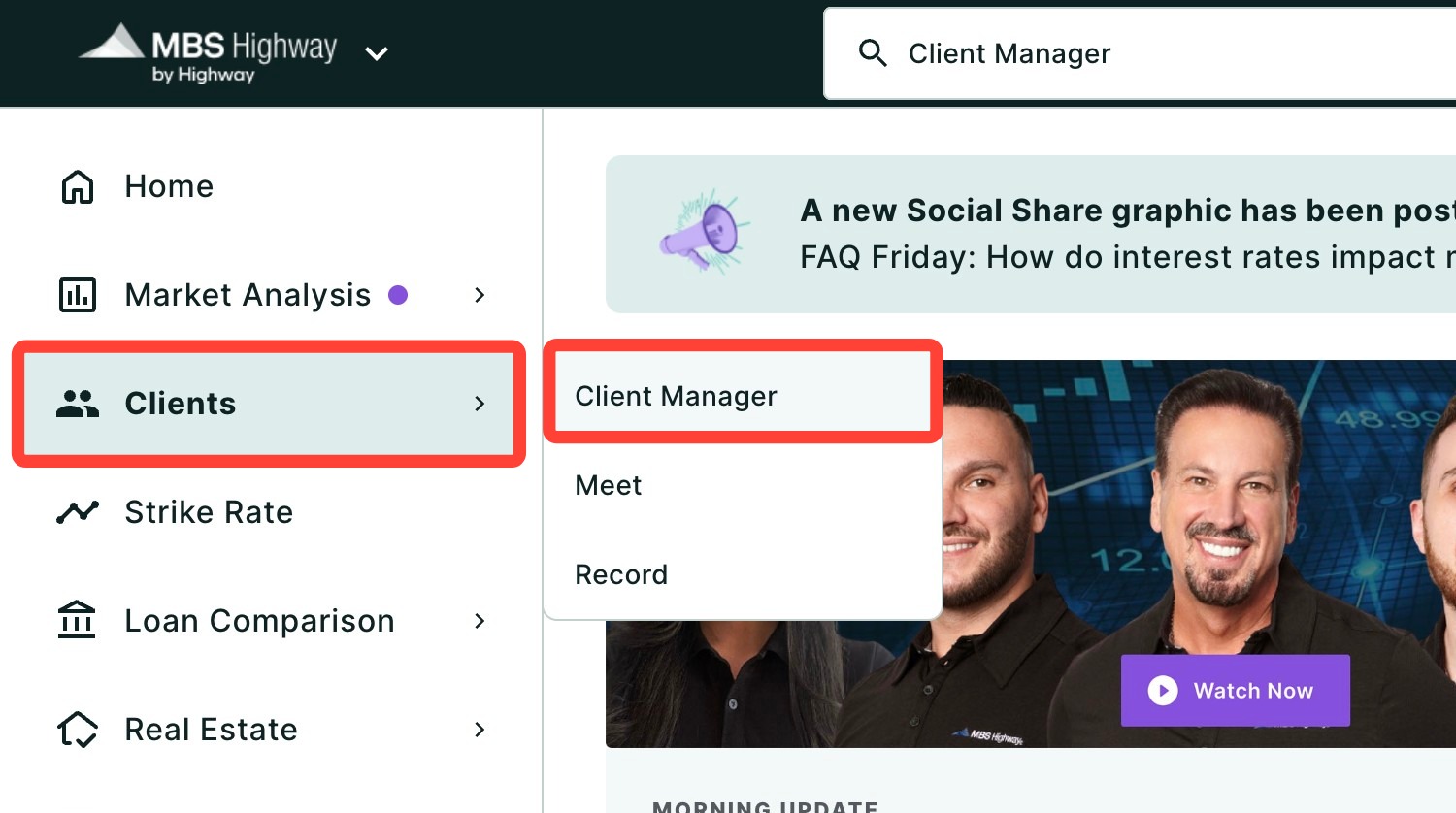
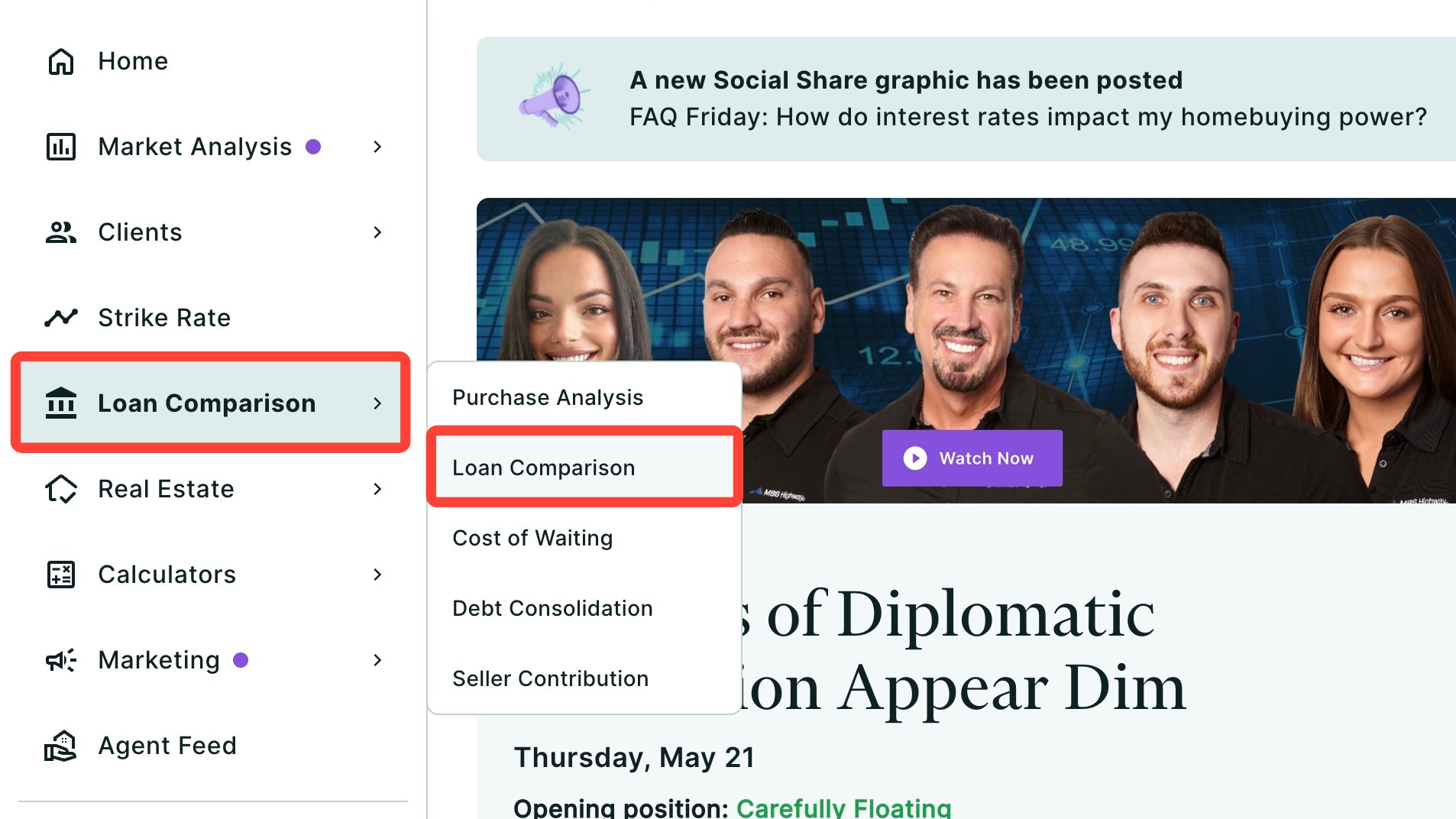
Navigating through the left-hand sidebar menu
To access the Loan Comparison - Refinance report using the left-hand sidebar menu, click Loan Comparison, then click Loan Comparison. By default, the Purchase report will be displayed.
💡 Helpful Tip: You can also search and favorite reports, tools, and calculators. Click here to learn how. |
Adding Current Loan(s)
You can add up to two different current loans. Follow the instructions below to learn how:
- Before you begin, make sure that the Refinance option is selected at the top of the page.
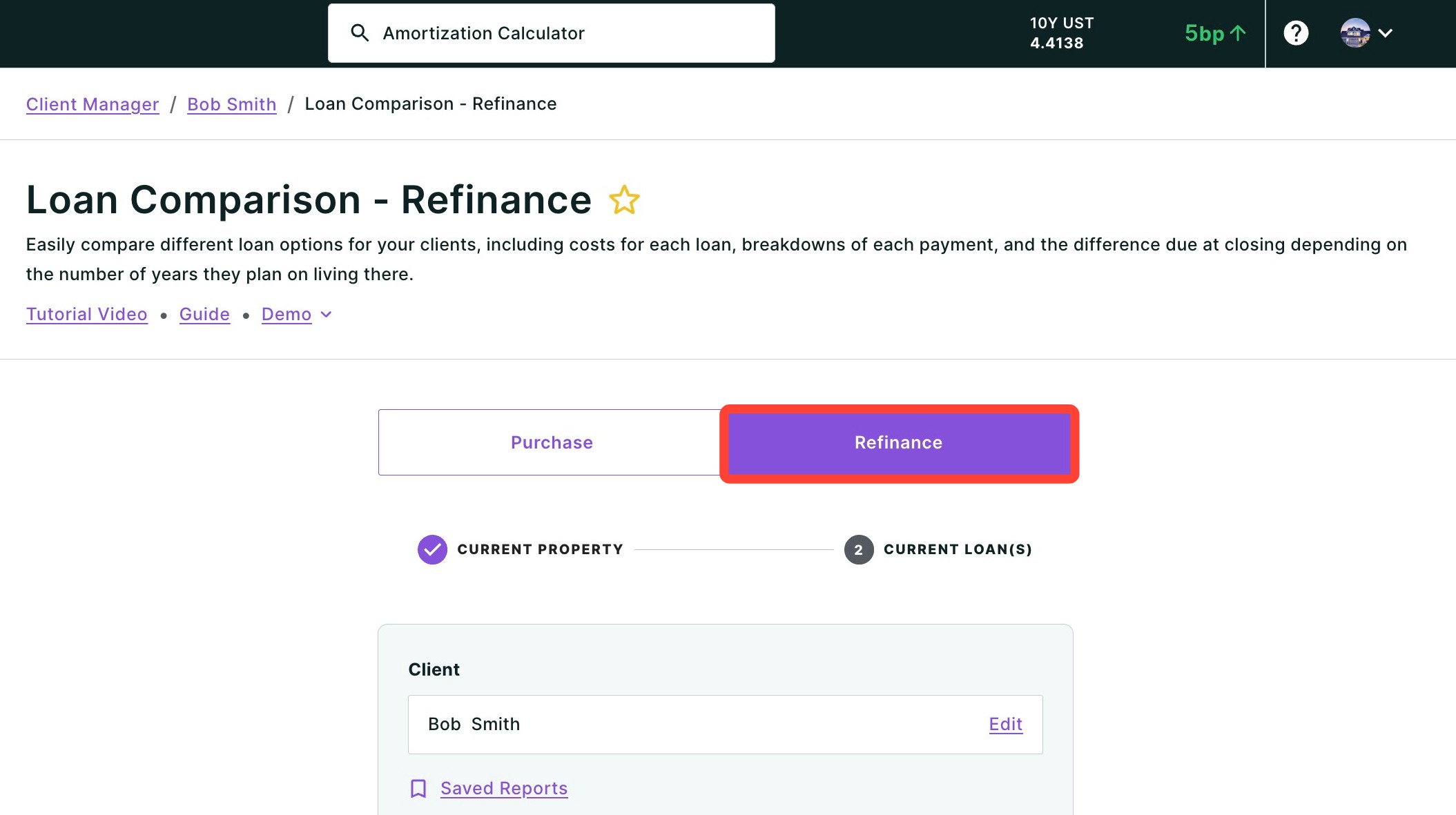
- If not already pre-filled, enter your client’s name and choose them from the dropdown list. To add a new client, click + Add new and fill in your client's details. Name and FICO score are required fields. Click Add.
- Select a Property from the drop-down, or click + New Property and begin typing an address, city, county, or ZIP code in the search field.
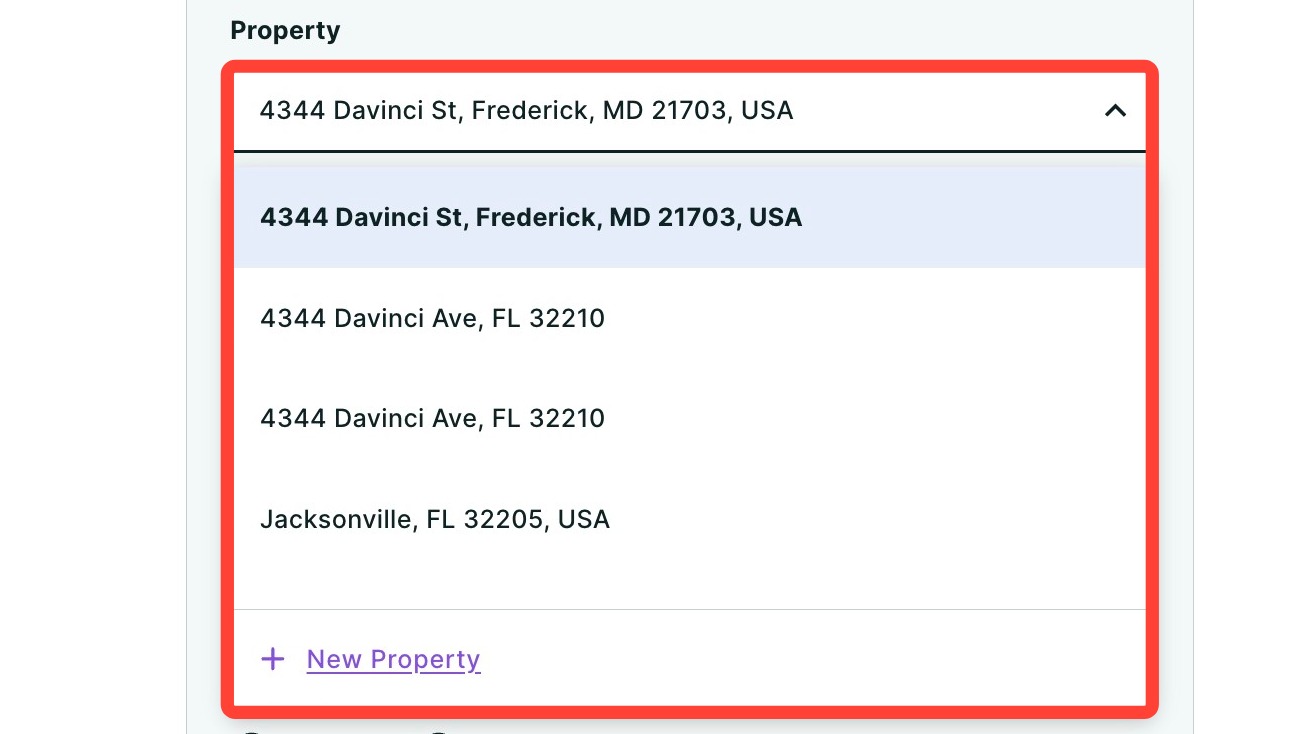
💡 Helpful Tip: Property and loan information is saved to your client, so any updates or changes made will automatically apply across all of their reports where those properties and loans are used.
|
- Enter the original purchase Price for the home. The Annual Property Tax and Monthly Insurance will be automatically calculated based on county averages.
- Enter the Monthly Association Fee.
- Select the Purchase Date, year and month.
- The current Estimated Home Value will be automatically calculated. This field is editable.
- Click Next.
- If your client refinanced, click the bubble next to Yes and fill out all of the fields below related to their home loan including Refinance Date, Loan Amount, Term, Loan Program, Loan Type, and Rate. The Monthly Payment and Remaining Loan Balance will calculate automatically.

- If your client did not refinanced, click the bubble next to No is selected and fill out all of the fields below related to their home loan including Loan Amount, Term, Loan Program, Loan Type, and Rate. The Monthly Payment and Remaining Loan Balance will calculate automatically.

- You can add an additional loan by clicking + Add second existing loan.

- Click Next to continue.
You can also add a current loan on the next screen by clicking + Add second loan under the Current Loan(s) section.
Adding New Loan Scenarios
We give you the ability to create and compare up to three different loan scenarios at a time. Here’s how to create your different loan scenarios:
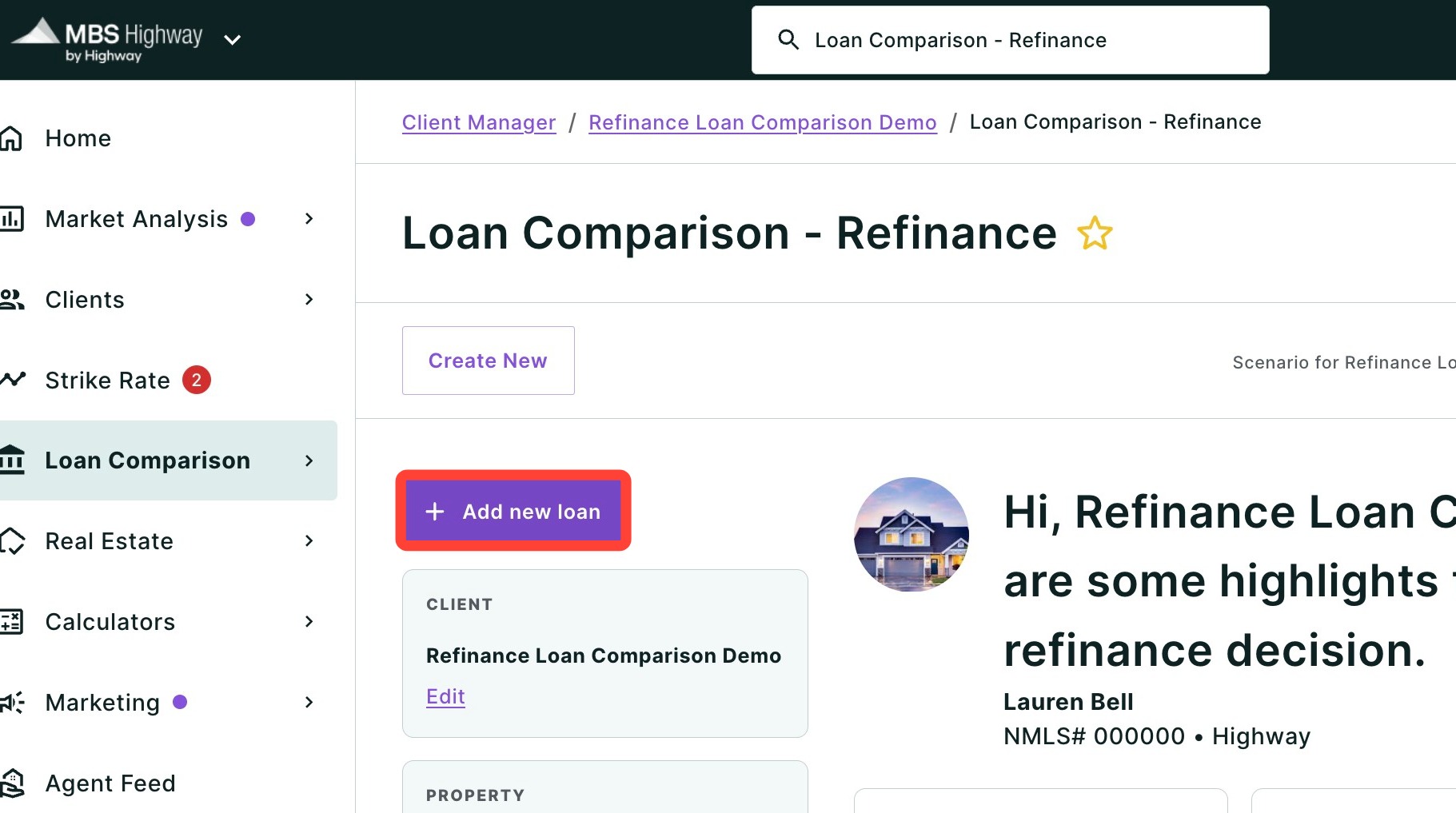
- Click + Add new loan.
- Click Manual.
- Add information about the loan including a Loan Name (optional), Loan Amount, Term, Rate, Loan Program, Loan Type, APR, any Points used, Monthly Mortgage Insurance, and Prepaid & Escrow amounts.

💡 Helpful Tip: By default, Points, Prepaid & Escrow amounts as well as Closing Costs are calculated as financed and added to the loan amount. However, you can uncheck the boxes seen below to not include them in the loan amount.
|

- You can choose an LTV limit percentage which automatically changes the accessible cash available. The current LTV can be seen above the box outlined in red below.

- Enter the amount of cash your client would like to receive from the refinance. The available cash can be found above the field outlined in red below. Click Apply to take out all accessible cash in this loan scenario.

- Click Save.

- Repeat this process until all desired loan scenarios are complete.
Re-ordering Loan Scenarios
You can quickly re-order how loans are displayed within your Loan Comparison report using the 6-dot grid seen below.
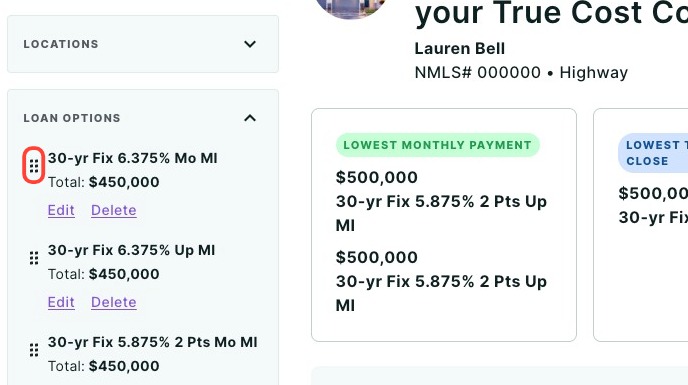
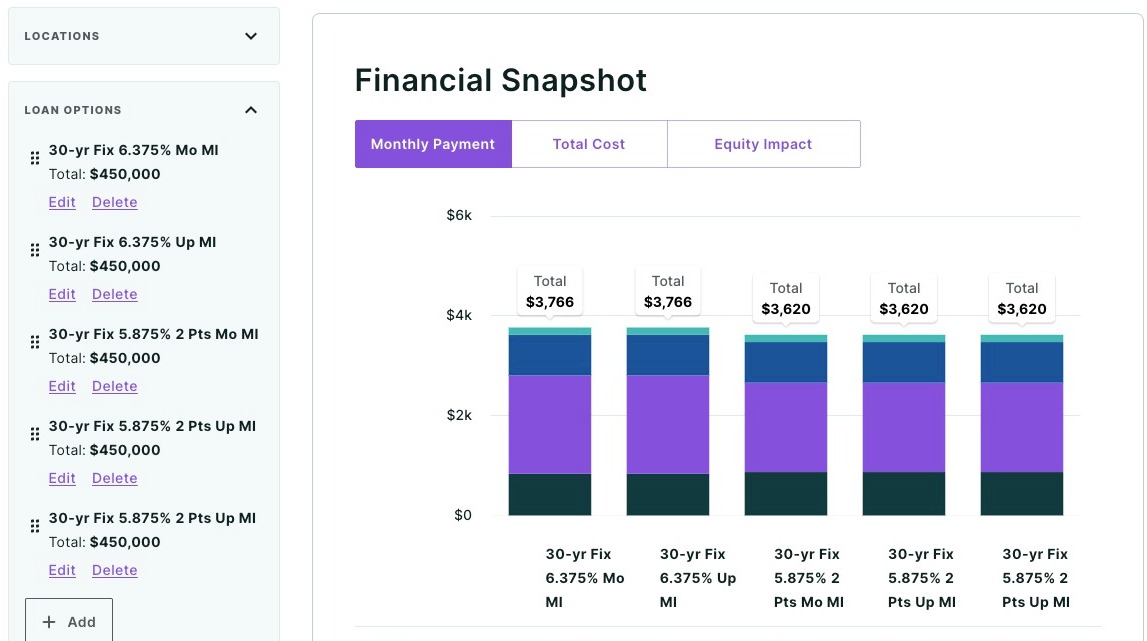
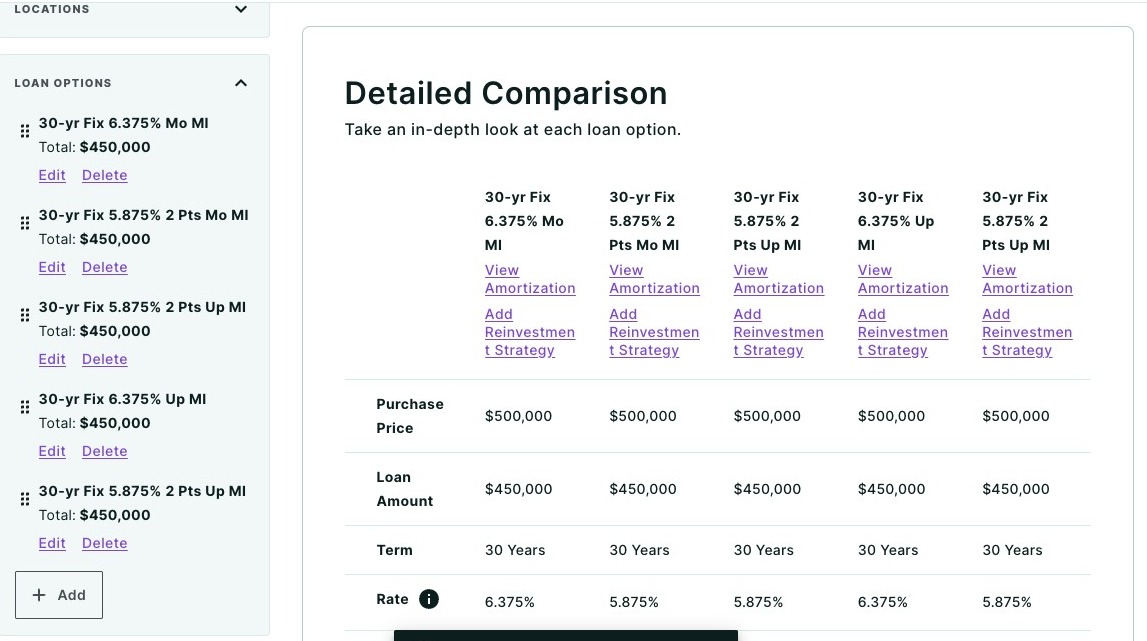
By re-ordering your loans under the Loan Options section, you will see the loans automatically update to your new order under Financial Snapshot and Detailed Comparison.
Financial Snapshot Section
Detailed Comparison Section
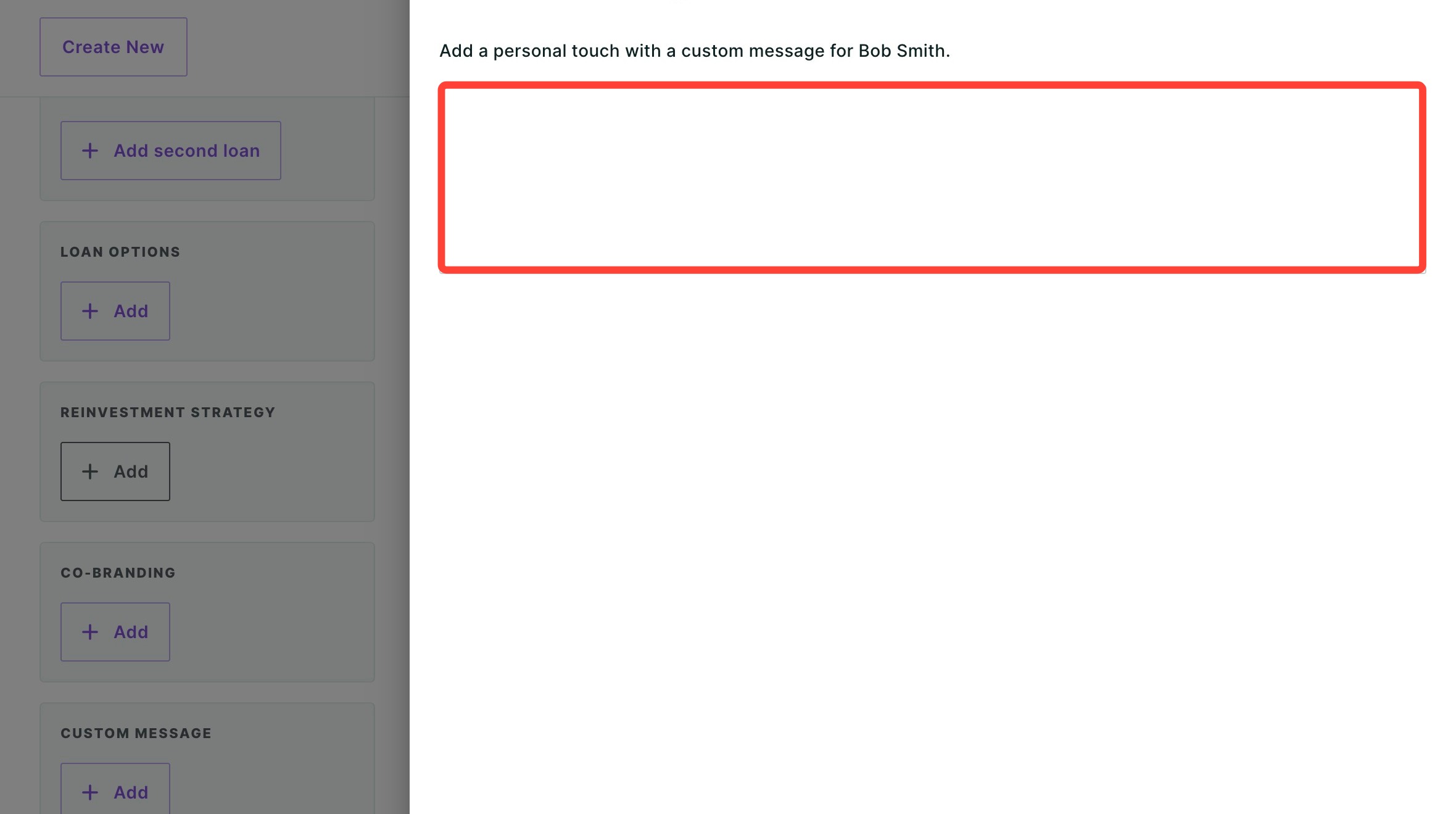
Adding a Custom Message
Personalize your report with a custom message. Follow the steps below to learn how:
- To add a personalized message to your client, click Add Message.

- Type in your custom message for your client and click Save.
Adding Agent Co-branding
You can also add a referral partner's co-branding on your report. To learn more about co-branding, click here.
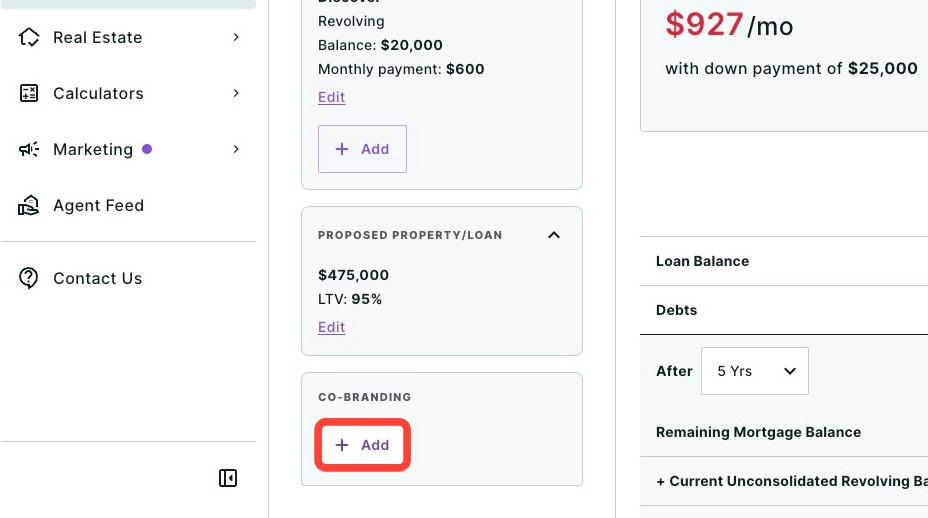
- Click on + Add under Co-branding.
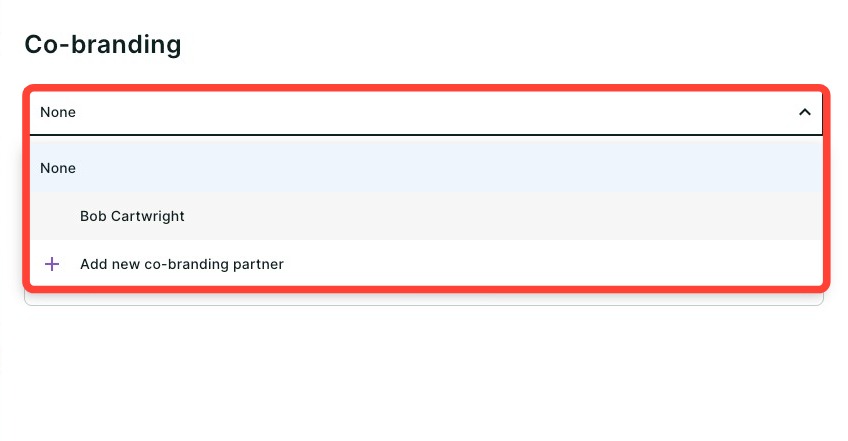
- Use the Co-brand drop-down to select an agent, or click + Add new co-branding partner to add a new agent for co-branding.
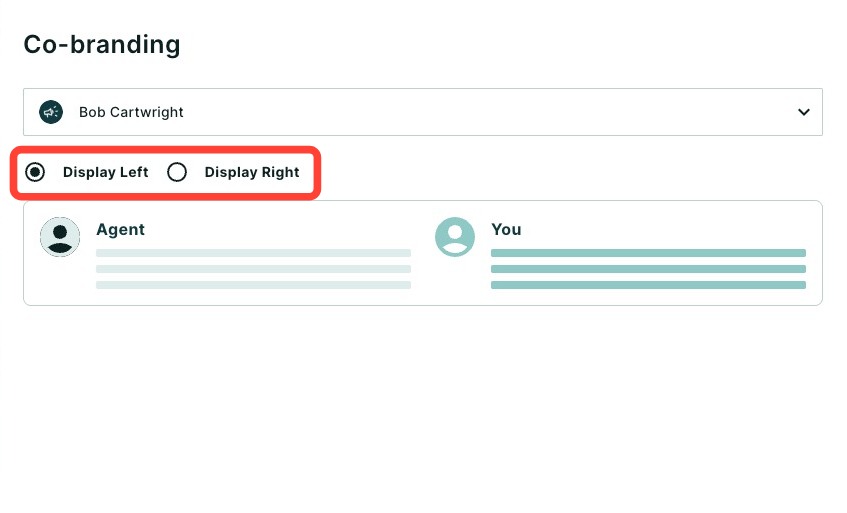
- Select either Display left or Display right to determine how you want the co-branding displayed on the report footer.
- Click Save.
Generating and Sharing your Report
Click Review report in the top right hand corner to then generate and preview your report. From here, you can share the completed report by clicking Share. A dropdown menu will then appear.
- Click Download to download the report as a PDF.
- Click Send a link via email with an optional video recording (not available for some users depending on their company permission settings).
- Click Host a meeting to virtually meet to discuss the report with your client.
- Click Record a Video to provide your client with a clear walkthrough of the report along with your own insights and context.
To learn more about sharing your report, click here.
Need Help?
Have questions or want to learn more? Submit a ticket or call us today!