The Amortization Report helps you estimate your client’s monthly loan payments and breaks down how much they will pay toward principal and interest over the course of the loan. This guide walks you through selecting a client, entering the loan, adding optional extra or lump-sum payments, and sharing the finished report.
Navigating to the Amortization Calculator
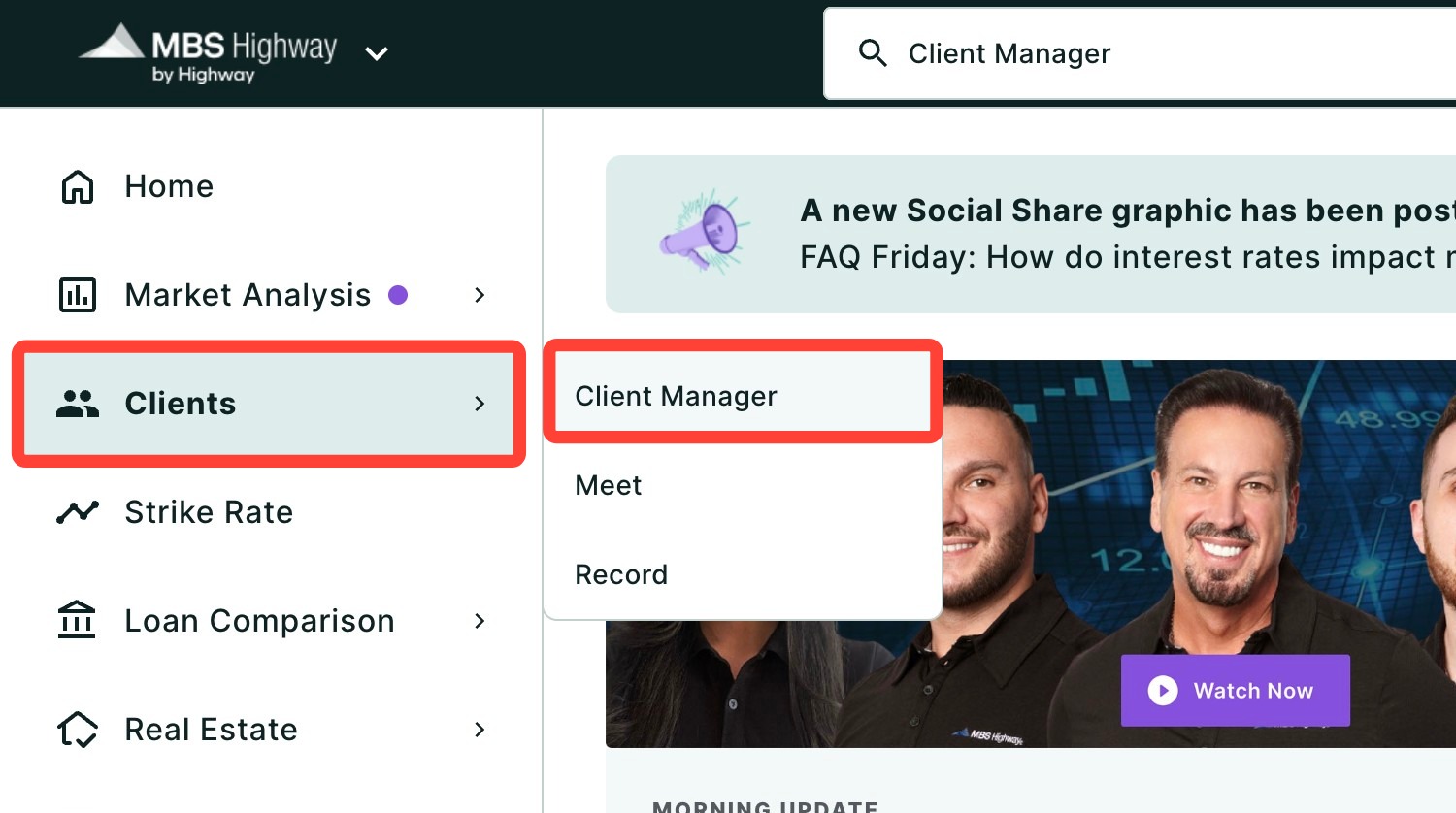
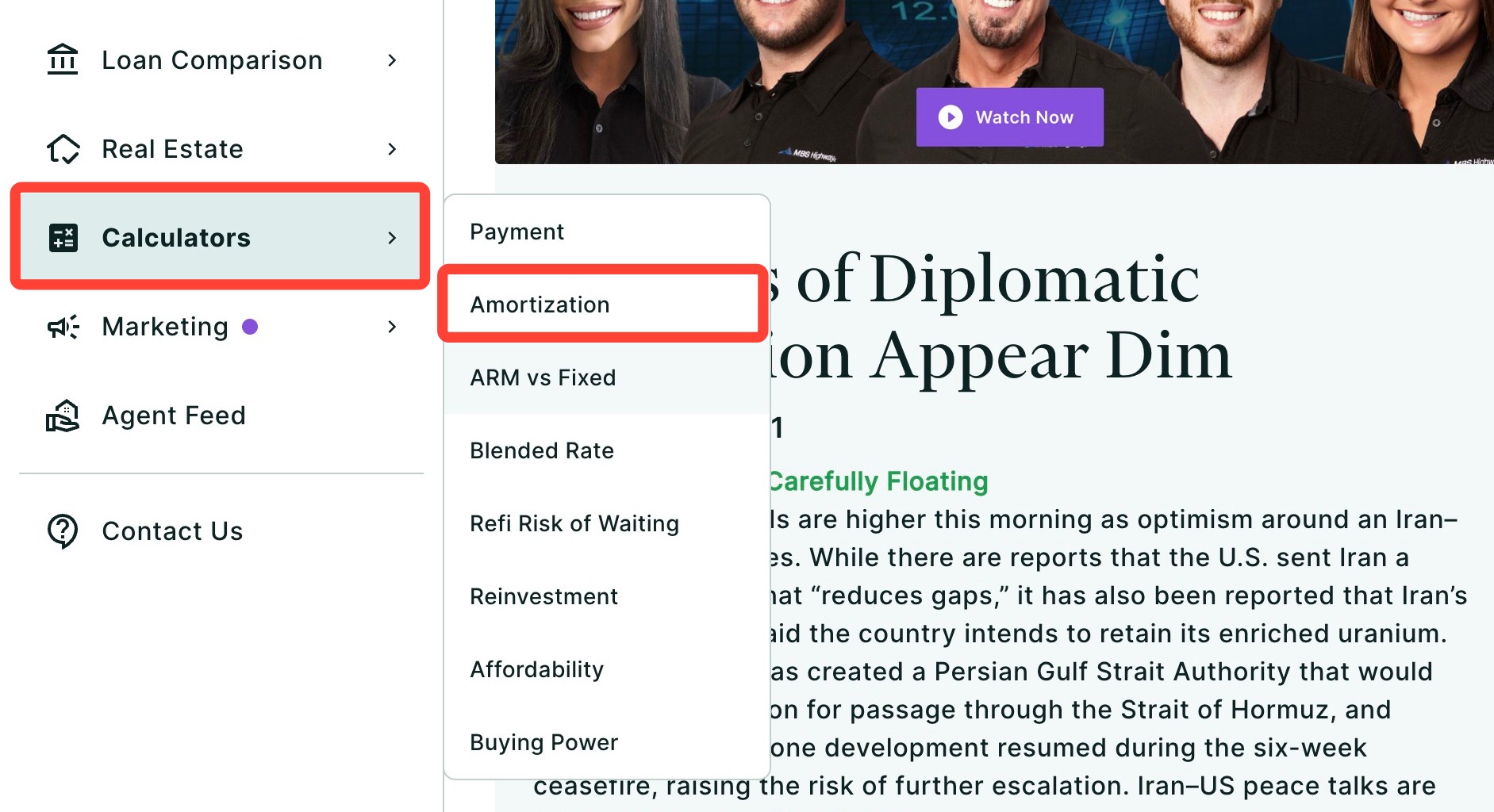
You can find your Amortization Calculator within Client Manager and within the Calculators tab of the left-hand navigation menu.
Navigating through the Client Manager
Client Manager allows you to create reports for your clients using previously saved loan and property details, saving you time when building new scenarios. To learn more, read Client Manager.
Navigating through the left-hand sidebar menu
To access the Amortization Calculator using the left-hand sidebar menu, click Calculators, then click Amortization.
💡 Helpful Tip: You can favorite the Amortization Calculator by clicking the star next to its name, so it’s easier to find next time. |
Creating an Amortization Report
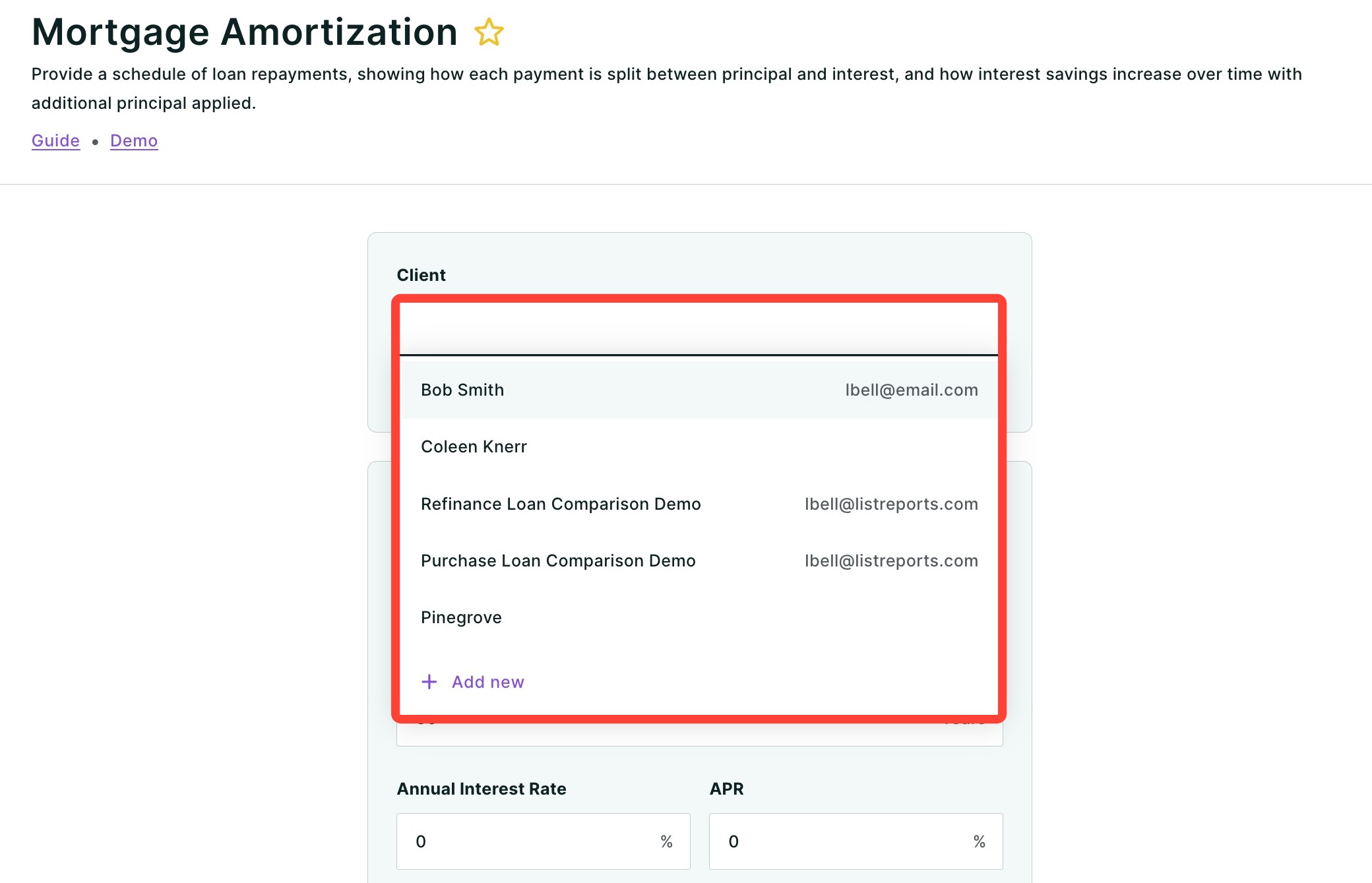
- Select a client by typing their name in the field and choosing them from the drop-down.
- To add a new client, select + Add new from the drop-down and fill in your client’s information. Name and FICO score are required fields. Click Add.
- Select a previously made loan from the drop-down, or click + New Loan.
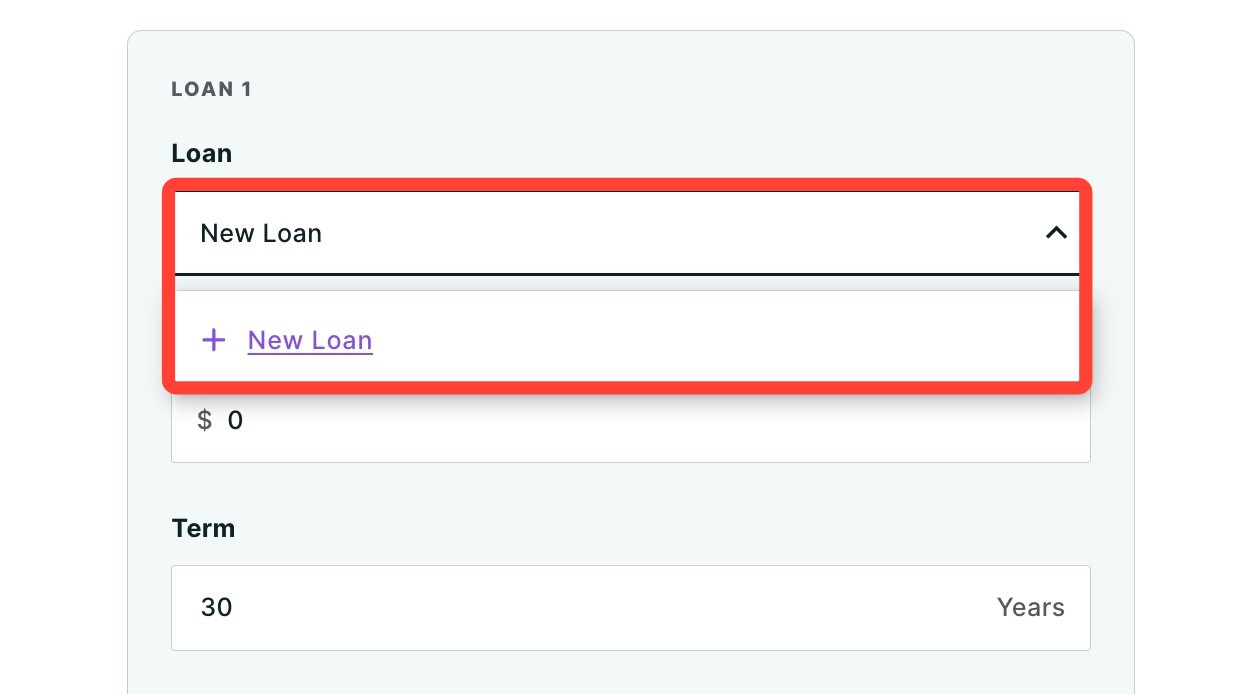
- If you are adding a new loan, enter the Loan Amount, Term, Annual Interest Rate, and APR.
- Optionally, add either or both of the following:
- An Additional Monthly Principal Payment, which is paid toward the principal every month.
- A Lump Sum Payment, a one-time payment toward the principal. Click + Add Lump Sum Principal Payment, then fill in:
- The payment number you want the lump sum applied to — for example, the 15th mortgage payment.
- The Payment Amount your client would like to pay.
- Whether to Recast. Click the checkbox to recast the loan.
Please note: Some mortgage lenders and servicers will allow you to recast (or reset) your monthly loan payment amount after making a principal lump sum payment. The reset will be based upon the original rate and term. |
- Using the drop-downs, select the Purchase Year and Purchase Month.
- To add an additional loan, click Add new loan and repeat steps 2 through 5 for that loan.
- Click Calculate.
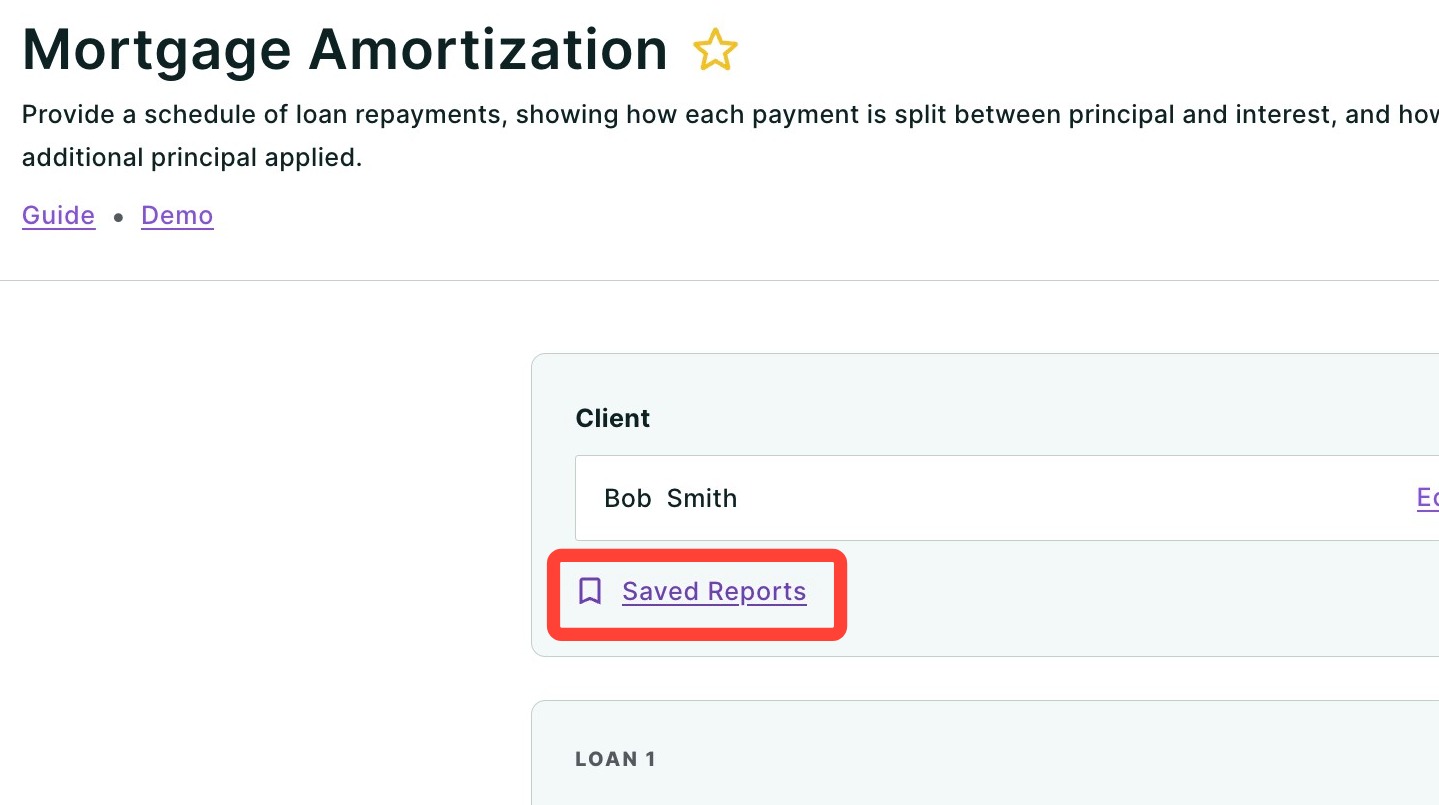
💡 Helpful Tip: You can load a previously built report by clicking Saved Reports. Then choose your report and click Load. |
Sharing your Report
Once you’ve created your Amortization Report and made any necessary edits, it’s time to review and share your report. Click Edit if you need to make further adjustments. To share the completed report, click Share. A dropdown menu will appear.
- Click Download to download the report as a PDF.
- Click Send a link via email with an optional video recording (not available for some users depending on their company permission settings).
- Click Host a meeting to virtually meet to discuss the report with your client.
- Click Record a Video to provide your client with a clear walkthrough of the report along with your own insights and context.
To learn more about sharing your report, click here.
To understand what each section of the finished report shows, read Amortization Calculator: What’s Inside.
Need Help?
Have questions or want to learn more? Submit a ticket or call us today!
Related to