Seize the opportunity to show high-debt clients how to consolidate their balances with a new mortgage and potentially save money each month to apply towards their principal and accelerate mortgage payoff (even with a higher-rate mortgage).
Navigating to the Debt Consolidation - Move-Up: Step-by-Step Guide
You can find your Debt Consolidation Report within Client Manager as well as within the Loan Comparison sidebar menu.
Navigating through the Client Manager
Client Manager allows you to create reports for your clients using previously saved loan and property details, saving you time when building new scenarios. To learn more, click here.
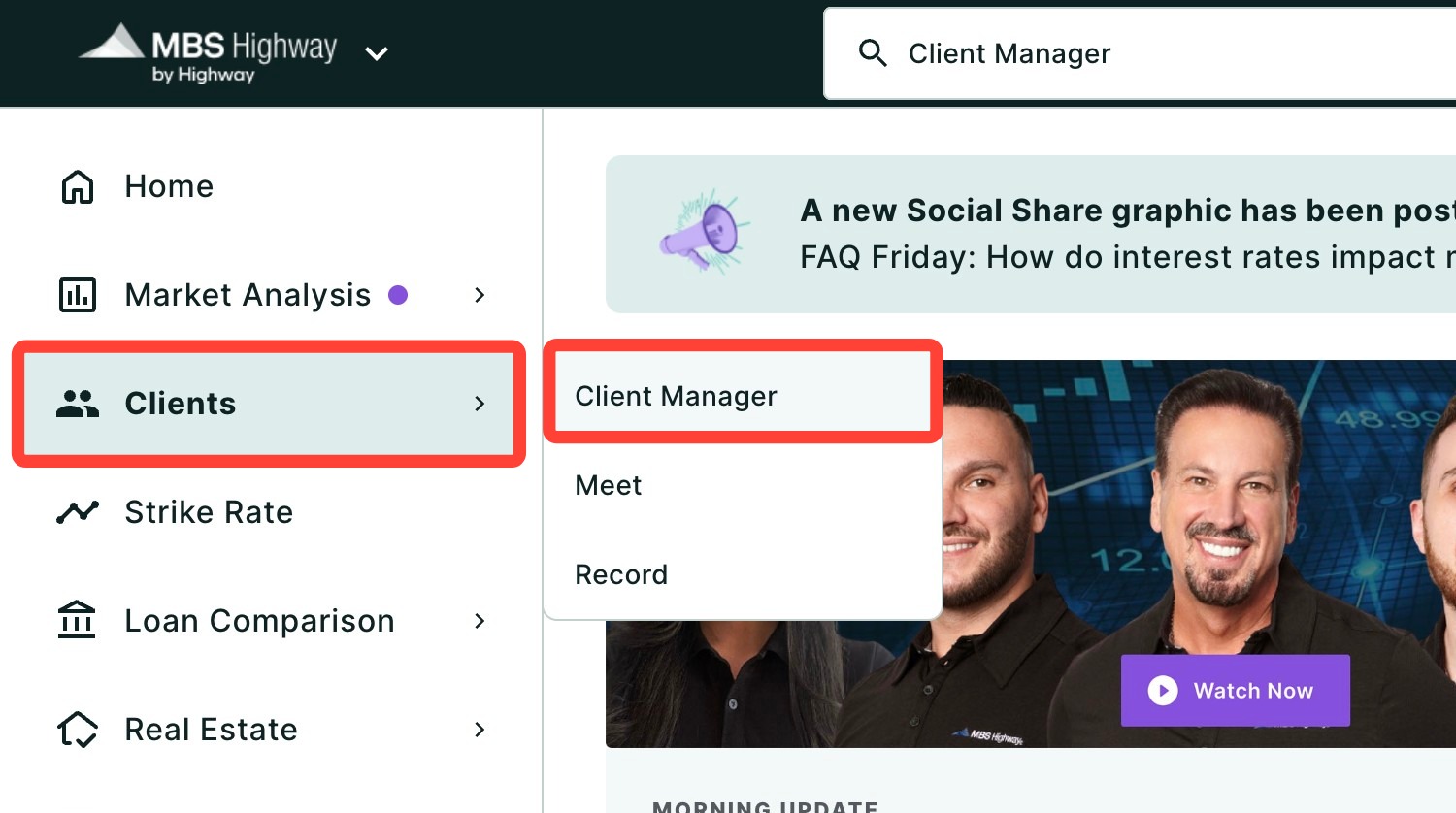
Navigating through the left-hand sidebar menu
To access the Debt Consolidation report using the left-hand sidebar menu, click Loan Comparison, then click Debt Consolidation. By default, the Refinance report will be displayed.
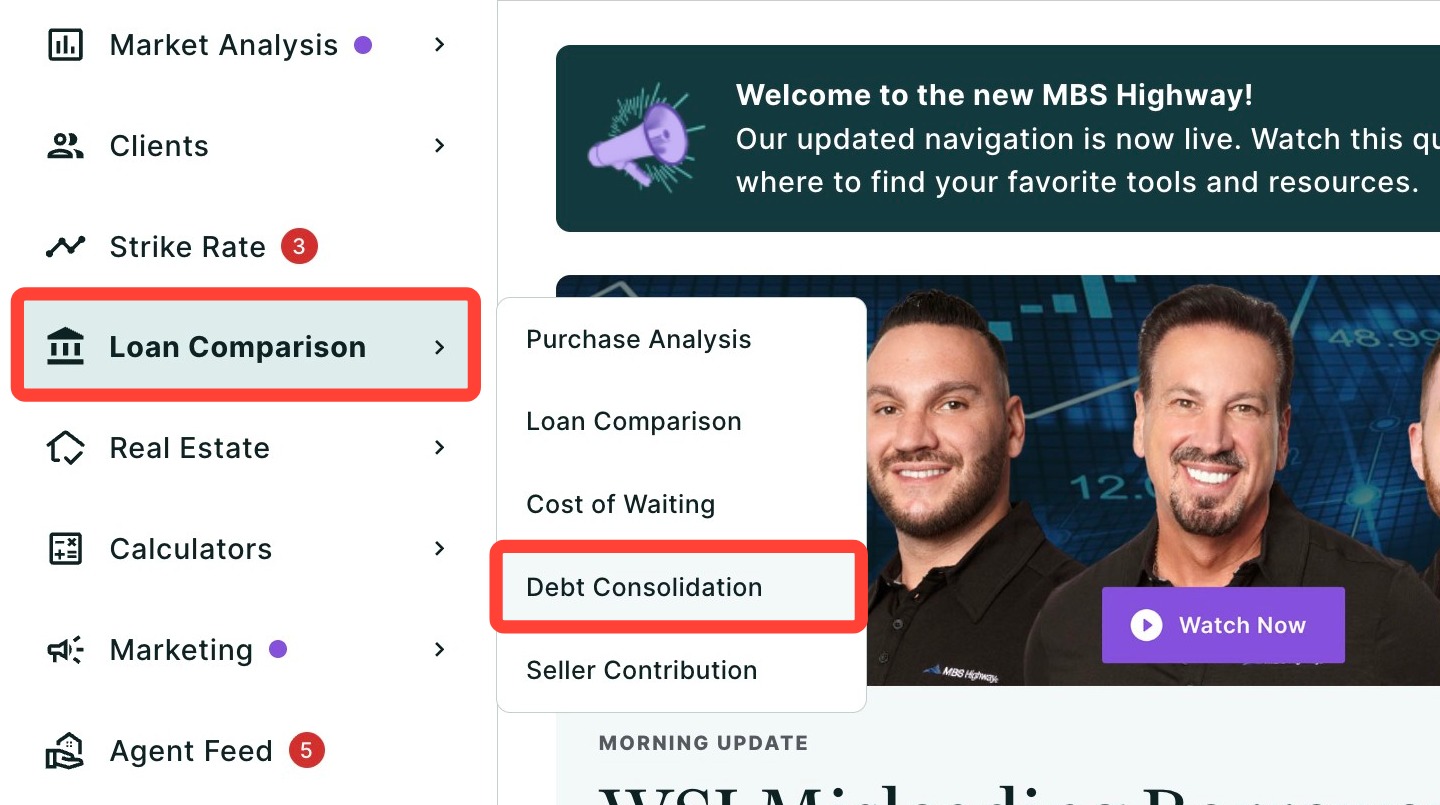
💡 Helpful Tip: You can also search and favorite reports, tools, and calculators. Click here to learn how. |
How to Choose the Move Up Purchase Option
When using the Debt Consolidation tool, you have two options for your type of loan: Refinance or Move Up Purchase. To get started with the Move Up Purchase option, follow the steps below:
- Using the toggle bar, choose Move Up Purchase.
-
Enter and select your client's Name from the drop-down.
- If adding a new client, click + Add new. You will need to provide their name; however, all other fields are optional. Please note that if you would like to share these reports via email, you will need to add their email address.
- Enter your client's Monthly Qualifying Income.
- From here, begin entering the debts your client would like to consolidate. You can add up to 15 different debts. The information required includes:
- The debt's name
- Type of debt (Installment, Revolving, or Other)
- Total balance
- Monthly payment
- Click Next.
Creating Your Report
- Enter your client's existing property information under Existing Property. This includes:
- Property address
- Original purchase price
- Annual property tax
- Monthly home insurance
- Association fees
- Purchase year and month
- Estimated home value
- Cost to sell (real estate agent fees)
- Note: The annual property tax, monthly home insurance, and estimated home value will automatically be calculated, but fields can be edited.
- Enter your client's existing loan information under Existing Loan.
- Select if your client has refinanced in the past.
- If yes, select the refinance year and month from the drop-downs.
- Enter the loan amount, term, loan program and loan type, rate, and monthly mortgage insurance (for help calculating the Monthly Mortgage Insurance, click Use worksheet)
- The estimated remaining balance and monthly payment will automatically populate, but these can be edited.
- Available cash will automatically calculate at the bottom.
- Click Next.
- Enter the max front and back ratios and the information for the property your client plans on purchasing.
- Enter the property location, name, price, annual property tax, and monthly home insurance and association fees.
- The annual property tax and monthly home insurance will automatically be calculated, but this can be edited.
- Enter the Loan information including:
- Down payment
- Term
- Loan program
- Type
- Rate
- Points
- Monthly mortgage insurance (for help calculating the Monthly Mortgage Insurance, click Use worksheet).
- If the loan is self-insured, check off the box. Checking this off will make sure the MI is not dynamically calculated.
- Prepaid & Escrow costs
- Closing costs (for help calculating the Monthly Mortgage Insurance, click Use worksheet).
- Available cash to apply towards debts will automatically calculate at the bottom.
- Click Next.
You will now be able to apply debts and obligations to the available cash in-hand and view the report. Click here to see what's inside the Debt Consolidation Move-up Report.
Making Edits to the Report
To make edits to either the existing or proposed loan details, click Edit in the top right corner of the page.
From here, you can make edits to the scenario's debts and obligations, edit client information, existing property or loan information, and proposed loan information.
Adding Debts
To add additional debts to your Debt Consolidation report, follow the steps below:
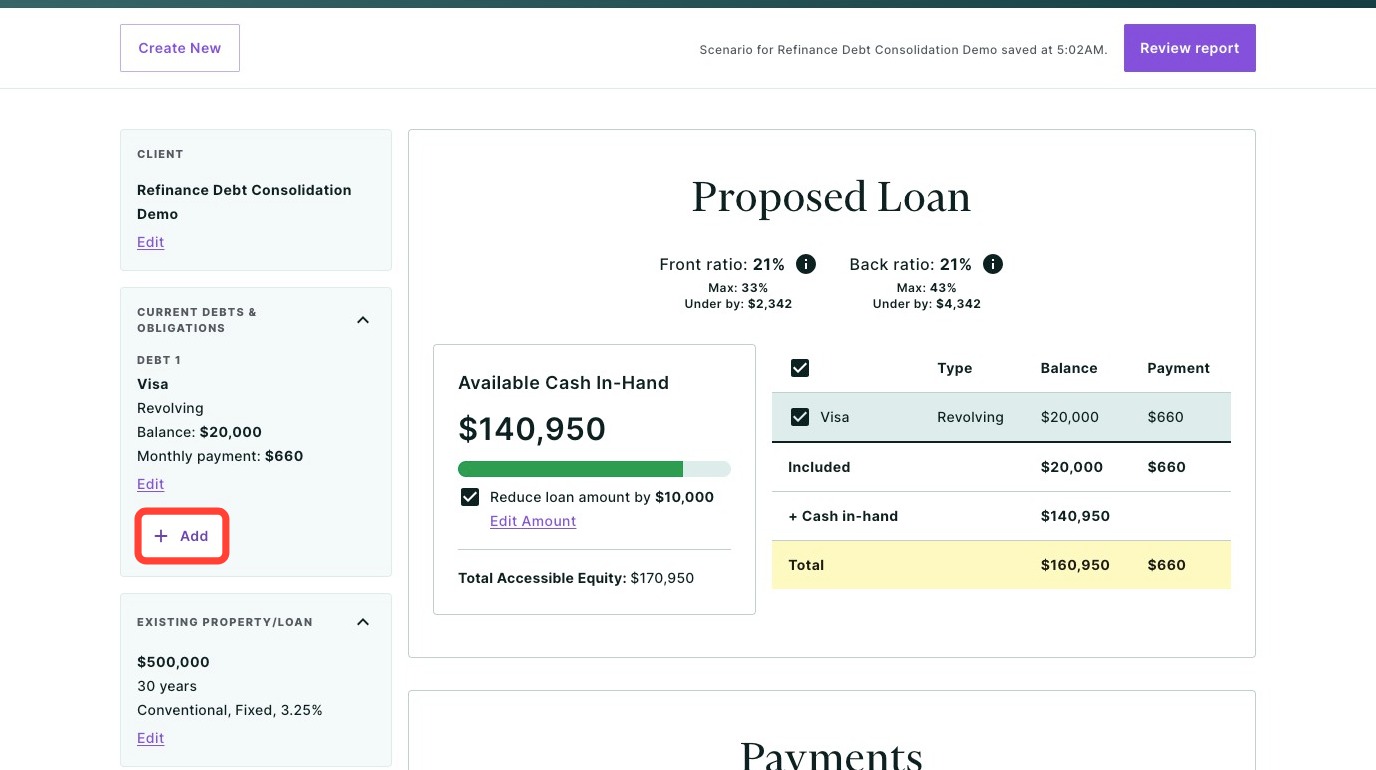
- Click + Add within the Current Debts & Obligation section.
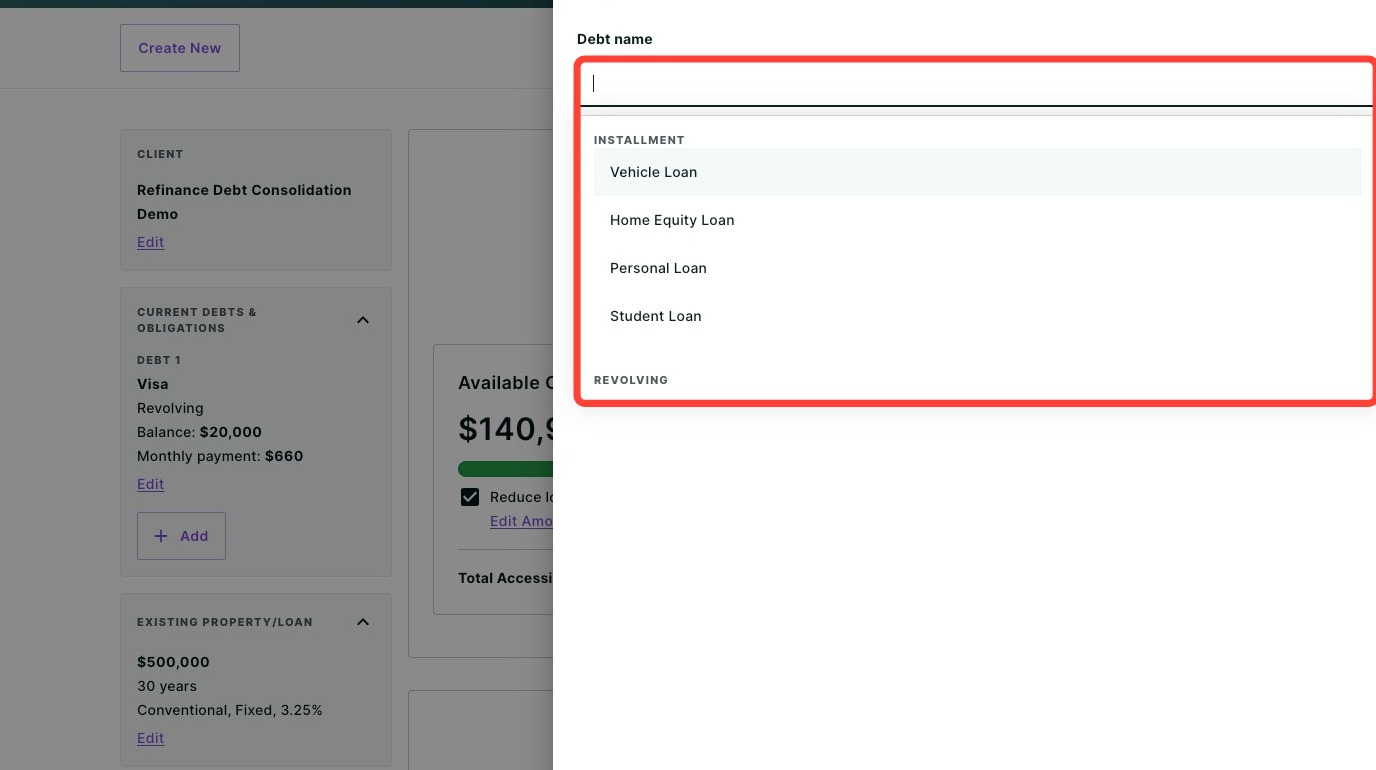
- Enter a name for the debt or select one from the drop-down.
- Choose the Type of debt.
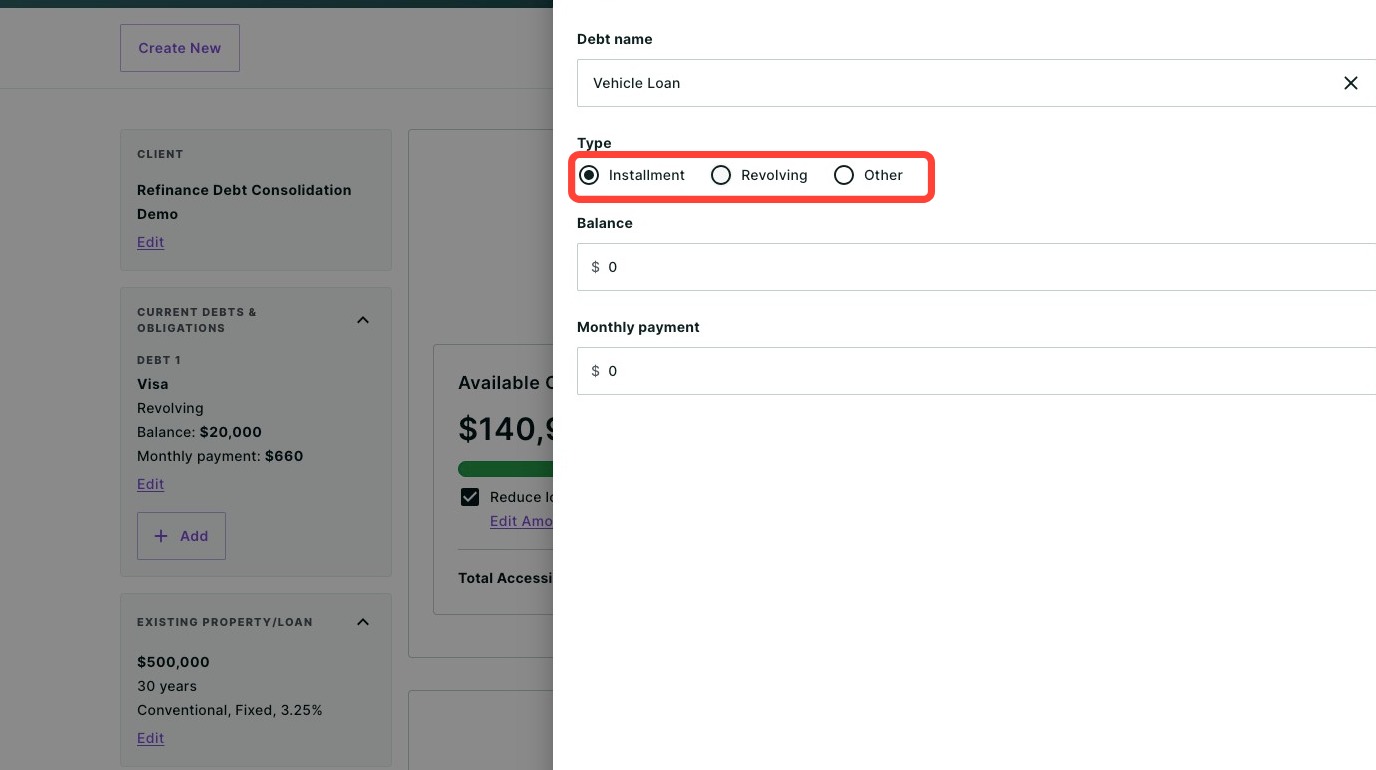
- Enter the debt's Balance and Monthly payment.
- Click Save.
Deleting Debts
To remove debts from your Debt Consolidation report, follow the steps below:
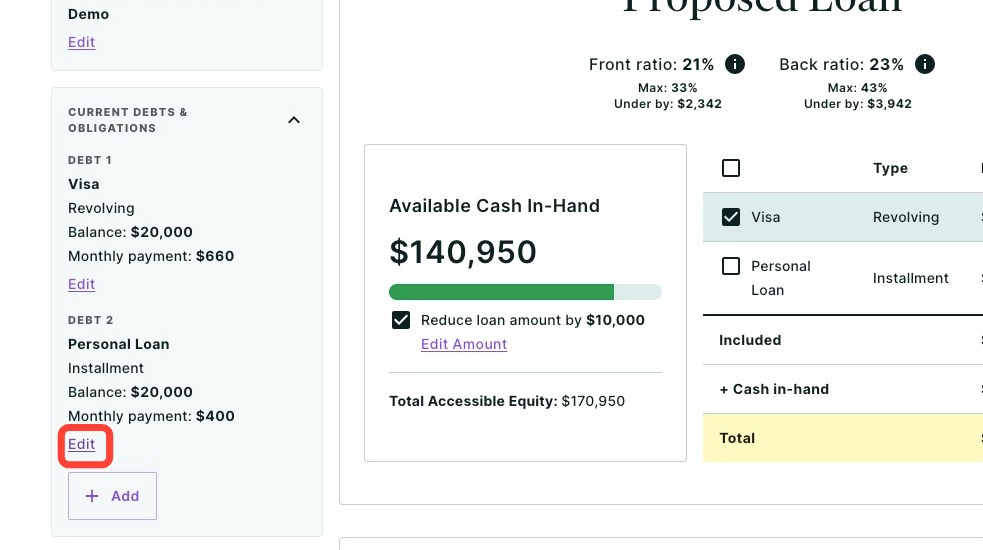
- Click Edit below the debt you would like to delete.
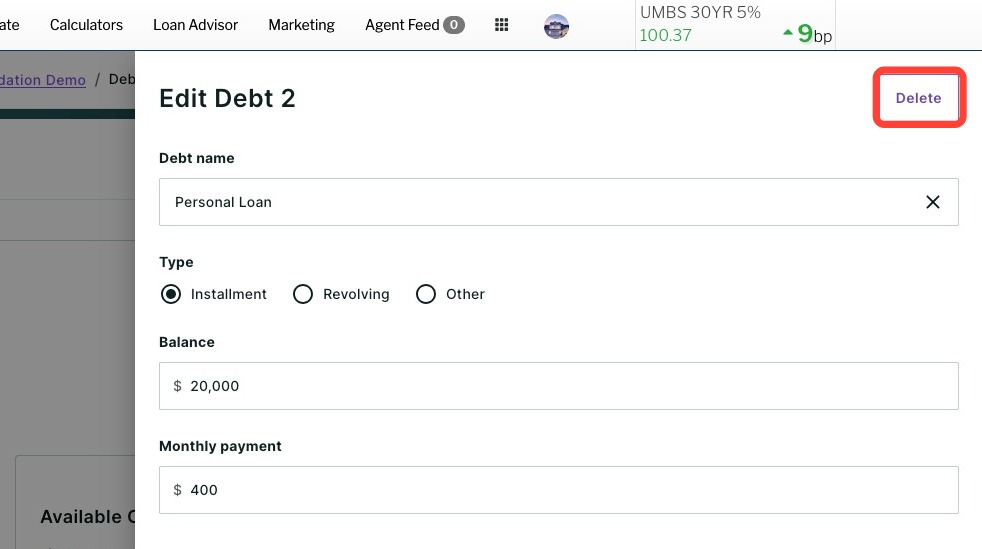
- Click Delete.
Adding Agent Co-Branding
You can also add a referral partner's co-branding on your report. To learn more about co-branding, click here.
- Click on + Add under Co-branding.
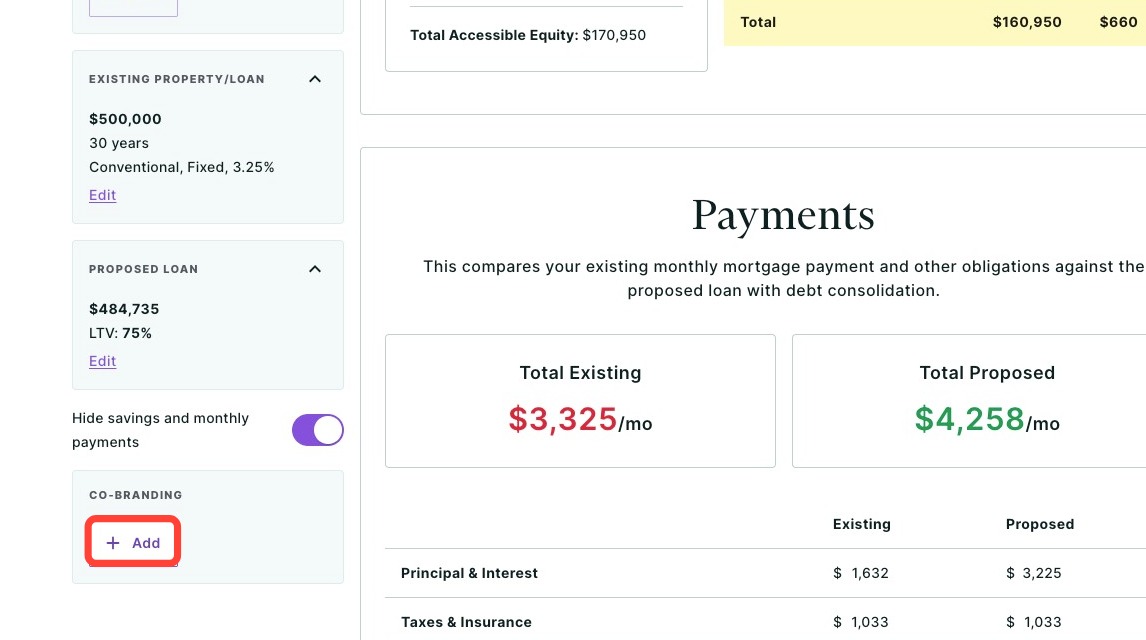
- Click on the drop-down menu and select an agent or add a new agent.
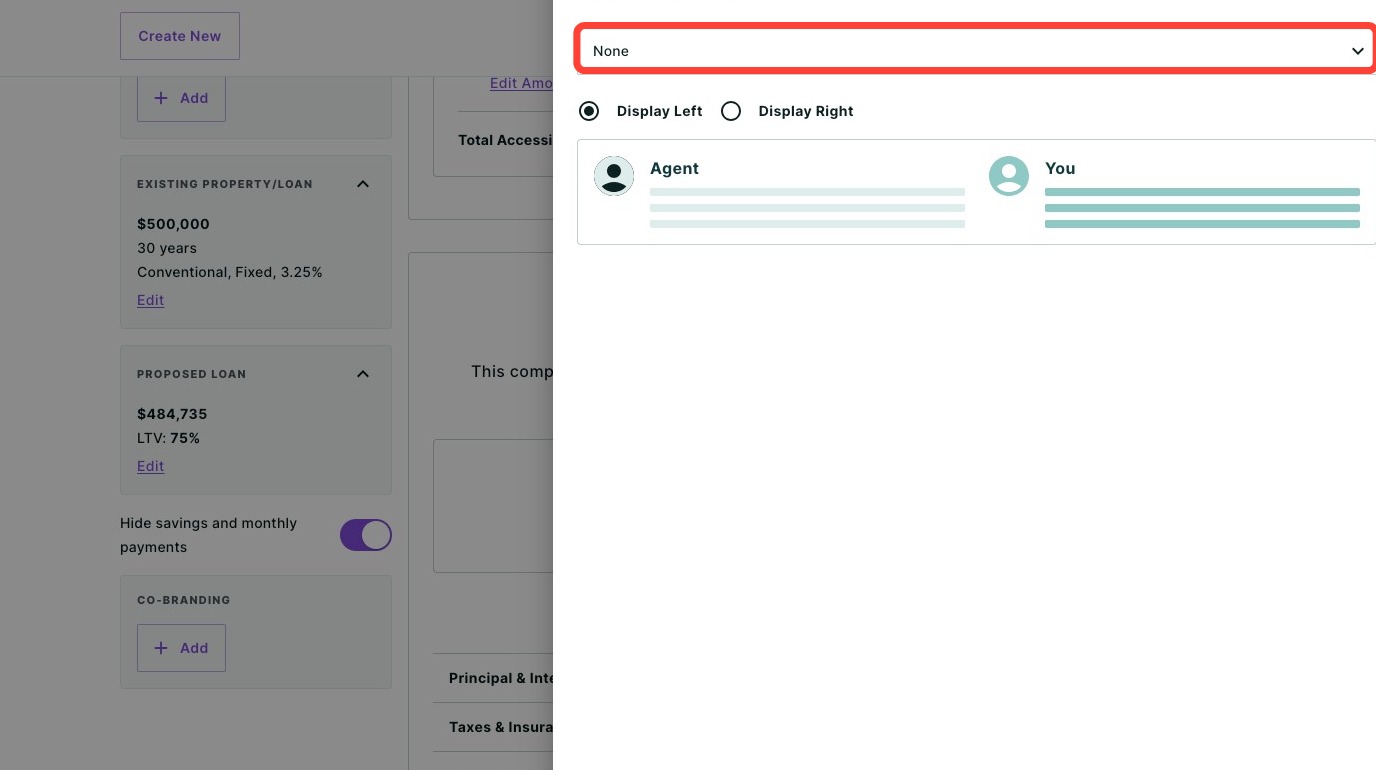
- Choose the orientation for how you want their branding displayed on the report.
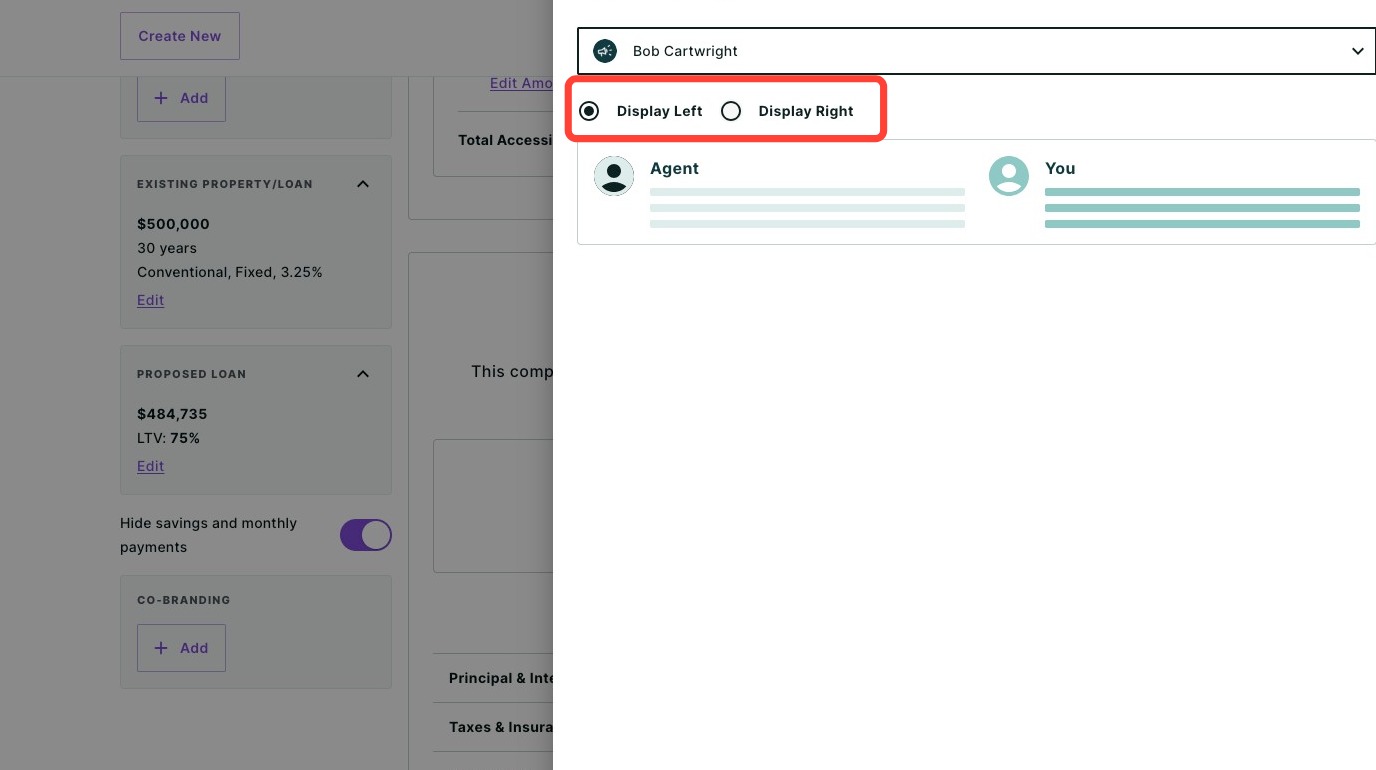
- Click Save.
Sharing the Results
To share the completed report, click Share. A dropdown menu will appear.
- Click Download to download the report as a PDF.
- Click Send a link via email with an optional video recording (not available for some users depending on their company permission settings).
- Click Host a meeting to virtually meet to discuss the report with your client.
- Click Record a Video to provide your client with a clear walkthrough of the report along with your own insights and context.
To learn more about sharing your report, click here.
Need Help?
Have questions or want to learn more? Submit a ticket or call us today!
Related to