The Purchase Analysis bundle lets you generate multiple client reports at once from Client Manager. You can create a purchase analysis, add properties, loan options, and co-branding partners, then view, edit, and share the results as a PDF, an email link, or a virtual meeting. Property and loan details save to your client and update automatically across their reports, so you only enter them once.
Navigating to the Purchase Analysis Bundle
You can find the Purchase Analysis bundle within Client Manager as well as within the Loan Comparison tab of the left-hand navigation menu.
Navigating through the Client Manager
Client Manager allows you to create reports for your clients using previously saved loan and property details, saving you time when building new scenarios. Click Clients in the left-hand navigation as seen below, then click Client Manager. Once there, you can add, edit, delete, and create reports for your clients.
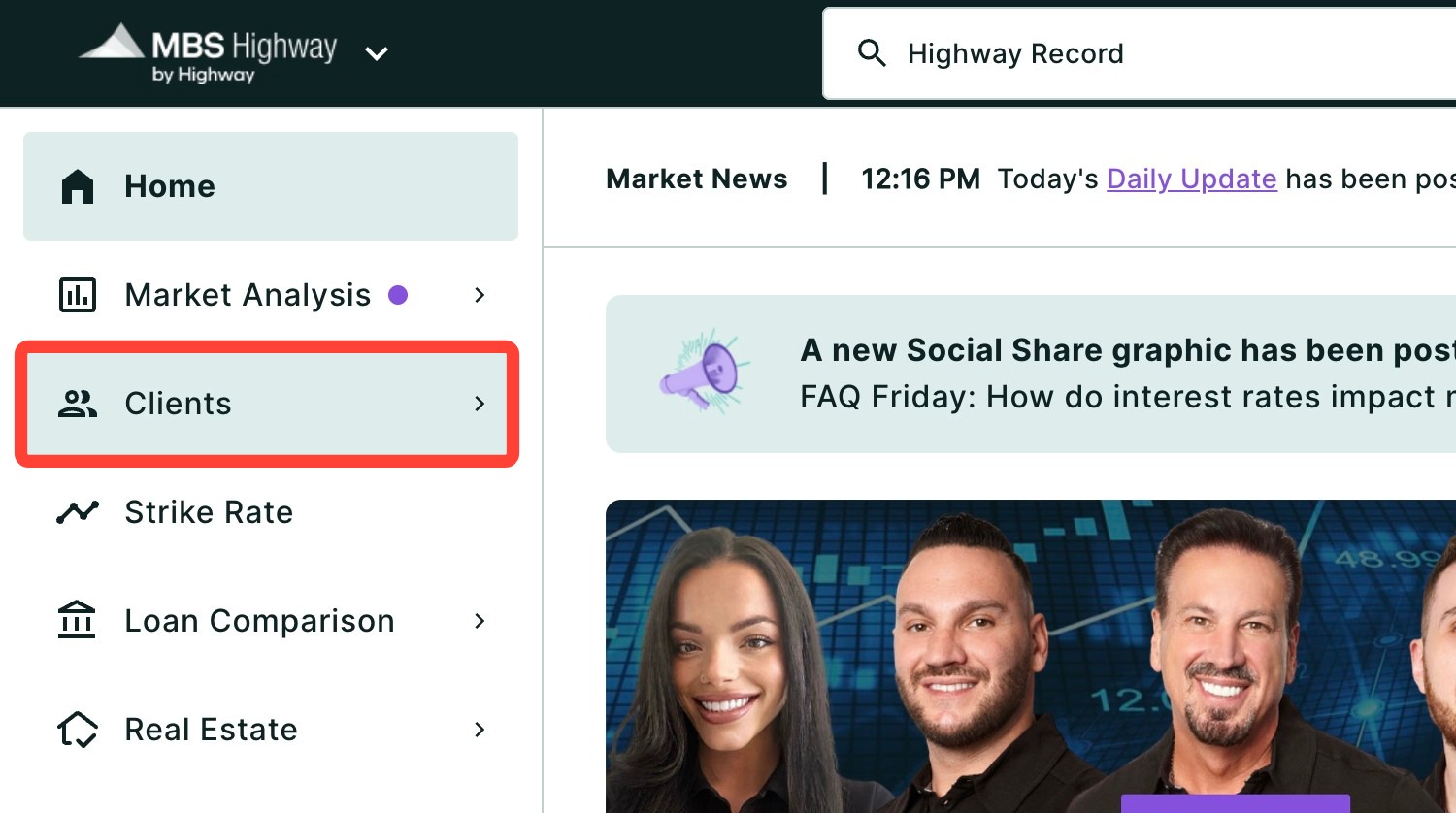
Navigating through the left-hand sidebar menu
To access the Purchase Analysis using the left-hand sidebar menu, click Loan Comparison, then click Purchase Analysis.
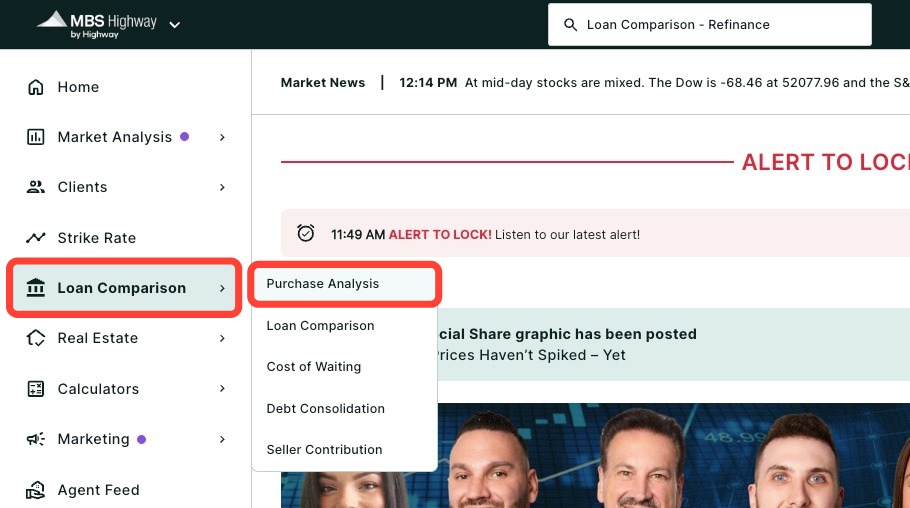
💡 Helpful Tip: You can favorite Purchase Analysis by clicking the star next to its name, so it's easier to find next time. |
Adding your Client and Property Details
Begin building your Purchase Analysis by selecting or adding a new client and then choosing a property. You can load a previously built report by clicking Saved Reports. Then choose your report and click Load.
- Choose your client's name from the drop-down.
- If adding a new client, click + Add new. You will need to provide their name; however, all other fields are optional.
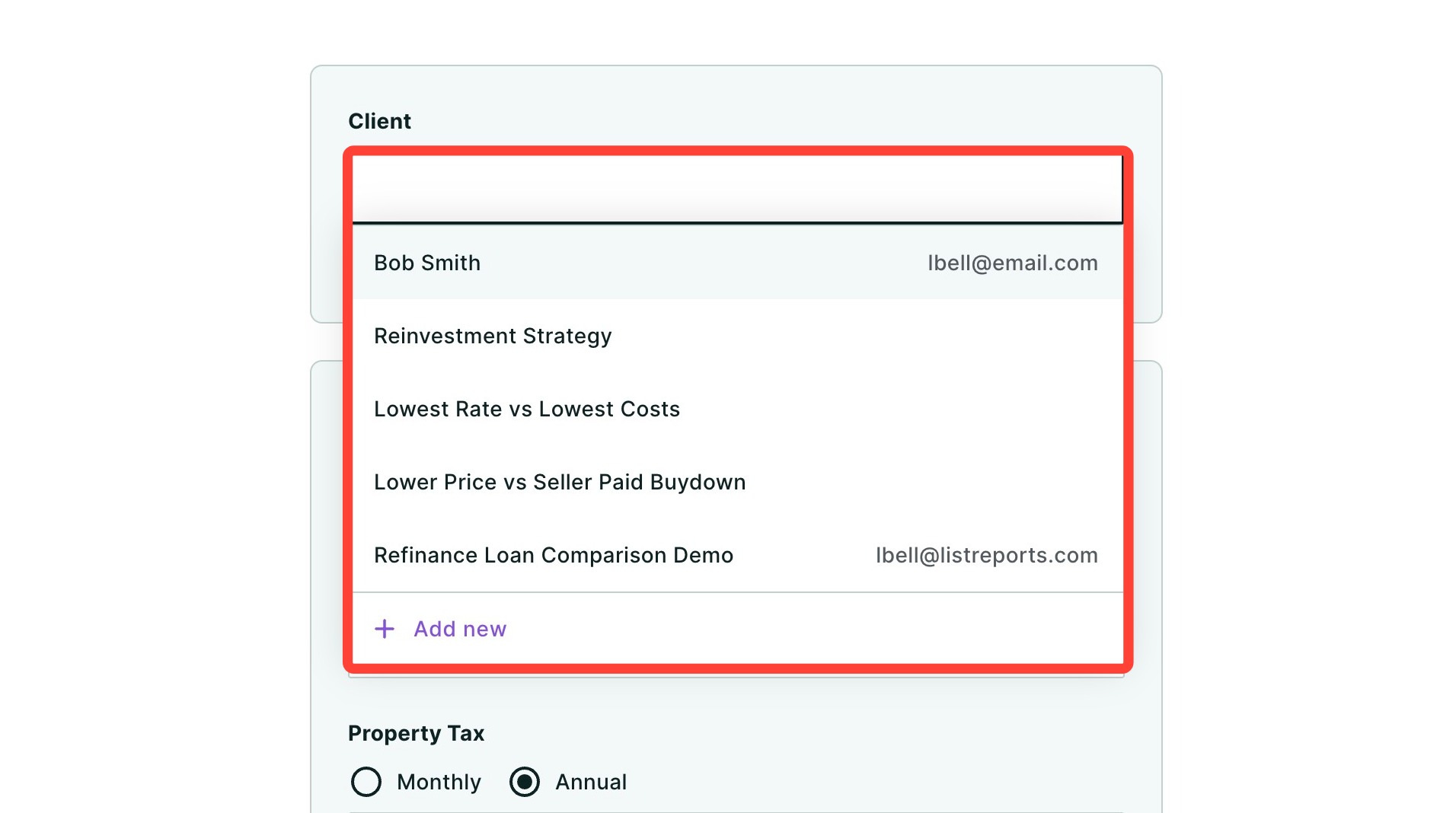
- Select a saved property from the drop-down or click + New Property to add a new property.
- If you are adding a new property, type an address, city, county or ZIP code into the Location field.
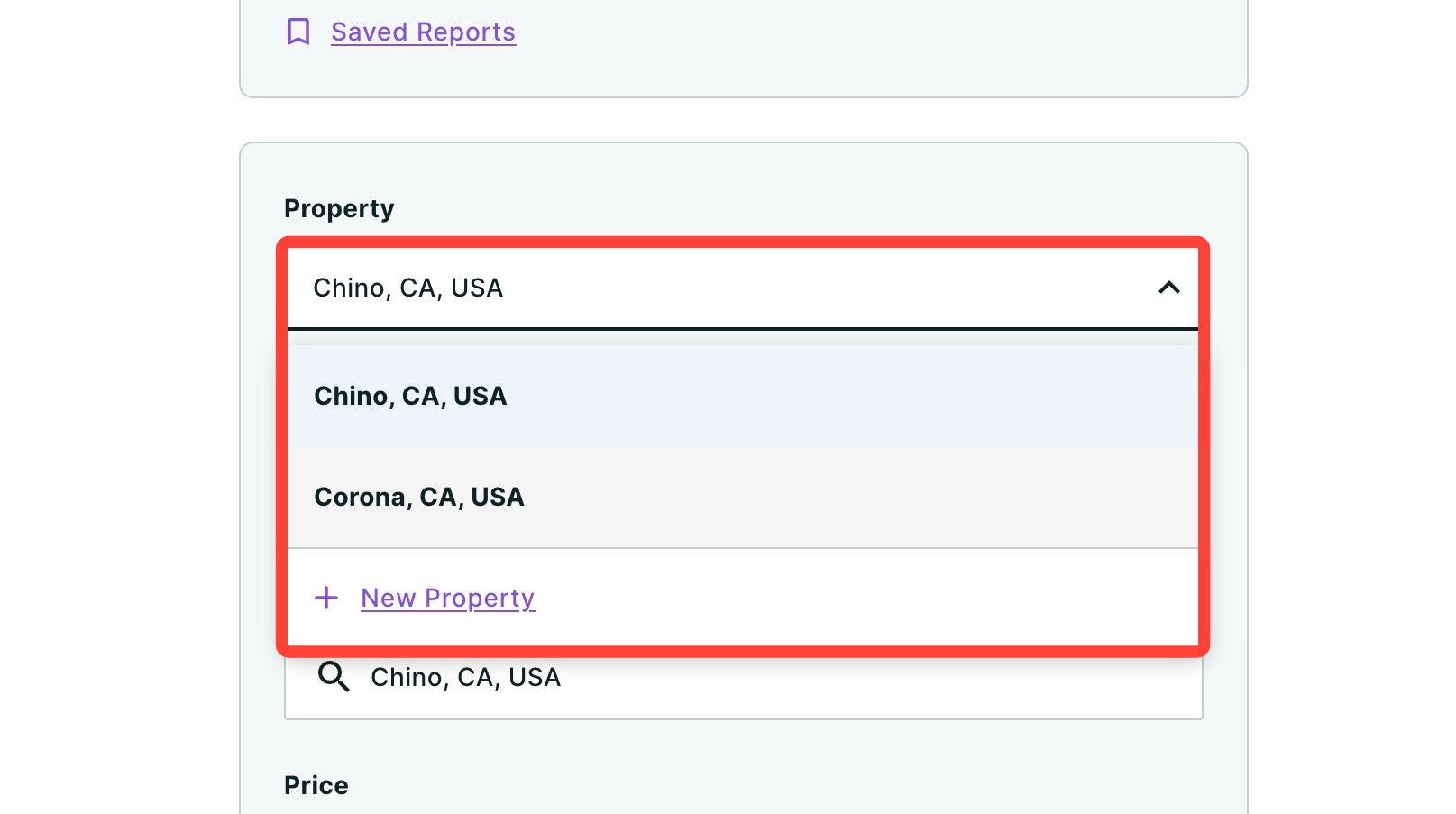
💡 Helpful Tip: Property and loan information is saved to your client, so any updates or changes made will automatically apply across all of their reports where those properties and loans are used. |
- Enter the Price of the property. Annual Property Tax and Monthly Home Insurance will be automatically calculated. These fields are editable.
- Optional: Add a Monthly Association Fee.
- Select the Appreciation Calculation you would like to use: Forecast, Historical, or Custom.
Adding an Alternative Price
If comparing different prices on the same home, you can add an alternate price.
- Click + Add alternate price.
- Add a Price. Property tax and monthly home insurance will automatically calculate, but you can edit these fields.
- Click Add.
Adding Additional Locations
Next, you can add up to three different locations for which you can create and compare reports in your loan comparison.
- Click Add second location or property.
- Repeat steps 2 through 4 of Adding your Client and Property Details to select the property and enter its pricing details.
- Click Add.
- You can add one more location by clicking Add third location or property.
- Click Next to add loan options.
💡 Helpful Tip: You can load a previously built report by clicking Saved Reports. Then choose your report and click Load. |
Adding Loan Options
Next, it is time to add the loan options for your purchase analysis. You can add a total of five loan options.
💡 Helpful Tip: Client Manager automatically saves and stores loan options that you create for your clients to help save you time. Making updates and changes to your client's loans in one report will automatically update any reports where that loan was used. |
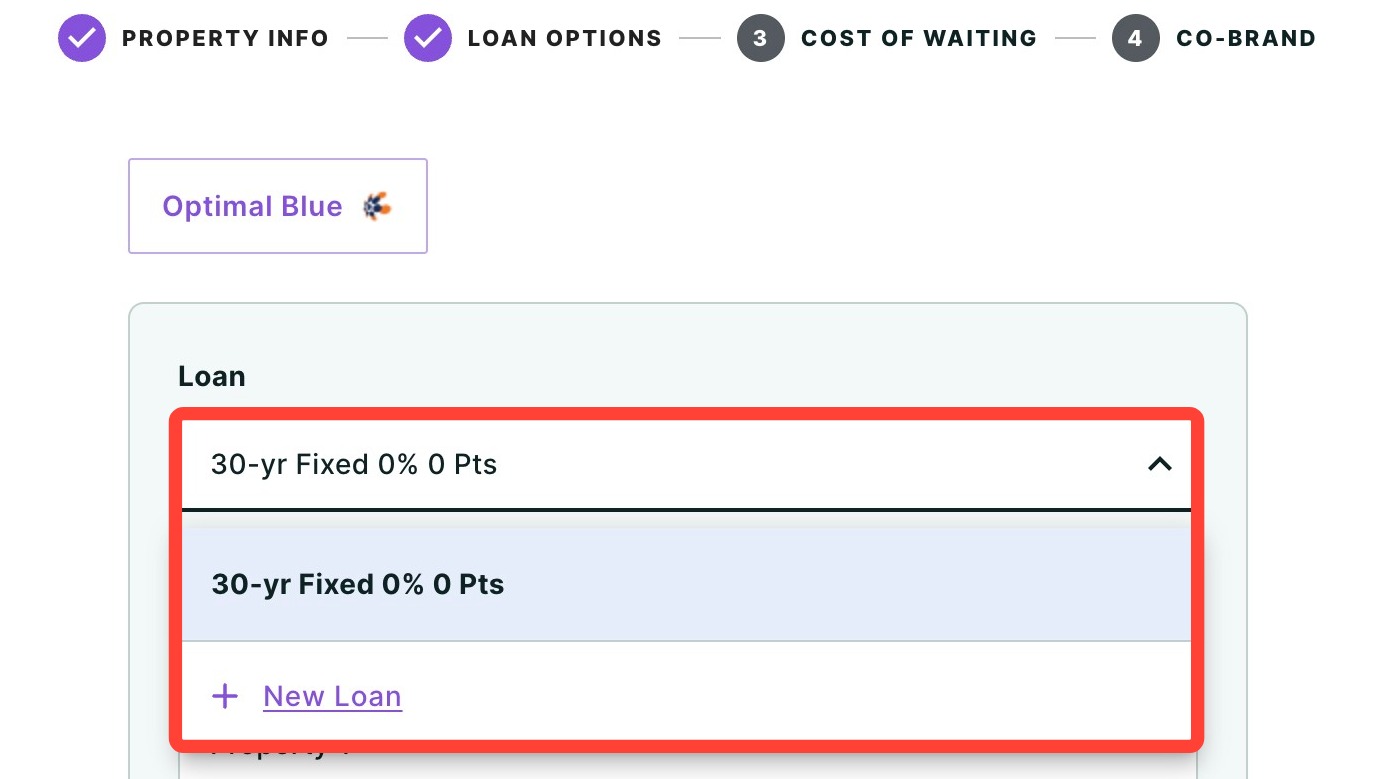
- Click the drop-down under Loan and choose either a previously used loan or click + New Loan to add a new loan.
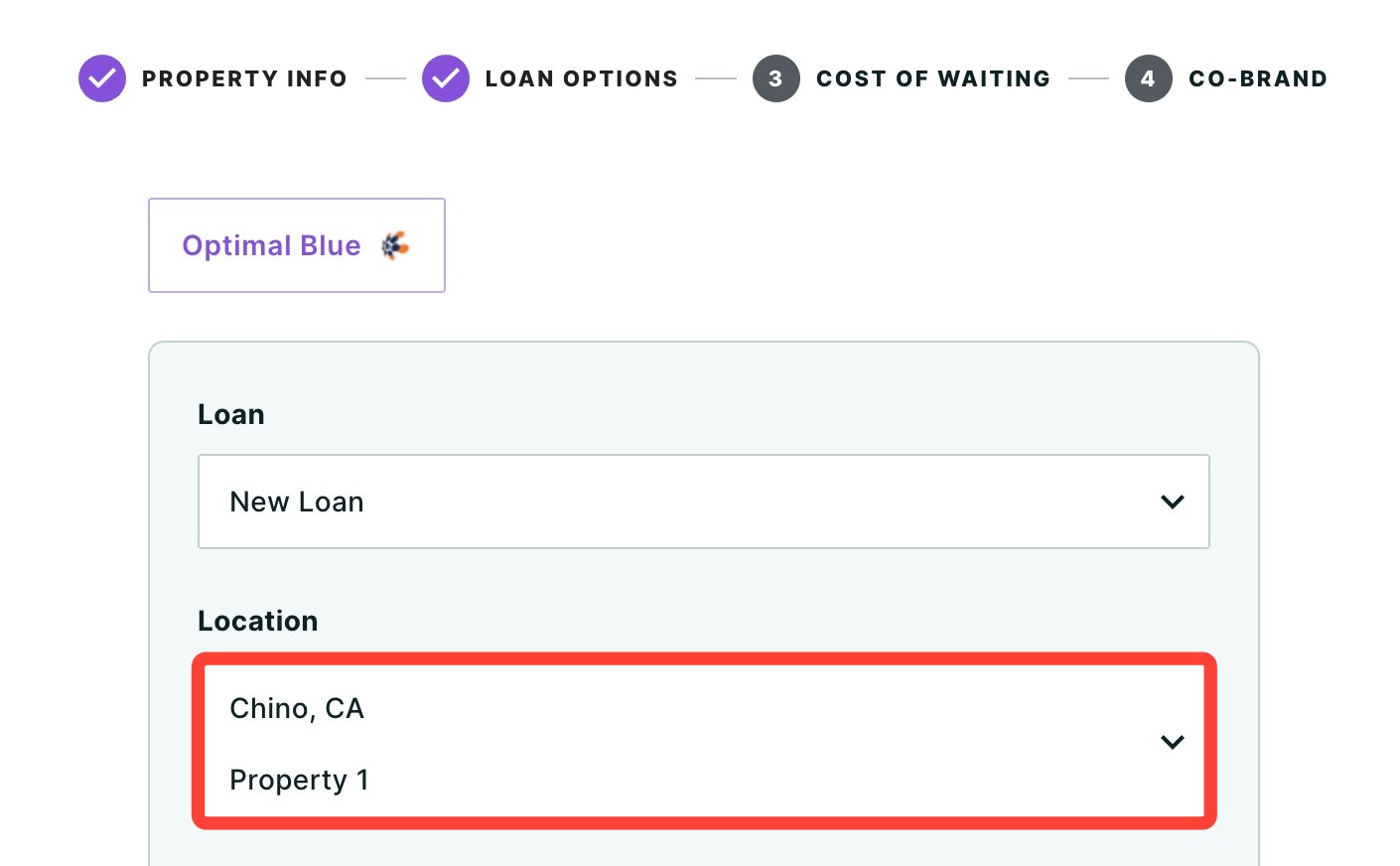
- Use the drop-down seen below to select a location.
- Enter a loan name (optional).
- Enter a Down Payment.
- Click the View second loan terms option to quickly make a second loan for the same property.
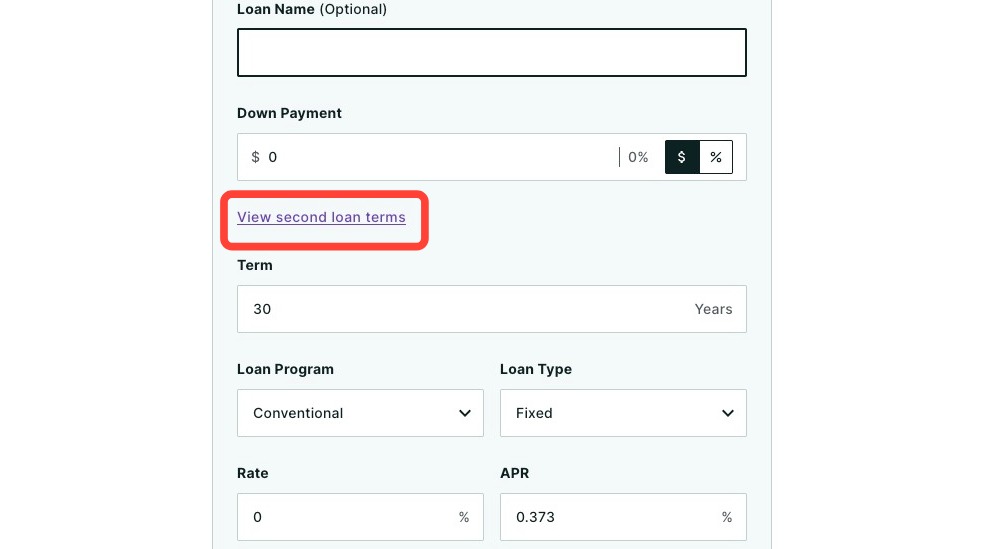
- Enter the details about the second loan and then click Update. The second loan Amount will then appear in the loan details.
💡 Helpful Tip: Click the Down Payment Reference drop-down to quickly view common down payment percentages and their corresponding loan amounts. |
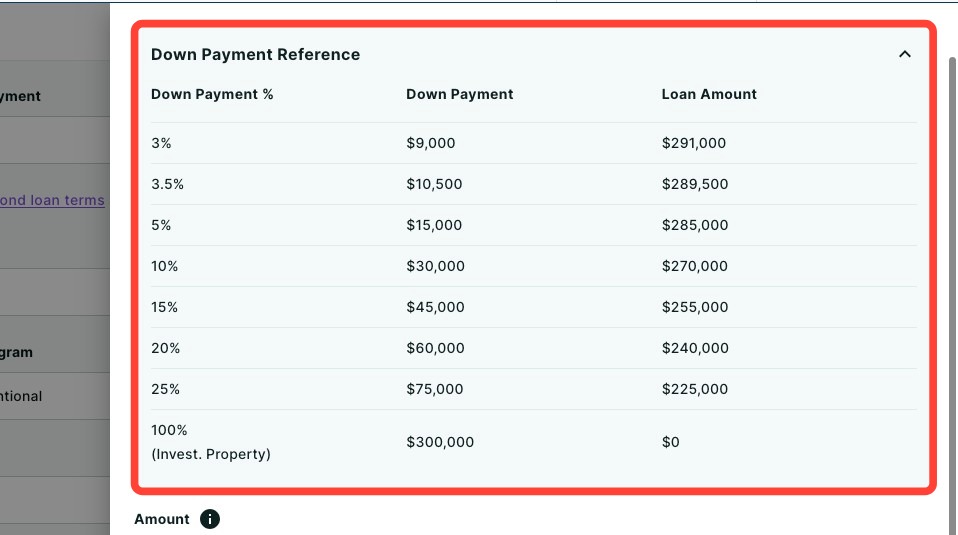
- Add the loan's details including:
- Loan Name (optional)
- Down Payment (select from drop-down)
- Term (defaulted to 30 years)
- Loan Program (select from drop-down)
- Loan Type (select from drop-down)
- Rate
- Points (if applicable)
- Depending on the loan type you selected, Monthly Mortgage Insurance, Mortgage Insurance Premium, Funding Fee, Guarantee Fee and Upfront MIP will be automatically calculated, but these fields are editable.
- Use the checkbox below to finance the Funding Fee, Guarantee Fee and Upfront MIP and add it to the loan amount.
- Enter your Closing Costs, Credits, and Prepaid & Escrows amounts, or use our worksheet.
- Click Add # loan option to add additional loans.
- Repeat steps 1 through 11 until all desired loans are added, clicking Save after inputting the details of each loan.
- Click Next once you have completed adding your loan options.
- Choose which loan you would like to use in your Cost of Waiting analysis.
- Click Next.
Adding Agent Co-branding
You can co-brand the bundle with a referral partner before generating the reports.
- To add a referral partner's co-branding, click the drop-down below.
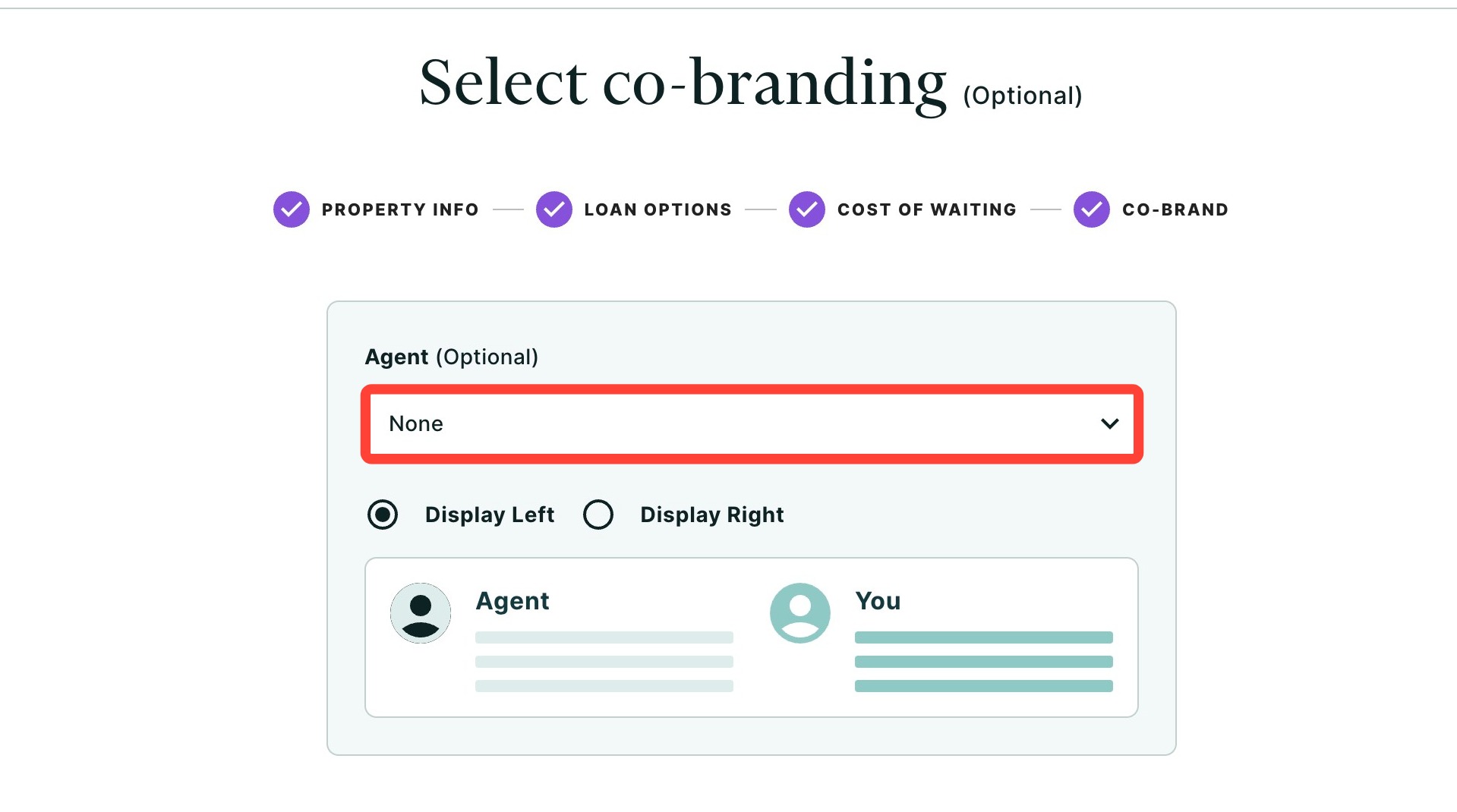
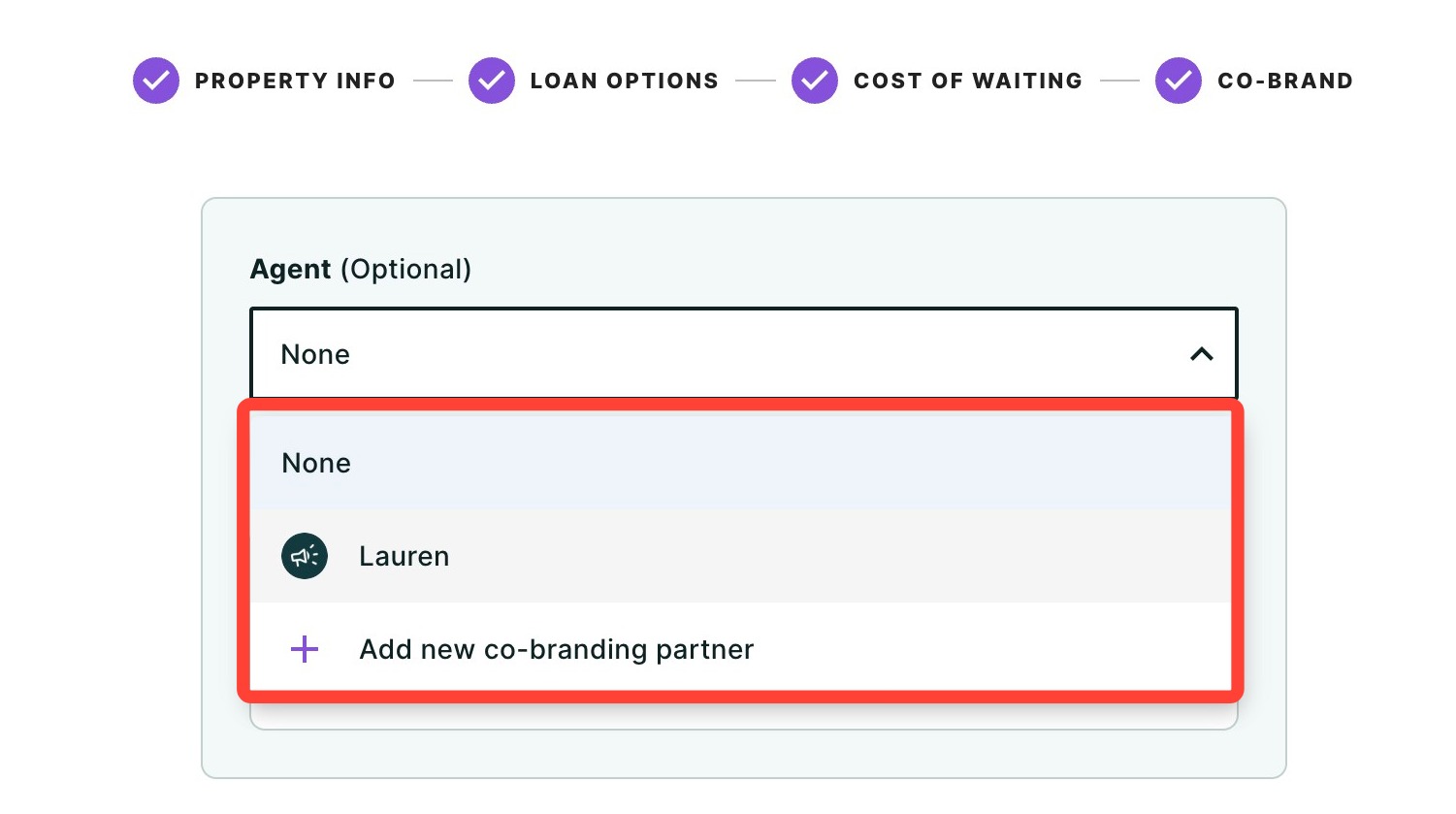
- Select an agent from the drop-down, or choose a new co-branding partner by clicking + Add new co-branding partner.
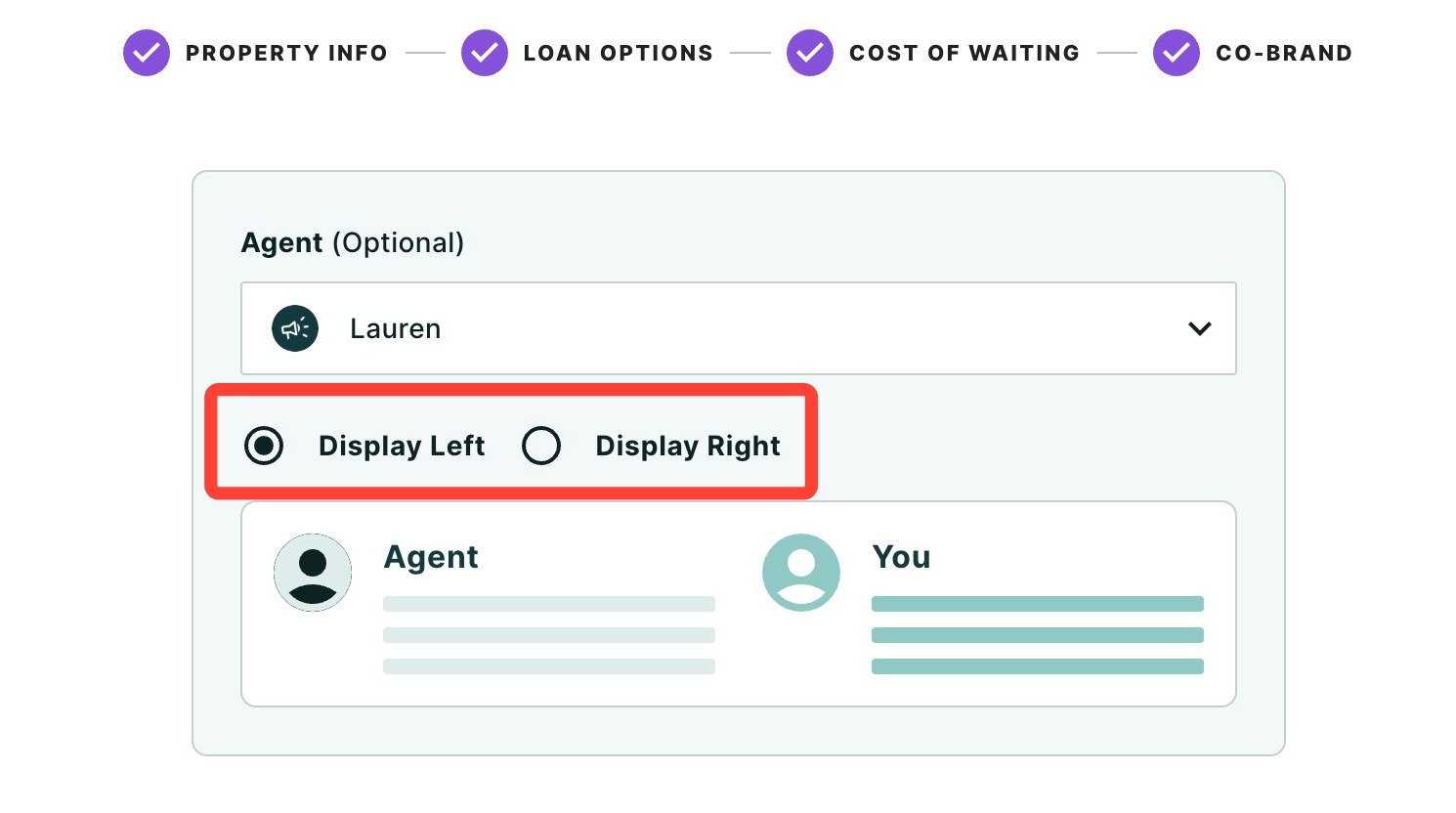
- Choose how you would like their co-branding displayed.
- Click Next.
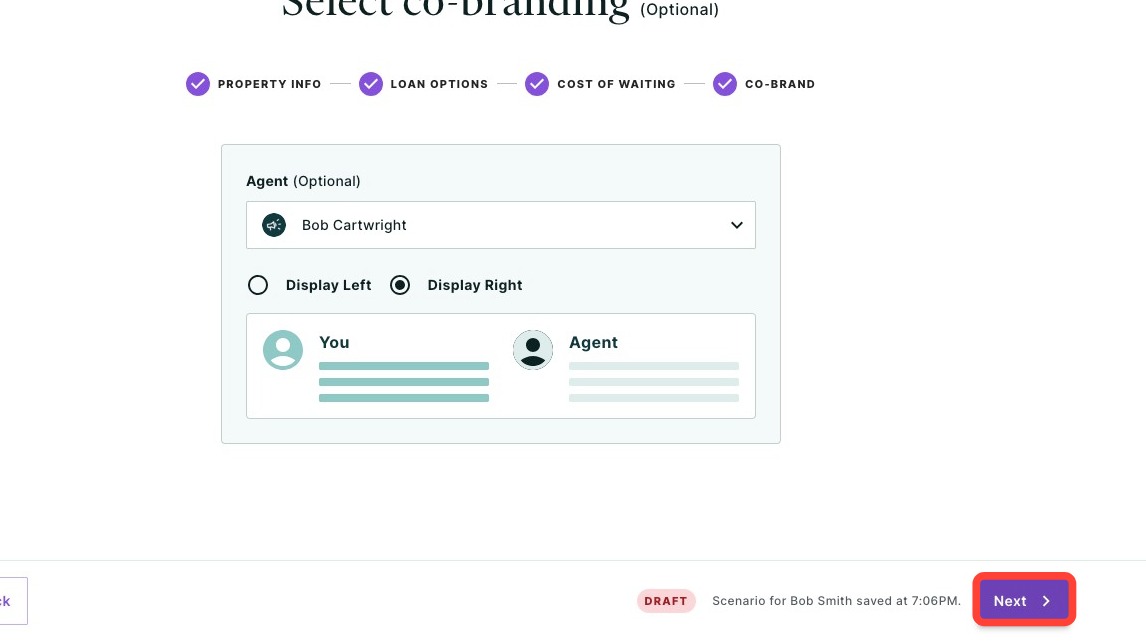
Your Purchase Analysis will then be generated along with a Loan Comparison, Cost of Waiting and Buy vs Rent report.
Viewing and Editing Your Report
You can hide reports from your client's view by clicking the eye icon, as seen below.
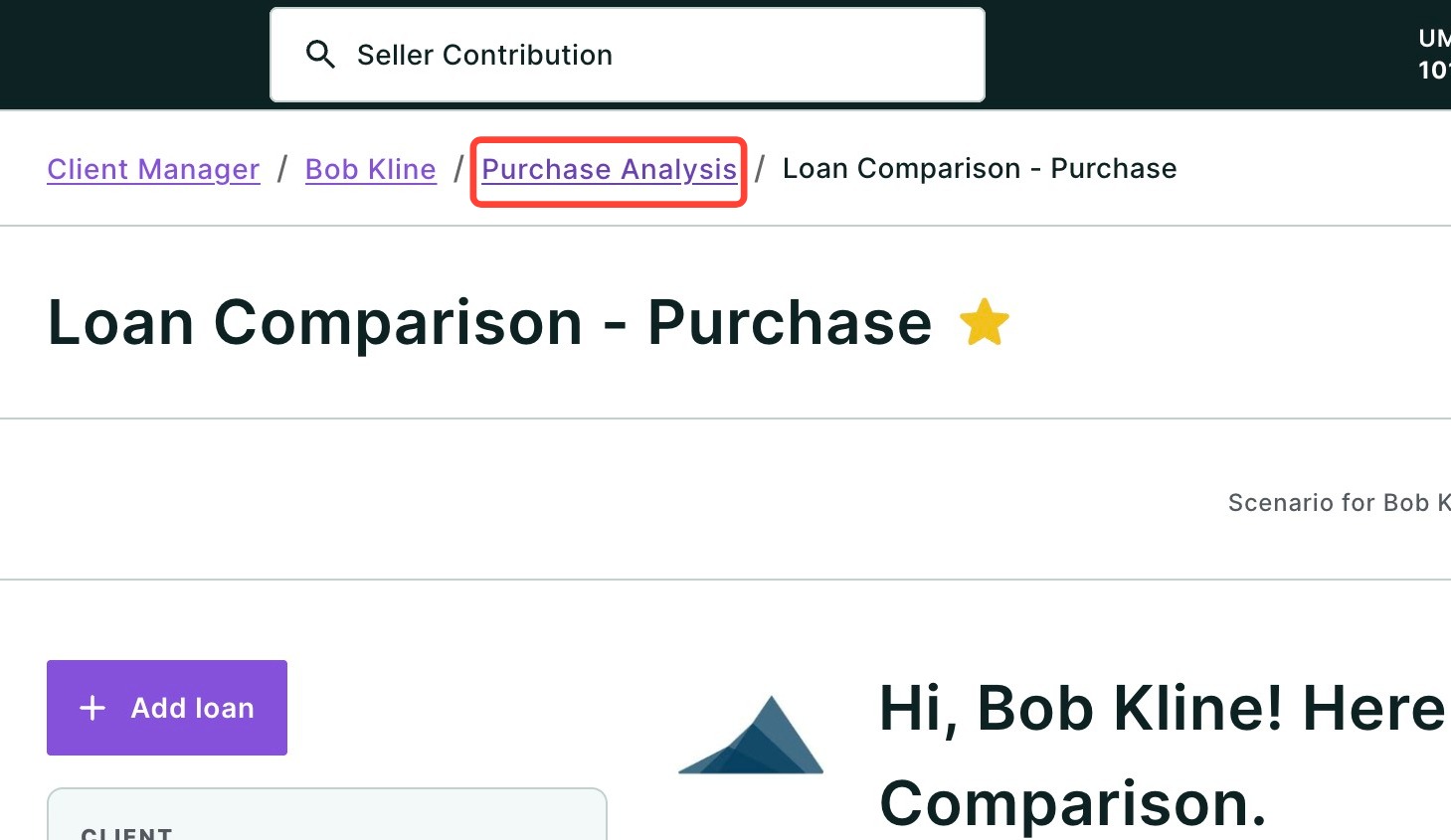
Need to make some edits to your reports? Click a report's tile to view or edit it. Once you have reviewed or edited the report, you can navigate back to your Purchase Analysis bundle by clicking Purchase Analysis in the top left-hand corner of the page.
Sharing your Report
Once you've created your Purchase Analysis and made any necessary edits, it's time to review and share your report. To share the completed report, click Share. A dropdown menu will appear.
- Click Download to download the report as a PDF.
- Click Send a link via email with an optional video recording (not available for some users depending on their company permission settings).
- Click Host a meeting to virtually meet to discuss the report with your client.
- Click Record a Video to provide your client with a clear walkthrough of the report along with your own insights and context.
To learn more about sharing your report, click here.
💡 Helpful Tip: When your client opens their Live Share link, you'll automatically receive an email letting you know they viewed their report. |
Need Help?
Have questions or want to learn more? Submit a ticket or call us today!