The results page displays your client's debts, proposed loan summary, and lets you allocate available cash between cash-in-hand and down payment, affecting loan amount and LTV. It shows savings and payments impact of debt consolidation, compares loan balances and interest savings over time, and provides detailed loan scenario comparisons. Warnings appear if debts exceed available cash. Support is available via ticket or call.
Navigating to the Debt Consolidation - Purchase: Step-by-Step Guide
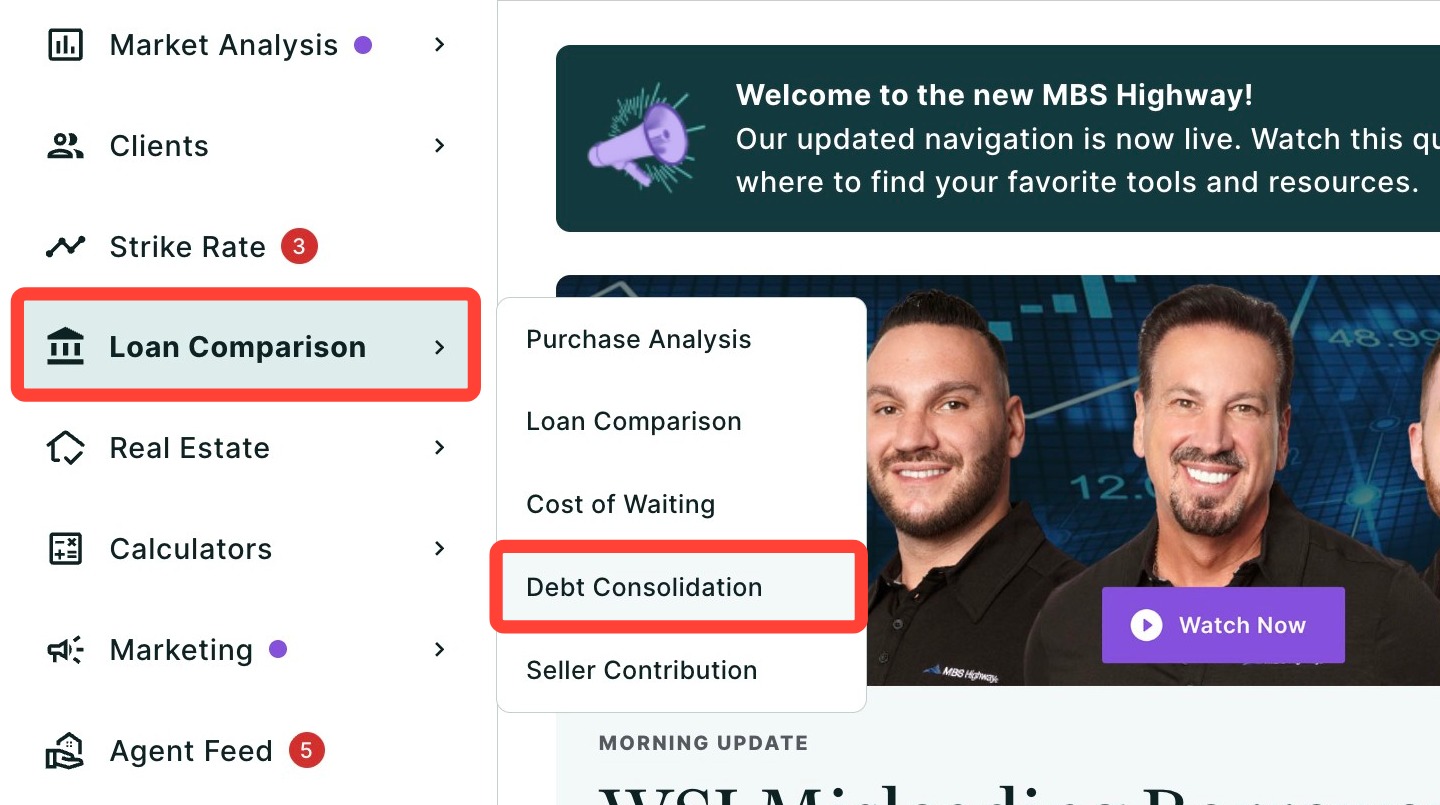
You can find your Debt Consolidation Report within Client Manager as well as within the Loan Comparison sidebar menu.
Navigating through the Client Manager
Client Manager allows you to create reports for your clients using previously saved loan and property details, saving you time when building new scenarios. To learn more, click here.
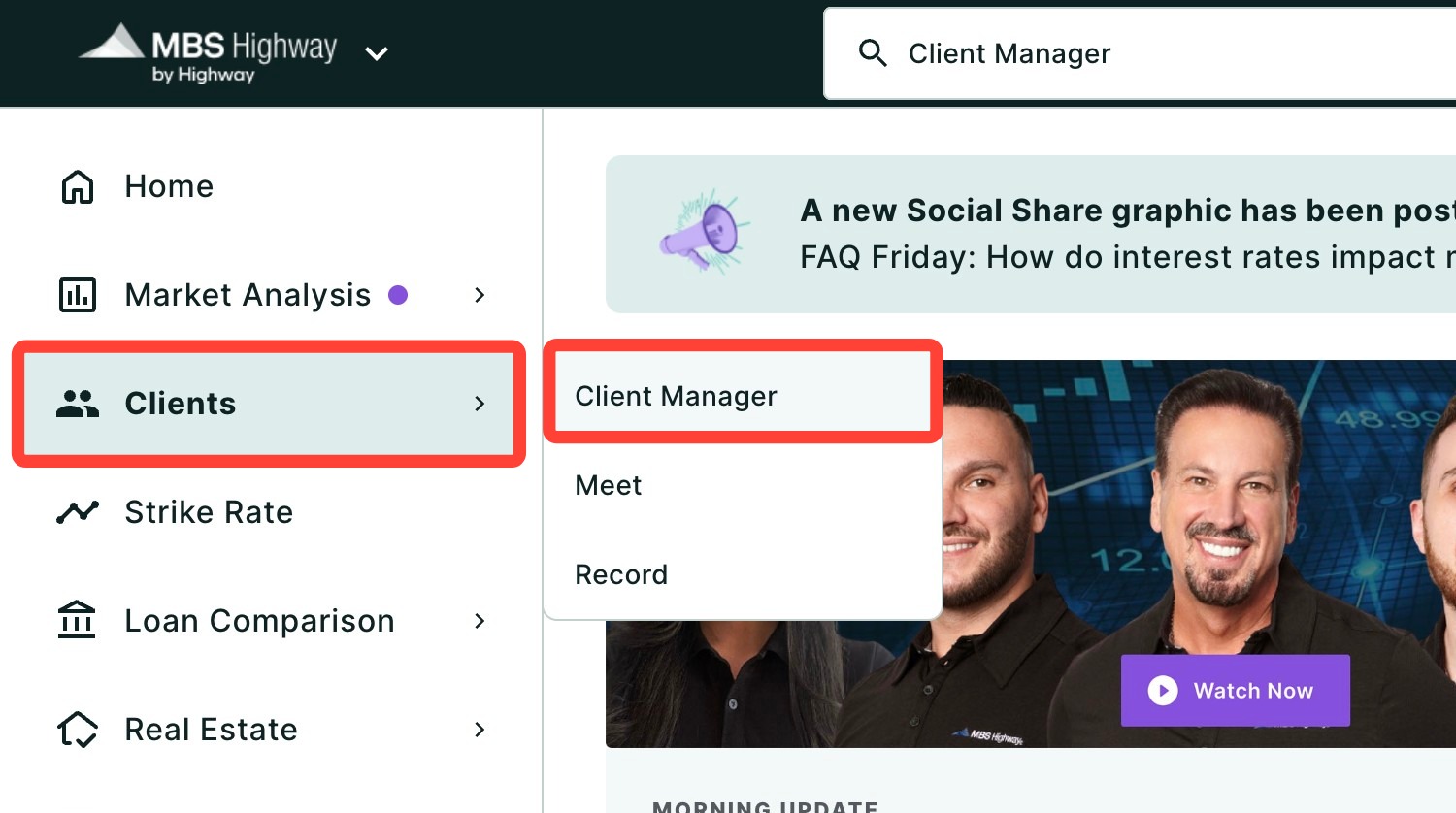
Navigating through the left-hand sidebar menu
To access the Debt Consolidation report using the left-hand sidebar menu, click Loan Comparison, then click Debt Consolidation. By default, the Refinance report will be displayed.
💡 Helpful Tip: You can also search and favorite reports, tools, and calculators. Click here to learn how. |
Reviewing Your Results and Allocating Cash
The results page shows your client's debts alongside a summary of the proposed loan, and lets you show how their available cash can be used.
Proposed Loan Section
- The proposed loan summary displays the Loan Amount, PITI, LTV (with a progress bar), and Available Cash In-Hand based on the debts you've selected.
- The debt table lists each debt with its Type, Balance, and Payment.
- Use the checkboxes to include or exclude debts from the consolidation.
- The loan amount, LTV, and payments recalculate in real time as you do.
Once debts are selected, choose how to allocate the remaining available cash:
- Available Cash in-hand: Your client keeps the remaining available cash rather than applying it to the purchase.
- Apply to down payment: Puts all remaining available cash back toward the down payment, which reduces the loan amount and LTV.
Please note: If the debts you select to consolidate exceed your client's available cash, it will display a warning and automatically adjust the available cash and LTV so the scenario stays accurate. |
Editing Your Cash Allocation
Clicking Edit amount opens the Available Cash In-Hand modal, where you can fine-tune how much of your client's available cash goes toward the down payment versus cash in hand.
- Adjust either the LTV % field or the Amount ($) field — the two are synced, so changing one automatically updates the other, along with the cash-in-hand total and progress bar.
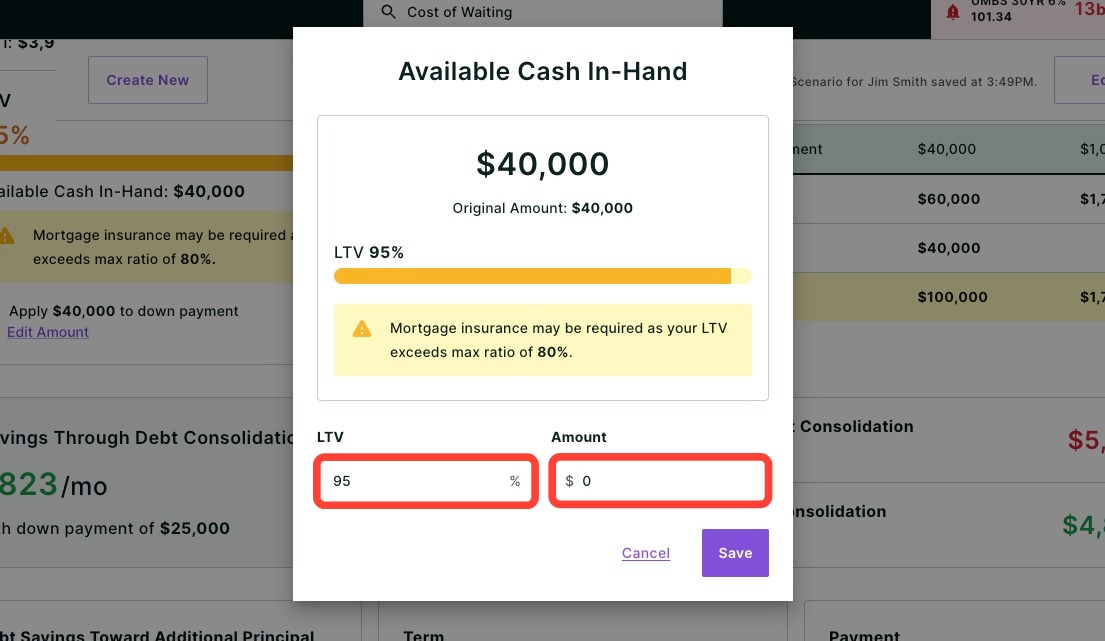
- Watch for the following states as you adjust the values:
- Normal: If the LTV is at or below 80% then the progress bar displays in green.
- Past 80%: If the LTV is above 80% but still within the target LTV the progress bar turns yellow/orange and a banner notes that mortgage insurance may be required.
- Exceeds target LTV: If the LTV goes above the target LTV set in the previous step the progress bar and LTV field turn red, and Save is disabled until it's corrected.
- Not enough cash: If the dollar amount applied to the down payment exceeds the available cash then both fields will display an error and Save is disabled until it's corrected.
- Click Save to update the cash allocation. Loan amount, LTV, PITI, payments, and savings will recalculate automatically.
Savings and Payments through Debt Consolidation
This section shows your client the financial impact of putting all their available cash toward the down payment versus using some of it to consolidate debt instead.
- Savings Through Debt Consolidation: A highlighted card showing the client's monthly savings in green, along with the down payment amount used to consolidate debts.
- Total Monthly Payment Without Debt Consolidation: Shows the down payment and monthly payment your client would have using their max down payment and keeping their existing debts, displayed in red.
- Total Monthly Payment With Debt Consolidation: Shows the down payment and monthly payment using the target down payment and consolidated debts, displayed in green.
Below the payment comparison, three tiles summarize the client's Debt Savings Toward Additional Principal Payment (with an Edit link to adjust how much of the monthly savings is applied), the new loan Term, and the number of Payments saved by applying that savings toward principal.
Loan Balance & Interest Savings Over Time
Further down the report, a table compares the loan balance and any remaining debts across both scenarios — Without Debt Consolidation, With Debt Consolidation, and the resulting Savings.
- The top of the table shows the starting Loan Balance and Debts for each scenario.
- Use the After dropdown to view the comparison at different points in time. For example, after 5 years, 10 years, or the full loan term. Each period shows the Remaining Mortgage Balance, + Current Unconsolidated Revolving Balance, Total Balance, and Total Cash In-Hand.
- The Savings column displays in green when debt consolidation results in a lower total balance, and in red when it doesn't.
- At the bottom of the table, Interest Savings Through Debt Consolidation totals the interest your client saves over the life of the loan by consolidating.
Payments
This section compares your client's proposed monthly mortgage payment and other obligations against the proposed loan with debt consolidation.
- Total Without Debt Consolidation: the total monthly payment using the max down payment and existing debts.
- Total With Debt Consolidation: the total monthly payment using the target down payment and consolidated debts.
Below the totals, a breakdown compares both scenarios by Principal & Interest, Taxes & Insurance, and each remaining debt type — Installment, Revolving, and Other.
Loan Details
The Loan Details table gives a full side-by-side breakdown of both scenarios, comparing Purchase Price, Loan Amount, Down Payment, Prepaids & Escrows, Closing Costs, Loan Term/Details, Rate, APR, Points, Mortgage Insurance, Debt Balance, Debt Inclusion, and Total Cash-in-Hand.
Need Help?
Have questions or want to learn more? Submit a ticket or call us today!