This article explains what each part of the Amortization Calculator report shows — the loan Summary, the graph of how payments shift from interest to principal over time, and the full amortization schedule. To learn how to build the report in the first place, read Amortization Report: Step-by-Step Guide.
Navigating to the Amortization Calculator
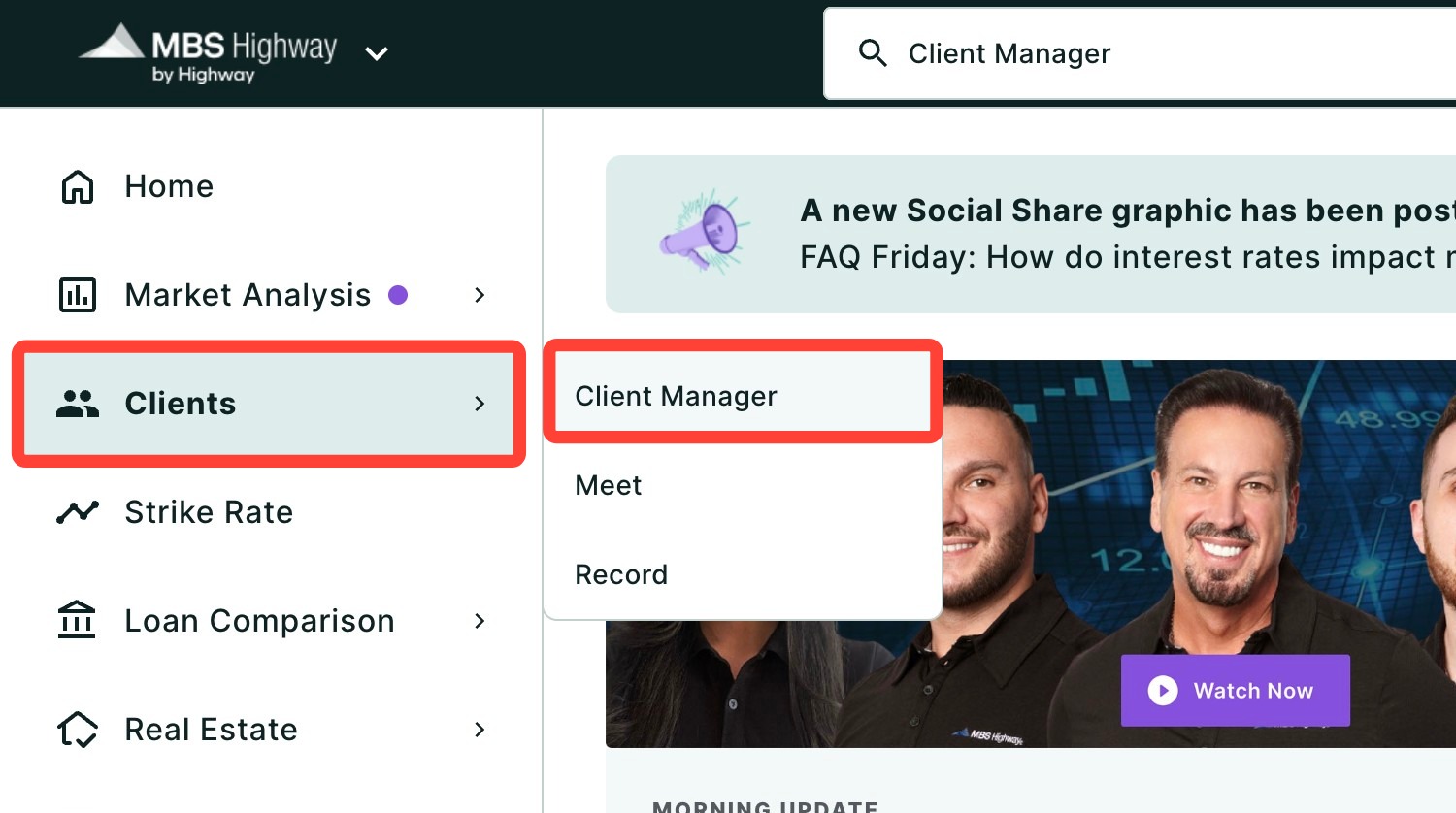
You can find your Amortization Calculator within Client Manager and within the Calculators tab of the left-hand navigation menu.
Navigating through the Client Manager
Client Manager allows you to create reports for your clients using previously saved loan and property details, saving you time when building new scenarios.
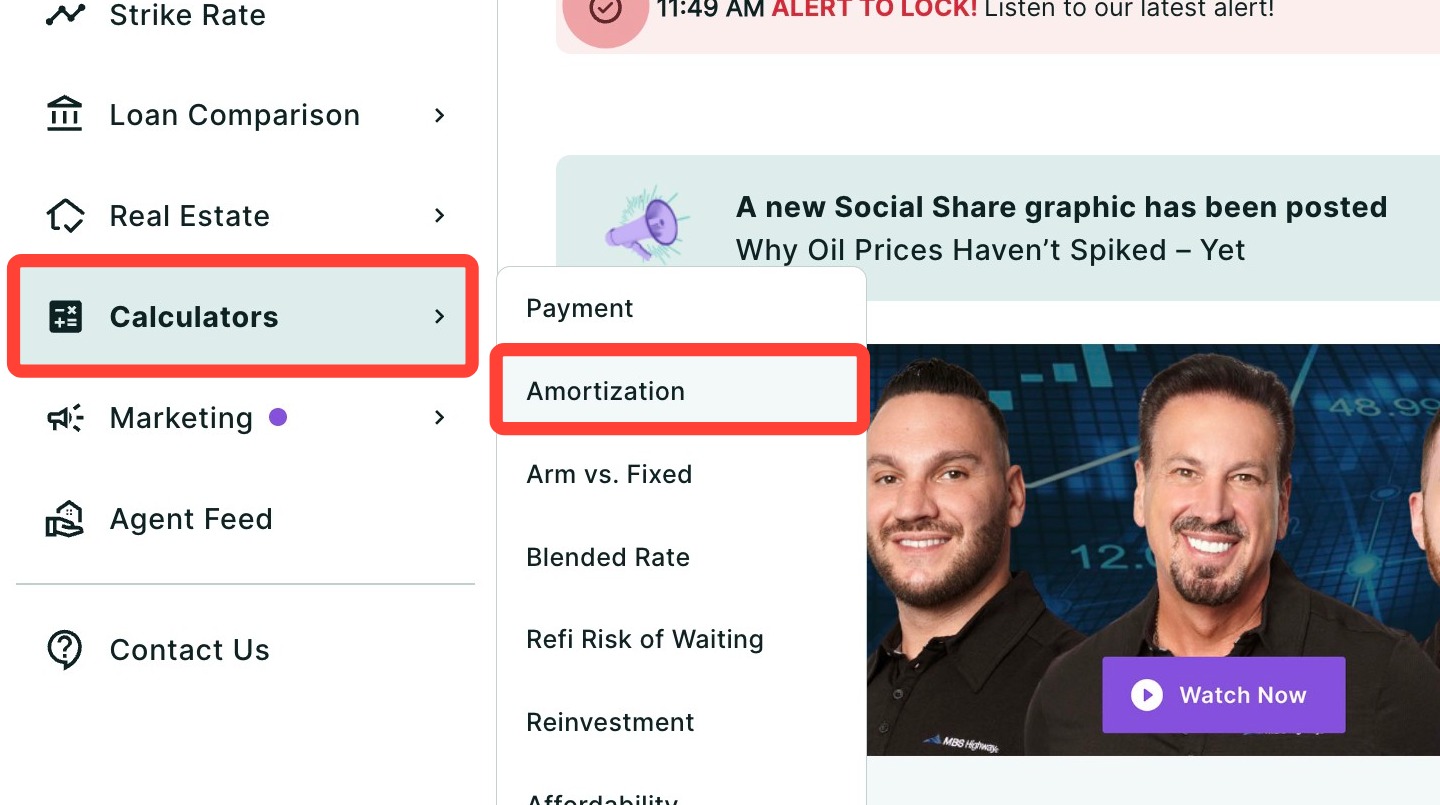
Navigating through the left-hand sidebar menu
To access the Amortization Calculator using the left-hand sidebar menu, click Calculators, then click Amortization.
💡Helpful Tip: You can also search and favorite reports, tools, and calculators. Click here to learn how. |
What’s Inside your Amortization Report
Each section of the report is described below, in the order it appears.
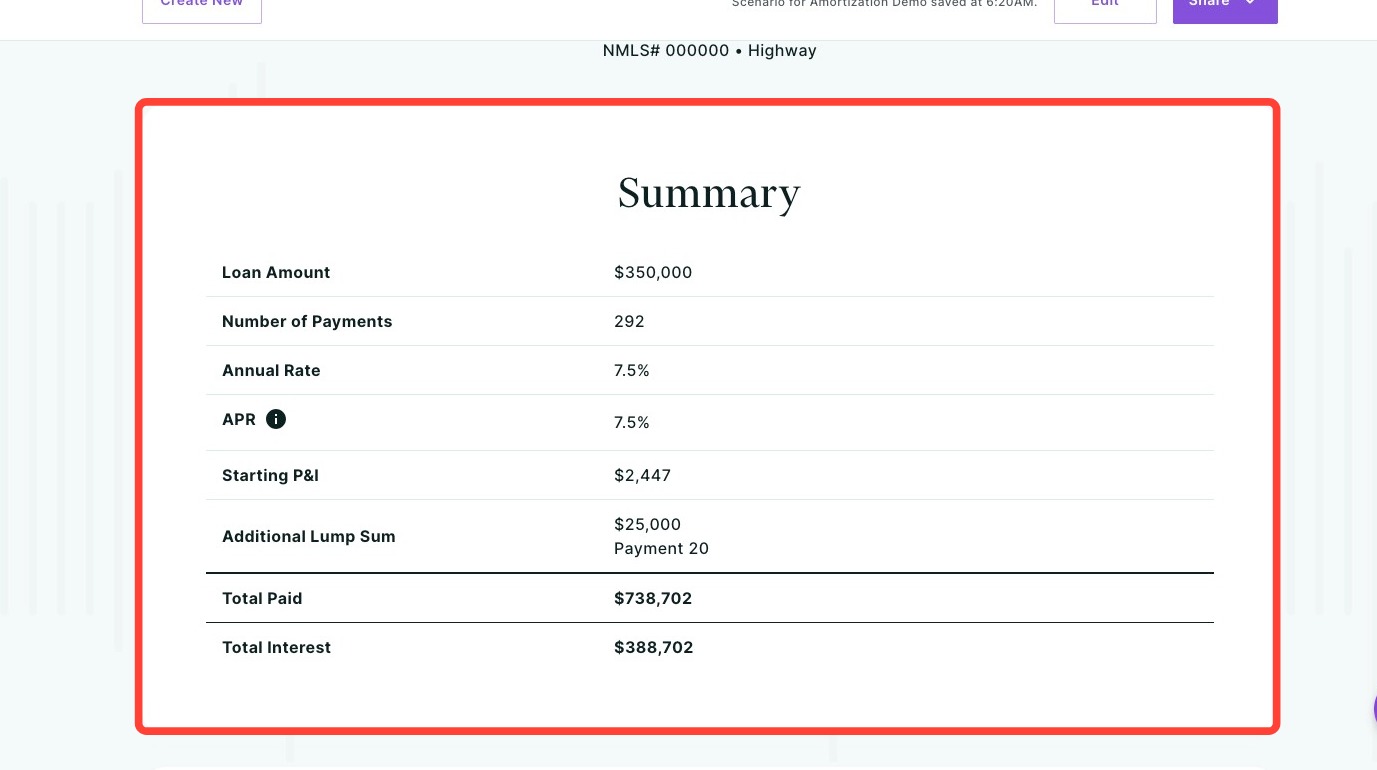
Summary
The Summary provides an overview of the terms and costs of the loan, including the Loan Amount, APR, Payments, Annual Rate, Monthly P&I, Total Paid, and Total Interest.
Full Amortization Schedule
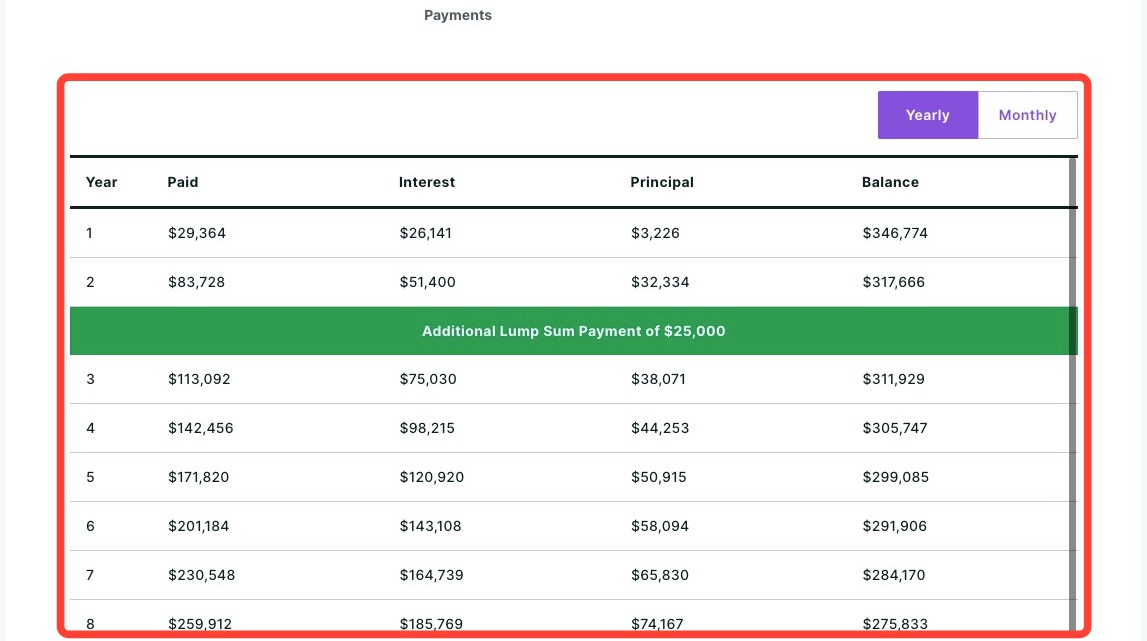
At the bottom of the page is a full amortization schedule, which you can toggle between Yearly and Monthly views.
This schedule shows how each payment is applied to principal and interest, along with the remaining balance over time. Use it to review how the loan progresses and demonstrate the long-term impact of extra payments or additional contributions with your client.
Compare How Your Payments Change Over Time
This graph shows how the loan changes over time, including the remaining balance and the total principal and interest paid throughout the life of the loan.
Early in the loan, a larger portion of each payment goes toward interest. As the loan progresses, more of each payment is applied to principal, accelerating the reduction of the remaining balance.
Use the checkboxes at the top of the graph to show or hide the Balance, Principal, and Interest lines so you can focus on specific components when reviewing the loan with your client.
Need Help?
Have questions or want to learn more? Submit a ticket or call us today!