Social Studio lets you build your own intro and outro frames and manage the scripts used in your videos. This article covers creating a custom frame template with your own colors or background image, and searching, editing, and creating scripts. Once saved, both are available to use in your next Social Studio video.
Navigating to Social Studio
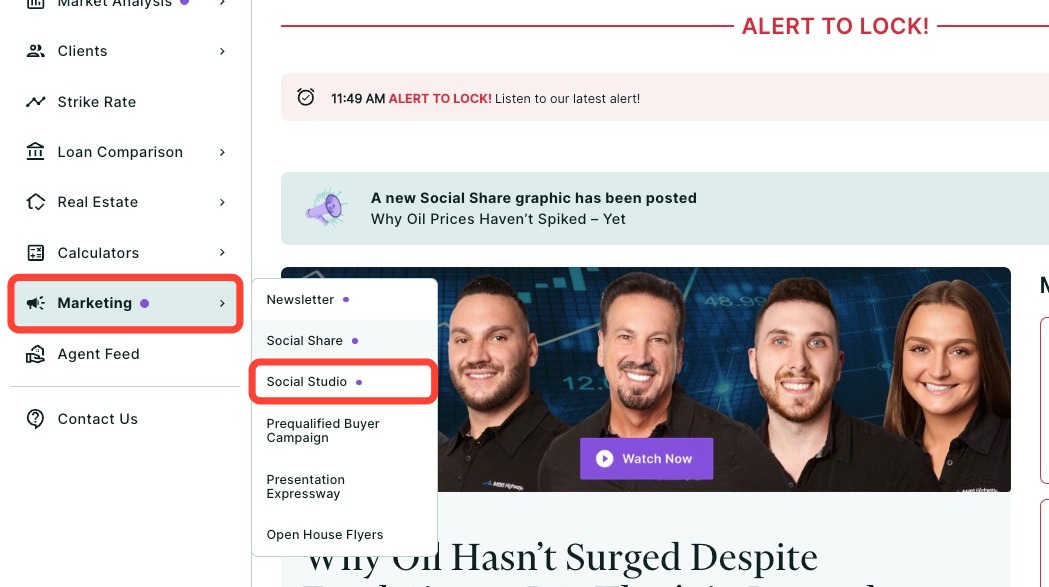
You can find Social Studio within the Marketing tab of the left-hand navigation menu.
Navigating through the left-hand sidebar menu
To access Social Studio using the left-hand sidebar menu, click Marketing, then click Social Studio.
Frame Template
Create your own custom template for your next Social Studio video by following the steps below:
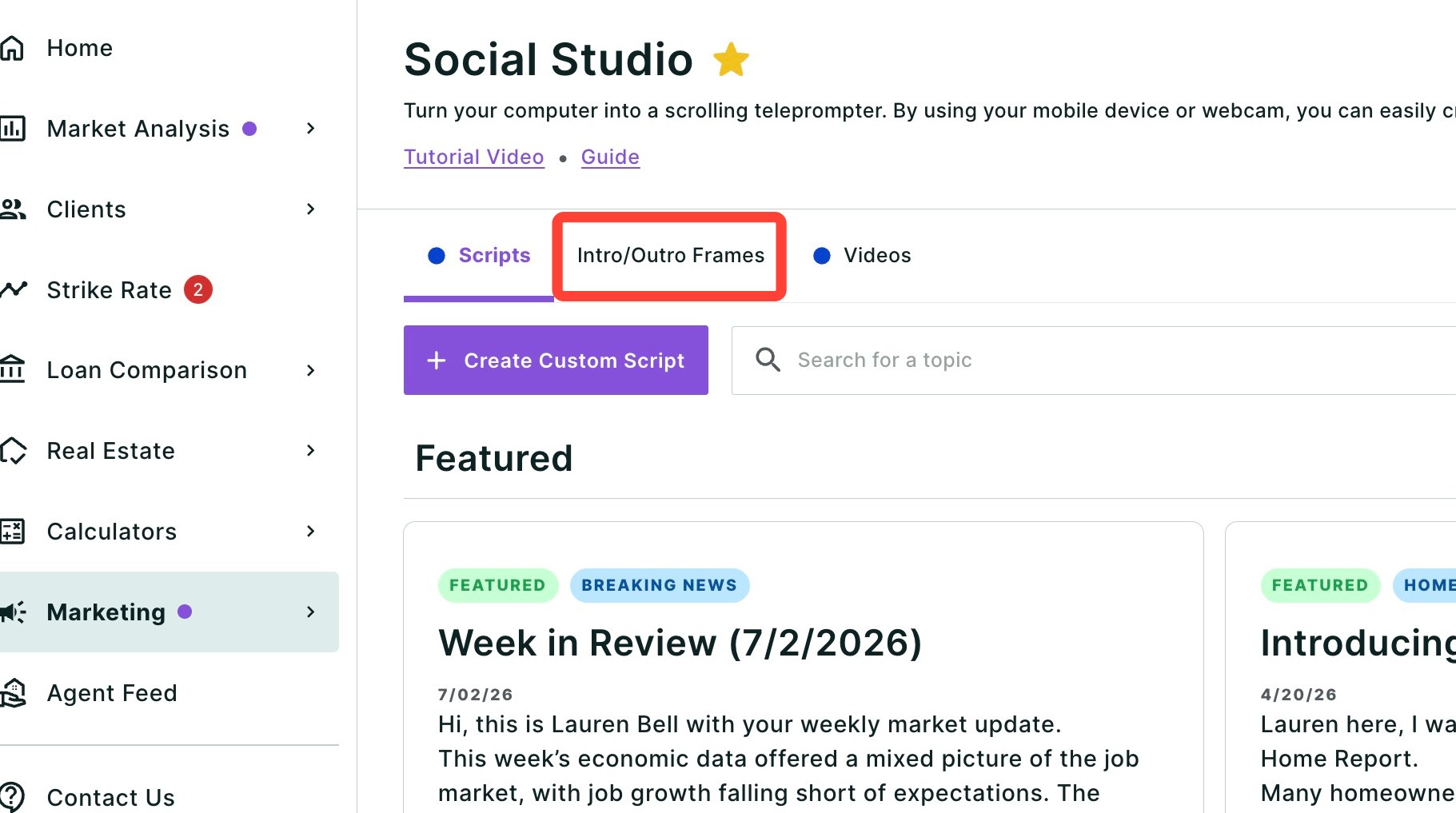
- Click Intro/Outro Frames.
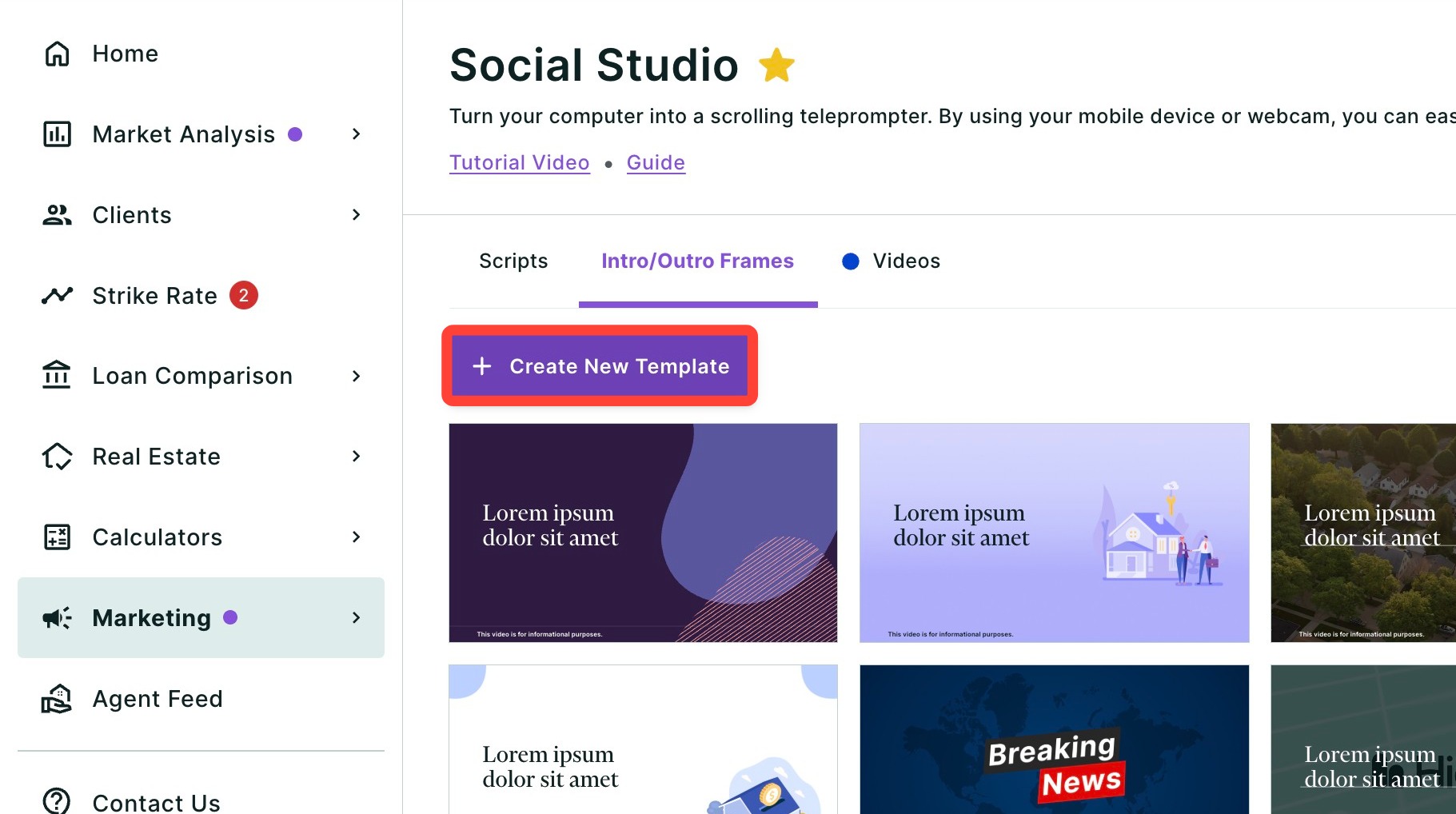
- Click + Create New Template.
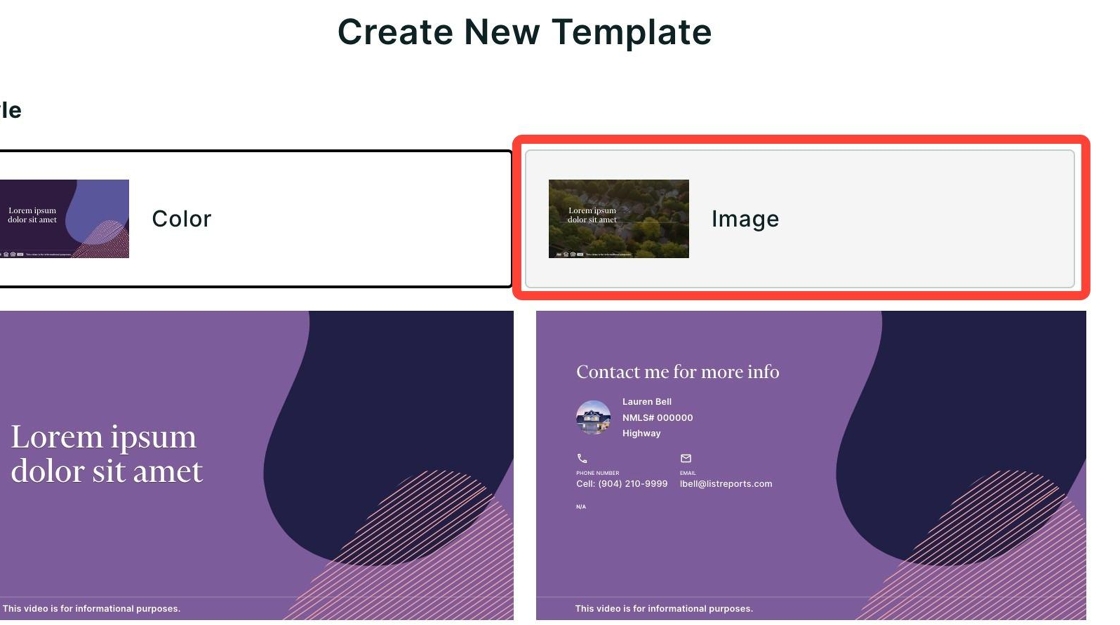
- Select different colors in the Color style template by clicking the corresponding pencil icon.
- To use your own image as the background, click the Image style box seen below.
- Click Upload to choose an image from your computer.
- Click Save.

Once saved, you can use your new custom template in your next Social Studio video.
Editing and Creating Scripts
You can preview, edit, or create your own custom script under the Scripts tab. Follow the steps below:
- Click the Scripts tab.
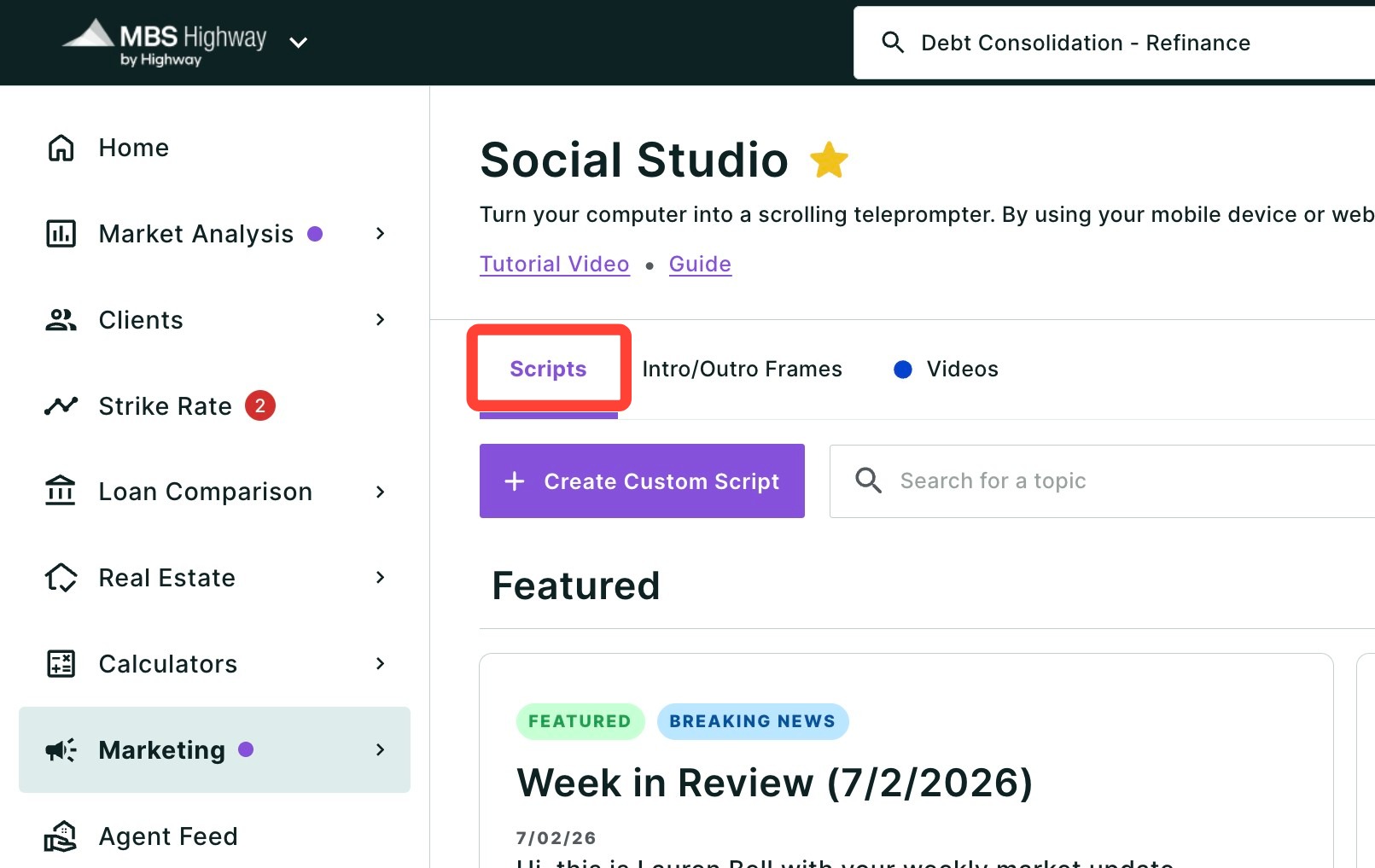
From here you can search, edit, and preview already-made scripts.
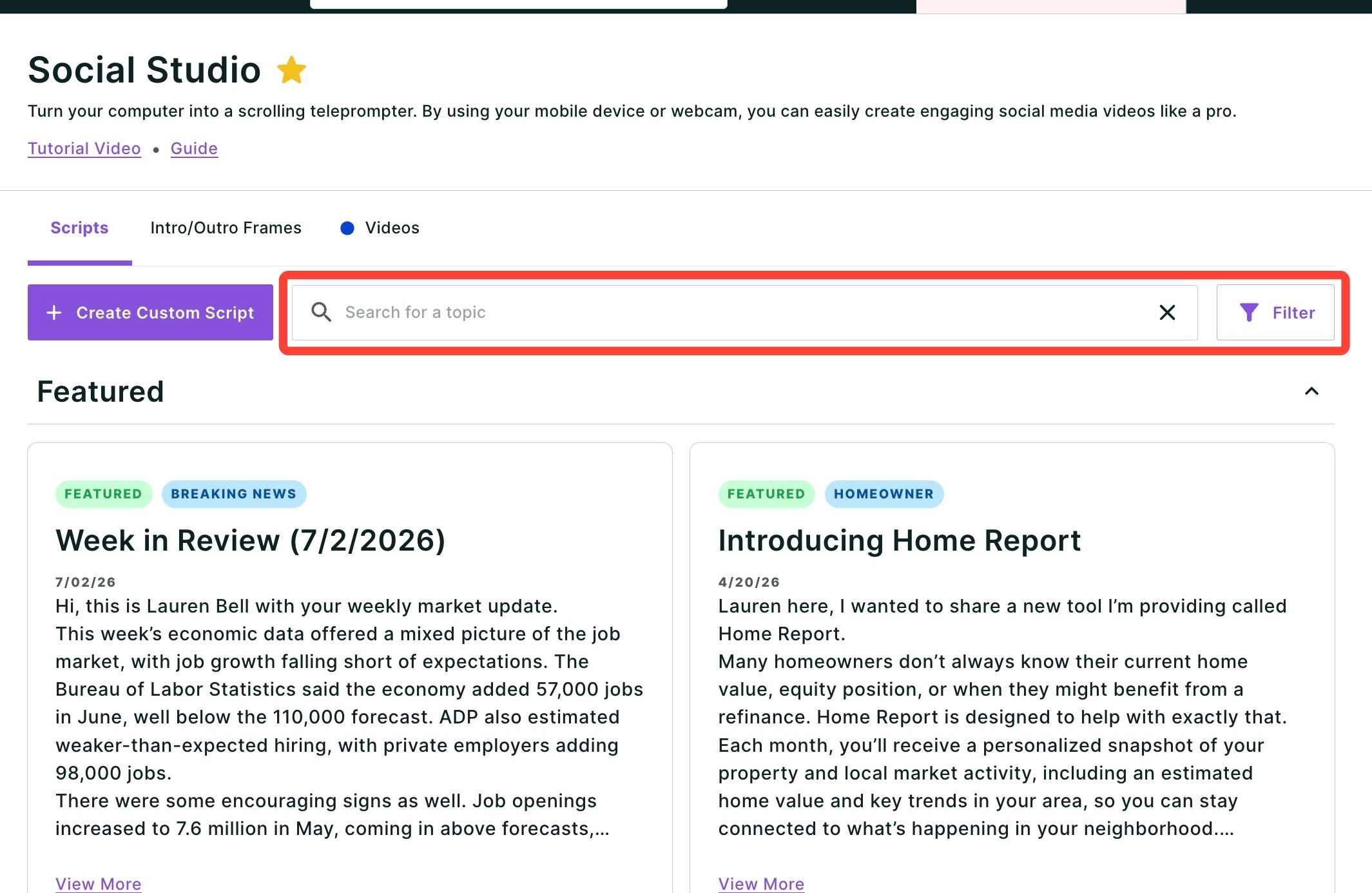
- Use the search bar and Filter button to find existing scripts.
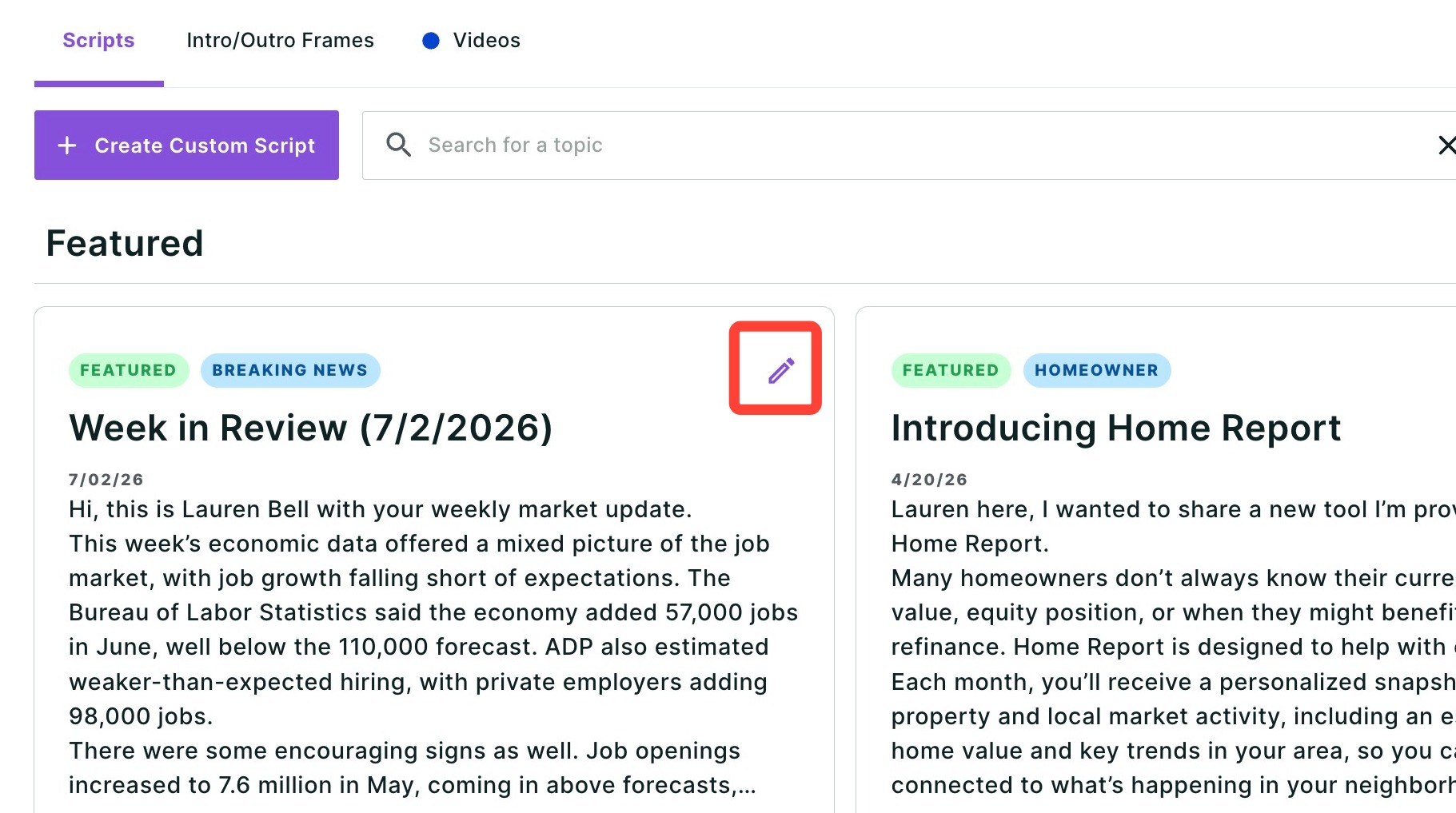
- To edit an existing script, hover your cursor over a script and click the pencil icon.
- Make your desired edits, then click Save as.
- Make your own script by clicking Create Custom Script.
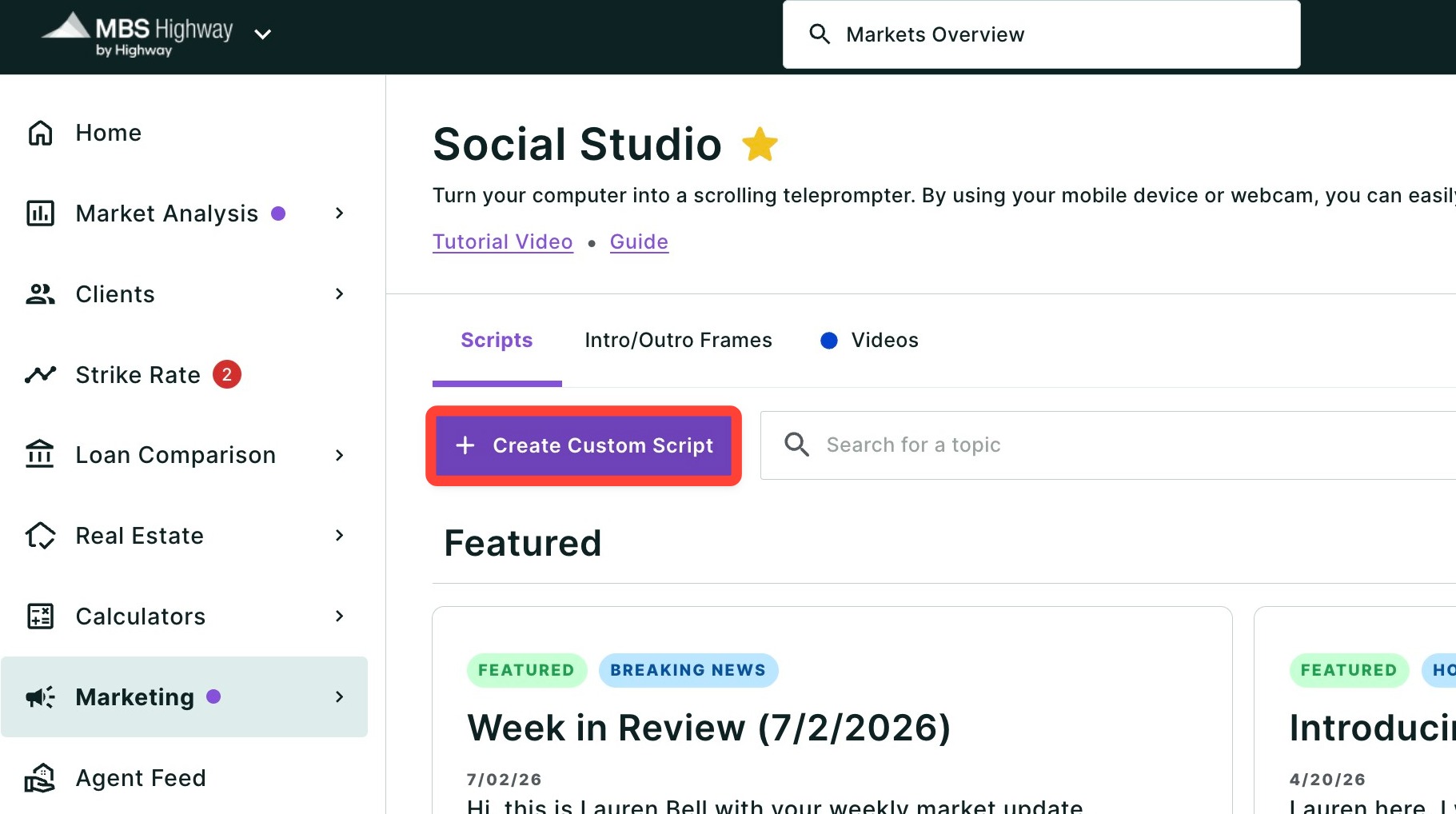
- Add a title and script in their corresponding boxes, then click Next.
- Your script will be ready to use in your next Social Studio video. To learn how to create a new video, read Social Studio: Step-by-Step Guide.
Need Help?
Have questions or want to learn more? Submit a ticket or call us today!