The Agent Portal is where real estate agents manage their co-branding partnership with a loan officer on MBS Highway. Use it to sign in securely with a one-time verification code, update the branding that appears on co-branded marketing materials, and pay the annual $20 RESPA fee. This guide is written for real estate agents, with a section at the end for loan officers who invite and add agents.
Signing In to the Agent Portal
The Agent Portal does not use a password. Each time you sign in, we email you a one-time verification code.
Opening the Sign-In Page
You can reach the sign-in page in either of these ways:
- From your invitation email: Click Start Connecting in the email your loan officer sent you.
- From your browser: Go to the Agent Portal.
Please note: If you bookmarked the old Realtor Portal (realtor.mbshighway.com), that address now takes you to the Agent Portal. Invitation links you received in the past also take you to the Agent Portal sign-in page. |
Signing In with a Verification Code
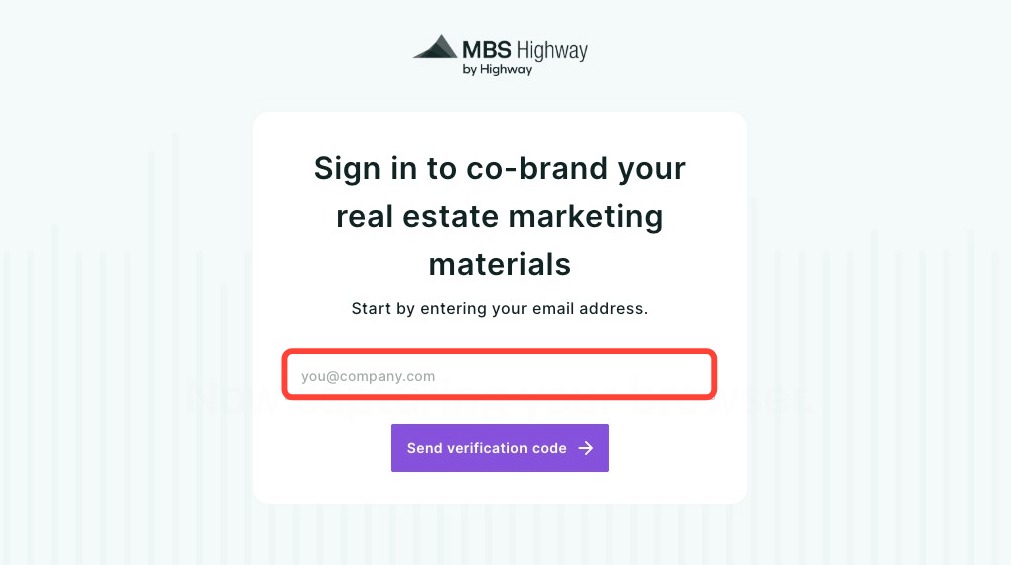
- Enter the email address your loan officer used to invite or add you, then click Send verification code.
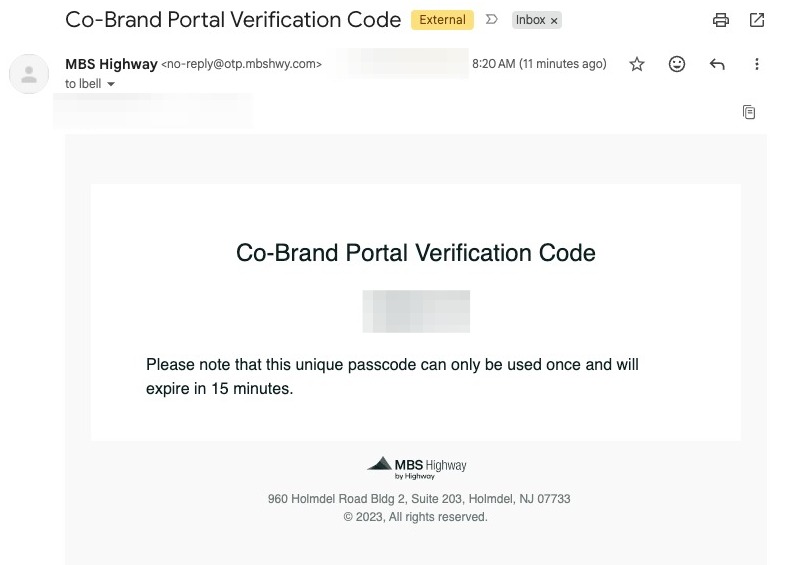
- Open the email containing your 6-digit verification code.
- Enter the code on the sign-in page. You can also paste the code, and the portal will fill in all six digits for you.
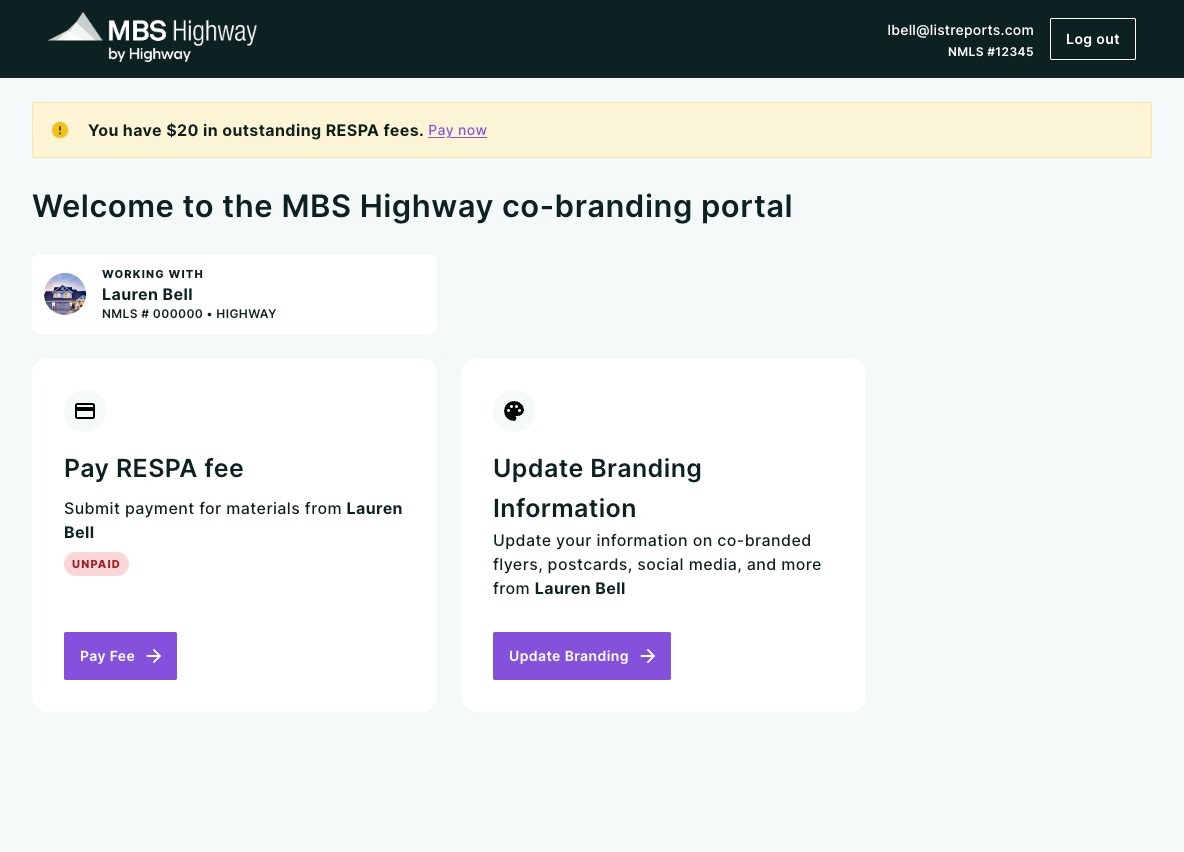
- Once your code is accepted, you will arrive on the Agent Portal welcome page.
Please note: Use the same email address your loan officer has on file for you. If the address does not match, you will not receive a code. If you are expecting a code and it does not arrive, check your spam folder, then ask your loan officer to confirm the email address on your co-branding record. |
If Your Code Does Not Work
- Incorrect code: An error message appears. After three incorrect attempts, the code is canceled and you will need to request a new one.
- Expired code: Codes expire after 15 minutes. Click Resend code to receive a new one.
- Multiple codes: Requesting a new code cancels the previous one, so always use the most recent email.
Staying Signed In and Signing Out
Your session continues if you refresh the page. For security, you are signed out automatically after 24 hours and will need to request a new code. To sign out sooner, click Log out in the top right-hand corner of the page.
Understanding Your Dashboard
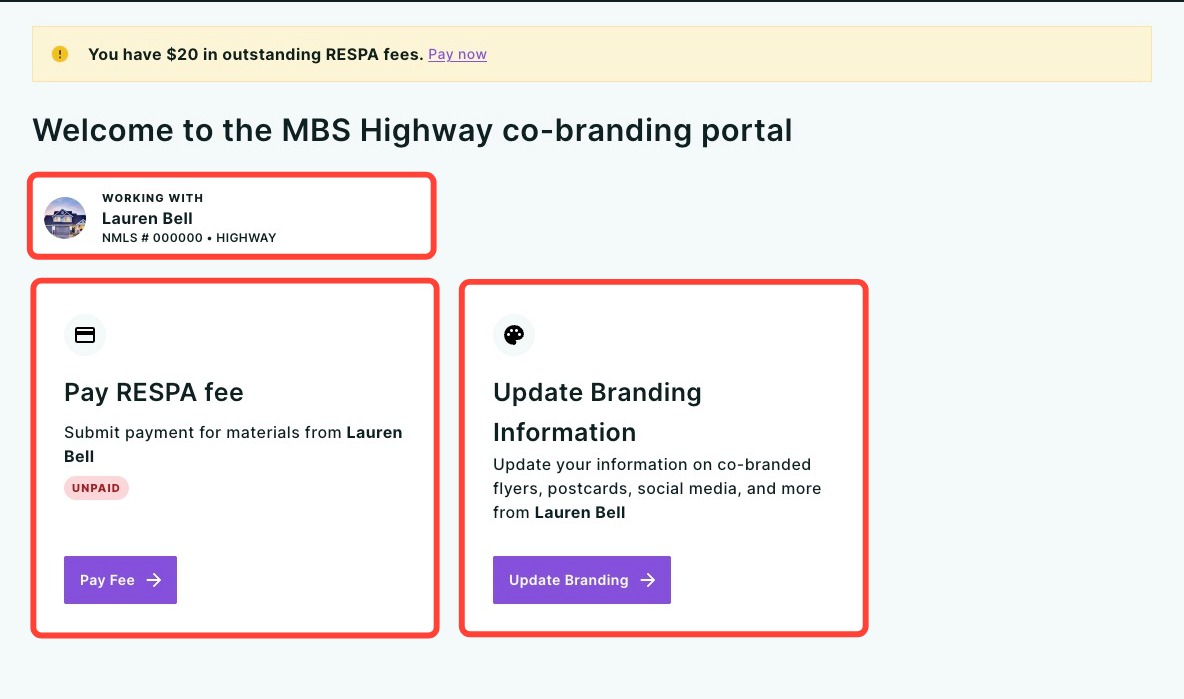
After you sign in, your dashboard gives you everything you need in one place:
- Working With: The loan officer you co-brand with, including their headshot, name, NMLS number, and company.
- Pay RESPA fee: Opens the page where you can check your payment status and pay the annual fee.
- Update Branding Information: Opens a page where you can update your branding including your name, license #, phone number, website URL, company name, and company address.
The RESPA Fee Banner
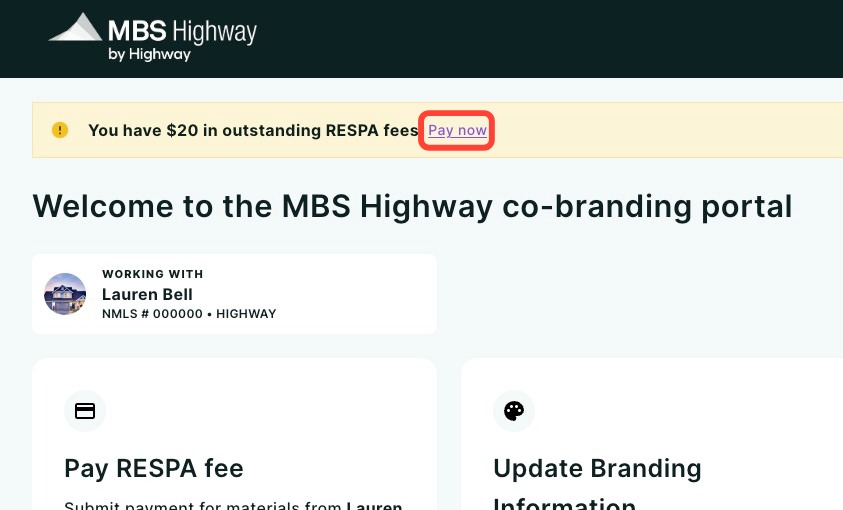
If you have an unpaid RESPA fee, a yellow banner appears at the top of your dashboard reading "You have $20 in outstanding RESPA fees." Click Pay now to go straight to the payment page. The banner no longer appears once your payment is recorded.
Working with More Than One Loan Officer
If your email address is connected to more than one loan officer, you can switch between them without signing in again.
- Click Change on the Working With card.
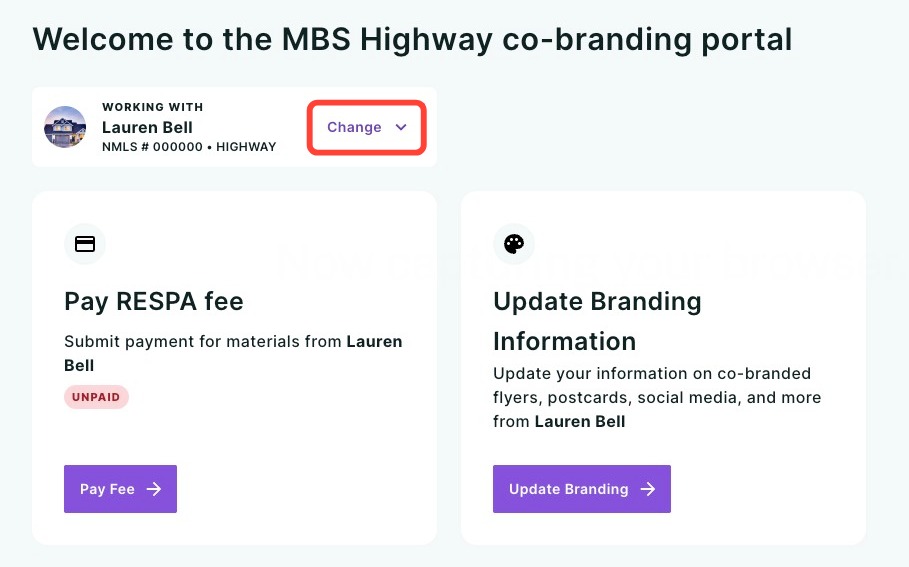
- Select the loan officer you would like to view.
- Your dashboard, branding information, and RESPA fee status update for the loan officer you selected.
Please note: Branding information and RESPA fee status are tracked separately for each loan officer. If you do not see the Change button, your email address is connected to one loan officer only. |
Updating Your Branding Information
Your branding information appears on the co-branded marketing materials you and your loan officer share. Keep it current so your headshot, contact details, and license information are always accurate.
Opening the Branding Form
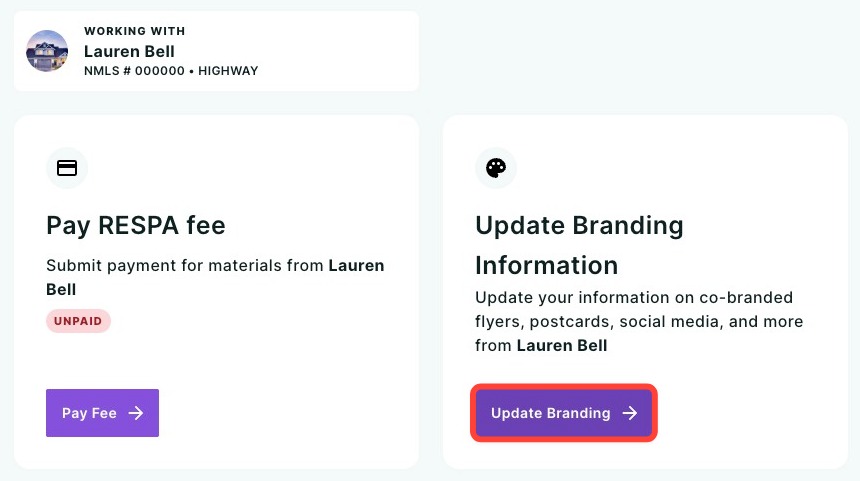
- From your dashboard, click Update Branding. The form opens with your current saved information already filled in.
Editing Your Information
The form includes the following:
- Headshot
- Name and title
- Email: This field is read-only and cannot be edited, because it is the address you use to sign in.
- License type and license number
- Phone numbers: Choose Office, Cell, or Direct, and add an extension if needed.
- Disclaimer
- Company information
- Compliance logos
As you make changes, the preview panel on the right side of the page updates in real time. It shows your branding card, with your loan officer's branding card below it.
Uploading a Headshot
- Click Upload under Headshot.
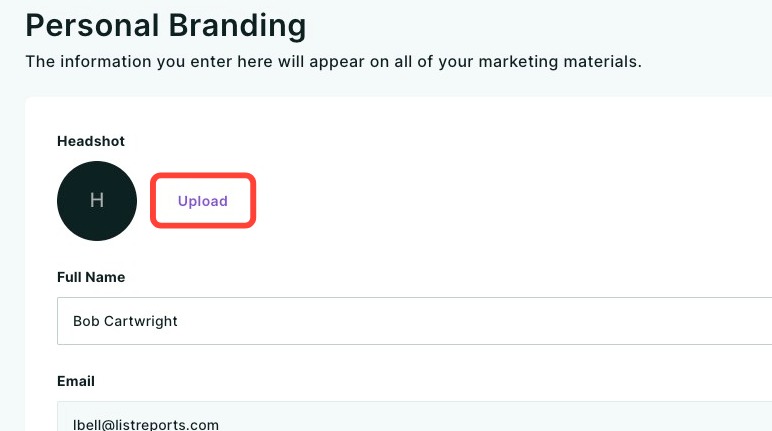
- Select a photo from your computer. Your preview updates immediately with the new image.
Adding a Phone Number
- Click + Add phone number.
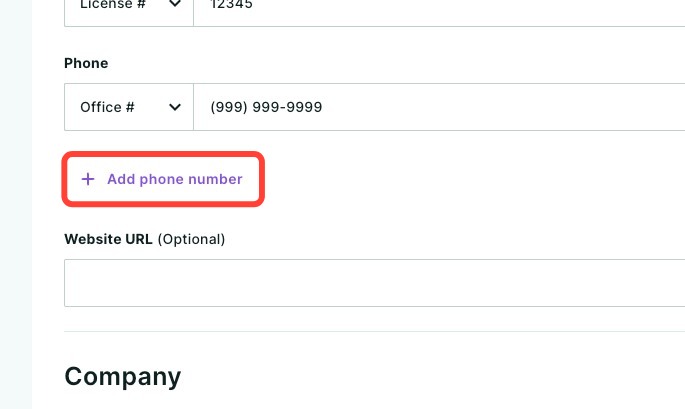
- Choose a phone type, then enter the number. Phone numbers must be at least 10 digits.
- To remove a phone number, click the X next to it.
Saving Your Changes
- Click Save at the bottom of the page. A confirmation message appears once your branding has been saved.
Please note: Your changes will not save if a required field, such as your full name, is empty or if a phone number has fewer than 10 digits. A warning appears so you can correct the information and save again. |
Paying the RESPA Fee
To keep your co-branding partnership compliant with RESPA, co-branded marketing carries a $20 annual fee. You can pay it securely from the Agent Portal.
Checking Your Payment Status
Click the Pay Fee in the Pay RESPA fee card. The page shows one of two states:
- UNPAID: The page shows a $20/year label and the payment form.
- PAID: The page shows your payment date and the date your payment is valid through, which is one year from the payment date. No payment form appears.
Making a Payment
- Click the Pay Fee in the Pay RESPA fee card, or click Pay now in the RESPA fee banner.
- Enter your Name and Phone. Both are required, and your phone number formats automatically as (XXX) XXX-XXXX.
- Enter your card details in the secure payment form.
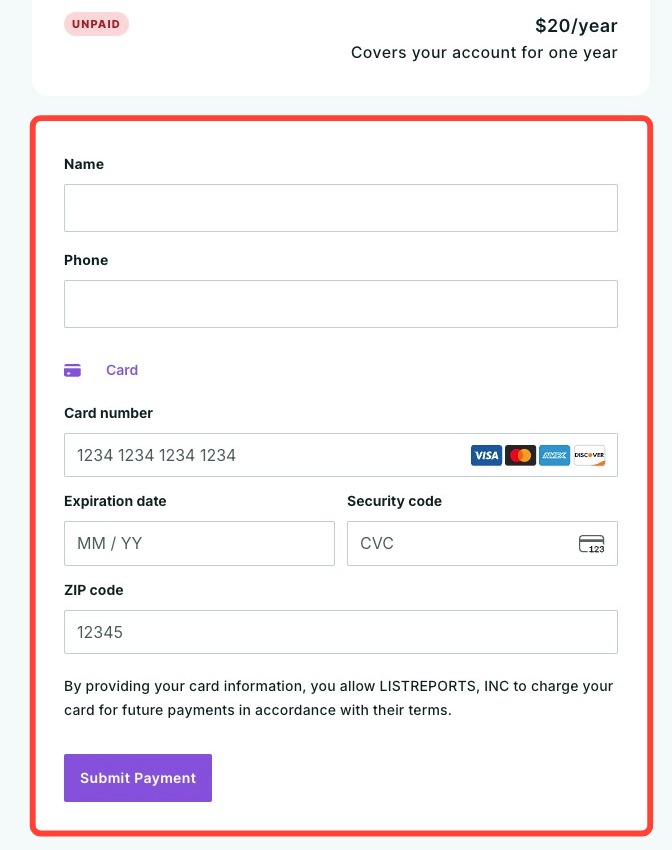
- Click Submit Payment.
- If your bank requires additional verification, you will be redirected to complete it. You will then return to the payment page, and your payment is recorded automatically.
Once your payment is complete, the page changes to the PAID state without needing a reload. The RESPA fee banner no longer appears on your dashboard the next time you visit or refresh.
Please note: If your loan officer added you as a co-branding partner directly and has already collected the fee from you separately, check with them before paying in the Agent Portal. |
For Loan Officers
This section explains what your agent partners experience in the Agent Portal and how it connects to your account.
Inviting and Adding Agents
You can invite agents or add them manually from the Co-Branding section of your Account Settings. To learn how, click here.
- Invited agents: Your agent receives an email with a Start Connecting button that opens the Agent Portal sign-in page. After they pay the $20 RESPA fee, their status on your Co-Branding page changes from invited to added.
- Manually added agents: Agents you add yourself can also sign in to the Agent Portal using the same email address you entered for them.
Please note: An agent can only sign in with the email address on their co-branding record. If an agent says they are not receiving a verification code, confirm that the email address you entered for them is correct. |
What Your Agents Can Do
- Update their own branding information, including their headshot, contact details, license information, and company details.
- See your headshot, name, NMLS number, and company on their dashboard, and a preview of your branding card alongside theirs.
- Pay the annual $20 RESPA fee by credit card.
- Switch between loan officers if they co-brand with more than one.
Need Help?
Have questions or want to learn more? Submit a ticket or call us today!
Related to