Miles is your AI powered assistant, built to help you generate, update, and share reports using natural language, by voice or text, instead of navigating through forms. This article covers where to find Miles and everything you can ask him to do.
What is Miles?
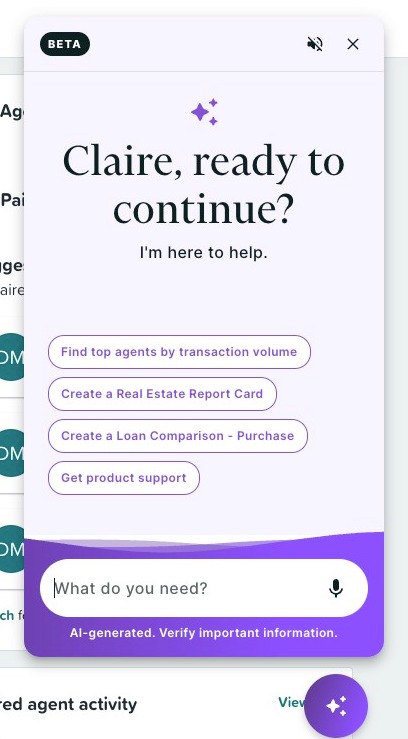
Miles is a voice and text chatbot assistant that lets you generate, update, share, and manage reports simply by describing what you need in plain language. Instead of clicking through a multi step form, you can tell Miles something like "Create a Buy vs Rent report for John Smith at 123 Main Street with a price of $500,000," and Miles takes it from there: validating the address, asking for any missing details, generating the report, and giving you a link to view and share.
Miles can also answer product questions and, if needed, submit a support ticket on your behalf, so you don't have to leave your conversation to get help.
Please note: Miles is currently an enterprise only feature. If you don't see the Miles button, your company may not yet have this feature enabled. |
Where to Find Miles
In MBS Highway
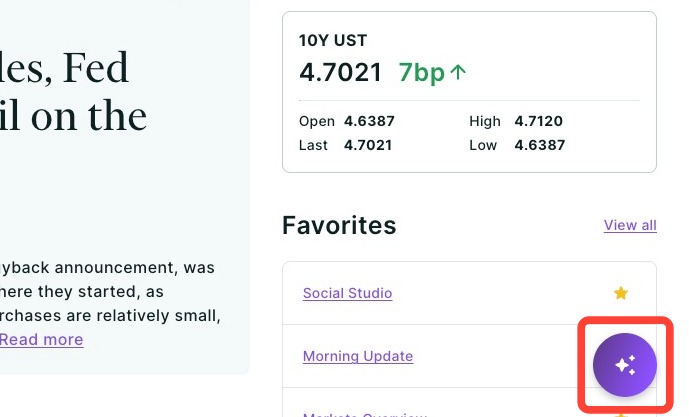
Miles is available from a Floating Action Button in the bottom right corner of every page.
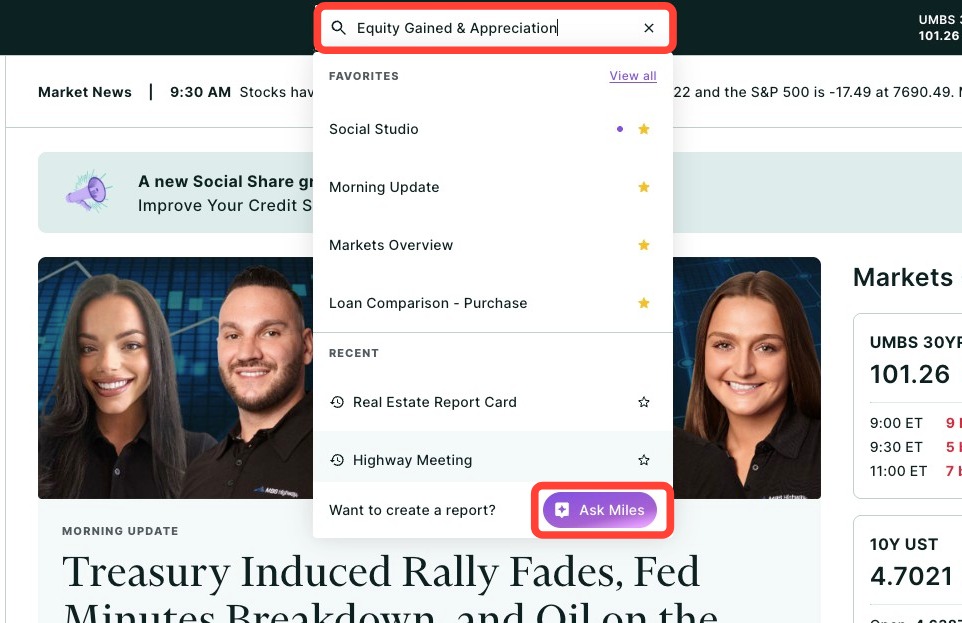
You can also open Miles from the top global search bar by clicking Ask Miles. Either entry point opens the same chat session, so you never lose your place.
In ListReports
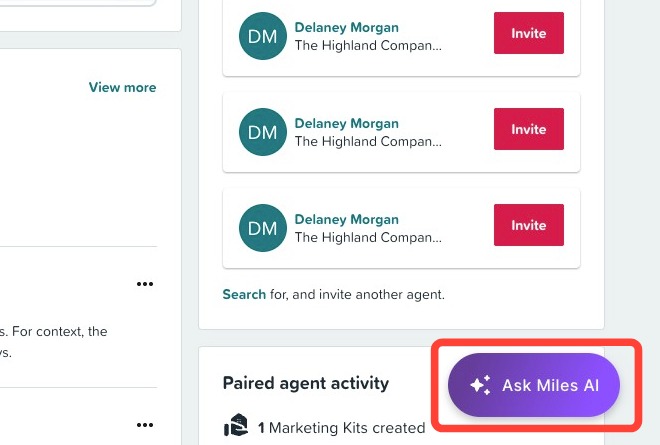
Miles is available from a Floating Action Button in the bottom right corner of every page.
What You Can Ask Miles to Do
Generate a Report
Describe what you need in a single sentence and Miles will generate the report for you. Miles currently supports eight report types:
- Real Estate Report Card (RERC): client name, property address.
- Buy vs Rent: client name, property address, property price.
- Loan Comparison: client name, property address, property price, and loan details (down payment, interest rate, loan term) for up to two loans.
- Cost of Waiting: client name, property address, property price.
- Appreciation: client name, property address, property price, down payment, closing costs.
- Equity Gained: client name, property address, property price, down payment, interest rate, loan term.
- Buying Power: client name and loan details (income, debts, rate, term).
- Amortization: client name, loan amount, interest rate, loan term.
If you leave out any required detail, Miles will ask a follow up question until it has everything it needs. Once the report is generated, Miles gives you a link to view the report and, for most report types, a live share link for your client. Miles will then ask if you'd like to email the share link directly to your client.
Please note: For Loan Comparison reports, only the report link is provided. There is no live share link or email prompt for this report type. |
Update an Existing Report
You can ask Miles to update a report you've already created, for example, "Update John's last Appreciation report's interest rate to 6.5%." Miles will find the correct report, update the field, and confirm the change back to you. No need to reopen the report or find the edit form yourself.
Look Up Client Data
Ask Miles questions like:
- "What properties are associated with [client name]?"
- "What loans are associated with [client name]?"
- "What reports does [client name] have?"
Miles returns a numbered list so you can quickly reference or reuse that information, for example asking Miles to generate a new report using the address from an existing one.
Get Answers and Submit Support Tickets
If you have a product question, ask Miles directly. Miles will give you an answer along with relevant help center links, then ask if that answered your question. If it didn't answer your question, Miles can submit a support ticket for you, including the full conversation, so our support team has the context they need to help you right away.
Using Text or Voice
You can type your request into the chat window, or click the microphone icon and speak instead. Miles will show you a live transcription as you talk. Use the mute icon at any time to turn off Miles' spoken responses; you'll still see all responses in the chat window.
💡 Helpful Tip: Voice input is great for hands free use between appointments or while at an open house. Just speak your client's details naturally and Miles handles the rest. |
Good to Know
Your conversation with Miles is saved to your browser session, so closing and reopening Miles picks up right where you left off. Miles also shares session context between MBS Highway and its top search entry point, so you won't end up with duplicate conversations.
Please note: Miles respects your existing add on permissions. If you don't have access to a specific tool, such as Loan Comparison without the Loan Advisor add on, Miles won't be able to generate that report type for you. |
Need Help?
Have questions or want to learn more? Submit a ticket or call us today!