The Highway AI mobile app puts your Morning Update, Alert to Lock, and live bond and treasury pricing directly on your phone. This article walks you through installing the app, signing in, and using each screen, and covers what you'll still want to do on the desktop site. The app is available for iPhone and Android.
Installing the Highway AI app
- Open the App Store on iPhone or the Google Play Store on Android.
- Search for Highway AI.
- Tap Get or Install.
- Once installed, tap the Highway AI icon on your home screen to open the app.
Preview Apple App Store
Preview Google Play Store
Please note: The mobile app is a companion to your MBS Highway subscription. You'll use the same login you use on the desktop site — there's no separate mobile signup or fee. |
Signing in
- Open the app.
- Enter the email address and password you use for your Highway AI (MBS Highway/ListReports) login.
- Tap Log In.
You'll land on the Home screen once you're signed in.
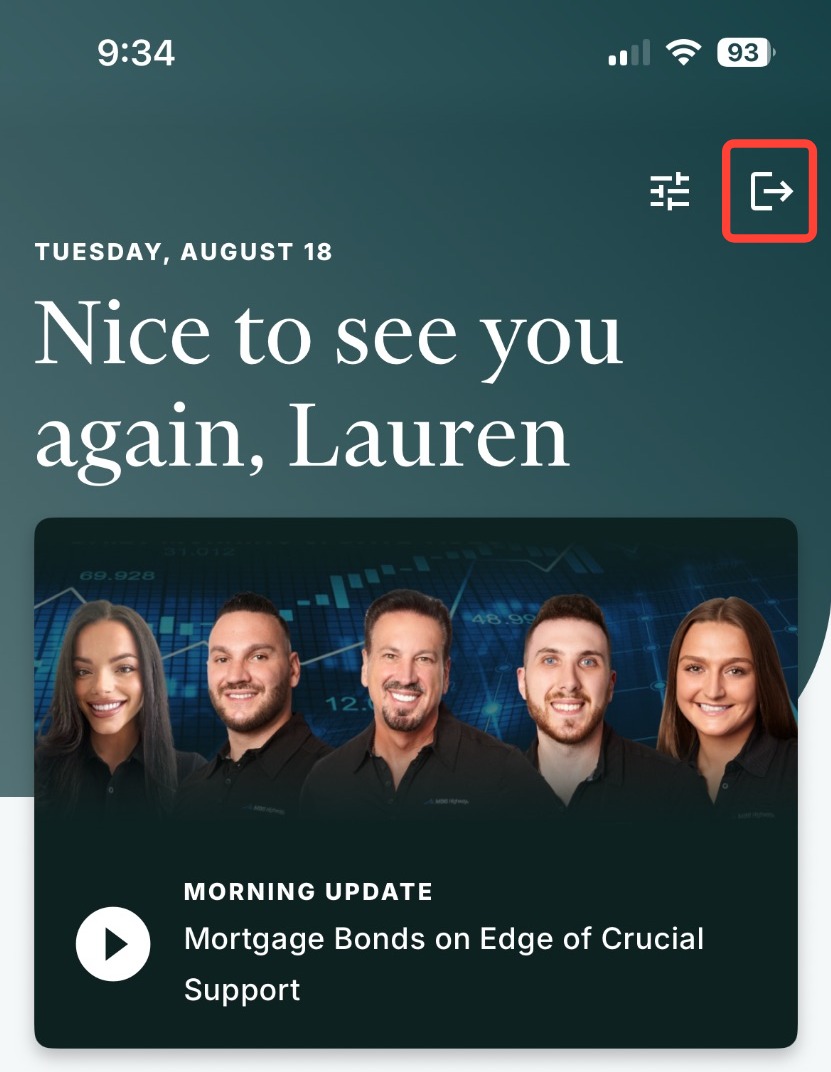
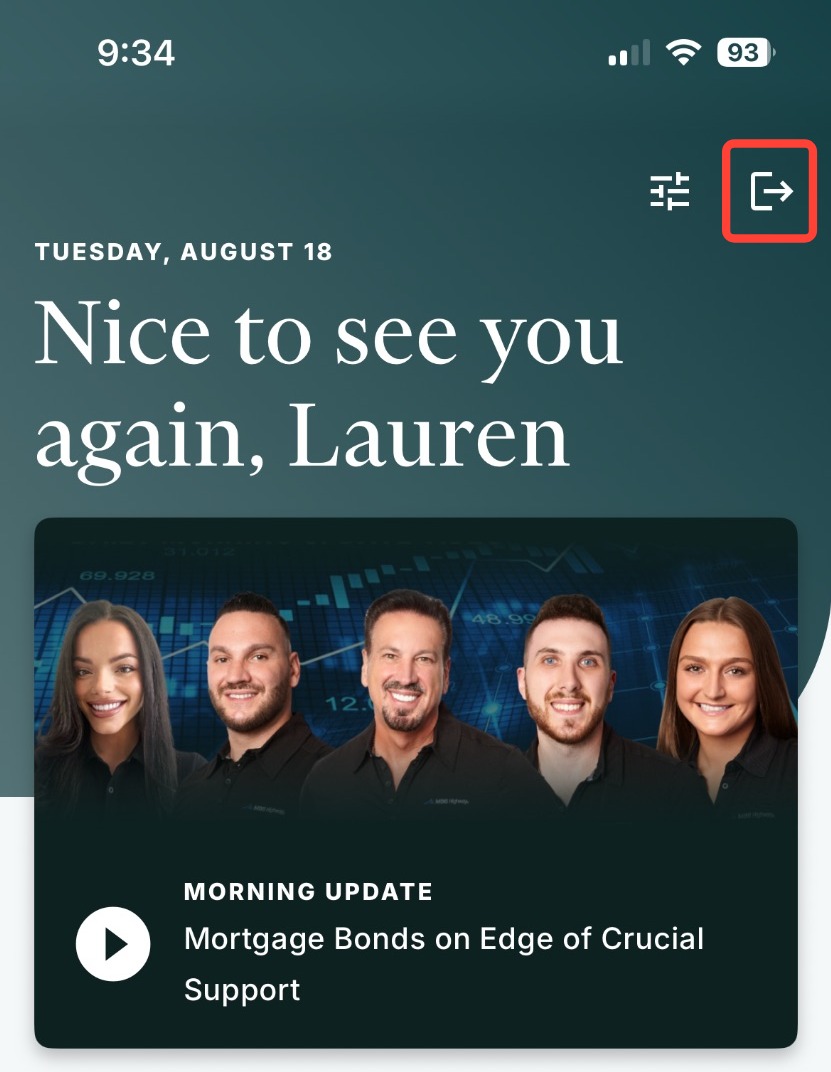
To sign out, tap the sign out icon in the top-right corner of the header. You'll be returned to the login screen.
Staying signed in on your computer and your phone
You can be signed in on your desktop browser, your mobile browser, and the mobile app all at the same time. Signing in on your phone will not sign you out of your desktop session.
If you tap a link in the app that opens a page in your phone's browser — for example a report link — your app session stays active.
Please note: You can hold one session per place: one desktop browser, one mobile browser, and one mobile app. If you sign in to the app on a second phone, the first phone's app session ends. |
Getting Around the App
Three tabs run along the bottom of every screen:
- Home (house icon): your daily snapshot — Morning Update, opening position, and a market overview.
- Morning Update (chart line icon): the full daily video and written summary.
- Markets (bar chart icon): bond and treasury pricing, charts, and Market News.
In the top-right of the header you'll find:
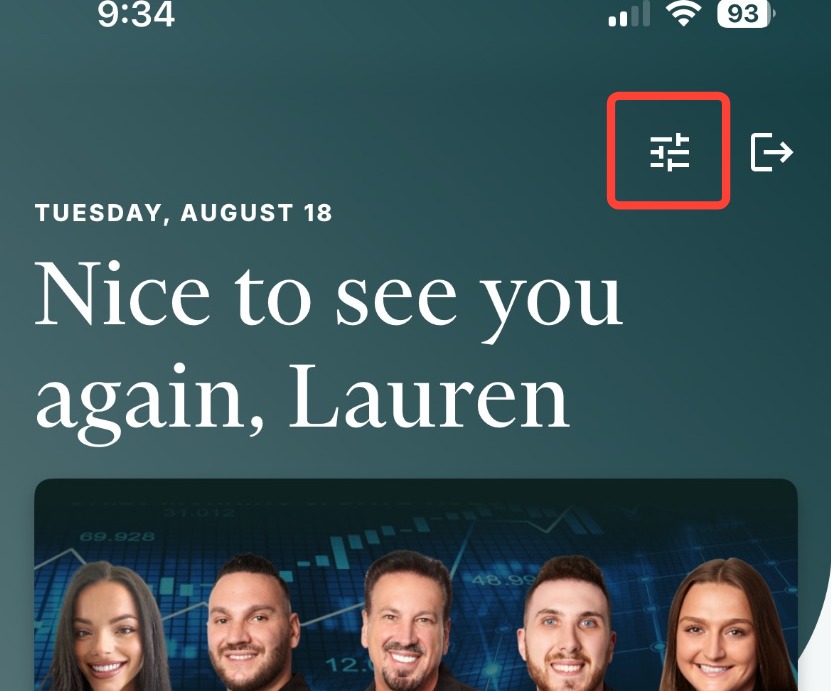
- Settings (cog icon): opens the settings drawer, where you can turn push notifications on or off and get help.
- Sign out (box-with-arrow icon): ends your session and returns you to the login screen.
Home
Home is where the app opens and where the day's highlights can be found.
Your Morning Update
The Morning Update card sits near the top of Home with the day's video thumbnail. Tap the play button to start the video right on the Home page. Tap Read more to open the full Morning Update screen with the written summary.
Opening position
Below the video card you'll see Opening position: followed by the day's stance — Floating in green or Locking in red — plus a short market summary. Tap Read more to open the full summary.
Alert to Lock
When an Alert to Lock is issued, an audio player card appears at the top of Home with the LOCK ALERT label and the time it was posted. Tap play to listen to the alert.
The Alert to Lock banner stays visible as you move around the app, so you won't miss it if you're on another tab when it lands. It clears when the alert expires or you dismiss it.
Please note: If your company has chosen to turn off alerts, you won't see the opening position, the stance summary, or Alert to Lock audio in the app. Reach out to your administrator if you're unsure whether alerts are enabled for your team. |
Market Overview
Two compact cards show where the market stands:
- UMBS 30yr 6% — current price and change in basis points
- 10Y UST — current yield and change in basis points
Tap either card to jump to the Markets screen for the full chart and detail.
Morning Update
Tap the Morning Update tab for the full daily briefing.
- The current position appears just below the header — Floating in green or Locking in red.
- The video plays in portrait by default. Use the standard controls to play, pause, scrub, and adjust volume.
- To watch full screen, tap the fullscreen control or turn your phone sideways. (Rotating only works if your device's rotation lock is off.)
- The written summary appears below the video. Scroll to read the whole thing.
💡 Helpful Tip: If the video won't load, the written summary is still there — scroll past the player to read the day's commentary. |
Markets Overview
Tap the Markets tab for pricing, charts, and news.
Market News Ticker
A news ticker sits at the top of the screen, showing the time each item was posted followed by the headline. A new headline holds still for a few seconds, then scrolls across. Tap the ticker to open the full Market News feed, where you can scroll through timestamped commentary.
Bond and Treasury Cards
Below the ticker you'll find your bond cards (e.g. UMBS 30yr 5.5%) and treasury cards (e.g. 10Y UST), stacked one per row. Each card shows:
- The instrument name
- The current price or yield
- The change in basis points, in green with an up arrow or red with a down arrow
- A mini chart with the nearest support (S1) and resistance (R1) levels
- A table of intraday basis point changes by time slot (9:30 ET, 10:00 ET, 10:30 ET, 11:00 ET, 11:30 ET), with yesterday's close in italics on the last row
Treasury cards also show Open, Last, High, and Low.
Tap anywhere on a card to open its full chart.
💡 Helpful Tip: When the market is outside regular trading hours, you'll see an EXTENDED HOURS TRADING label on the Markets Overview screen. |
Reading the Charts
Once you tap into a card, you get the full chart for that instrument, with the current price and basis point change pinned at the top.
- Choose a time period using the selector: 1D, 1W, 1M (the default), 3M, or 6M. The 1D view shows a line chart of the day's intraday prices; every other period shows candlesticks.
- Support and resistance levels (S1, S2, R1, R2) appear as labeled horizontal lines.
- Moving averages — 200, 100, 50, and 25 day — are all turned on by default. Use the checkboxes to toggle any of them off.
- Fibonacci levels are shown on the chart as well.
- Tap the filter icon (funnel, to the right of the header) to show or hide the Fibonacci and support/resistance lines.
Viewing a Chart Full Screen
Turn your phone sideways while you're on a chart and it opens in landscape, filling the screen. You keep the period selector, moving averages, support and resistance levels, Fibonacci levels, and zoom. Turn the phone back upright to return to the portrait view.
Please note: Rotating into landscape only works when your device's rotation lock is off. If your screen is locked to portrait, the chart stays in portrait. |
Keeping Your Data Current
Market data refreshes on its own roughly every two minutes while the app is open, so prices and news update without you doing anything.
To refresh immediately, pull down on any screen.
Push Notifications
The app can send you a push notification for two things:
- Morning Update Available — sent when the day's Morning Update is published. Tapping it opens the Morning Update screen.
- Alert to Lock — sent when an Alert to Lock is issued. Tapping it opens Home, where you can play the alert.
Your phone will ask for permission to send notifications the first time one is relevant. To change your mind later:
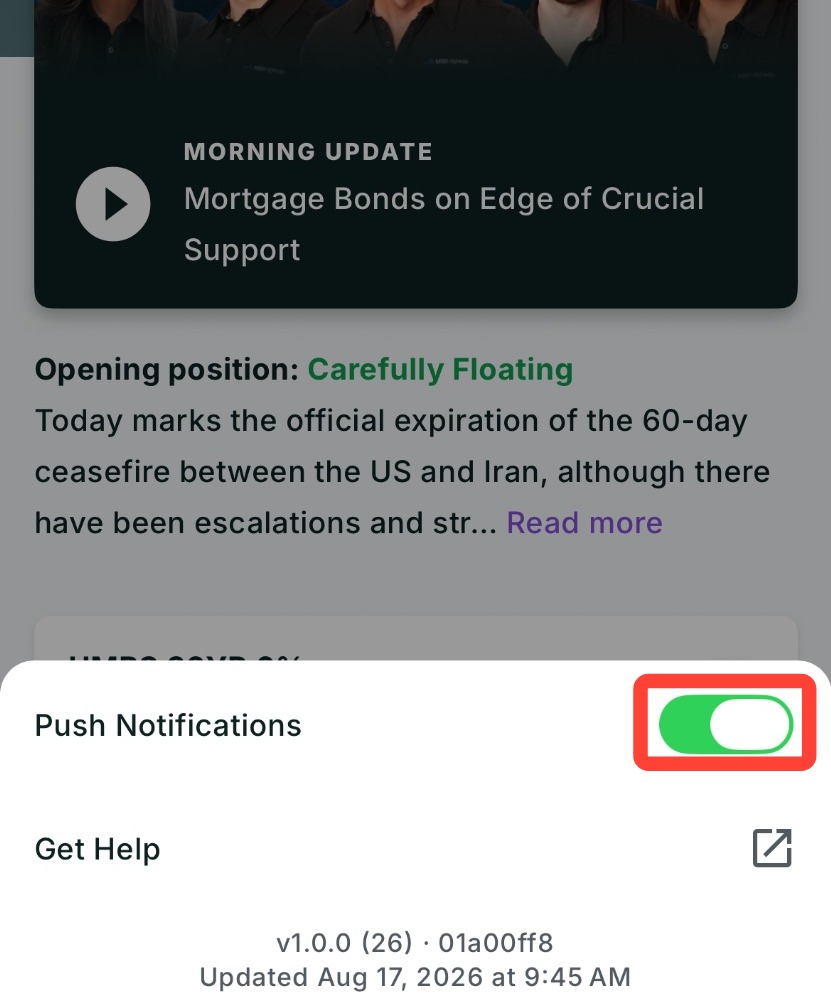
- Tap the Settings cog in the top-right of the Home screen.
- Toggle Push notifications on or off.
Please note: Push notifications are mobile-only. If your company has alerts turned off, you won't receive the Alert to Lock notification and if your subscription has ended you won't receive any push notifications. |
Opening links from text messages and email
When the app is installed on your phone, tapping a supported MBS Highway link in a text message or email — such as your Morning Update link — opens the app directly instead of your mobile browser. If the app isn't installed, the link opens in your browser as usual.
Getting help from inside the app
- Tap the Settings cog in the top-right of the Home screen.
- Tap the external link icon.
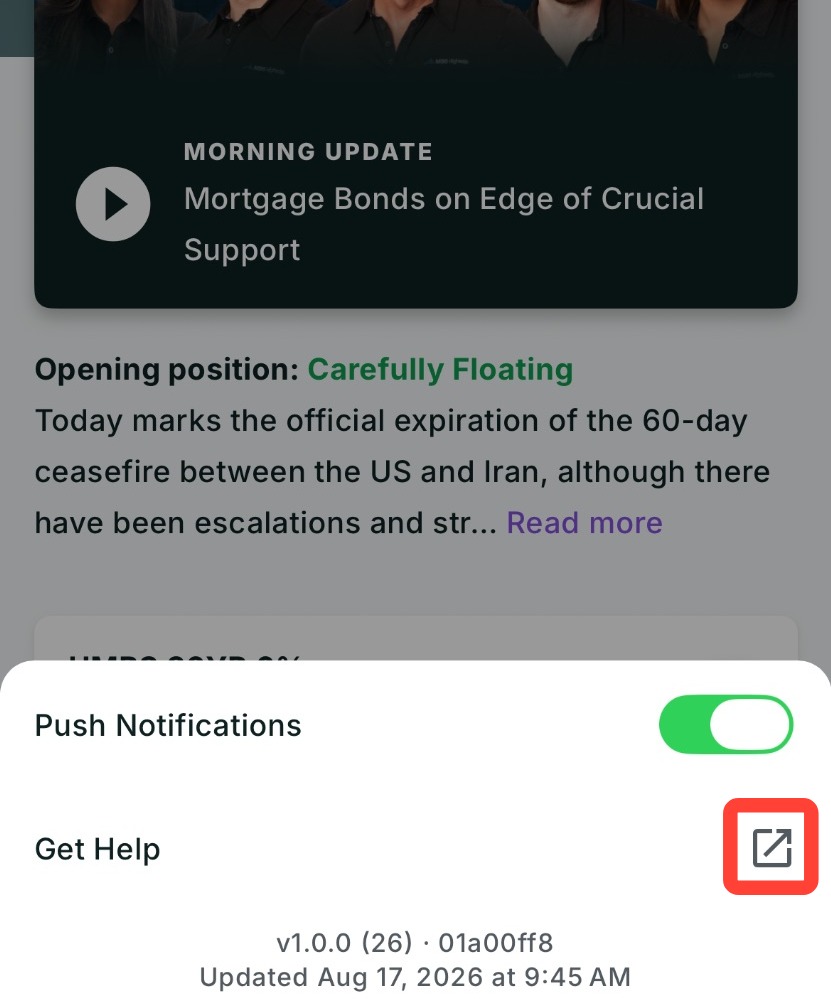
Our help center opens in your phone's browser, where you can search articles or submit a request.
What you'll still do on desktop
The mobile app is built around the daily market picture. A few things live on the desktop site:
- Reports
- Social media content
- Client management
You'll see a Desktop features available note on the Home screen as a reminder. Sign in at https://www.highway.ai/portal on your computer for these tools.
Troubleshooting
- "Network issue. Some content may not load." — Check your connection and pull down to refresh.
- "This video is unavailable." — The written summary still loads. Scroll past the player to read it.
If a screen keeps failing to load, close the app fully and reopen it. If that doesn't clear it, submit a ticket using the link below.
Need Help?
Have questions or want to learn more? Submit a ticket or call us today!
Related to