This article explains how to access the Subscriptions & Order History section within Account Settings to view, download, and send your MBS Highway invoices. You'll learn where to find past orders, how to open individual invoices for your records or accounting needs, and how to filter the list by date or payment status.
Navigating to Subscriptions & Order History
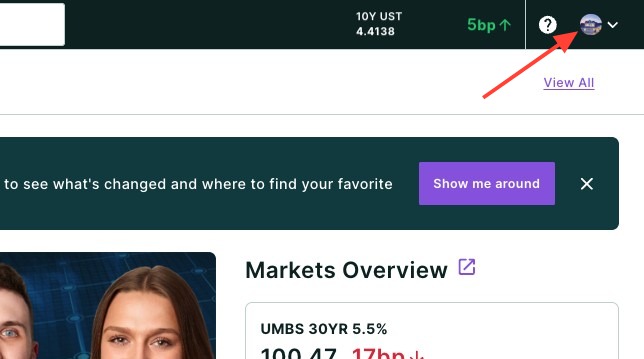
- Click your headshot in the top right-hand corner of the page.
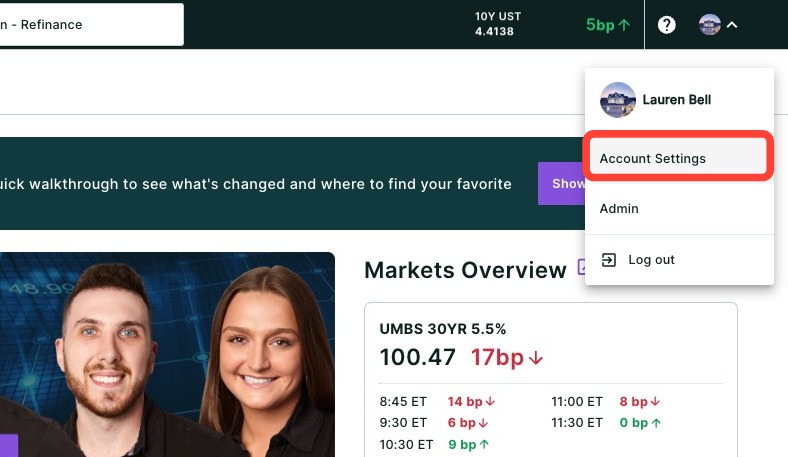
- Click Account Settings.
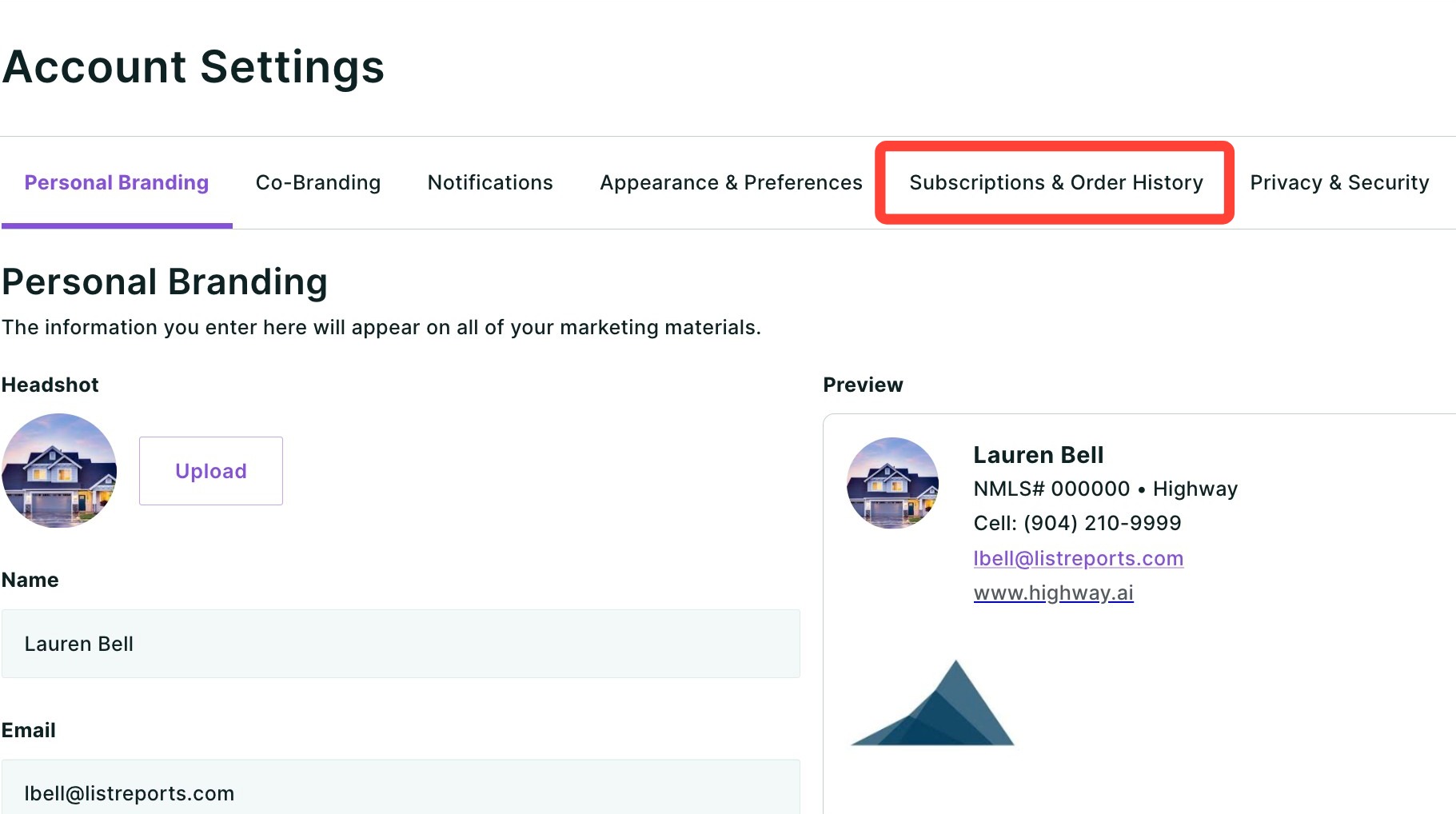
- Click the Subscriptions & Order History sub-tab.
Viewing an Invoice
- To open and view the invoice, click View.
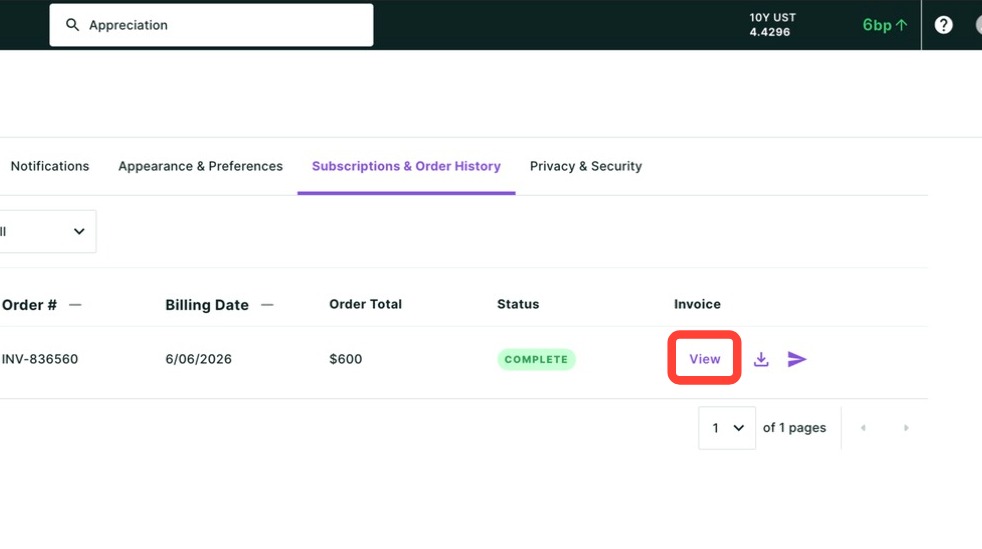
- From here, you can download the invoice or close the window.
Downloading an Invoice
- To download an invoice, click the download icon seen below.
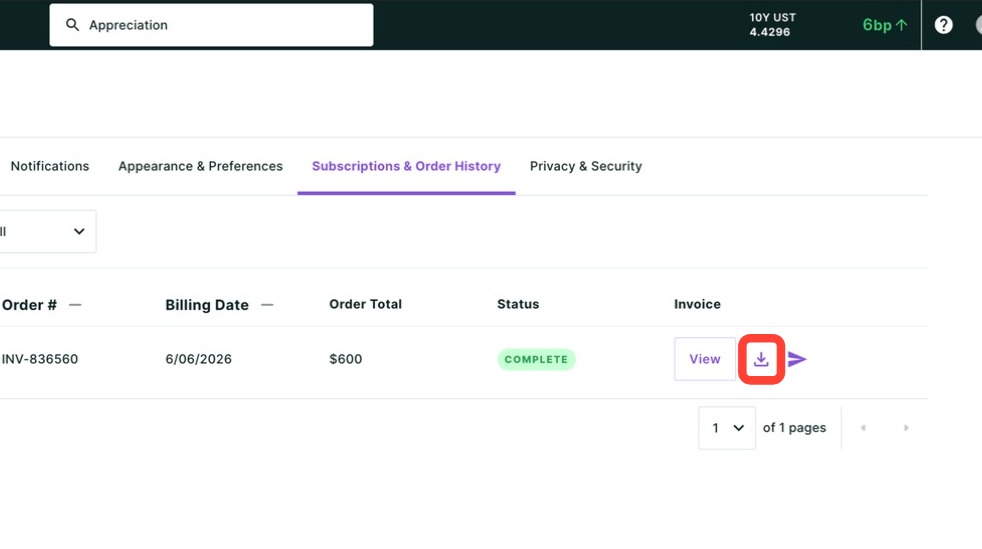
- Save it to your computer.
Emailing your Invoice
- To email your invoice, click the send icon seen below.
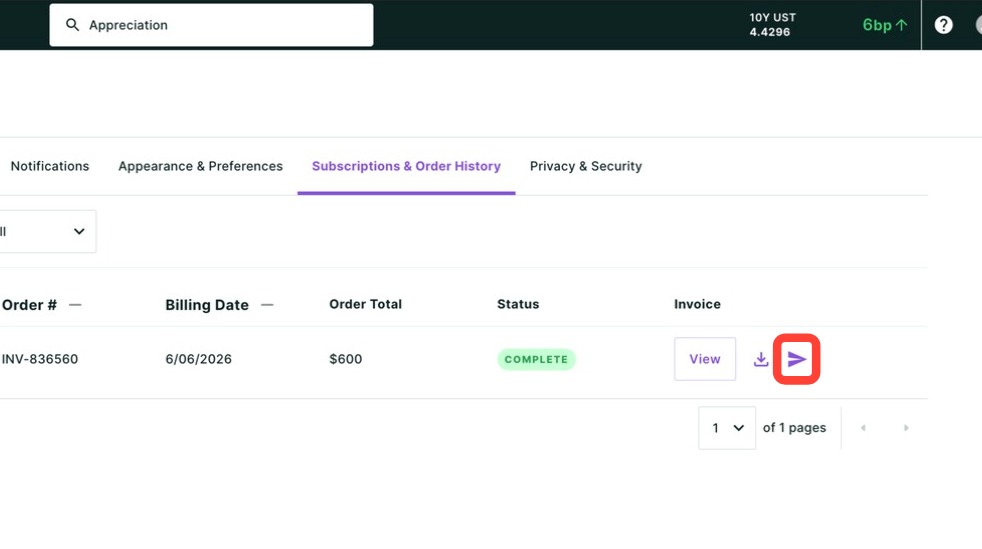
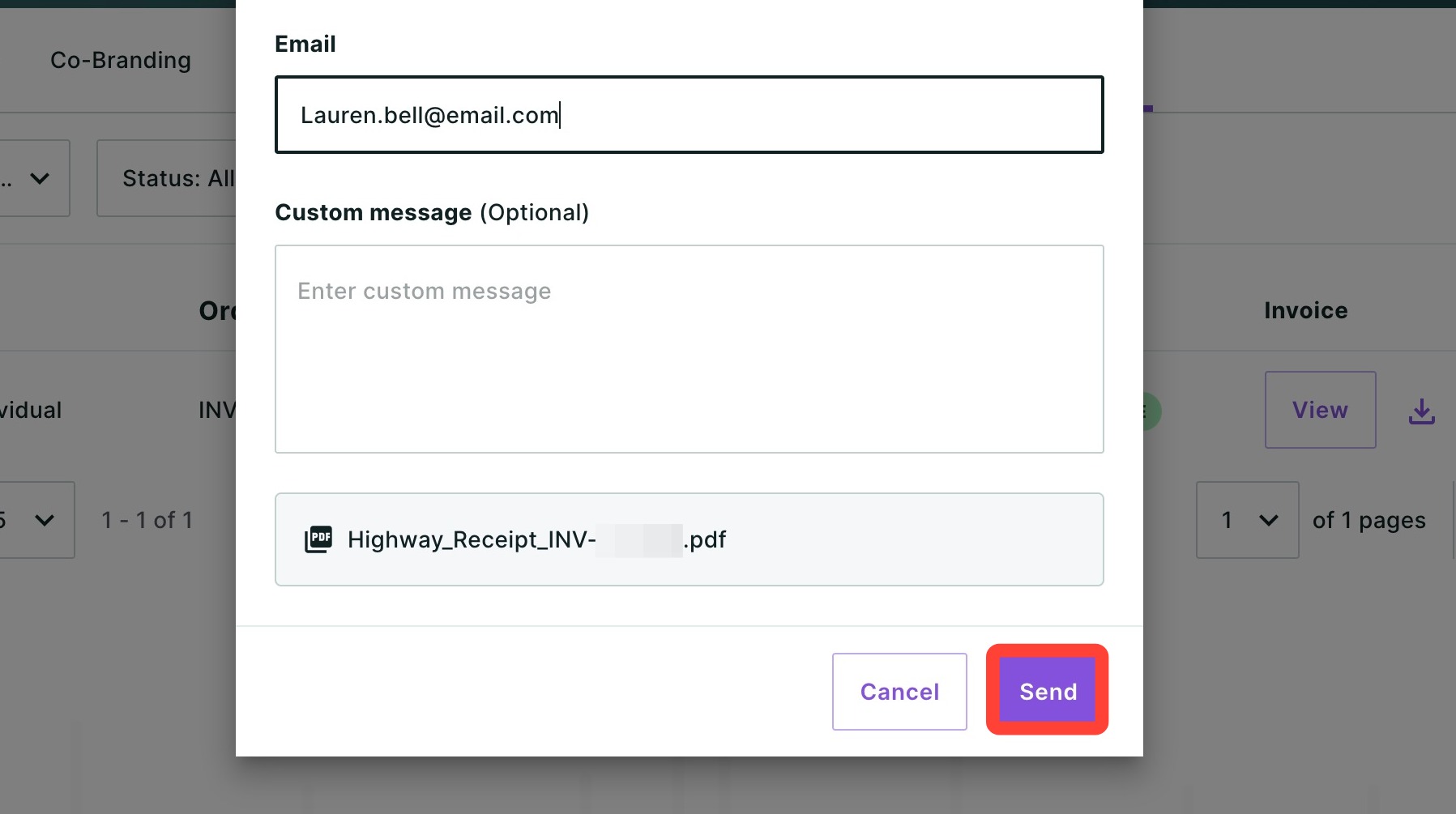
- Your email address will auto-populate, but you can change it.
- Optional: Add a custom message.
- Once your edits are complete, click Send.
Filtering your Order History
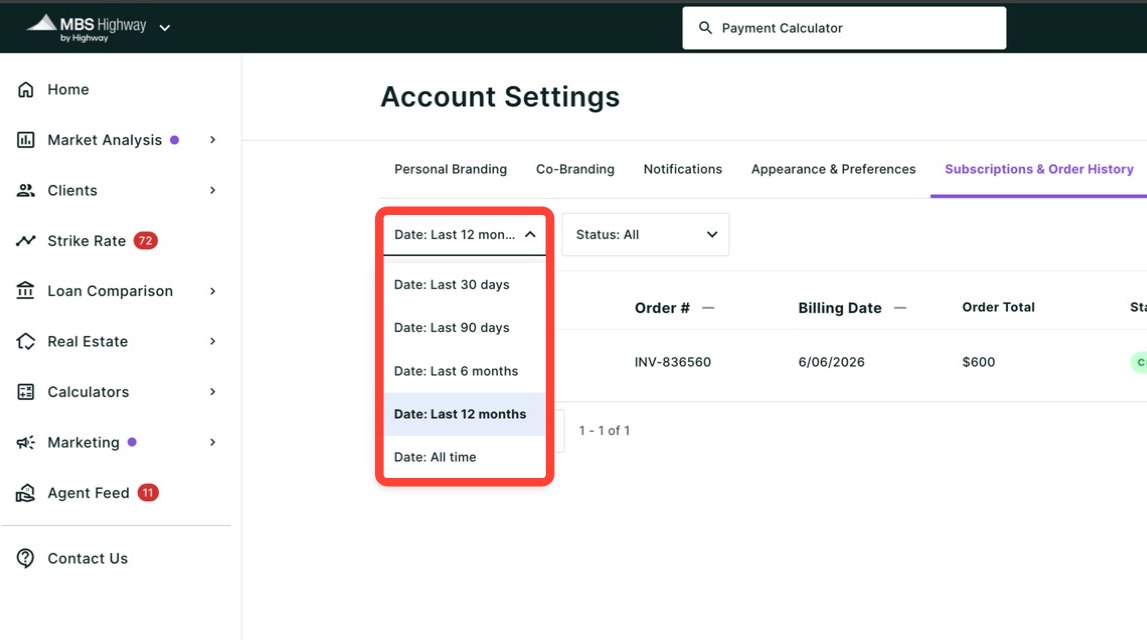
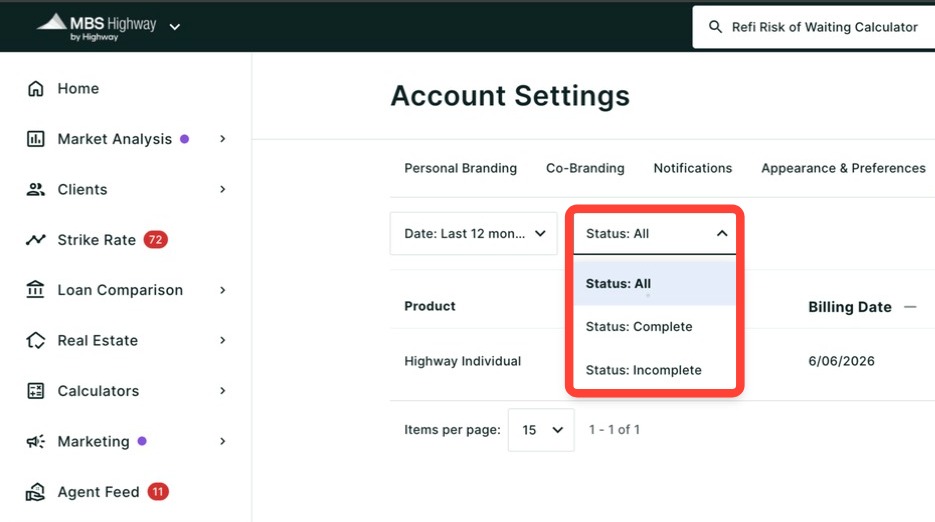
Use the filters above the invoice list to narrow down what you see:
- Find subscriptions from a particular period using the date filter seen below.
- Filter by paid and unpaid invoices using the status filter seen below.
Looking to update your payment method? Read Updating your Payment Method.
Need Help?
Have questions or want to learn more? Submit a ticket or call us today!
Related to