Get real-time market alerts from MBS Highway by configuring your voice, text, and email notifications. This article covers Voice Alerts, Lock Alerts, bond market text times, the Morning Update via text, and Strike Rate email notifications, so you stay informed without overload.
Accessing Your Notification Settings
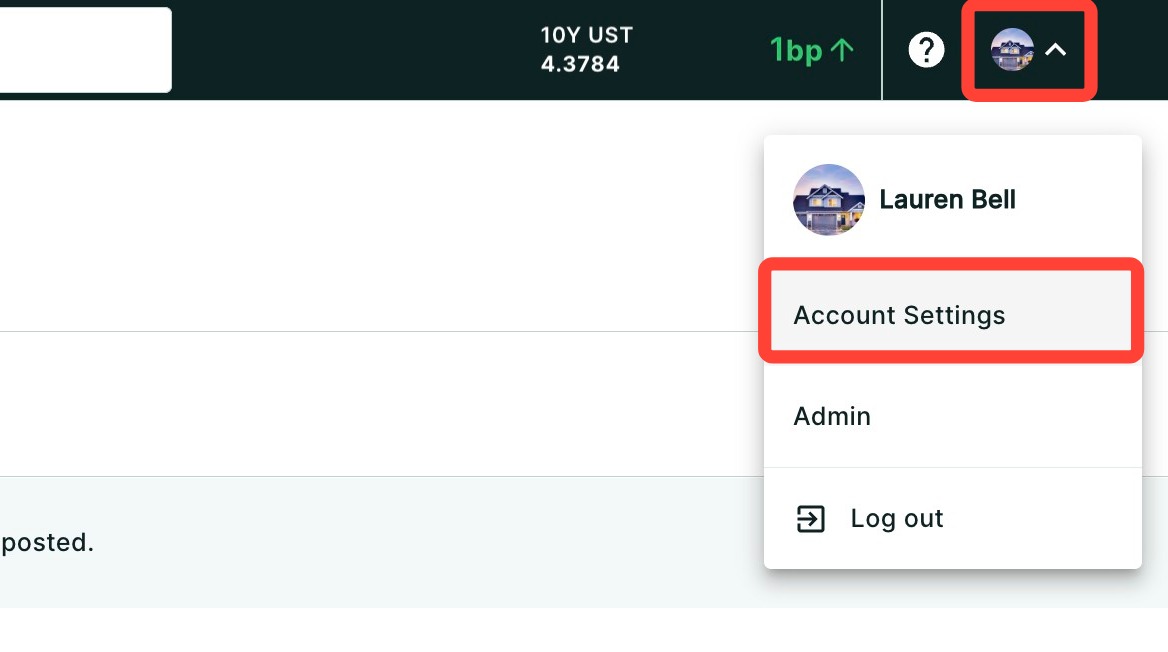
- Click your headshot, then click Account Settings.
- Click the Notifications sub-tab.
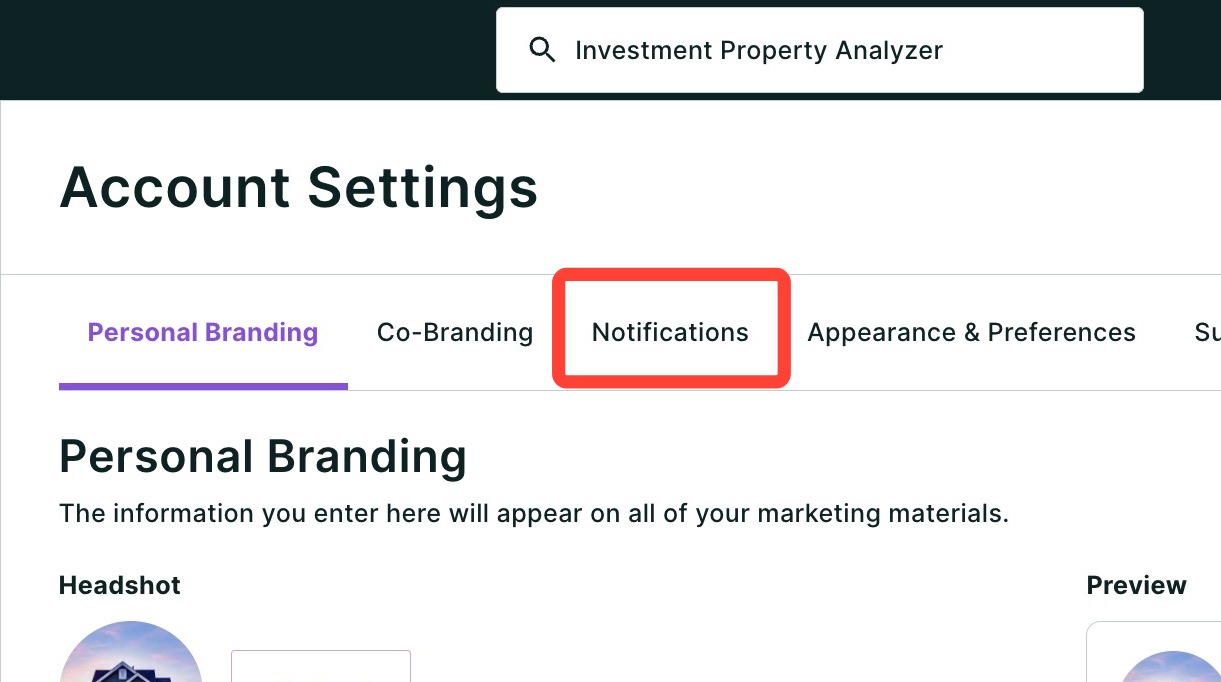
Every alert on this page is controlled by a toggle. Throughout the steps below:
- A purple toggle means the alert is ON.
- A grey toggle means the alert is OFF.
Voice Alerts
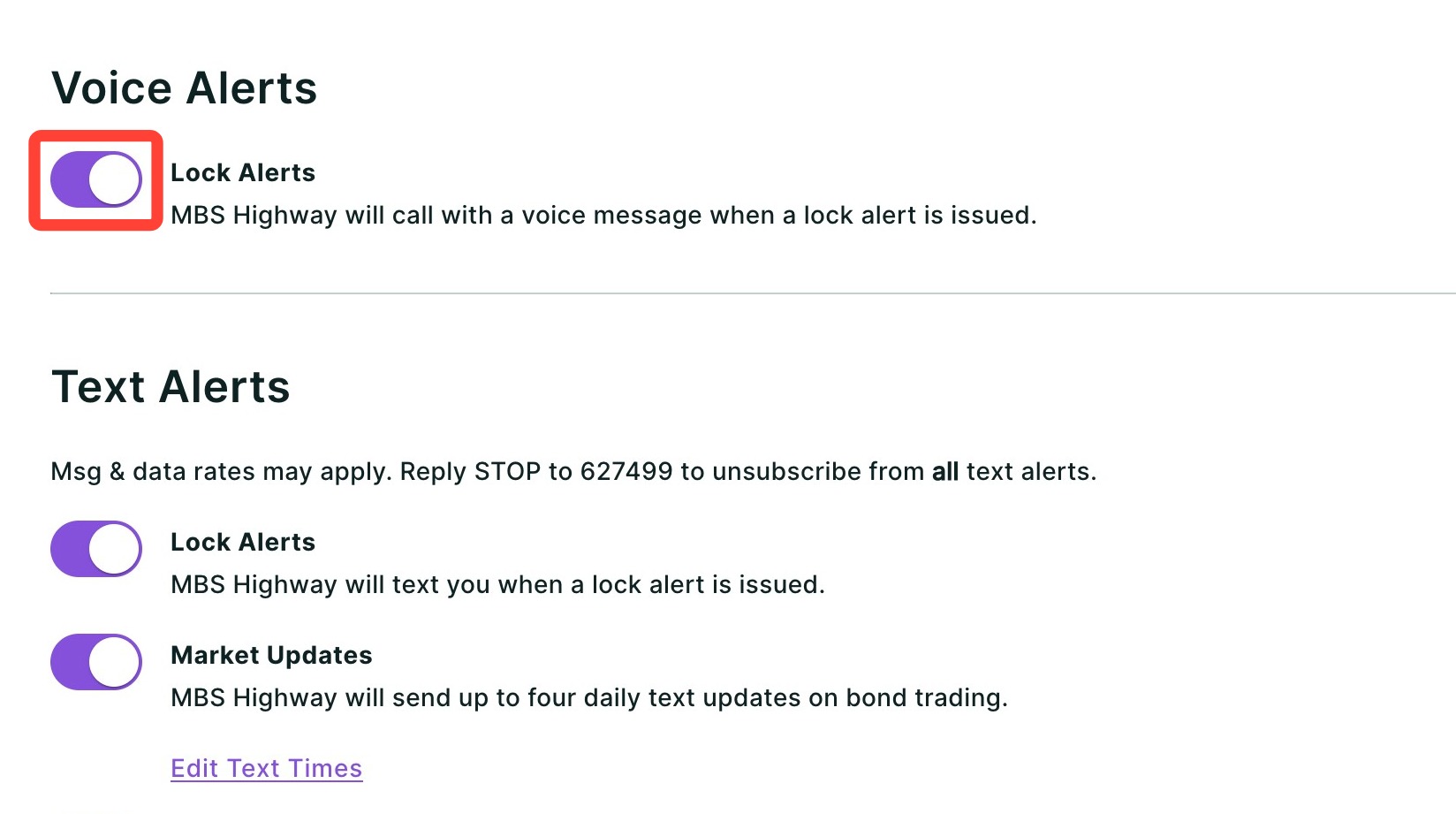
Voice Alerts call you directly with important market updates, such as lock or float opportunities. If you miss the call, a voicemail will be left so you can review the alert as soon as possible.
To enable or disable Voice Alerts, use the toggle next to Voice Alerts.
Please note: Voice Alerts are delivered as automated phone calls and may incur carrier charges depending on your mobile plan. Check with your provider if you are unsure about call or messaging rates. |
Text Alerts
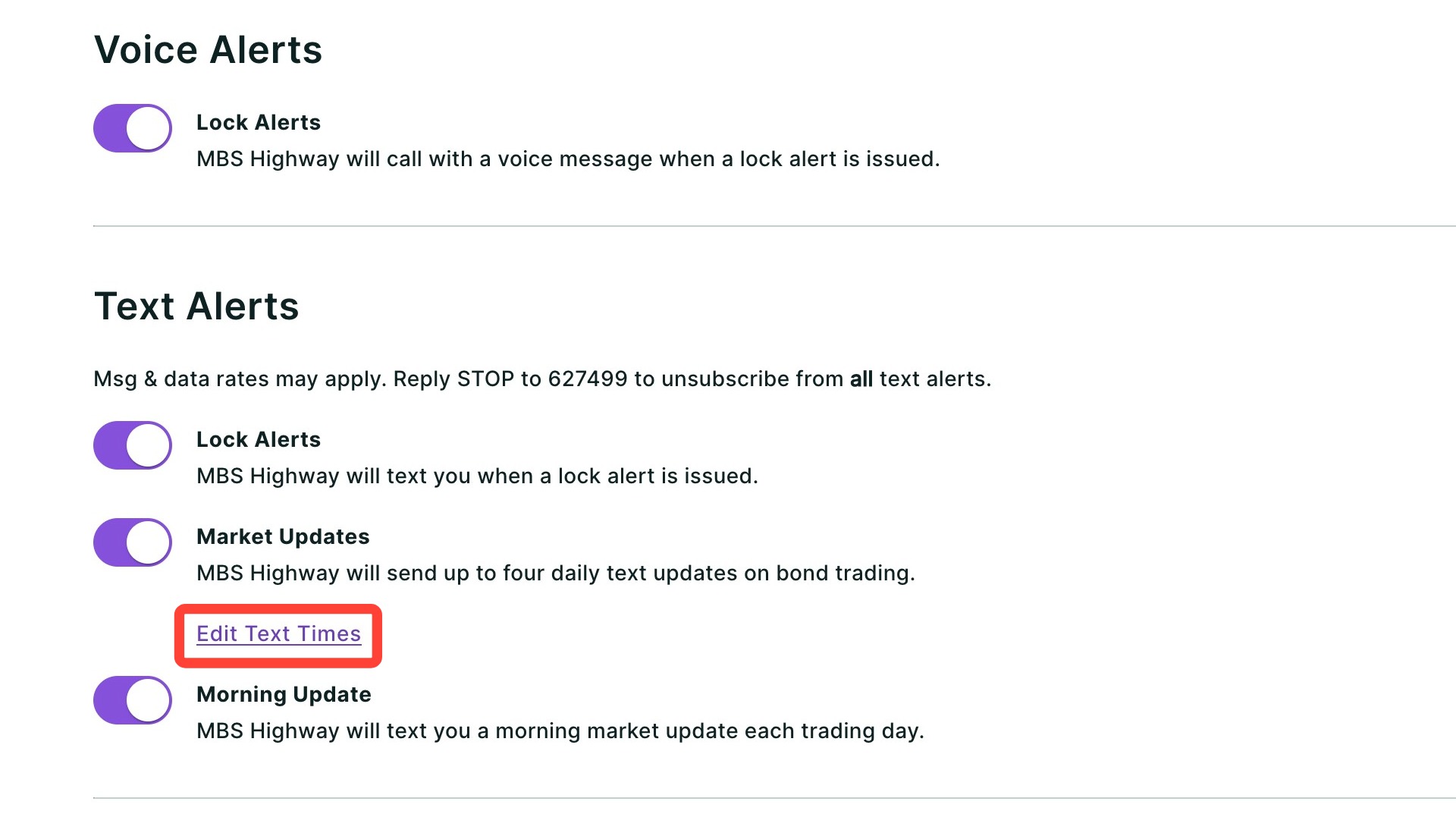
Text Alerts send you real-time updates via SMS, including lock alerts and bond market updates based on the times you select.
Lock Alerts
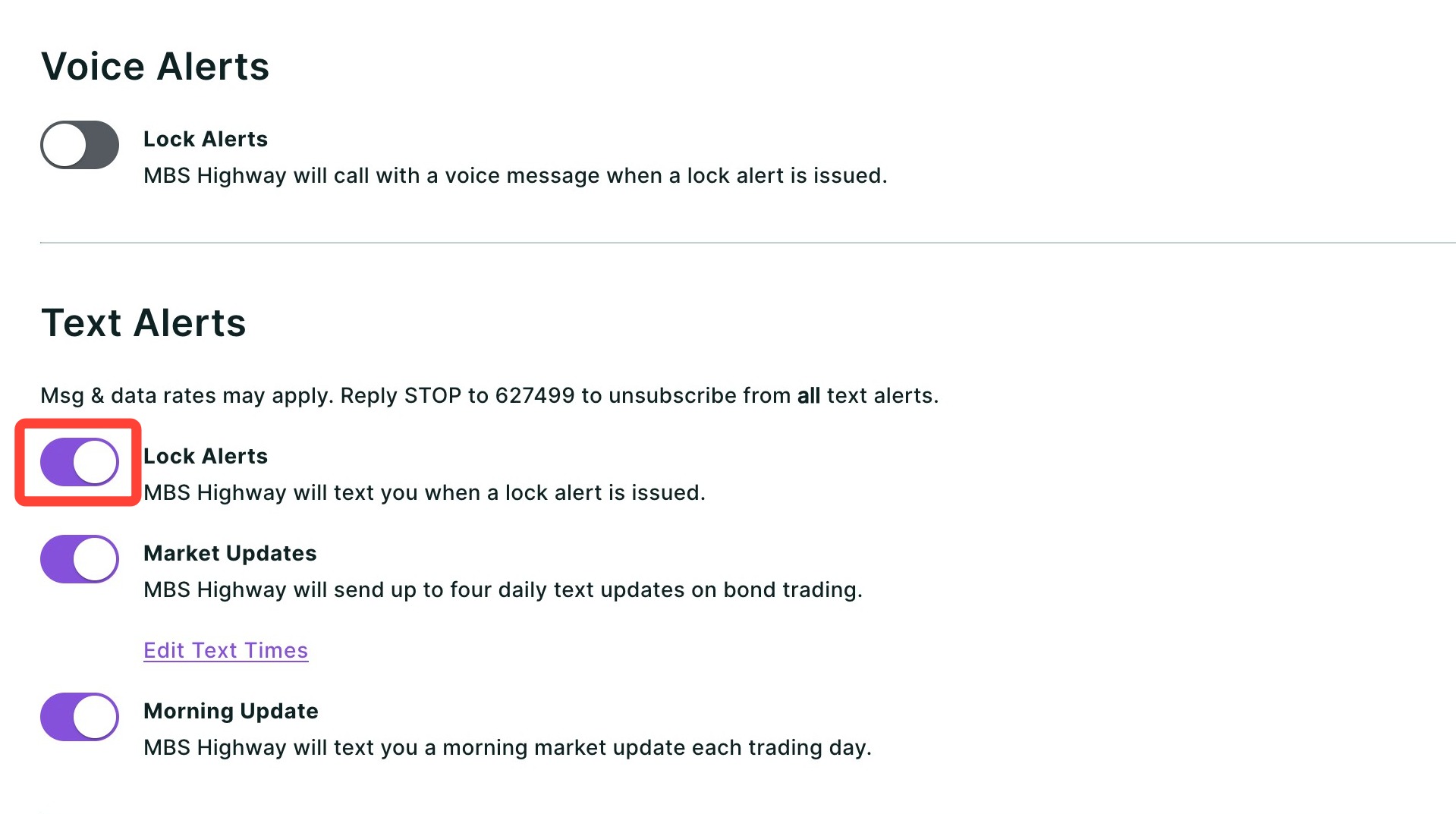
Turn on Lock Alerts to receive text notifications when it's a good time to lock your rates. Use the toggle seen below to turn on text messages for lock alerts.
Please note: Text alerts are sent via SMS and may incur carrier charges depending on your mobile plan. Message and data rates may apply. Check with your provider if you are unsure about your plan's messaging fees. |
Choosing Bond Market Text Alert Times
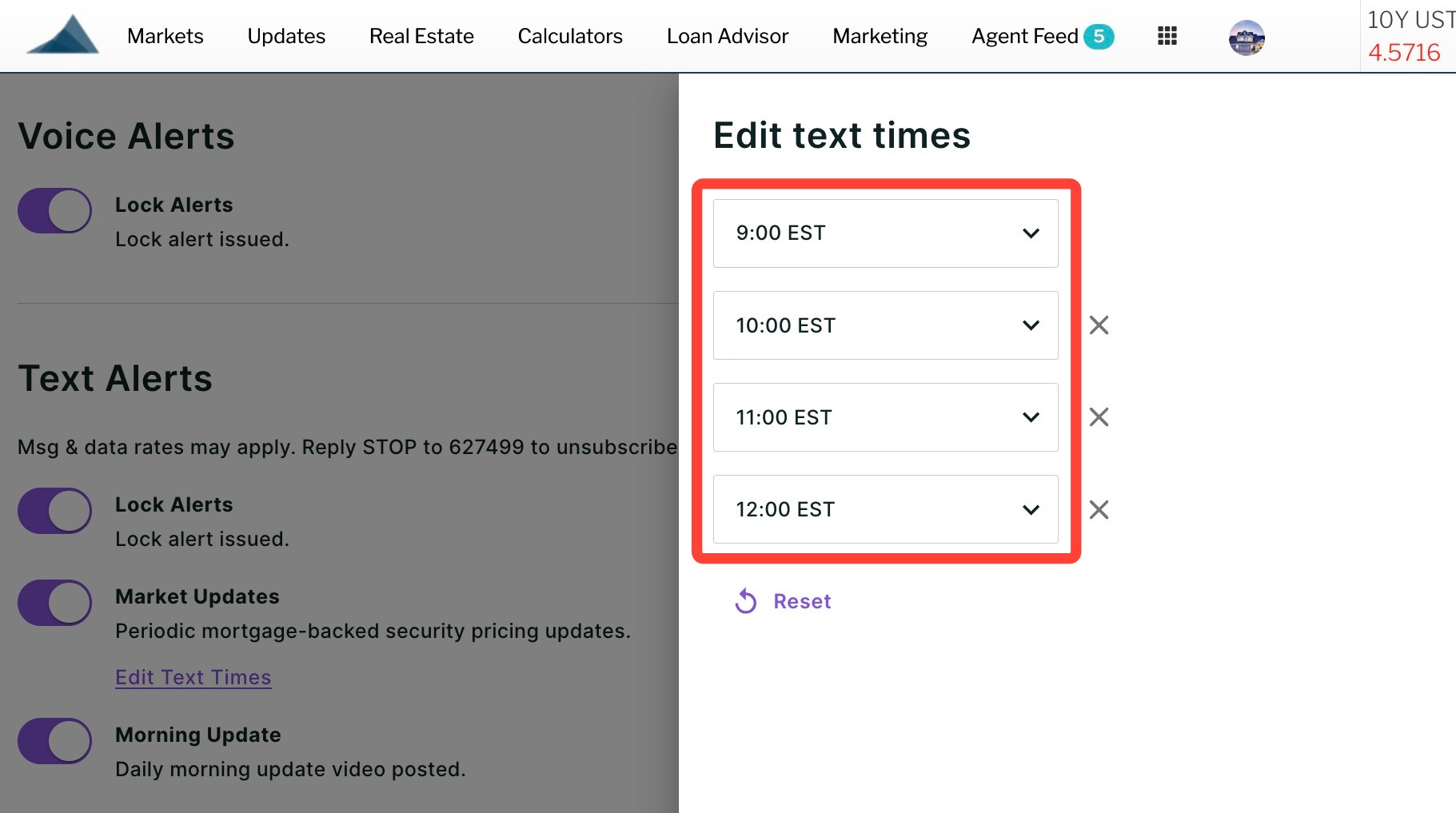
You can receive up to four daily text updates on bond trading at set time intervals. Follow the steps below:
- Click Edit Text Times.
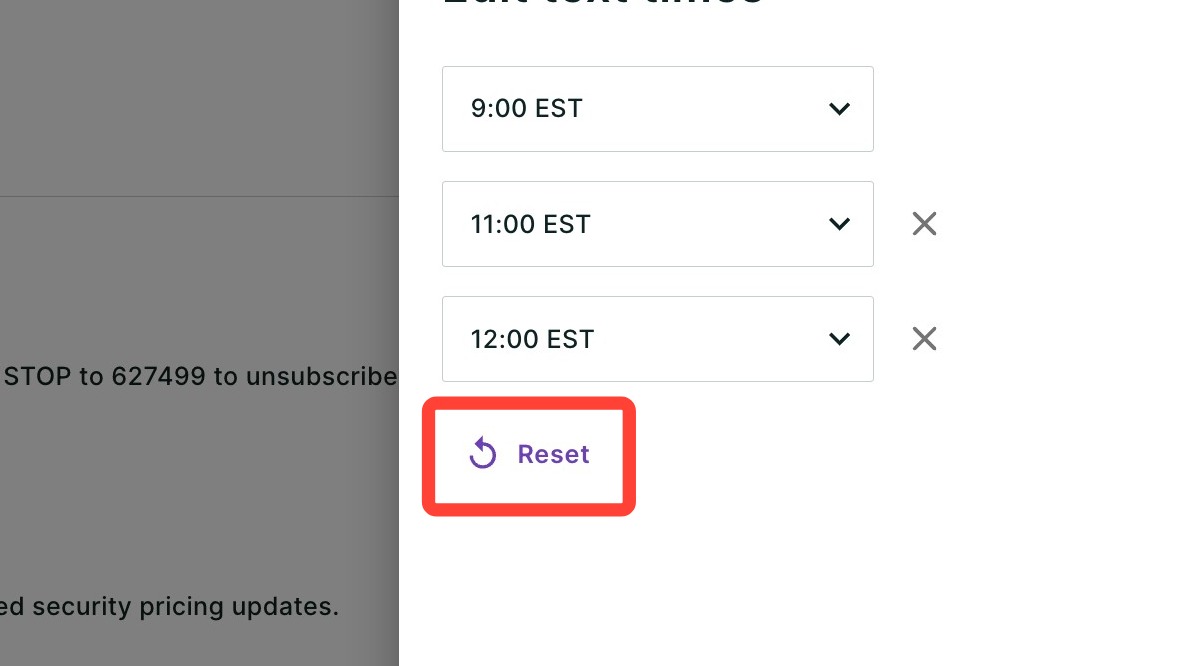
- Choose up to four times for alerts. To choose a time, click one of the drop-downs seen below.
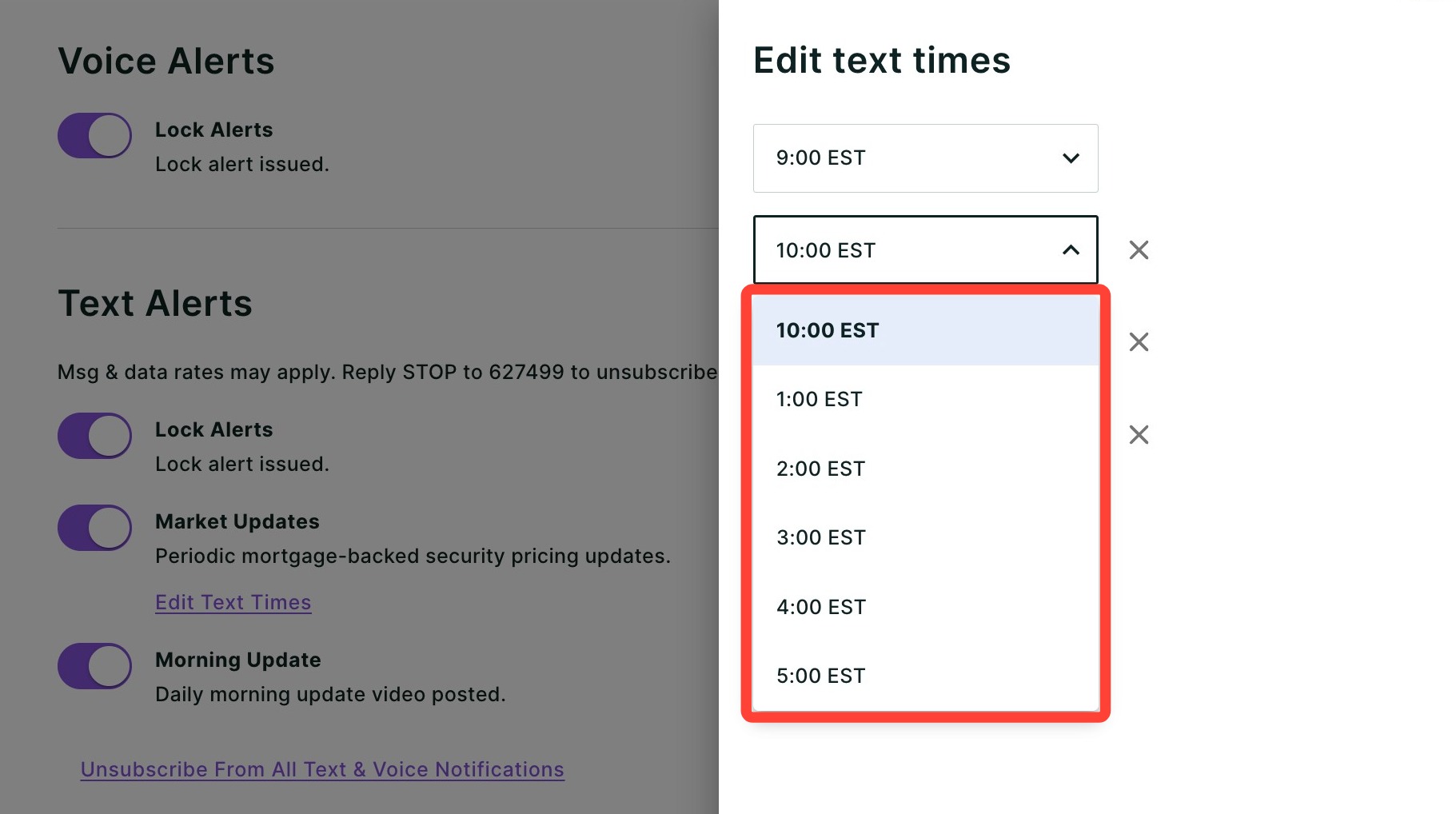
- Select the time at which you would like to receive a text alert.
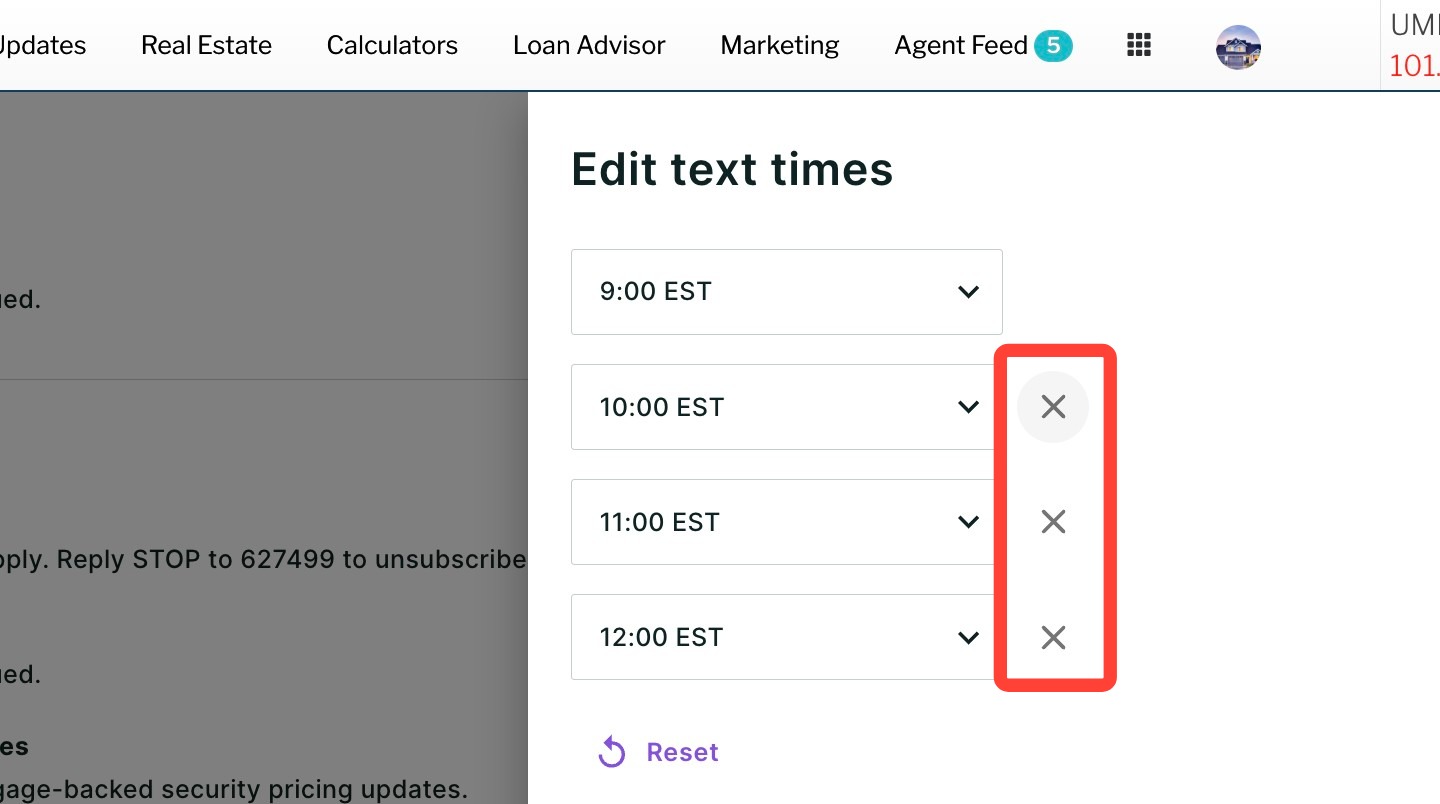
- To remove a text time, click the corresponding X.
- To add time slot options back, click Reset.
- Click Save.
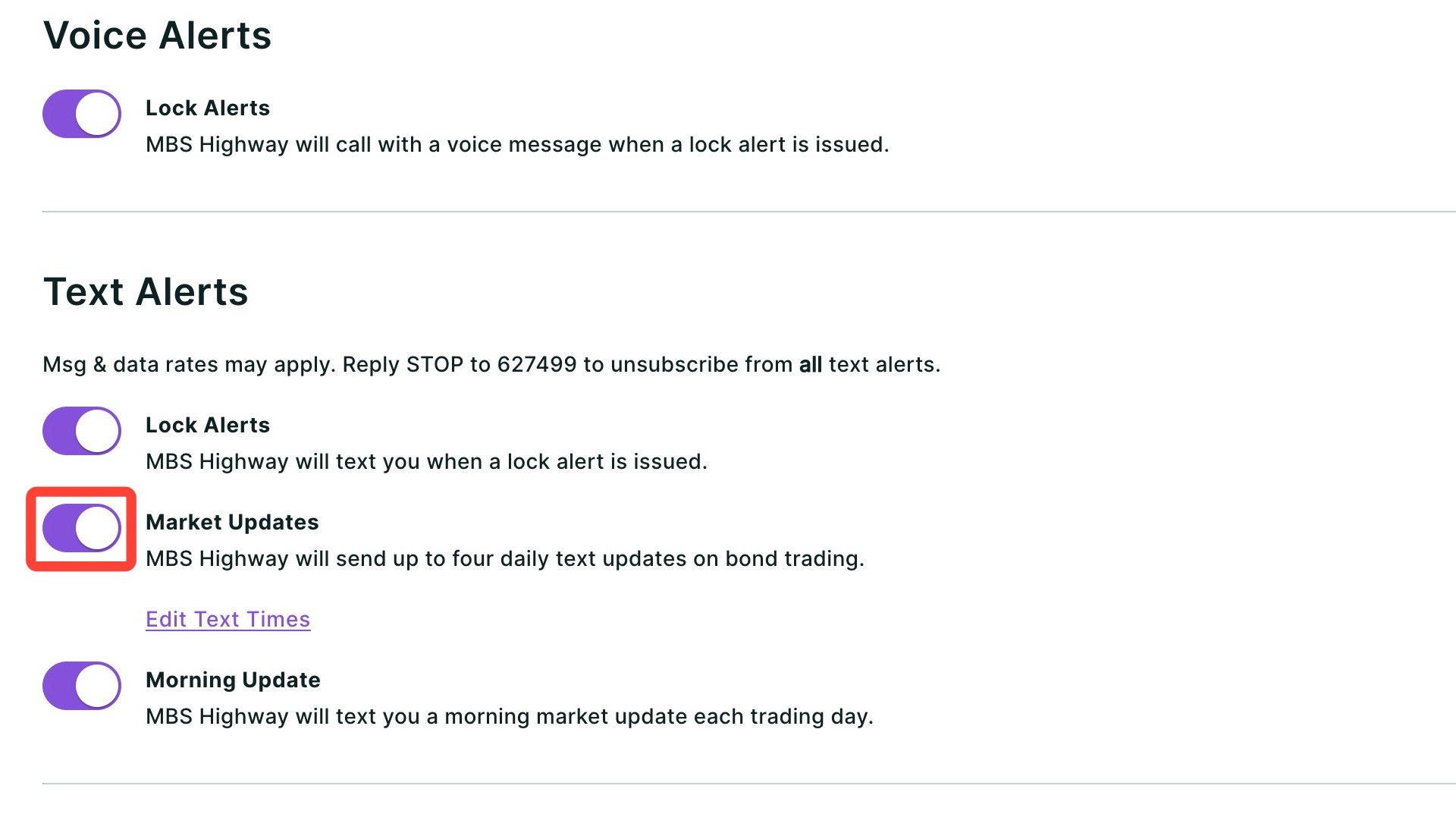
- Toggle on the Market Updates text alerts.
💡 Helpful Tip: You are not required to select all four time slots. Choose only the times that work best for your schedule, or remove any you no longer need by clicking the corresponding X. |
Get the Morning Update via Text
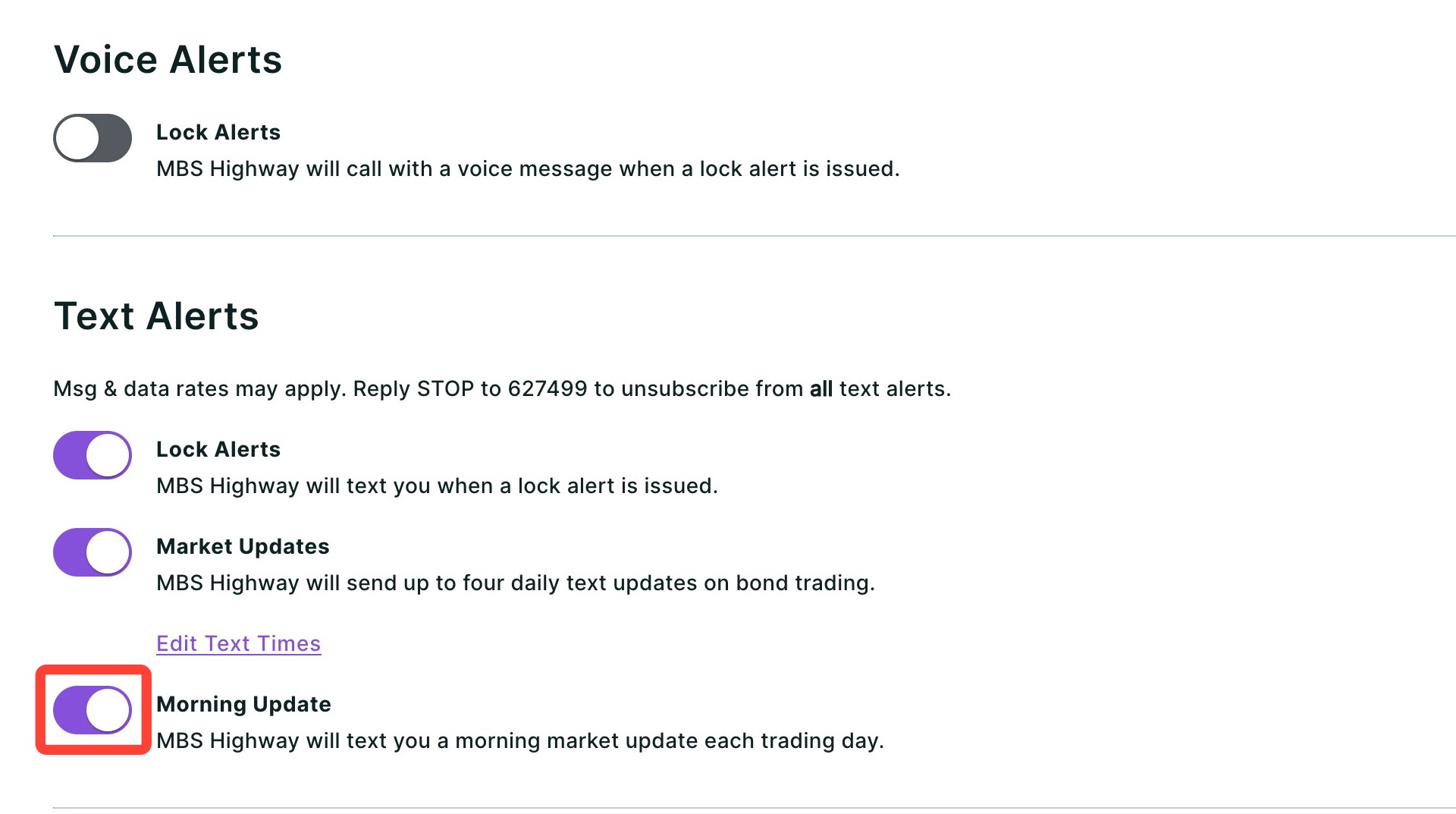
You can control whether you receive Morning Update videos via text message directly from your account settings. Use the toggle seen below to have your Morning Update videos delivered via text.
Strike Rate Notifications
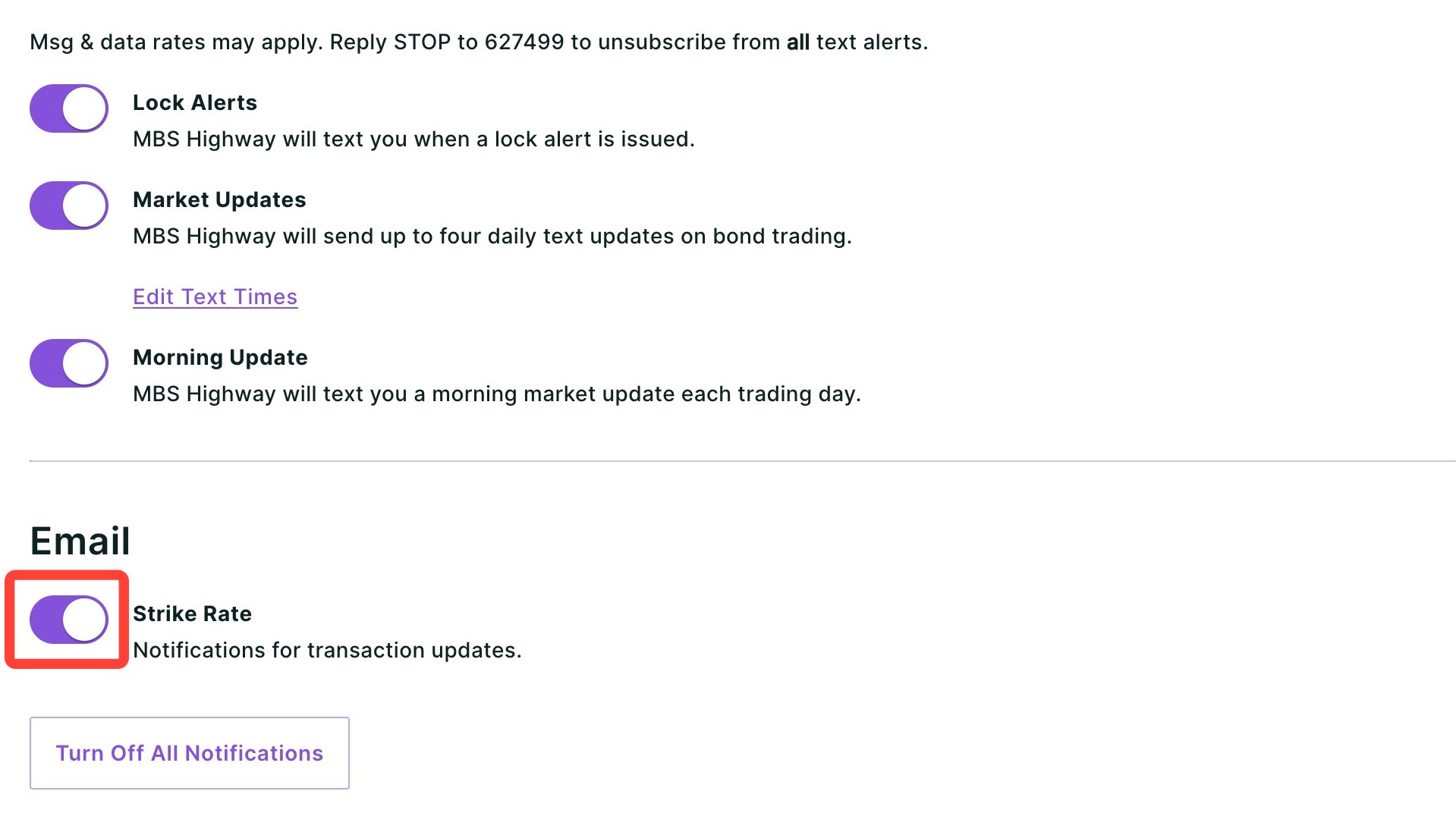
Staying ahead of refinance opportunities is one of the easiest ways to generate repeat business without chasing new leads. Turn on your Strike Rate email notifications so you're instantly alerted when a client becomes a strong refinance candidate, giving you the opportunity to reach out first and win the deal.
Toggle on the setting below to enable Strike Rate email notifications and start receiving alerts when refinance opportunities arise.
Turning Off Notifications
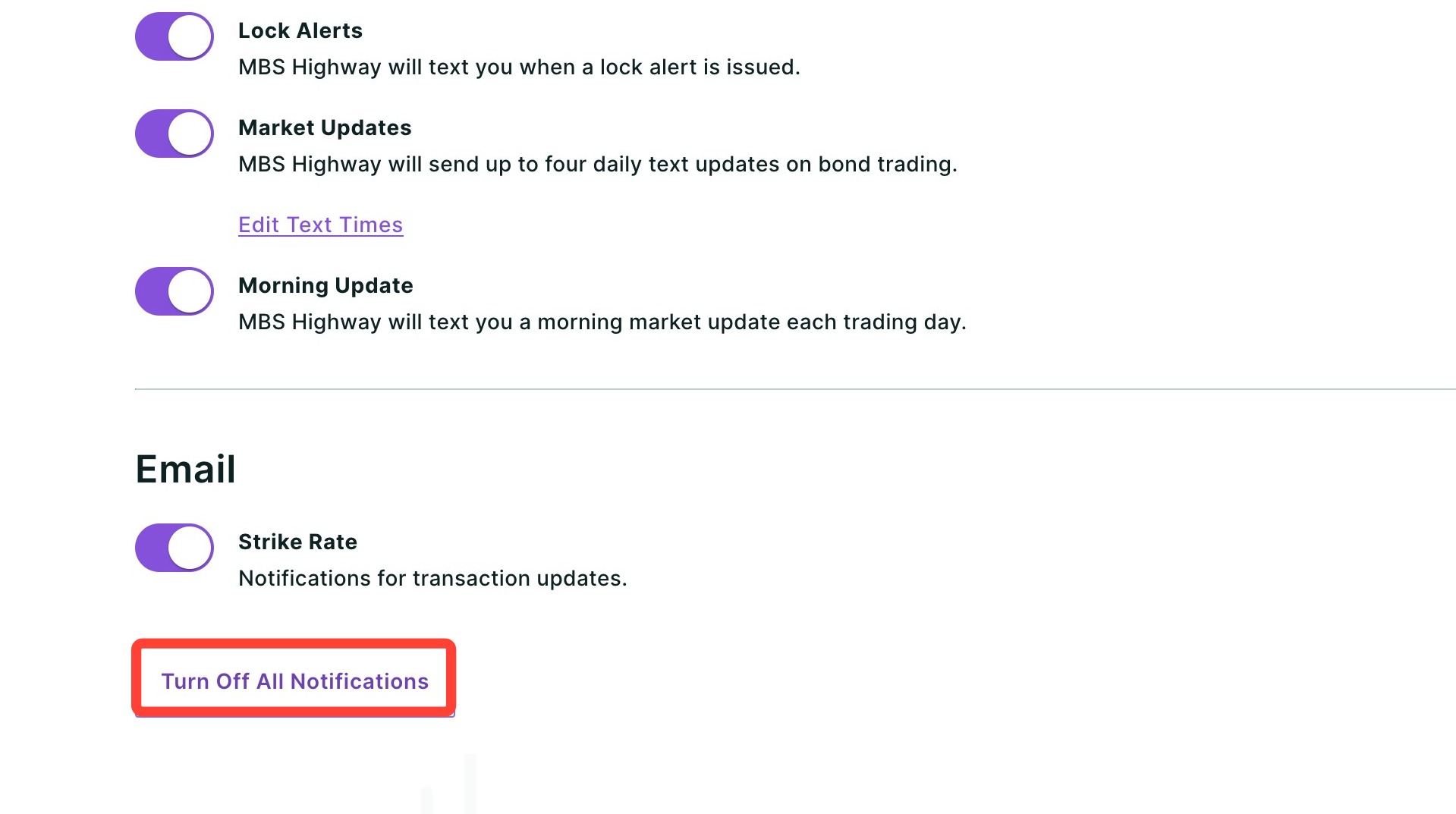
You can toggle off individual alerts. However, if you would like to turn off all notifications at once, use the Turn Off All Notifications button at the bottom of the page.
Need Help?
Have questions or want to learn more? Submit a ticket or call us today!
Related to